Section Introduction
Earlier, we introduced the five major layouts in Android. In this section, we will cover the sixth layout, AbsoluteLayout. The reason it is placed last is that we basically don't use absolute layout at all. Of course, you can also skip this blog post directly, but as a programmer who likes to expand their knowledge, we can still learn about this AbsoluteLayout. I believe most of you who have learned Java know that we have used this absolute layout in Java Swing (not Spring, mind you). But the reason we rarely use it in Android is that our applications need to be adapted to many device models. If you use this absolute layout, it may display normally on a 4-inch phone, but when switched to a 5-inch phone, offset and deformation may occur. Therefore, it is still not recommended. Of course, if you don't know how to write code but still want to play with Android, then when writing layouts, you can use ADT to drag and drop the needed components onto the interface! This AbsoluteLayout directly controls the position of components in the Activity through X, Y coordinates! Also, the unit is dp!
1. Four control properties (units are all dp):
① Control size: android:layout_width:Component widthandroid:layout_height:Component height② Control position: android:layout_x:Set the component's X coordinateandroid:layout_y:Set the component's Y coordinate
2. Usage example:
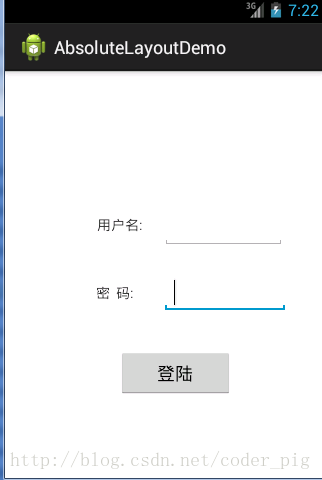
A simple login interface, created entirely by dragging and dropping on ADT. The code is not posted here:
① First set it to AbsoluteLayout (absolute layout):
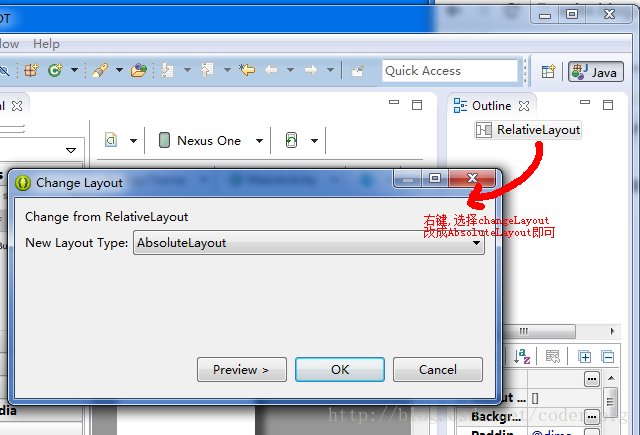
② Drag two TextViews, an EditText, and a button from the left onto the interface, moving them around until it looks better.
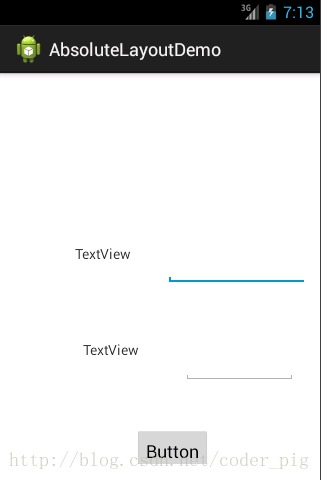
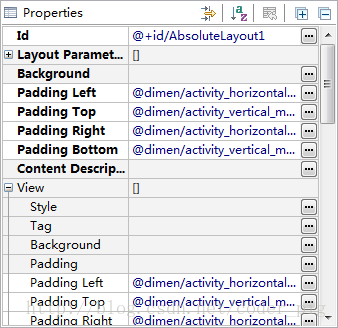
After dragging back and forth, it still ends up looking like this crappy mess. Probably it's an ADT issue. Next you can: ① Go into the code and modify the coordinates until it looks better. ② Of course, you can also directly set the coordinates on the right:
After modification:
Of course, maybe you don't like either of the above two methods. You want to drag and drop and then directly generate the correct code~!
Ok, no problem. I recommend you use a tool introduced earlier in the interface prototyping section: DroidDraw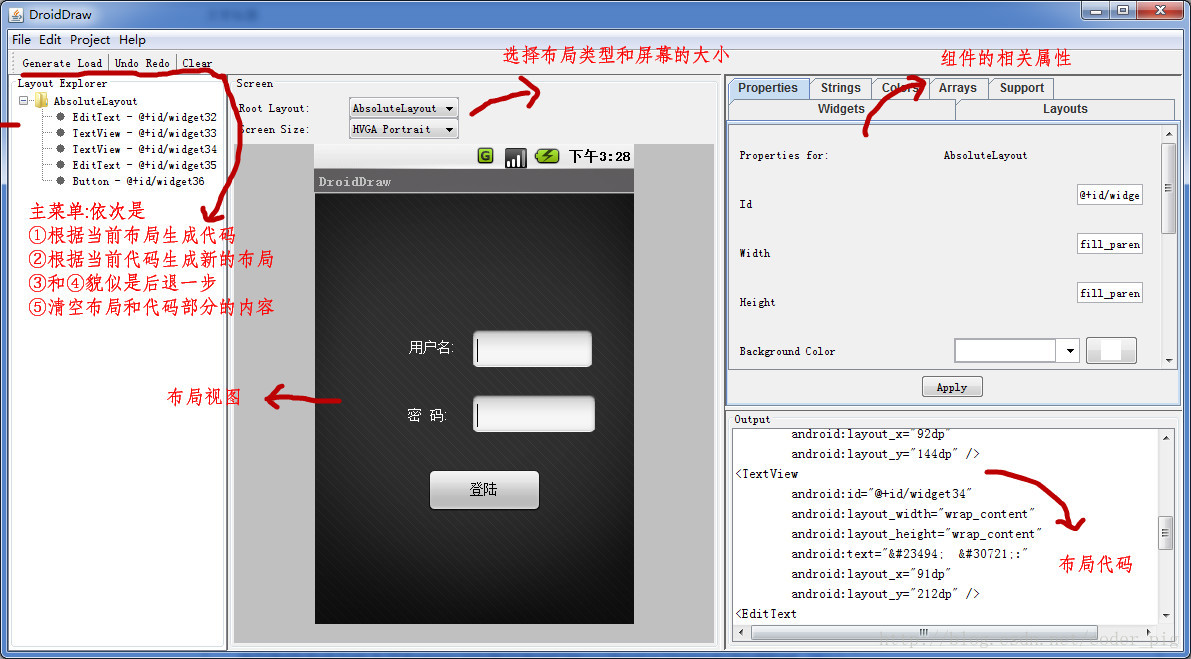
Section Summary
Alright, all six major layouts in Android have been introduced. Still, it is recommended to use: LinearLayout's weight attribute + RelativeLayout to build our interface~ Well, that's all for now, thanks~