Introduction to this section:
No rest on Saturday, I just got a buzz cut and came back, continuing to write code~
Okay, in this section we bring you the last section of Chapter 3 - Gestures. Friends who have used Meizu phones are surely familiar with gestures. Swiping inward from both sides of the Home button can open the background task list, etc. Using gestures to operate in an app can greatly improve user experience, such as the Scroll gesture to scroll in a browser, the Fling gesture to turn pages in a browser, and so on!
Of course, there are pros and cons. For example, improper gesture operations can cause the app to crash; doing this often will make users discontented! So whether to add gestures to your app requires careful consideration! Also, gestures should be distinguished from the single-finger/multi-finger touches learned earlier!
A gesture is a behavior of continuous touches, such as swiping the screen left/right/up/down, or drawing some irregular geometric shapes! Android provides support for both of the above gesture behaviors:
- Android provides gesture detection and corresponding listeners for gesture recognition!
- Android allows developers to add custom gestures and provides corresponding APIs to recognize user gestures!
If your phone is a native Android system of Android 4.x, you may be able to see an app called Gesture Builder provided by Google on your phone or tablet. This app allows users to draw a handwritten symbol in a way similar to doodling, and map it to a string name! Of course, it doesn't matter if you don't have such a phone; we have emulators. Just start a 4.0 system and you'll know. Also, we can go to \mmt\sdcard\gestures to get the saved gesture file! Okay, enough rambling, let's get down to business!
By the way, here is the official API documentation first:GestureDetector
1. Execution order of gesture interaction in Android
- 1. When a finger touches the screen, a MotionEvent event is triggered!
- 2. This event is listened to by OnTouchListener, and the MotionEvent object can be obtained in its onTouch() method!
- 3. The MotionEvent object is forwarded to OnGestureListener through GestureDetector
- 4. We can obtain the object through OnGestureListener, then get relevant information and do related processing!
Let's take a look at what the above three classes do:MotionEventMotionEvent: This class is used to encapsulate action events such as gestures, stylus, trackball, etc. It internally encapsulates two important properties, X and Y, which are used to record the coordinates of the horizontal and vertical axes respectively.GestureDetectorGestureDetector: Recognizes various gestures.OnGestureListenerOnGestureListener: This is a listener interface for gesture interaction, which provides multiple abstract methods and calls the corresponding methods according to the gesture recognition results of GestureDetector.
—The above information is excerpted from:http://www.jcodecraeer.com/a/anzhuokaifa/androidkaifa/2012/1020/448.html
2. GestureListener detailed explanation:
From 1, we know the key to listening to gestures is GestureListener. It provides us with the following callback methods:
- Press (onDown): The instant the finger just touches the touchscreen, that is the moment of touching.
- Fling (onFling): The action of the finger moving quickly across the touchscreen and then being lifted.
- Long press (onLongPress): The finger presses for a period of time without lifting.
- Scroll (onScroll): The finger slides on the touchscreen.
- Press (onShowPress): The finger presses on the touchscreen; its time range is after the down action takes effect and before long press.
- Lift (onSingleTapUp): The moment the finger leaves the touchscreen.
Now that we know the relevant methods of GestureListener, implementing gesture detection is also very simple, as follows:
- Step 1: Create a GestureDetector object; when creating it, you need to implement and pass in GestureListener.
- Step 2: Just hand over the TouchEvent events on the Activity or a specific component to GestureDetector for processing! Let's write a simple code to verify this process, that is, override the corresponding methods:
The code is as follows:
public class MainActivity extends AppCompatActivity {

    private MyGestureListener mgListener;
    private GestureDetector mDetector;
    private final static String TAG = "MyGesture";

    @Override
    protected void onCreate(Bundle savedInstanceState) {
        super.onCreate(savedInstanceState);
        setContentView(R.layout.activity_main);
        //实例化GestureListener与GestureDetector对象
        mgListener = new MyGestureListener();
        mDetector = new GestureDetector(this, mgListener);

    }

    @Override
    public boolean onTouchEvent(MotionEvent event) {
        return mDetector.onTouchEvent(event);
    }

    //自定义一个GestureListener,这个是View类下的,别写错哦!!!
    private class MyGestureListener implements GestureDetector.OnGestureListener {

        @Override
        public boolean onDown(MotionEvent motionEvent) {
            Log.d(TAG, "onDown:按下");
            return false;
        }

        @Override
        public void onShowPress(MotionEvent motionEvent) {
            Log.d(TAG, "onShowPress:手指按下一段时间,不过还没到长按");
        }

        @Override
        public boolean onSingleTapUp(MotionEvent motionEvent) {
            Log.d(TAG, "onSingleTapUp:手指离开屏幕的一瞬间");
            return false;
        }

        @Override
        public boolean onScroll(MotionEvent motionEvent, MotionEvent motionEvent1, float v, float v1) {
            Log.d(TAG, "onScroll:在触摸屏上滑动");
            return false;
        }

        @Override
        public void onLongPress(MotionEvent motionEvent) {
            Log.d(TAG, "onLongPress:长按并且没有松开");
        }

        @Override
        public boolean onFling(MotionEvent motionEvent, MotionEvent motionEvent1, float v, float v1) {
            Log.d(TAG, "onFling:迅速滑动,并松开");
            return false;
        }
    }

}
Screenshots of corresponding operations:
- 1. Press and release immediately:

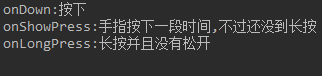
- 2. Press and hold, then release:
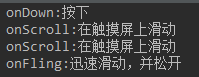
- 3. Gently slide and release at the same time:
- 4. Press and hold, then continuously perform a sliding operation:
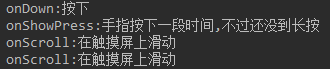
PS: From the above results, we found a problem: when we implement OnGestureListener, we need to implement all gesture methods. Maybe I only target sliding, but you still have to override them, which seems pretty silly, right? The official will definitely provide a solution. The officials also provide us with a SimpleOnGestureListener class; just replace the above OnGestureListener with SimpleOnGestureListener!
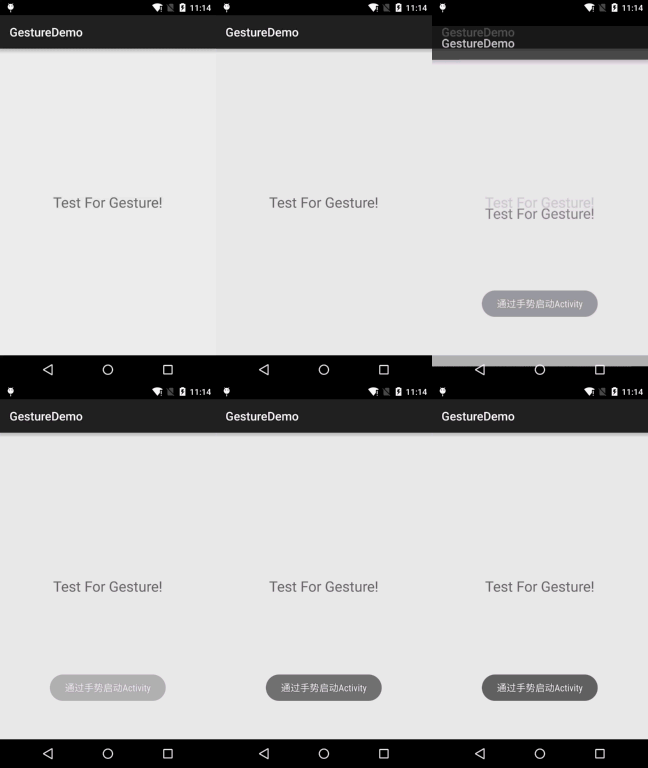
3. Simple example: swipe down to close Activity, swipe up to start a new Activity
Here, let's use the above-mentioned SimpleOnGestureListener to implement it:
Run effect screenshots:
Implementation code:
public class MainActivity extends AppCompatActivity {

    private GestureDetector mDetector;
    private final static int MIN_MOVE = 200;   //最小距离
    private MyGestureListener mgListener;


    @Override
    protected void onCreate(Bundle savedInstanceState) {
        super.onCreate(savedInstanceState);
        setContentView(R.layout.activity_main);
        //实例化SimpleOnGestureListener与GestureDetector对象
        mgListener = new MyGestureListener();
        mDetector = new GestureDetector(this, mgListener);
    }

    @Override
    public boolean onTouchEvent(MotionEvent event) {
        return mDetector.onTouchEvent(event);
    }

    //自定义一个GestureListener,这个是View类下的,别写错哦!!!
    private class MyGestureListener extends GestureDetector.SimpleOnGestureListener {

        @Override
        public boolean onFling(MotionEvent e1, MotionEvent e2, float v, float v1) {
            if(e1.getY() - e2.getY() > MIN_MOVE){
                startActivity(new Intent(MainActivity.this, MainActivity.class));
                Toast.makeText(MainActivity.this, "通过手势启动Activity", Toast.LENGTH_SHORT).show();
            }else if(e1.getY() - e2.getY()  < MIN_MOVE){
                finish();
                Toast.makeText(MainActivity.this,"通过手势关闭Activity",Toast.LENGTH_SHORT).show();
            }
            return true;
        }
    }

}
Result analysis:From the above comparison, we can see that compared with OnGestureListener, using SimpleOnGestureListener is much simpler: you can override whatever methods you want. Also, the example is relatively simple. You can try other tricks yourself, such as zooming images through gestures~
4. Gesture addition and recognition:
In addition to the gesture detection explained above, Android also allows us to add gestures, and provides related recognition APIs. In Android, GestureLibrary is used to represent the gesture library, and the GestureLibraries utility class is provided to create gesture libraries!
Four static methods for loading gesture libraries:
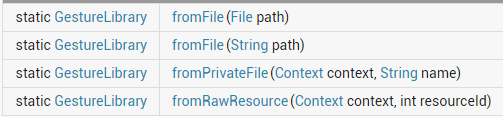
After obtaining the GestureLibraries object, you can use the following methods provided by this object to perform corresponding operations:
Related methods:
- public void addGestureaddGesture(String entryName, Gesture gesture): Add a gesture named entryName
- public Set<String> getGestureEntriesgetGestureNames(): Get the names of all gestures in the gesture library
- public ArrayList<Gesture> getGesturesgetGestures(String entryName): Get all gestures corresponding to the name entryName
- public ArrayList<Prediction> recognizerecognize(Gesture gesture): Recognize all gestures matching gesture from the current gesture library
- public void removeEntryremoveGesture(String entryName): Remove the gesture corresponding to the name entryName from the gesture library
- public void removeGestureremoveGesture(String entryName, Gesture gesture): Remove the gesture matching both entryName and gesture from the gesture library
- public abstract boolean savesave(): Call this method to save the gesture library after adding gestures to or deleting gestures from it
GestureOverlayView gesture editing component:
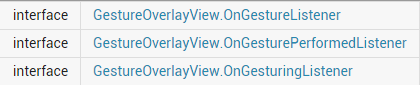
Android provides three listener interfaces for GestureOverlayView, as follows. The commonly used one is:OnGesturePerformedListenerOnGesturePerformedListener; used to provide a response when the gesture is completed!
5. Gesture addition example:
PS: The example references the code from Li Gang's "Crazy Android"
Run effect screenshots:
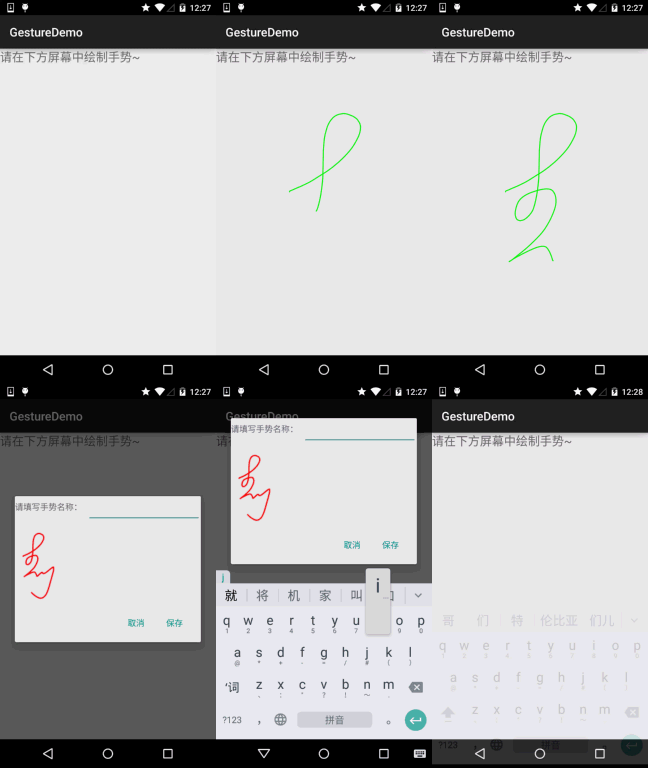
Alright, here is the implementation code:
Two layout files: activity_main.xml and dialog_save.xml
activity_main.xml
<LinearLayout xmlns:android="http://schemas.android.com/apk/res/android"
    xmlns:tools="http://schemas.android.com/tools"
    android:layout_width="match_parent"
    android:layout_height="match_parent"
    android:orientation="vertical"
    tools:context=".MainActivity">

    <TextView
        android:layout_width="match_parent"
        android:layout_height="wrap_content"
        android:text="请在下方屏幕中绘制手势~"
        android:textSize="20sp"/>


    <!-- gestureStrokeType控制手势是否需要一笔完成,multiple表示允许多笔-->
    <android.gesture.GestureOverlayView
        android:id="@+id/gesture"
        android:layout_width="match_parent"
        android:layout_height="match_parent"
        android:gestureStrokeType="multiple" />

</LinearLayout>
dialog_save.xml
<?xml version="1.0" encoding="utf-8"?>
<LinearLayout xmlns:android="http://schemas.android.com/apk/res/android"
    android:layout_width="match_parent"
    android:layout_height="match_parent"
    android:orientation="vertical">

    <LinearLayout
        android:layout_width="match_parent"
        android:layout_height="wrap_content"
        android:orientation="horizontal">
        <TextView
            android:layout_width="wrap_content"
            android:layout_height="wrap_content"
            android:layout_marginRight="8dp"
            android:text="请填写手势名称:"/>
        <EditText
            android:layout_width="match_parent"
            android:layout_height="wrap_content"
            android:id="@+id/edit_name"/>
    </LinearLayout>

    <ImageView
        android:id="@+id/img_show"
        android:layout_width="128dp"
        android:layout_height="128dp"
        android:layout_marginTop="10dp"/>

</LinearLayout>
MainActivity.java:
public class MainActivity extends AppCompatActivity {

    private EditText editText;
    private GestureOverlayView gesture;

    @Override
    protected void onCreate(Bundle savedInstanceState) {
        super.onCreate(savedInstanceState);
        setContentView(R.layout.activity_main);
        //获取手势编辑组件后,设置相关参数
        gesture = (GestureOverlayView) findViewById(R.id.gesture);
        gesture.setGestureColor(Color.GREEN);
        gesture.setGestureStrokeWidth(5);
        gesture.addOnGesturePerformedListener(new GestureOverlayView.OnGesturePerformedListener() {
            @Override
            public void onGesturePerformed(GestureOverlayView gestureOverlayView, final Gesture gesture) {
                View saveDialog = getLayoutInflater().inflate(R.layout.dialog_save,null,false);
                ImageView img_show = (ImageView) saveDialog.findViewById(R.id.img_show);
                final EditText edit_name = (EditText) saveDialog.findViewById(R.id.edit_name);
                Bitmap bitmap = gesture.toBitmap(128,128,10,0xffff0000);
                img_show.setImageBitmap(bitmap);
                new AlertDialog.Builder(MainActivity.this).setView(saveDialog)
                        .setPositiveButton("保存",new DialogInterface.OnClickListener()
                        {
                            @Override
                            public void onClick(DialogInterface dialogInterface, int i) {
                                //获取文件对应的手势库
                                GestureLibrary gestureLib = GestureLibraries.fromFile("/mnt/sdcard/mygestures");
                                gestureLib.addGesture(edit_name.getText().toString(),gesture);
                                gestureLib.save();
                            }
                        }).setNegativeButton("取消", null).show();
            }
        });
    }
}
Finally, you also need to add the permission to write to the SD card in AndroidManifest.xml:
<uses-permission android:name="android.permission.WRITE_EXTERNAL_STORAGE"/>
6. Gesture recognition example
Implementation code:
public class MainActivity extends AppCompatActivity {

    private GestureOverlayView gesture;
    private GestureLibrary gestureLibrary;
    private Context mContext;

    @Override
    protected void onCreate(Bundle savedInstanceState) {
        super.onCreate(savedInstanceState);
        setContentView(R.layout.activity_main);
        mContext = MainActivity.this;
        gestureLibrary = GestureLibraries.fromFile("mmt/sdcard/mygestures");
        if (gestureLibrary.load()) {
            Toast.makeText(mContext, "手势库加载成功", Toast.LENGTH_SHORT).show();
        } else {
            Toast.makeText(mContext, "手势库加载失败", Toast.LENGTH_SHORT).show();
        }

        //获取手势编辑组件后,设置相关参数
        gesture = (GestureOverlayView) findViewById(R.id.gesture);
        gesture.setGestureColor(Color.GREEN);
        gesture.setGestureStrokeWidth(5);
        gesture.addOnGesturePerformedListener(new GestureOverlayView.OnGesturePerformedListener() {
            @Override
            public void onGesturePerformed(GestureOverlayView gestureOverlayView, final Gesture gesture) {
                //识别用户刚绘制的手势
                ArrayList<Prediction> predictions = gestureLibrary.recognize(gesture);
                ArrayList<String> result = new ArrayList<String>();
                //遍历所有找到的Prediction对象
                for (Prediction pred : predictions) {
                    if (pred.score > 2.0) {
                        result.add("与手势【" + pred.name + "】相似度为" + pred.score);
                    }
                }
                if (result.size() > 0) {
                    ArrayAdapter<Object> adapter = new ArrayAdapter<Object>(mContext,
                            android.R.layout.simple_dropdown_item_1line, result.toArray());
                    new AlertDialog.Builder(mContext).setAdapter(adapter,null).setPositiveButton("确定",null).show();
                }else{
                    Toast.makeText(mContext,"无法找到匹配的手势!",Toast.LENGTH_SHORT).show();
                }
            }
        });
    }
}
Also, don't forget to add the permission to read the SD card in the AndroidManifest.xml file:
<uses-permission android:name="android.permission.READ_EXTERNAL_STORAGE"/>
Section summary:
Okay, this section introduced Gestures in Android, covering three aspects: gesture detection, gesture addition, and gesture recognition. Most examples come from Teacher Li Gang's "Crazy Android" tutorial. If you're interested, you can check out that book. Thanks!