Introduction
This section introduces the knowledge points of WebView downloading files. When we use a normal browser, such as UC, and we click on a downloadable link, it will start downloading. As a browser-like component, WebView certainly supports downloading as well. We can write our own download process, set where the downloaded files are placed, and what filename to save them under. Of course, we can also call other built-in browsers to download, such as Chrome, UC, etc. Below is a demonstration of how to use it!
1. Call other browsers to download files:
This is very simple. We just need to set a DownloadListener for the WebView, then override the DownloadListener's onDownloadStart method. Inside it, we create an Intent and then startActivity the corresponding Activity. That's it!
The key code is as follows::
wView.setDownloadListener(new DownloadListener(){
@Override
public void onDownloadStart(String url, String userAgent, String contentDisposition,
    String mimetype, long contentLength) {
        Log.e("HEHE","开始下载");
        Uri uri = Uri.parse(url);
        Intent intent = new Intent(Intent.ACTION_VIEW,uri);
        startActivity(intent);
    }
});
If there are multiple browsers on your phone, a dialog will open for you to choose one of the browsers to download with.
2. Write your own thread to download files
Of course, you may not want to place downloaded files in the default path, or you may want to define the filename yourself, etc. You can write a thread yourself to download files. The sample implementation code is as follows:
Core code:
We separately write a download thread class:
DownLoadThread.java
/**
 * Created by Jay on 2015/9/14 0014.
 */
public class DownLoadThread implements Runnable {

    private String dlUrl;

    public DownLoadThread(String dlUrl) {
        this.dlUrl = dlUrl;
    }

    @Override
    public void run() {
        Log.e("HEHE", "开始下载~~~~~");
        InputStream in = null;
        FileOutputStream fout = null;
        try {
            URL httpUrl = new URL(dlUrl);
            HttpURLConnection conn = (HttpURLConnection) httpUrl.openConnection();
            conn.setDoInput(true);
            conn.setDoOutput(true);
            in = conn.getInputStream();
            File downloadFile, sdFile;
            if (Environment.getExternalStorageState().equals(Environment.MEDIA_MOUNTED)) {
                Log.e("HEHE","SD卡可写");
                downloadFile = Environment.getExternalStorageDirectory();
                sdFile = new File(downloadFile, "csdn_client.apk");
                fout = new FileOutputStream(sdFile);
            }else{
                Log.e("HEHE","SD卡不存在或者不可读写");
            }
            byte[] buffer = new byte[1024];
            int len;
            while ((len = in.read(buffer)) != -1) {
                fout.write(buffer, 0, len);
            }
        } catch (Exception e) {
            e.printStackTrace();
        } finally {
            if (in != null) {
                try {
                    in.close();
                } catch (IOException e) {
                    e.printStackTrace();
                }
            }
            if (fout != null) {
                try {
                    fout.close();
                } catch (IOException e) {
                    e.printStackTrace();
                }
            }
        }
        Log.e("HEHE", "下载完毕~~~~");
    }
}
ThenMainActivity.javacreate and start the thread in:
wView.setDownloadListener(new DownloadListener(){
    @Override
    public void onDownloadStart(String url, String userAgent, String contentDisposition,
    String mimetype, long contentLength) {
            Log.e("HEHE","onDownloadStart被调用:下载链接:" + url);
            new Thread(new DownLoadThread(url)).start();
    }
});
Running result:

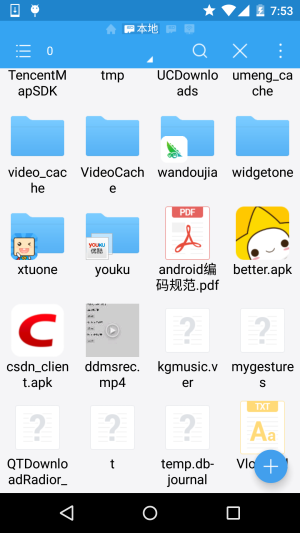
When we open the SD card, we can see that the downloaded files are already lying quietly in the SD card:
Notes:
Okay, in addition, don't forget to add the SD card read/write permission and the Internet access permission:
<uses-permission android:name="android.permission.INTERNET"/>
<!-- 在SDCard中创建与删除文件权限 -->
<uses-permission android:name="android.permission.MOUNT_UNMOUNT_FILESYSTEMS"/>
<!-- 往SDCard写入数据权限 -->
<uses-permission android:name="android.permission.WRITE_EXTERNAL_STORAGE"/>
Also,in = conn.getInputStream(); must be placed after all the conn settings are finished!! Remember, otherwise you won't be able to read anything!
Summary:
This section is very simple, so the code will not be posted. Actually, it's just the setDownloadListener thing; we override the onDownloadStart method to handle the download process. That's all for this section. Thanks~