Introduction to this section:
In the previous 13 subsections, we explained in detail most of the commonly used APIs of the Paint class in Android. Starting from this section, we will explain some common APIs of Canvas (drawing board). We have already listed some of the methods we can call in
8.3.1 Detailed Explanation of the Three Drawing Tool Classes Let's classify them:
- drawXxx method family: Draw in the current drawing area with certain coordinate values. In addition, layers will be superimposed, that is, layers drawn later will cover layers drawn earlier.
- clipXXX method family: Clip a new drawing area from the current drawing area. This drawing area becomes the current drawing area of the canvas object. For example: clipRect(new Rect()), then this rectangular area becomes the current drawing area of the canvas.
- getXxx method family: Get some values related to Canvas, such as width, height, screen density, etc.
- save(),restore(),saveLayer(),restoreToCount() and other methods for saving and restoring layers
- translate(translation),scale(scaling),rotate(rotation),skew(skewing)
Of course, there are also some other scattered methods. Well, starting from this section, I will pick some APIs that seem interesting to learn.
And in this section, I will first bring youtranslate(translation),scale(scaling),rotate(rotation),skew(skewing)save(),restoreand
the detailed explanation of ()!Canvas
Official API documentation:
1. translate (translation)
1. translate (translation):translate(float dx, float dy)
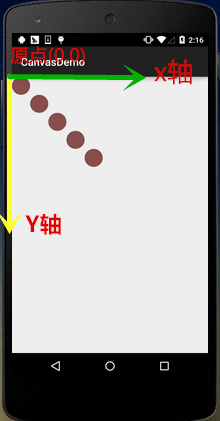
MethodExplanation: Translation. Move the canvas'scoordinate origin
move x in the left-right direction and y in the up-down direction. The canvas default position is at (0,0).Parameter
: dx is the moving distance in the horizontal direction, and dy is the moving distance in the vertical direction.:
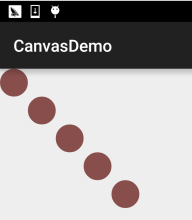
for(int i=0; i < 5; i++) {
    canvas.drawCircle(50, 50, 50, mPaint);
    canvas.translate(100, 100);
}
Usage example:
2. rotate (rotation)
2. rotate (rotation):rotate(float degrees) / rotate(float degrees, float px, float py)
MethodExplanation
: Rotate degrees degrees around the coordinate origin. Positive value means clockwise.Parameter
: degrees is the rotation angle, and px and py specify the center point coordinates of rotation (px, py).:
Rect rect = new Rect(50,0,150,50);
canvas.translate(200, 200);
for(int i = 0; i < 36;i++){
    canvas.rotate(10);
    canvas.drawRect(rect, mPaint);
}
Usage example:
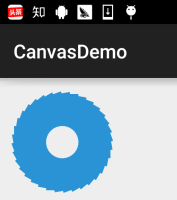
Running effect:
Code analysis
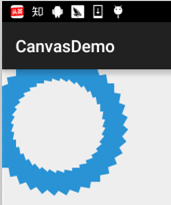
Here we first call translate(200, 200) to move the canvas's coordinate origin to (200, 200), and then draw. Therefore, our drawing result can be completely displayed on the canvas. If we had set rotate(10, 200, 200), the result would be like this:
3. scale (scaling)
3. scale (scaling):scale(float sx, float sy) / scale(float sx, float sy, float px, float py)
MethodExplanation
: Scale the canvas.Parameter: sx is the horizontal scaling ratio, and sy is the vertical scaling ratio. I don't know about px and py either., Decimals mean reduction
Integers mean enlargement:
canvas.drawBitmap(bmp,0,0,mPaint);
canvas.scale(0.8f, 0.8f);
canvas.drawBitmap(bmp, 0, 0, mPaint);
canvas.scale(0.8f, 0.8f);
canvas.drawBitmap(bmp,0,0,mPaint);
Usage example:

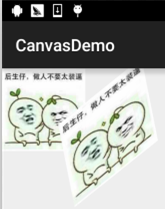
4. skew (skewing)
4. skew (skewing):skew(float sx, float sy)
MethodExplanation
: Skew, which can also be translated as slanting or distorting.Parameter
: sx is the corresponding angle of tilt in the x-axis direction, and sy is the corresponding angle of tilt in the y-axis direction. Both values are tan values! Both are tan values! Both are tan values! For example, to tilt 60 degrees in the x-axis direction, the decimal value corresponds to: tan 60 = square root of 3 = 1.732!:
canvas.drawBitmap(bmp,0,0,mPaint);
canvas.translate(200, 200);
canvas.skew(0.2f,-0.8f);
canvas.drawBitmap(bmp,0,0,mPaint);
Usage example:
5. The concept of Canvas layers and detailed explanation of save() and restore()
5. Concept of Canvas layers and detailed explanation of save() and restore()
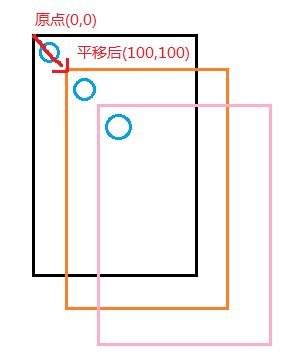
We generally like to call Canvas a drawing board. You may always think Canvas is just a simple piece of drawing paper. Then I want to ask: how are multi-layer animations completed with Canvas? In the translate translation example above, why does drawCircle(50, 50, 50, mPaint); with the reference coordinate always being (50, 50) produce such an effect? Students with doubts may have been confusing the concept of the screen with the concept of Canvas. Let's now reconstruct the scene of calling translate:
As shown in the figure, each time the canvas coordinate origin moves 100 on the x and y axes respectively. So if we want to go back to (0,0) to draw a new figure, how can we do it? Slowly translate back with translate(-100, -100)? It can't really be that troublesome...
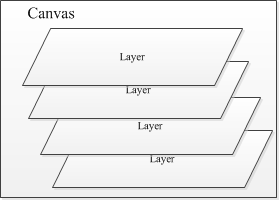
Alright, let's not keep you in suspense. We can save the current canvas state before doing the translation transformation. In fact, Canvas provides us with support for layers, and these layers are managed according to a "stack structure".save()When we call
method, it saves the current Canvas state and then adds it as a Layer to the Canvas stack. In addition, this Layer is not a concrete class; it is just a conceptual thing!restore()And when we call
method, it restores the previous Canvas state. At this point, the Canvas's layer stack pops the top Layer, and the subsequent Layer comes to the top of the stack. The Canvas then restores to the Canvas state saved when this top Layer was pushed.In simple terms,: save() pushes a Layer onto the stack, and restore() pops a Layer from the top of the stack. This Layer represents the state of the Canvas!That is to say, you can call save() multiple times and restore() multiple times, but the number of restore callscannot be greater than
save, otherwise an error will be triggered! This is what most people say online, but in actual testing this problem did not occur. Even if I restore more times than save, no error occurs. It seems the system has changed. I will test it for you later.

Come on, let's write an example to verify the effect of save and restore!:
Write an example:
canvas.save();  //保存当前canvas的状态

canvas.translate(100, 100);
canvas.drawCircle(50, 50, 50, mPaint);

canvas.restore();  //恢复保存的Canvas的状态
canvas.drawCircle(50, 50, 50, mPaint);
Example code:

Running result
No need to say anything, right? The code and results have explained everything. Next, let's make it a bit more complicated and do multiple save() and restore() calls!
canvas.save();

canvas.translate(300, 300);
canvas.drawBitmap(bmp, 0, 0, mPaint);
canvas.save();

canvas.rotate(45);
canvas.drawBitmap(bmp, 0, 0, mPaint);
canvas.save();

canvas.rotate(45);
canvas.drawBitmap(bmp, 0, 0, mPaint);
canvas.save();

canvas.translate(0, 200);
canvas.drawBitmap(bmp, 0, 0, mPaint);
Example code::
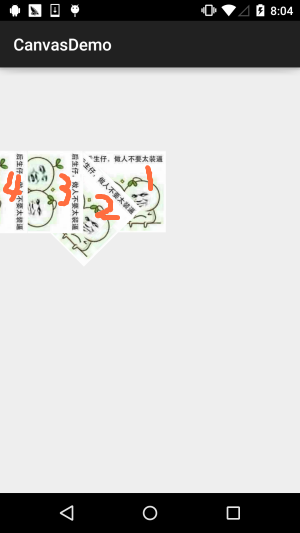
Running result:
Result analysis
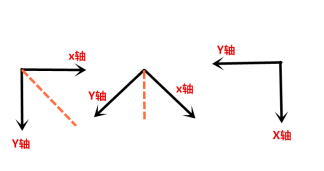
First translate(300, 300) and draw, then rotate 45 degrees and draw, then rotate 45 degrees again and draw, then translate(0, 200). During this period, we call save() before each drawing. Seeing this, you may have a question: this last translation moves y by 200, right? Why did it become moving to the left? Hehe, let me tell you: rotate() rotates the entire coordinate axis! The changes of the coordinate axis:
canvas.restore();
canvas.restore();
canvas.translate(0, 200);
canvas.drawBitmap(bmp, 0, 0, mPaint);
Well, now you understand rotate(), right? That's good. Next, let's try restore. We'll add two restore() calls before the final drawing!:
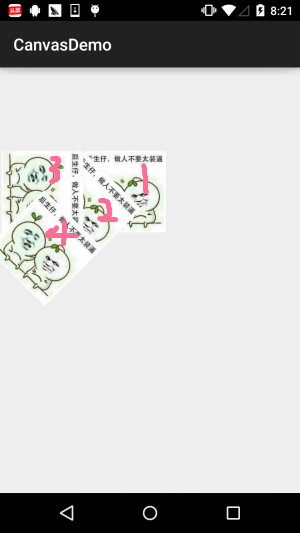
Running resultrestore()!
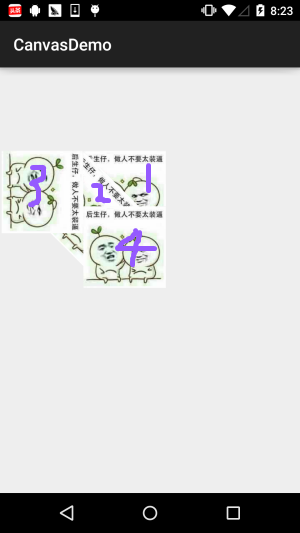
I won't say anything. Experience it yourself. Add a few morerestore()
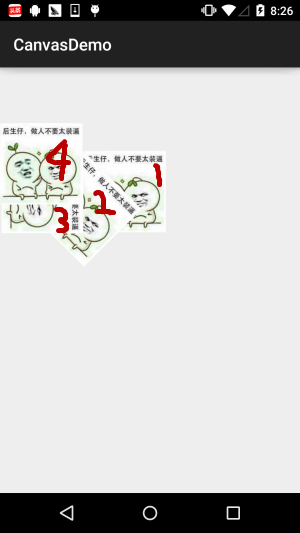
A bit interesting. Again, continue adding.restoreWell, it seems we can no longer writegetSaveCount()right? Because we only called save four times. According to what people say online, this should report an error. Is that really so? Here we call a method provided by Canvas to get how many Layers are currently in the stack:
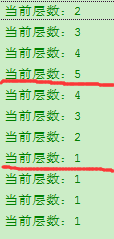
; then add a Log before and after save() and restore() to print the number of Layers in the stack:
6. Explanation of saveLayer() and restoreToCount()
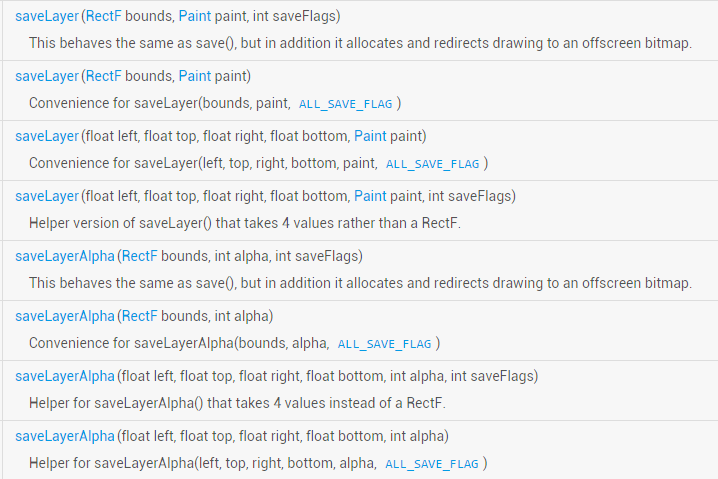
Actually these two methods are more or less the same as save() and restore(), just with a bit more on top of the latter. For example, saveLayer() has the following overloaded methods:
You can understand it assave()The method savesthe entire Canvaswhile saveLayer() can selectively save the state of a certain region. In addition, we can see in the parameters there is a:int saveFlagsthis is to set which object should be saved! The optional values are:
| Flag | Description |
|---|---|
| ALL_SAVE_FLAG | Save all states |
| CLIP_SAVE_FLAG | Save the state of the clipped region |
| CLIP_TO_LAYER_SAVE_FLAG | Save the state of a preset range |
| FULL_COLOR_LAYER_SAVE_FLAG | Save the color layer |
| HAS_ALPHA_LAYER_SAVE_FLAG | Opaque layer save |
| MATRIX_SAVE_FLAG | Save the state of Matrix information (translate, rotate, scale, skew) |
PS: The above descriptions may have issues. The author's English is not good, so they may be wrong. If you know the correct answer, please be sure to point it out. Thank you~
Here we write an example to verify: we chooseCLIP_TO_LAYER_SAVE_FLAGmode to write an example.
Implementation code:
RectF bounds = new RectF(0, 0, 400, 400);
canvas.saveLayer(bounds, mPaint, Canvas.CLIP_TO_LAYER_SAVE_FLAG);
canvas.drawColor(getResources().getColor(R.color.moss_tide));
canvas.drawBitmap(bmp, 200, 200, mPaint);
canvas.restoreToCount(1);
canvas.drawBitmap(bmp, 300, 200, mPaint);
Run result:
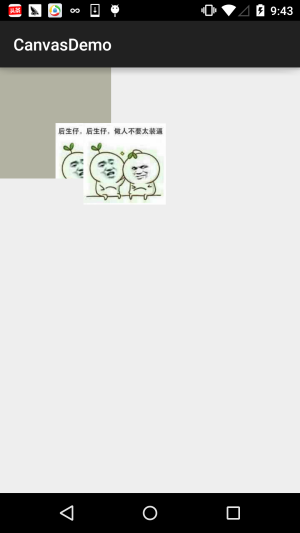
As for saveLayer(), we'll study it in detail later when it's needed. For now, just get a rough idea~
Next up is thisrestoreToCount(int)This one is even simpler: pass in the layer number to restore to, and it directly jumps to that corresponding layer, while popping all layers above it off the stack, making that layer the top of the stack~! Much faster and more convenient than writing multiple restore() calls~
7. Download code examples for this section:
Well, the code was written for testing, so it's not really interesting. But since readers might still want it, here's the link!
Code download:CanvasDemo.zipMaybe what you want is this image! Haha~

Summary of this section:
This section took me a few days to write because I didn't have a clear concept of the Canvas layer at first. This afternoon, after finishing my work, I sorted out my thoughts, and after working overtime in the evening, I finally wrote this article. I believe it should help everyone understand Canvas more clearly, so you won't be completely confused when advancing to custom controls~ Hehe, let's stop here. If you find any mistakes, please point them out. Thank you very much~

References: Mastering Android Canvas! – Basic Drawing