Introduction:
After finishing the previous section, you should already know how to use the system-provided ContentProvider or define a custom ContentProvider, which basically meets daily development needs. Interestingly, I saw these other Providers in the official documentation:
Calendar ProviderCalendar Provider: A resource library for calendar-related events. Through its API, we can perform CRUD operations on calendars, times, meetings, reminders, and more!
Contacts ProviderContacts Provider: No need to say more. This one is used the most. I will translate this article when I have time later!
Storage Access Framework(SAF)Storage Access Framework: A new feature introduced after 4.4, which provides convenience for users to browse storage content on their phones. The accessible content includes not only documents, images, videos, audio, and downloads, but also all content provided by specific ContentProviders (which must have the agreed API). No matter where this content comes from, or which app invokes the command to browse system file content, the system will provide a unified interface for you to browse.
In fact, it is a built-in application called DocumentsUI. Because its IntentFilter does not have LAUNCHER, we don't find this thing on the desktop! Hehe, try the code below. Here we chose two phones for comparison: a Lenovo S898T on 4.2 and a Nexus 5 on 5.0.1. Execute the following code:
 Intent intent = new Intent(Intent.ACTION_OPEN_DOCUMENT);
        intent.addCategory(Intent.CATEGORY_OPENABLE);
        intent.setType("image/*");
        startActivity(intent);
The following is the running result:
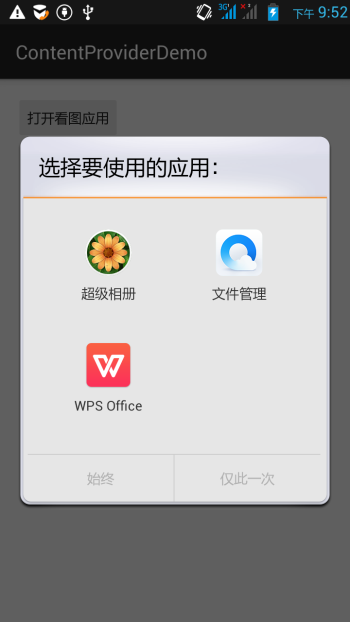

The one on the right is the new thing 4.4 brought us. We can generally use it when we need to get a file URL. Next, let's briefly go through the documentation.
2. Brief Walkthrough of the Documentation:
1) Components of the SAF Framework:
- Document providerDocumentsProvider: A special ContentProvider that allows a storage service (such as Google Drive) to expose the files it manages to the outside. It isDocumentsProvidera subclass of ContentProvider. In addition, the storage format of document-provider is consistent with the traditional file storage format. As for how your content is stored, it is entirely up to you. Android has built in several such Document providers, such as those for downloads, images, and videos!
- Client appClient application: A normal client application, by triggeringACTION_OPEN_DOCUMENTand/orACTION_CREATE_DOCUMENTcan receive the content returned from the Document provider, for example, selecting an image and then returning a Uri.
- PickerPicker: An interface similar to a file manager, and it is a system-level interface that provides a channel to access Document provider content that matches the client's filter conditions. It is the DocumentsUI program mentioned earlier!
Some features:
- Users can browse the content provided by all document providers, not just a single application.
- It provides long-term, sustained access to files in document providers as well as data persistence. Users can add, delete, edit, and save the content maintained by the document provider.
- It supports multiple users and temporary content services. For example, USB storage providers only appear when the driver is successfully installed.
2) Overview:
The core of SAF is a subclass that implements DocumentsProvider, and it is still a ContentProvider. Within a document provider, files are organized in a traditional file directory tree:

3) Flowchart:
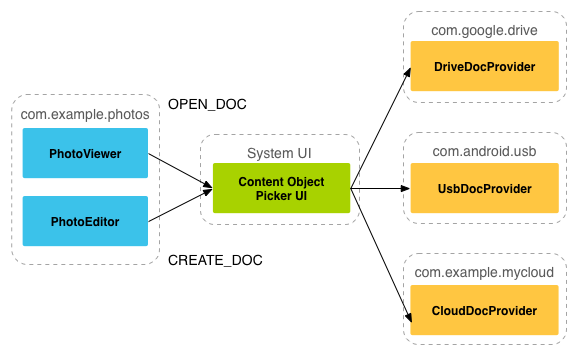
As mentioned above, document provider data is based on a traditional file hierarchy, but that is only the external representation. How you store your data is entirely up to you, as long as the interface you expose to the outside can be accessed through the DocumentsProvider API. The following flowchart shows a possible structure for a photo app using SAF:
Analysis:
From the figure above, we can see that the Picker is a bridge connecting the caller and the content providers! It provides and tells the caller which content providers can be selected, such as DriveDocProvider, UsbDocProvider, and CloundDocProvider here.
When the client triggersACTION_OPEN_DOCUMENTorACTION_CREATE_DOCUMENTthe Intent, the above interaction occurs. Of course, we can also add filter conditions to the Intent, such as restricting the MIME type to "image"!
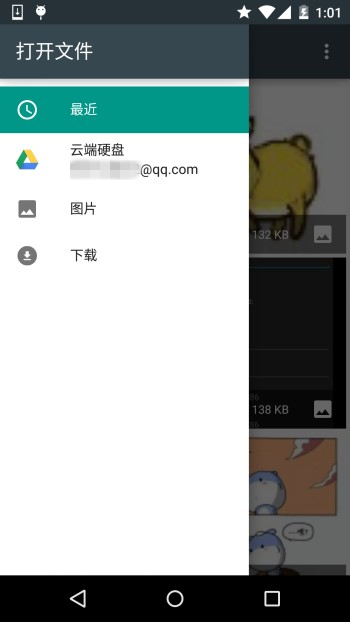
That's all the stuff above. If you have installed other image viewing software, they will also appear here! In simple terms: after the client sends an Intent with the two Actions above, the Picker UI will open. The relevant available Document Providers will be displayed here for the user to choose. After the user chooses, the file-related information can be obtained!
4) Client invocation and obtaining the returned Uri
The implementation code is as follows:
public class MainActivity extends AppCompatActivity implements View.OnClickListener {
    private static final int READ_REQUEST_CODE = 42;

    @Override
    protected void onCreate(Bundle savedInstanceState) {
        super.onCreate(savedInstanceState);
        setContentView(R.layout.activity_main);
        Button btn_show = (Button) findViewById(R.id.btn_show);
        btn_show.setOnClickListener(this);
    }

    @Override
    public void onClick(View v) {
        Intent intent = new Intent(Intent.ACTION_OPEN_DOCUMENT);
        intent.addCategory(Intent.CATEGORY_OPENABLE);
        intent.setType("image/*");
        startActivityForResult(intent, READ_REQUEST_CODE);
    }

    @Override
    protected void onActivityResult(int requestCode, int resultCode, Intent data) {
        if (requestCode == READ_REQUEST_CODE && resultCode == Activity.RESULT_OK) {
            Uri uri;
            if (data != null) {
                uri = data.getData();
                Log.e("HeHe", "Uri: " + uri.toString());
            }
        }
    }
}
Running result:For example, if we select that dog, the Picker UI will close automatically, and then we can see such a uri in Logcat:

5) Getting file parameters based on the uri
The core code is as follows:
public void dumpImageMetaData(Uri uri) {
    Cursor cursor = getContentResolver()
            .query(uri, null, null, null, null, null);
    try {
        if (cursor != null && cursor.moveToFirst()) {
            String displayName = cursor.getString(
                    cursor.getColumnIndex(OpenableColumns.DISPLAY_NAME));
            Log.e("HeHe", "Display Name: " + displayName);
            int sizeIndex = cursor.getColumnIndex(OpenableColumns.SIZE);
            String size = null;
            if (!cursor.isNull(sizeIndex)) {
                size = cursor.getString(sizeIndex);
            }else {
                size = "Unknown";
            }
            Log.e("HeHe", "Size: " + size);
        }
    }finally {
        cursor.close();
    }
}
Running result:Still that dog. After calling the method, it will print the file name and file size in bytes.

6) Obtaining a Bitmap from the Uri
The core code is as follows:
private Bitmap getBitmapFromUri(Uri uri) throws IOException {
        ParcelFileDescriptor parcelFileDescriptor =
        getContentResolver().openFileDescriptor(uri, "r");
        FileDescriptor fileDescriptor = parcelFileDescriptor.getFileDescriptor();
        Bitmap image = BitmapFactory.decodeFileDescriptor(fileDescriptor);
        parcelFileDescriptor.close();
        return image;
}
Running result:
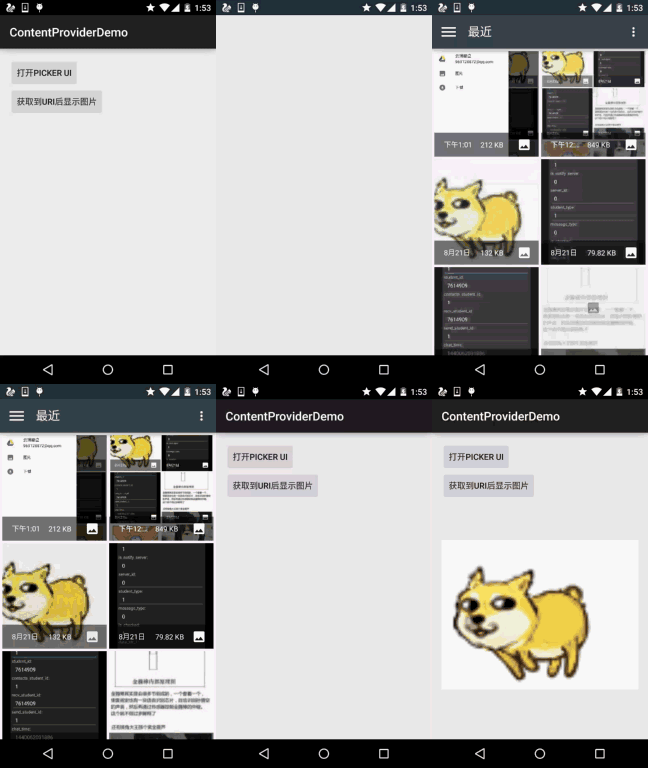
7) Getting an input stream from the Uri
The core code is as follows:
private String readTextFromUri(Uri uri) throws IOException {
    InputStream inputStream = getContentResolver().openInputStream(uri);
    BufferedReader reader = new BufferedReader(new InputStreamReader(
            inputStream));
    StringBuilder stringBuilder = new StringBuilder();
    String line;
    while ((line = reader.readLine()) != null) {
        stringBuilder.append(line);
    }
    fileInputStream.close();
    parcelFileDescriptor.close();
    return stringBuilder.toString();
}
The above content only tells you what you can know through a Uri, and the Uri is obtained through SAF!
8) Creating new files and deleting files:
Creating a file:
private void createFile(String mimeType, String fileName) {
    Intent intent = new Intent(Intent.ACTION_CREATE_DOCUMENT);
    intent.addCategory(Intent.CATEGORY_OPENABLE);
    intent.setType(mimeType);
    intent.putExtra(Intent.EXTRA_TITLE, fileName);
    startActivityForResult(intent, WRITE_REQUEST_CODE);
}
You can get the uri of the created file in onActivityResult().
Deleting a file:
The prerequisite is that Document.COLUMN_FLAGS containsSUPPORTS_DELETE
DocumentsContract.deleteDocument(getContentResolver(), uri);
9) Writing a custom Document Provider
If you want your app's data to also be openable in documentsui, you need to write your own document provider. Below are the steps to define a custom DocumentsProvider:
- API version 19 or higher.
- Register this Provider in manifest.xml.
- The Provider's name is the class name plus package name, for example:com.example.android.storageprovider.MyCloudProvider
- Authority is the package name + the provider type name, for example:com.example.android.storageprovider.documents
- The value of the android:exported attribute is true.
Below is an example of how to write the Provider:
<manifest... >
    ...
    <uses-sdk
        android:minSdkVersion="19"
        android:targetSdkVersion="19" />
        ....
        <provider
            android:name="com.example.android.storageprovider.MyCloudProvider"
            android:authorities="com.example.android.storageprovider.documents"
            android:grantUriPermissions="true"
            android:exported="true"
            android:permission="android.permission.MANAGE_DOCUMENTS"
            android:enabled="@bool/atLeastKitKat">
            <intent-filter>
                <action android:name="android.content.action.DOCUMENTS_PROVIDER" />
            </intent-filter>
        </provider>
    </application>

</manifest>
10) Subclasses of DocumentsProvider
At least implement the following methods:
- queryRoots()
- queryChildDocuments()
- queryDocument()
- openDocument()
There are some other methods, but they are not required. Below is a rough example of implementing a DocumentsProvider that accesses the file system.
Implement queryRoots
@Override
public Cursor queryRoots(String[] projection) throws FileNotFoundException {

    // Create a cursor with either the requested fields, or the default
    // projection if "projection" is null.
    final MatrixCursor result =
            new MatrixCursor(resolveRootProjection(projection));

    // If user is not logged in, return an empty root cursor.  This removes our
    // provider from the list entirely.
    if (!isUserLoggedIn()) {
        return result;
    }

    // It's possible to have multiple roots (e.g. for multiple accounts in the
    // same app) -- just add multiple cursor rows.
    // Construct one row for a root called "MyCloud".
    final MatrixCursor.RowBuilder row = result.newRow();
    row.add(Root.COLUMN_ROOT_ID, ROOT);
    row.add(Root.COLUMN_SUMMARY, getContext().getString(R.string.root_summary));

    // FLAG_SUPPORTS_CREATE means at least one directory under the root supports
    // creating documents. FLAG_SUPPORTS_RECENTS means your application's most
    // recently used documents will show up in the "Recents" category.
    // FLAG_SUPPORTS_SEARCH allows users to search all documents the application
    // shares.
    row.add(Root.COLUMN_FLAGS, Root.FLAG_SUPPORTS_CREATE |
            Root.FLAG_SUPPORTS_RECENTS |
            Root.FLAG_SUPPORTS_SEARCH);

    // COLUMN_TITLE is the root title (e.g. Gallery, Drive).
    row.add(Root.COLUMN_TITLE, getContext().getString(R.string.title));

    // This document id cannot change once it's shared.
    row.add(Root.COLUMN_DOCUMENT_ID, getDocIdForFile(mBaseDir));

    // The child MIME types are used to filter the roots and only present to the
    //  user roots that contain the desired type somewhere in their file hierarchy.
    row.add(Root.COLUMN_MIME_TYPES, getChildMimeTypes(mBaseDir));
    row.add(Root.COLUMN_AVAILABLE_BYTES, mBaseDir.getFreeSpace());
    row.add(Root.COLUMN_ICON, R.drawable.ic_launcher);

    return result;
}
Implement queryChildDocuments
public Cursor queryChildDocuments(String parentDocumentId, String[] projection,
                              String sortOrder) throws FileNotFoundException {

    final MatrixCursor result = new
            MatrixCursor(resolveDocumentProjection(projection));
    final File parent = getFileForDocId(parentDocumentId);
    for (File file : parent.listFiles()) {
        // Adds the file's display name, MIME type, size, and so on.
        includeFile(result, null, file);
    }
    return result;
}
Implement queryDocument
@Override
public Cursor queryDocument(String documentId, String[] projection) throws
        FileNotFoundException {

    // Create a cursor with the requested projection, or the default projection.
    final MatrixCursor result = new
            MatrixCursor(resolveDocumentProjection(projection));
    includeFile(result, documentId, null);
    return result;
}
Well, that's about all the content in the documentation. At first I wanted to translate it myself, but later I found a Chinese translation of this document on "Days Online", so I took the lazy way out~
Chinese translation link:Android Storage Access Framework

3. The issue of getting resource paths in Android 4.4:
In fact, the place where we use SAF most is simply to get the Uri of an image. And from the example above, we also found that the link we get this way is like this:
content://com.android.providers.media.documents/document/image%3A69983
For such a link, we can directly use the method above to get the uri!
Of course, this is for 4.4 or above.
If it is an earlier version, the uri may look like this:
content://media/external/images/media/image%3A69983
Here is a comprehensive solution I saw elsewhere. Original link:The issue of getting resource paths in Android 4.4
public static String getPath(final Context context, final Uri uri) {
    final boolean isKitKat = Build.VERSION.SDK_INT >= Build.VERSION_CODES.KITKAT;
    // DocumentProvider
    if (isKitKat && DocumentsContract.isDocumentUri(context, uri)) {
        // ExternalStorageProvider
        if (isExternalStorageDocument(uri)) {
            final String docId = DocumentsContract.getDocumentId(uri);
            final String[] split = docId.split(":");
            final String type = split[0];

            if ("primary".equalsIgnoreCase(type)) {
                return Environment.getExternalStorageDirectory() + "/" + split[1];
            }

            // TODO handle non-primary volumes
        }
        // DownloadsProvider
        else if (isDownloadsDocument(uri)) {

            final String id = DocumentsContract.getDocumentId(uri);
            final Uri contentUri = ContentUris.withAppendedId(
                    Uri.parse("content://downloads/public_downloads"), Long.valueOf(id));

            return getDataColumn(context, contentUri, null, null);
        }
        // MediaProvider
        else if (isMediaDocument(uri)) {
            final String docId = DocumentsContract.getDocumentId(uri);
            final String[] split = docId.split(":");
            final String type = split[0];
            Uri contentUri = null;
            if ("image".equals(type)) {
                contentUri = MediaStore.Images.Media.EXTERNAL_CONTENT_URI;
            } else if ("video".equals(type)) {
                contentUri = MediaStore.Video.Media.EXTERNAL_CONTENT_URI;
            } else if ("audio".equals(type)) {
                contentUri = MediaStore.Audio.Media.EXTERNAL_CONTENT_URI;
            }
            final String selection = "_id=?";
            final String[] selectionArgs = new String[] {
                    split[1]
            };
            return getDataColumn(context, contentUri, selection, selectionArgs);
        }
    }
    // MediaStore (and general)
    else if ("content".equalsIgnoreCase(uri.getScheme())) {
        return getDataColumn(context, uri, null, null);
    }
    // File
    else if ("file".equalsIgnoreCase(uri.getScheme())) {
        return uri.getPath();
    }
    return null;
}

/**
 * Get the value of the data column for this Uri. This is useful for
 * MediaStore Uris, and other file-based ContentProviders.
 *
 * @param context The context.
 * @param uri The Uri to query.
 * @param selection (Optional) Filter used in the query.
 * @param selectionArgs (Optional) Selection arguments used in the query.
 * @return The value of the _data column, which is typically a file path.
 */
public static String getDataColumn(Context context, Uri uri, String selection,
                                   String[] selectionArgs) {

    Cursor cursor = null;
    final String column = "_data";
    final String[] projection = {
            column
    };

    try {
        cursor = context.getContentResolver().query(uri, projection, selection, selectionArgs,
                null);
        if (cursor != null && cursor.moveToFirst()) {
            final int column_index = cursor.getColumnIndexOrThrow(column);
            return cursor.getString(column_index);
        }
    } finally {
        if (cursor != null)
            cursor.close();
    }
    return null;
}


/**
 * @param uri The Uri to check.
 * @return Whether the Uri authority is ExternalStorageProvider.
 */
public static boolean isExternalStorageDocument(Uri uri) {
    return "com.android.externalstorage.documents".equals(uri.getAuthority());
}

/**
 * @param uri The Uri to check.
 * @return Whether the Uri authority is DownloadsProvider.
 */
public static boolean isDownloadsDocument(Uri uri) {
    return "com.android.providers.downloads.documents".equals(uri.getAuthority());
}

/**
 * @param uri The Uri to check.
 * @return Whether the Uri authority is MediaProvider.
 */
public static boolean isMediaDocument(Uri uri) {
    return "com.android.providers.media.documents".equals(uri.getAuthority());
}
Summary:
Okay, that's it for this section on the Android Storage Access Framework (SAF). There aren't any examples. We'll dig deeper later when we need to use it. Just be aware of it. After 4.4, getting file paths is much simpler~