Preface
This section will introduce how to use Android Studio to develop Android APP. As with the earlier Eclipse + ADT + SDK setup of the Android development environment, this section only introduces some basic things. In-depth topics such as shortcuts and tips will be introduced in detail in another article!
1. Download Android Studio
Official website download:Android Studio for Window ... Baidu Cloud download:android-studio-bundle-141.1903250-windows.exe
2. Install Android Studio
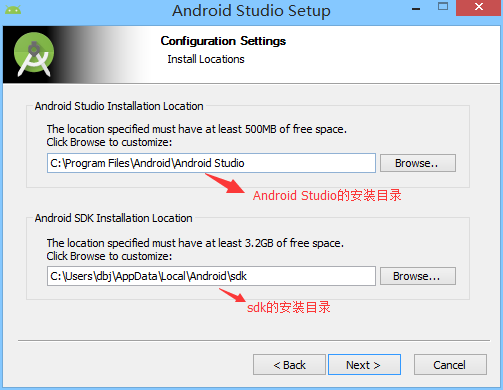
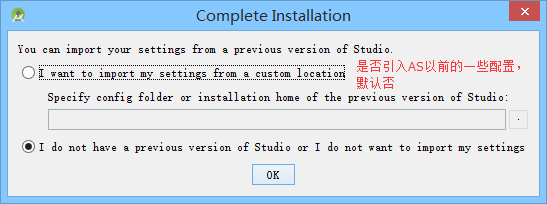
It is just a foolproof next-step process; only the pages that need attention are listed:

3. Create a New Project
After installation, open our Android Studio. On the first launch, it needs to download some things like the SDK, which takes a long time. The author waited about 40 minutes for the download to complete.
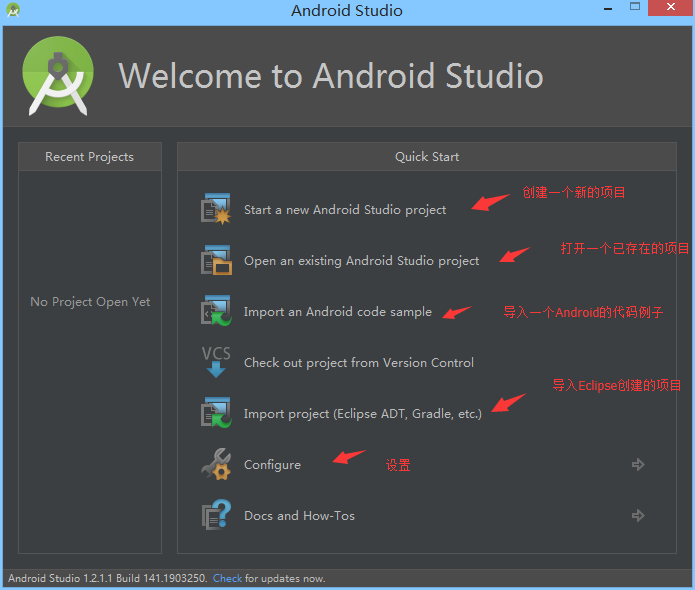
Select the first item to create a new Android project.
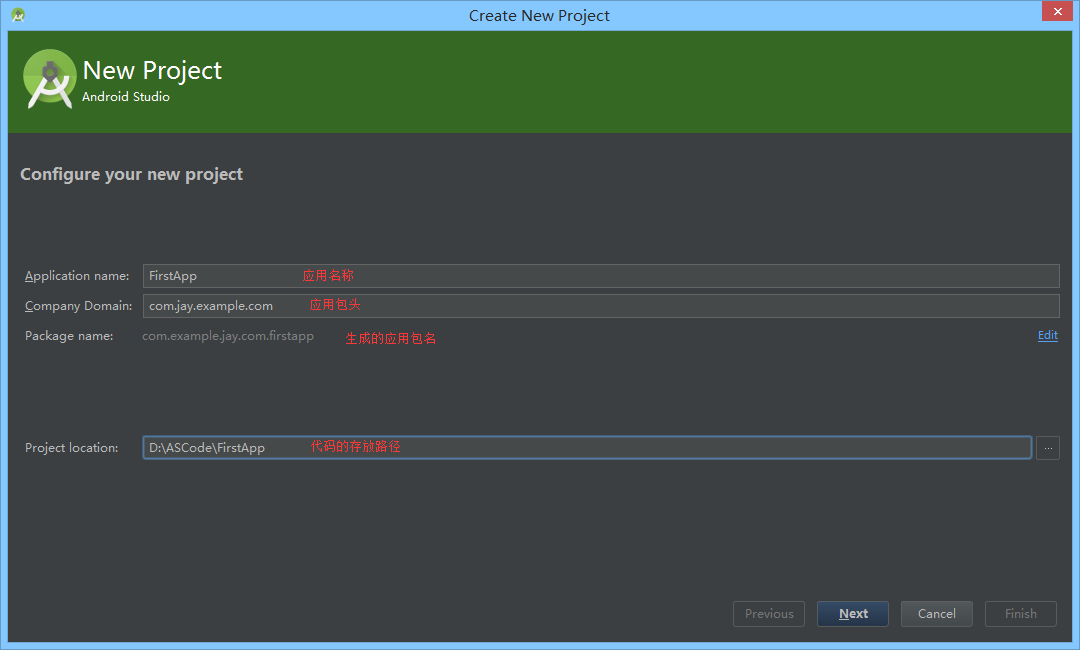
Select which platform the development program will run on:
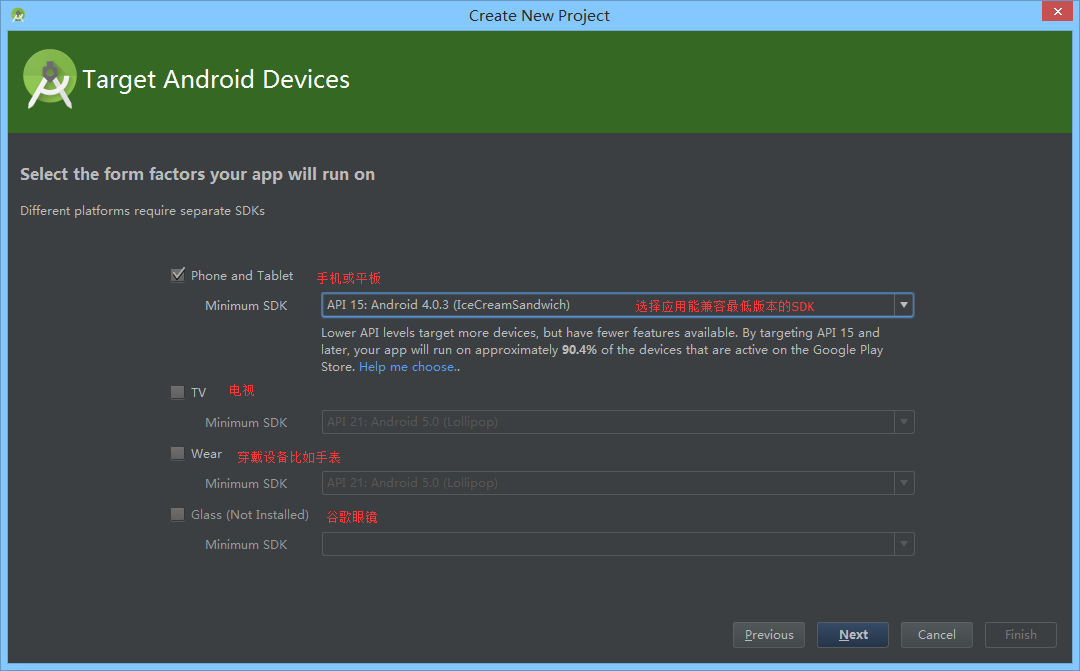
Select the Activity style:

Set some information about the Activity shown on the first page after the program starts.
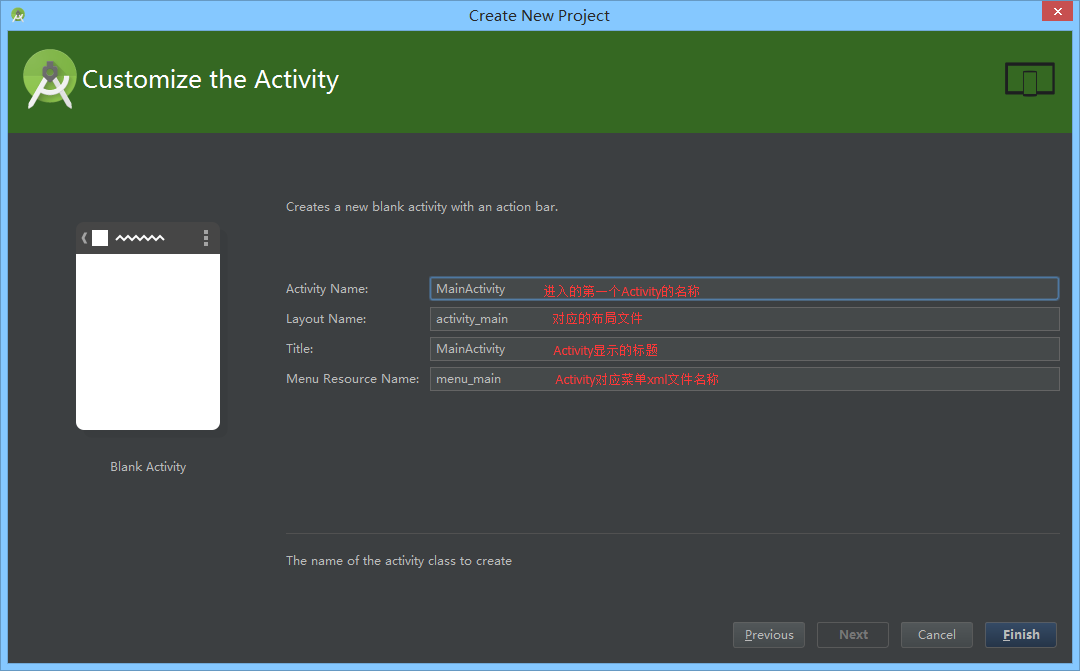
Finish, then a long wait~
4. IDE Interface Analysis
Let's first look at the entire interface:

Next, let's look at our project structure. What we generally care about is only the "app" directory:
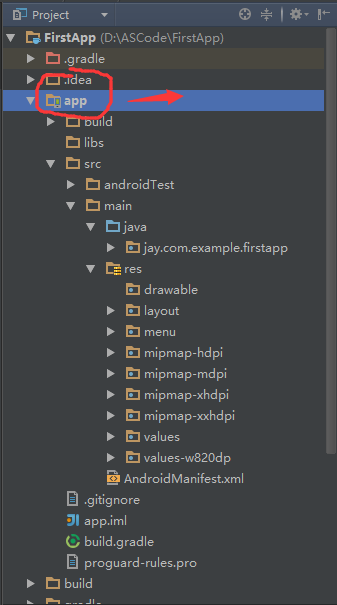

5. Try Running the Program
Click X in the menu bar to run the program:

6. Summary of This Section
Android Studio is quite simple to use. Of course, the author is also new to Android Studio, and a more in-depth article will come later. For now, just explore it a bit; as long as you can run the program, know where to write code, and how to view Logcat, that's enough!