本節の前置き:
前の節を学び終えると、システム提供のContentProviderやカスタムContentProviderの使い方が分かり、日常開発のニーズをほぼ満たせたことと思います。興味深いことに、公式ドキュメントには他にも次のようなProviderがありました:
Calendar Provider:カレンダープロバイダーです。カレンダー関連イベントを対象としたリソースライブラリで、その提供APIを通じて、カレンダー、時刻、会議、リマインダーなどの内容を追加・削除・変更・検索することができます!
Contacts Provider:連絡先プロバイダーです。これは言うまでもなく、最もよく使われています。後で時間があればこの記事を翻訳し直しましょう!
Storage Access Framework(SAF):ストレージアクセスフレームワークです。4.4以降に導入された新しいもので、ユーザーがスマホ内のストレージ内容を閲覧するのに便利です。アクセスできる内容は、ドキュメント、画像、ビデオ、オーディオ、ダウンロードだけでなく、特定のContentProvider(約束されたAPIを持つ必要がある)が提供するすべてのコンテンツも含まれます。これらのコンテンツがどこから来たのか、どのアプリがシステムファイルの閲覧コマンドを呼び出したのかにかかわらず、システムは統一されたインターフェースで閲覧させてくれます。
実は組み込みのアプリケーションで、DocumentsUIと呼ばれています。そのIntentFilterはLAUNCHERを持っていないため、デスクトップ上でこれを見つけることはできません!へへ、次のコードを試してみてください。ここでは2つのスマホを比較対象に選びました。それぞれ4.2のLenovo S898Tと5.0.1のNexus 5で、次のコードを実行します。
 Intent intent = new Intent(Intent.ACTION_OPEN_DOCUMENT);
        intent.addCategory(Intent.CATEGORY_OPENABLE);
        intent.setType("image/*");
        startActivity(intent);
以下は実行結果です:

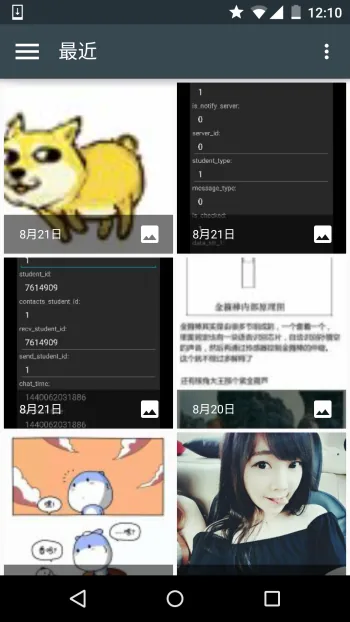
右側のこれが4.4がもたらした新機能です。通常、ファイルのURLを取得するときにこれを使うことができます。次にドキュメントを軽く見ていきましょう。
2. ドキュメントを簡単に流し見る:
1) SAFフレームワークの構成:
- Document provider:特殊なContentProviderであり、ストレージサービス(Google Driveなど)が管理しているファイルを外部に公開できるようにします。これはContentProviderのDocumentsProviderサブクラスです。また、document-providerのストレージ形式は従来のファイルストレージ形式と一致します。コンテンツの保存方法は完全に自分次第です。AndroidシステムはすでにいくつかのDocument providerを内蔵しています。例えば、ダウンロード、画像、ビデオに関するDocument providerです。
- Client app:通常のクライアントソフトウェアで、トリガーすることによってACTION_OPEN_DOCUMENTおよび/またはACTION_CREATE_DOCUMENTDocument providerから返されたコンテンツを受け取ることができます。例えば、画像を選択して、Uriを返すことができます。
- Picker:ファイルマネージャに似たインターフェースで、しかもシステムレベルのインターフェースです。クライアントのフィルタ条件に合致するDocument providerコンテンツにアクセスするためのチャネルを提供します。前述のDocumentsUIプログラムです。
いくつかの特徴:
- ユーザーは単一のアプリケーションだけでなく、すべてのdocument providerが提供するコンテンツを閲覧できます。
- document provider内のファイルへの長期的・継続的なアクセス機能とデータの永続化を提供します。ユーザーはdocument providerが管理するコンテンツの追加、削除、編集、保存を実行できます。
- マルチユーザーおよび一時的なコンテンツサービスをサポートします。例えば、USBストレージプロバイダーはドライバのインストールが成功したときだけ表示されます。
2) 概要:
SAFの核心はDocumentsProviderのサブクラスを実装したものであり、やはりContentProviderの一種です。document provider内では、従来のファイルディレクトリツリーとして構成されています:

3) フローチャート:
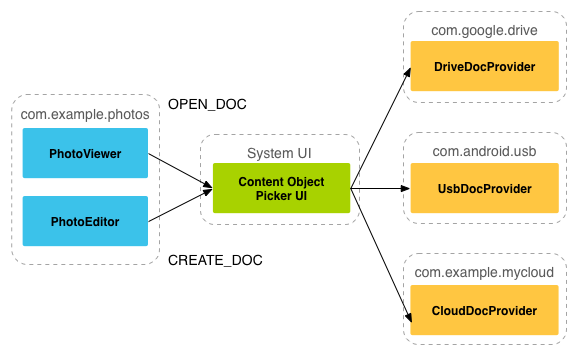
上記のように、document provider dataは従来のファイル階層構造に基づいていますが、それはあくまで外部への見せ方です。データの保存方法は完全にあなた次第ですが、外部インターフェースがDocumentsProviderのAPIを通じてアクセスできるようにすればよいのです。以下のフローチャートは、photoアプリがSAFを使用する場合の構造の一例です。
分析:
上の図から、Pickerが呼び出し元とコンテンツプロバイダーを結ぶ架け橋であることが分かります!Pickerは、呼び出し元に選択可能なコンテンツプロバイダーを提供し伝えます。例えば、ここでのDriveDocProvider、UsbDocProvider、CloundDocProviderです。
クライアントがトリガーしたACTION_OPEN_DOCUMENT或ACTION_CREATE_DOCUMENTIntentによって、上記のインタラクションが発生します。もちろん、Intentにフィルタ条件を追加することもできます。例えば、MIME typeを"image"に制限することができます!
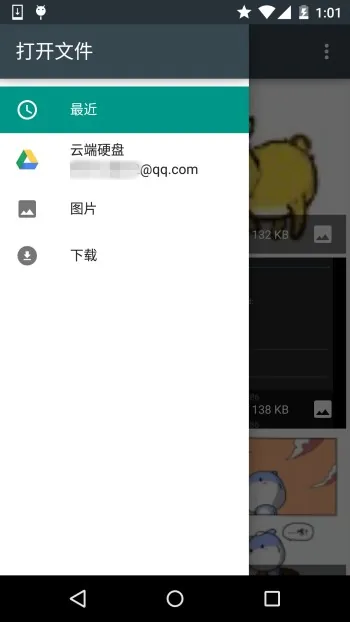
それが上記のものです。もし他の画像ビューアアプリをインストールしていれば、ここにも表示されます!簡単に言うと、クライアントが上記の2つのActionのIntentを送信すると、Picker UIが開き、ここで関連する利用可能なDocument Providerが表示され、ユーザーが選択するとファイルの関連情報を取得できます。
4) クライアント側の呼び出し、返されたUriの取得
実装コードは以下の通りです:
public class MainActivity extends AppCompatActivity implements View.OnClickListener {
    private static final int READ_REQUEST_CODE = 42;

    @Override
    protected void onCreate(Bundle savedInstanceState) {
        super.onCreate(savedInstanceState);
        setContentView(R.layout.activity_main);
        Button btn_show = (Button) findViewById(R.id.btn_show);
        btn_show.setOnClickListener(this);
    }

    @Override
    public void onClick(View v) {
        Intent intent = new Intent(Intent.ACTION_OPEN_DOCUMENT);
        intent.addCategory(Intent.CATEGORY_OPENABLE);
        intent.setType("image/*");
        startActivityForResult(intent, READ_REQUEST_CODE);
    }

    @Override
    protected void onActivityResult(int requestCode, int resultCode, Intent data) {
        if (requestCode == READ_REQUEST_CODE && resultCode == Activity.RESULT_OK) {
            Uri uri;
            if (data != null) {
                uri = data.getData();
                Log.e("HeHe", "Uri: " + uri.toString());
            }
        }
    }
}
実行結果:例えば、あの犬を選択すると、Picker UIが自動的に閉じられ、Logcatに次のようなuriが表示されます:

5) uriに基づいてファイルパラメータを取得
核心コードは以下の通りです:
public void dumpImageMetaData(Uri uri) {
    Cursor cursor = getContentResolver()
            .query(uri, null, null, null, null, null);
    try {
        if (cursor != null && cursor.moveToFirst()) {
            String displayName = cursor.getString(
                    cursor.getColumnIndex(OpenableColumns.DISPLAY_NAME));
            Log.e("HeHe", "Display Name: " + displayName);
            int sizeIndex = cursor.getColumnIndex(OpenableColumns.SIZE);
            String size = null;
            if (!cursor.isNull(sizeIndex)) {
                size = cursor.getString(sizeIndex);
            }else {
                size = "Unknown";
            }
            Log.e("HeHe", "Size: " + size);
        }
    }finally {
        cursor.close();
    }
}
実行結果:やはりあの犬ですが、メソッドを呼び出すとファイル名とファイルサイズが出力されます(単位はbyte)。

6) UriからBitmapを取得
核心コードは以下の通りです:
private Bitmap getBitmapFromUri(Uri uri) throws IOException {
        ParcelFileDescriptor parcelFileDescriptor =
        getContentResolver().openFileDescriptor(uri, "r");
        FileDescriptor fileDescriptor = parcelFileDescriptor.getFileDescriptor();
        Bitmap image = BitmapFactory.decodeFileDescriptor(fileDescriptor);
        parcelFileDescriptor.close();
        return image;
}
実行結果:
7) Uriから入力ストリームを取得
核心コードは以下の通りです:
private String readTextFromUri(Uri uri) throws IOException {
    InputStream inputStream = getContentResolver().openInputStream(uri);
    BufferedReader reader = new BufferedReader(new InputStreamReader(
            inputStream));
    StringBuilder stringBuilder = new StringBuilder();
    String line;
    while ((line = reader.readLine()) != null) {
        stringBuilder.append(line);
    }
    fileInputStream.close();
    parcelFileDescriptor.close();
    return stringBuilder.toString();
}
上記の内容は、1つのUriを通じて何が分かるかを示しているにすぎません。そして、Uriの取得はSAFを通じて行われるのです!
8) 新規ファイルの作成と削除:
ファイルの作成:
private void createFile(String mimeType, String fileName) {
    Intent intent = new Intent(Intent.ACTION_CREATE_DOCUMENT);
    intent.addCategory(Intent.CATEGORY_OPENABLE);
    intent.setType(mimeType);
    intent.putExtra(Intent.EXTRA_TITLE, fileName);
    startActivityForResult(intent, WRITE_REQUEST_CODE);
}
onActivityResult()内で作成されたファイルのuriを取得できます。
ファイルの削除:
前提条件は、Document.COLUMN_FLAGSにフラグが含まれていることです。SUPPORTS_DELETE
DocumentsContract.deleteDocument(getContentResolver(), uri);
9) カスタムDocument Providerを作成する
自分のアプリのデータもdocumentsuiで開けるようにしたい場合は、独自のdocument providerを作成する必要があります。以下では、カスタムDocumentsProviderの手順を紹介します。
- APIバージョンは19以上であること
- manifest.xmlでそのProviderを登録する
- Providerのnameはクラス名とパッケージ名を合わせたものです。例:com.example.android.storageprovider.MyCloudProvider
- Authorityはパッケージ名+providerのタイプ名です。例:com.example.android.storageprovider.documents
- android:exported属性の値はture
以下はProviderのサンプルコードです:
<manifest... >
    ...
    <uses-sdk
        android:minSdkVersion="19"
        android:targetSdkVersion="19" />
        ....
        <provider
            android:name="com.example.android.storageprovider.MyCloudProvider"
            android:authorities="com.example.android.storageprovider.documents"
            android:grantUriPermissions="true"
            android:exported="true"
            android:permission="android.permission.MANAGE_DOCUMENTS"
            android:enabled="@bool/atLeastKitKat">
            <intent-filter>
                <action android:name="android.content.action.DOCUMENTS_PROVIDER" />
            </intent-filter>
        </provider>
    </application>

</manifest>
10) DocumentsProviderのサブクラス
少なくとも次のメソッドを実装します:
- queryRoots()
- queryChildDocuments()
- queryDocument()
- openDocument()
他にもいくつかのメソッドがありますが、必須ではありません。以下に、ファイル(file)システムにアクセスするDocumentsProviderの大まかな実装を示します。
Implement queryRoots
@Override
public Cursor queryRoots(String[] projection) throws FileNotFoundException {

    // Create a cursor with either the requested fields, or the default
    // projection if "projection" is null.
    final MatrixCursor result =
            new MatrixCursor(resolveRootProjection(projection));

    // If user is not logged in, return an empty root cursor.  This removes our
    // provider from the list entirely.
    if (!isUserLoggedIn()) {
        return result;
    }

    // It's possible to have multiple roots (e.g. for multiple accounts in the
    // same app) -- just add multiple cursor rows.
    // Construct one row for a root called "MyCloud".
    final MatrixCursor.RowBuilder row = result.newRow();
    row.add(Root.COLUMN_ROOT_ID, ROOT);
    row.add(Root.COLUMN_SUMMARY, getContext().getString(R.string.root_summary));

    // FLAG_SUPPORTS_CREATE means at least one directory under the root supports
    // creating documents. FLAG_SUPPORTS_RECENTS means your application's most
    // recently used documents will show up in the "Recents" category.
    // FLAG_SUPPORTS_SEARCH allows users to search all documents the application
    // shares.
    row.add(Root.COLUMN_FLAGS, Root.FLAG_SUPPORTS_CREATE |
            Root.FLAG_SUPPORTS_RECENTS |
            Root.FLAG_SUPPORTS_SEARCH);

    // COLUMN_TITLE is the root title (e.g. Gallery, Drive).
    row.add(Root.COLUMN_TITLE, getContext().getString(R.string.title));

    // This document id cannot change once it's shared.
    row.add(Root.COLUMN_DOCUMENT_ID, getDocIdForFile(mBaseDir));

    // The child MIME types are used to filter the roots and only present to the
    //  user roots that contain the desired type somewhere in their file hierarchy.
    row.add(Root.COLUMN_MIME_TYPES, getChildMimeTypes(mBaseDir));
    row.add(Root.COLUMN_AVAILABLE_BYTES, mBaseDir.getFreeSpace());
    row.add(Root.COLUMN_ICON, R.drawable.ic_launcher);

    return result;
}
Implement queryChildDocuments
public Cursor queryChildDocuments(String parentDocumentId, String[] projection,
                              String sortOrder) throws FileNotFoundException {

    final MatrixCursor result = new
            MatrixCursor(resolveDocumentProjection(projection));
    final File parent = getFileForDocId(parentDocumentId);
    for (File file : parent.listFiles()) {
        // Adds the file's display name, MIME type, size, and so on.
        includeFile(result, null, file);
    }
    return result;
}
Implement queryDocument
@Override
public Cursor queryDocument(String documentId, String[] projection) throws
        FileNotFoundException {

    // Create a cursor with the requested projection, or the default projection.
    final MatrixCursor result = new
            MatrixCursor(resolveDocumentProjection(projection));
    includeFile(result, documentId, null);
    return result;
}
さて、ドキュメントの内容はだいたい以上です。 最初は自分で翻訳しようと思っていましたが、後で「泡在网上的日子」でこのドキュメントの中国語訳を見つけたので、手を抜いてしまいました〜
中国語訳のリンク:AndroidストレージアクセスフレームワークStorage Access Framework

3. Android 4.4 でリソースパスを取得する問題:
実は、このSAFをよく使うのは主に画像のUriを取得する場合だけです。そして、上の例からも分かるように、私たちがこのように取得したリンクは次のようになります:
content://com.android.providers.media.documents/document/image%3A69983
このようなリンクは、上記の方法で直接uriを取得すればよいです!
もちろん、これは4.4またはそれ以上のバージョンの場合です!
以前のバージョンの場合:uriは次のようになるかもしれません:
content://media/external/images/media/image%3A69983
ここでは、他で見た包括的な解決策を貼っておきます。原文リンク:Android4.4でリソースパスを取得する問題
public static String getPath(final Context context, final Uri uri) {
    final boolean isKitKat = Build.VERSION.SDK_INT >= Build.VERSION_CODES.KITKAT;
    // DocumentProvider
    if (isKitKat && DocumentsContract.isDocumentUri(context, uri)) {
        // ExternalStorageProvider
        if (isExternalStorageDocument(uri)) {
            final String docId = DocumentsContract.getDocumentId(uri);
            final String[] split = docId.split(":");
            final String type = split[0];

            if ("primary".equalsIgnoreCase(type)) {
                return Environment.getExternalStorageDirectory() + "/" + split[1];
            }

            // TODO handle non-primary volumes
        }
        // DownloadsProvider
        else if (isDownloadsDocument(uri)) {

            final String id = DocumentsContract.getDocumentId(uri);
            final Uri contentUri = ContentUris.withAppendedId(
                    Uri.parse("content://downloads/public_downloads"), Long.valueOf(id));

            return getDataColumn(context, contentUri, null, null);
        }
        // MediaProvider
        else if (isMediaDocument(uri)) {
            final String docId = DocumentsContract.getDocumentId(uri);
            final String[] split = docId.split(":");
            final String type = split[0];
            Uri contentUri = null;
            if ("image".equals(type)) {
                contentUri = MediaStore.Images.Media.EXTERNAL_CONTENT_URI;
            } else if ("video".equals(type)) {
                contentUri = MediaStore.Video.Media.EXTERNAL_CONTENT_URI;
            } else if ("audio".equals(type)) {
                contentUri = MediaStore.Audio.Media.EXTERNAL_CONTENT_URI;
            }
            final String selection = "_id=?";
            final String[] selectionArgs = new String[] {
                    split[1]
            };
            return getDataColumn(context, contentUri, selection, selectionArgs);
        }
    }
    // MediaStore (and general)
    else if ("content".equalsIgnoreCase(uri.getScheme())) {
        return getDataColumn(context, uri, null, null);
    }
    // File
    else if ("file".equalsIgnoreCase(uri.getScheme())) {
        return uri.getPath();
    }
    return null;
}

/**
 * Get the value of the data column for this Uri. This is useful for
 * MediaStore Uris, and other file-based ContentProviders.
 *
 * @param context The context.
 * @param uri The Uri to query.
 * @param selection (Optional) Filter used in the query.
 * @param selectionArgs (Optional) Selection arguments used in the query.
 * @return The value of the _data column, which is typically a file path.
 */
public static String getDataColumn(Context context, Uri uri, String selection,
                                   String[] selectionArgs) {

    Cursor cursor = null;
    final String column = "_data";
    final String[] projection = {
            column
    };

    try {
        cursor = context.getContentResolver().query(uri, projection, selection, selectionArgs,
                null);
        if (cursor != null && cursor.moveToFirst()) {
            final int column_index = cursor.getColumnIndexOrThrow(column);
            return cursor.getString(column_index);
        }
    } finally {
        if (cursor != null)
            cursor.close();
    }
    return null;
}


/**
 * @param uri The Uri to check.
 * @return Whether the Uri authority is ExternalStorageProvider.
 */
public static boolean isExternalStorageDocument(Uri uri) {
    return "com.android.externalstorage.documents".equals(uri.getAuthority());
}

/**
 * @param uri The Uri to check.
 * @return Whether the Uri authority is DownloadsProvider.
 */
public static boolean isDownloadsDocument(Uri uri) {
    return "com.android.providers.downloads.documents".equals(uri.getAuthority());
}

/**
 * @param uri The Uri to check.
 * @return Whether the Uri authority is MediaProvider.
 */
public static boolean isMediaDocument(Uri uri) {
    return "com.android.providers.media.documents".equals(uri.getAuthority());
}
本節のまとめ:
はい、この節のandroidストレージアクセスフレームワークSAFはここまでにしましょう。特に例はありませんが、後で使うときにまた深く研究しましょう。知っておくだけで大丈夫です。4.4以降はファイルパスの取得がずっと簡単になりました〜