jQuery EasyUI Menu and Button Plugin -Menu
 jQuery EasyUI Plugins
Override defaults via $.fn.menu.defaults.
The menu is usually used for context menus. It is the base component for creating other menu components (such as menubutton, splitbutton). It can also be used for navigation and executing commands.
Usage
Create Menu
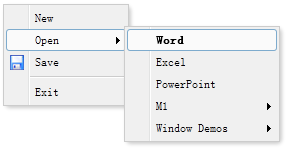
To create a menu from markup, add the 'easyui-menu' class to the <div> markup. Each menu item is created via <div> markup. We can add the 'iconCls' property to the menu item to define an icon displayed on the left side of the menu item. Adding the 'menu-sep' class to a menu item will produce a menu separator.
<div id="mm" class="easyui-menu" style="width:120px;">
    <div>New</div>
    <div>
        <span>Open</span>
        <div style="width:150px;">
            <div><b>Word</b></div>
            <div>Excel</div>
            <div>PowerPoint</div>
        </div>
    </div>
    <div data-options="iconCls:'icon-save'">Save</div>
    <div class="menu-sep"></div>
    <div>Exit</div>
</div>
Create the menu programmatically and listen for the 'onClick' event.
$('#mm').menu({
    onClick:function(item){
        //...
    }
});
Show Menu
When the menu is created, it is hidden and invisible. Call the 'show' method to show the menu.
$('#mm').menu('show', {
    left: 200,
    top: 100
});
Menu Item
A menu item represents a separate item displayed in a menu. It contains the following properties:
| Name | Type | Description | Default Value |
|---|---|---|---|
| id | string | The id property of the menu item. | |
| text | string | The item text. | |
| iconCls | string | A CSS class that displays a 16x16 icon on the left side of the item. | |
| href | string | The page position to set when clicking the menu item. | |
| disabled | boolean | Defines whether to disable the menu item. | false |
| onclick | function | The function to be called when the menu item is clicked. |
Menu Properties
| Name | Type | Description | Default Value |
|---|---|---|---|
| zIndex | number | Menu's z-index style, incremented from it. | 110000 |
| left | number | The left position of the menu. | 0 |
| top | number | The top position of the menu. | 0 |
| minWidth | number | The minimum width of the menu. This property is available since version 1.3.2. | 120 |
| hideOnUnhover | boolean | If set to true, the menu is automatically hidden when the mouse leaves it. This property is available since version 1.3.5. | true |
Menu Events
| Name | Parameters | Description |
|---|---|---|
| onShow | none | Triggered after the menu is shown. |
| onHide | none | Triggered after the menu is hidden. |
| onClick | item | Triggered when a menu item is clicked. The following example demonstrates how to handle all menu item clicks:
<div class="easyui-menu" data-options="onClick:menuHandler" style="width:120px;">
    <div data-options="name:'new'">New</div>
    <div data-options="name:'save',iconCls:'icon-save'">Save</div>
    <div data-options="name:'print',iconCls:'icon-print'">Print</div>
    <div class="menu-sep"></div>
    <div data-options="name:'exit'">Exit</div>
</div>
<script type="text/javascript">
    function menuHandler(item){
        alert(item.name)
    }
</script>
|
Menu Methods
| Name | Parameters | Description |
|---|---|---|
| options | none | Returns the options object. |
| show | pos | Shows the menu at the specified position. The pos parameter has two properties: left: the new left position. top: the new top position. |
| hide | none | Hides the menu. |
| destroy | none | Destroys the menu. |
| getItem | itemEl | Get the menu item properties including the 'target' property (indicating the item's DOM element). The following example demonstrates how to get the specified item by id:
<div id="mm" class="easyui-menu" style="width:120px">
    <div>New</div>
    <div id="m-open">Open</div>
    <div>Save</div>
</div>

var itemEl = $('#m-open')[0];  // the menu item element
var item = $('#mm').menu('getItem', itemEl);
console.log(item);
|
| setText | param | Sets the text of the specified menu item. The 'param' parameter contains two properties: target: the DOM object, the menu item to be set. text: string, the new text value. Code example:
var item = $('#mm').menu('findItem', 'Save');
$('#mm').menu('setText', {
    target: item.target,
    text: 'Saving'
});
|
| setIcon | param | Sets the icon of the specified menu item. The 'param' parameter contains two properties: target: the DOM object, i.e., the menu item. iconCls: the CSS class of the new icon. Code example:
$('#mm').menu('setIcon', {
    target: $('#m-open')[0],
    iconCls: 'icon-closed'
});
|
| findItem | text | Find the specified menu item, the returned object is the same as the getItem method. Code example:
// find 'Open' item and disable it
var item = $('#mm').menu('findItem', 'Open');
$('#mm').menu('disableItem', item.target);
|
| appendItem | options | Append a new menu item, the 'param' parameter indicates the new item properties. By default, the newly added item will be a top-level menu item. To append a submenu item, set the 'parent' property to indicate the parent element that already has sub-items. Code example:
// append a top menu item
$('#mm').menu('appendItem', {
    text: 'New Item',
    iconCls: 'icon-ok',
    onclick: function(){alert('New Item')}
});
// append a menu separator
$('#mm').menu('appendItem', {
    separator: true
});
// append a sub menu item
var item = $('#mm').menu('findItem', 'Open');  // find 'Open' item
$('#mm').menu('appendItem', {
    parent: item.target,  // the parent item element
    text: 'Open Excel',
    iconCls: 'icon-excel',
    onclick: function(){alert('Open Excel')}
});
|
| removeItem | itemEl | Removes the specified menu item. |
| enableItem | itemEl | Enables the menu item. |
| disableItem | itemEl | Disables the menu item. |
jQuery EasyUI Plugins Other Extensions