jQuery EasyUI Drag and Drop -Create a School Timetable
This tutorial will show you how to use jQuery EasyUI to create a school timetable. We will create two tables: display school subjects on the left and the timetable on the right. You can drag school subjects and drop them onto timetable cells. A school subject is a <div class="item"> element, and a timetable cell is a <td class="drop"> element.
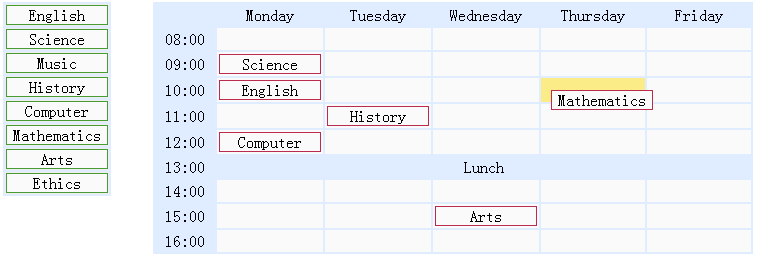
Display School Subjects
    <div class="left">
        <table>
            <tr>
                <td><div class="item">English</div></td>
            </tr>
            <tr>
                <td><div class="item">Science</div></td>
            </tr>
            <!-- other subjects -->
        </table>
    </div>
Display Timetable
    <div class="right">
        <table>
            <tr>
                <td class="blank"></td>
                <td class="title">Monday</td>
                <td class="title">Tuesday</td>
                <td class="title">Wednesday</td>
                <td class="title">Thursday</td>
                <td class="title">Friday</td>
            </tr>
            <tr>
                <td class="time">08:00</td>
                <td class="drop"></td>
                <td class="drop"></td>
                <td class="drop"></td>
                <td class="drop"></td>
                <td class="drop"></td>
            </tr>
            <!-- other cells -->
        </table>
    </div>
Drag the school subjects on the left
    $('.left .item').draggable({
        revert:true,
        proxy:'clone'
    });
Drop school subjects onto timetable cells
    $('.right td.drop').droppable({
        onDragEnter:function(){
            $(this).addClass('over');
        },
        onDragLeave:function(){
            $(this).removeClass('over');
        },
        onDrop:function(e,source){
            $(this).removeClass('over');
            if ($(source).hasClass('assigned')){
                $(this).append(source);
            } else {
                var c = $(source).clone().addClass('assigned');
                $(this).empty().append(c);
                c.draggable({
                    revert:true
                });
            }
        }
    });
As you can see in the code above, when the user drags a school subject from the left and drops it into a timetable cell, the onDrop callback function will be called. We clone the source element dragged from the left and append it to the timetable cell. When dragging a school subject from one cell of the timetable to another cell, simply move it.
Download jQuery EasyUI Examples
jeasyui-dd-timetable.zip
Other Extensions