jQuery EasyUI Window -Customizing Dialogs with Toolbar and Buttons
You can create a dialog with a toolbar and buttons, which can be created from HTML markup. This tutorial describes how to add a toolbar and buttons to a dialog, without any JavaScript code.
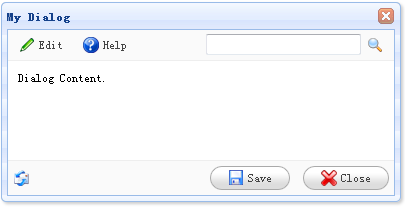
Create Dialog
    <div id="dd" class="easyui-dialog" title="My Dialog" style="width:400px;height:200px;padding:10px"
            toolbar="#dlg-toolbar" buttons="#dlg-buttons">
        Dialog Content.
    </div>
Create Toolbar
    <div id="dlg-toolbar">
        <table cellpadding="0" cellspacing="0" style="width:100%">
            <tr>
                <td>
                    <a href="../index.html" class="easyui-linkbutton" iconCls="icon-edit" plain="true">Edit</a>
                    <a href="../index.html" class="easyui-linkbutton" iconCls="icon-help" plain="true">Help</a>
                </td>
                <td style="text-align:right">
                    <input></input><a href="../index.html" class="easyui-linkbutton" iconCls="icon-search" plain="true"></a>
                </td>
            </tr>
        </table>
    </div>
Create Buttons
    <div id="dlg-buttons">
        <table cellpadding="0" cellspacing="0" style="width:100%">
            <tr>
                <td>
                    <img src="email.gif.html"/>
                </td>
                <td style="text-align:right">
                    <a href="../index.html" class="easyui-linkbutton" iconCls="icon-save" onclick="javascript:alert('save')">Save</a>
                    <a href="../index.html" class="easyui-linkbutton" iconCls="icon-cancel" onclick="javascript:$('#dd').dialog('close')">Close</a>
                </td>
            </tr>
        </table>
    </div>
Please note that the toolbar and buttons properties of the dialog can also be specified by a string value, which will act as a selector to select an appropriate DIV element and append it to the toolbar or buttons position.
Download jQuery EasyUI Examples
jeasyui-win-dlg2.zip
Other Extensions