jQuery EasyUI Layout -Create Border Layout for Web Pages
Border layout provides five regions: east, west, north, south, center. Here are some common usages:
- The north region can be used to display the website's slogan.
- The south region can be used to display copyright and some descriptions.
- The west region can be used to display the navigation menu.
- The east region can be used to display some promotional items.
- The center region can be used to display the main content.
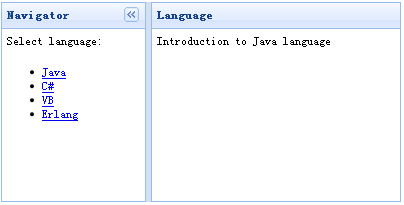
To apply a layout, you should identify a layout container, then define some regions. A layout must have at least one center region. Here is a layout example:
    <div class="easyui-layout" style="width:400px;height:200px;">
        <div region="west" split="true" title="Navigator" style="width:150px;">
            <p style="padding:5px;margin:0;">Select language:</p>
            <ul>
                <li><a href="#" onclick="showcontent('java')">Java</a></li>
                <li><a href="#" onclick="showcontent('cshape')">C#</a></li>
                <li><a href="#" onclick="showcontent('vb')">VB</a></li>
                <li><a href="#" onclick="showcontent('erlang')">Erlang</a></li>
            </ul>
        </div>
        <div id="content" region="center" title="Language" style="padding:5px;">
        </div>
    </div>
We created a border layout in a <div> container. The layout divides the container into two parts: the left side is the navigation menu, and the right side is the main content.
Finally, we write an onclick event handler function to retrieve data. The 'showcontent' function is very simple:
    function showcontent(language){
        $('#content').html('Introduction to ' + language + ' language');
    }
Download jQuery EasyUI Examples
jeasyui-layout-layout.zip
Other Extensions