jQuery EasyUI Form -Create ComboTree
ComboTree is a combo box with a drop-down tree structure. It can be used as a form field and submitted to a remote server.
In this tutorial, we will create a registration form with name, address, and city fields. The city field is a ComboTree field, in which users can pull down a tree panel and select a specific city.
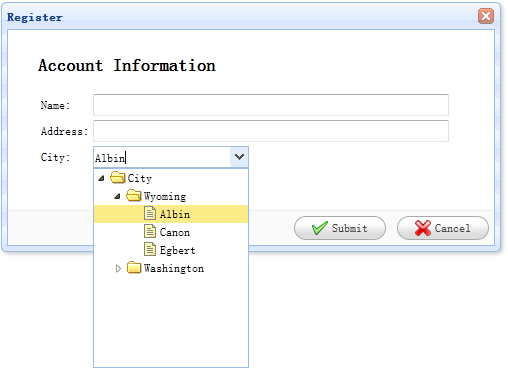
Create Form
    <div id="dlg" class="easyui-dialog" style="width:500px;height:250px;padding:10px 30px;"
            title="Register" buttons="#dlg-buttons">
        <h2>Account Information</h2>
        <form id="ff" method="post">
            <table>
                <tr>
                    <td>Name:</td>
                    <td><input type="text" name="name" style="width:350px;"/></td>
                </tr>
                <tr>
                    <td>Address:</td>
                    <td><input type="text" name="address" style="width:350px;"/></td>
                </tr>
                <tr>
                    <td>City:</td>
                    <td><select class="easyui-combotree" url="data/city_data.json" name="city" style="width:156px;"/></td>
                </tr>
            </table>
        </form>
    </div>
    <div id="dlg-buttons">
        <a href="../index.html" class="easyui-linkbutton" iconCls="icon-ok" onclick="savereg()">Submit</a>
        <a href="../index.html" class="easyui-linkbutton" iconCls="icon-cancel" onclick="javascript:$('#dlg').dialog('close')">Cancel</a>
    </div>
From the code above, we set a url attribute for a ComboTree field named 'city'. This field can retrieve tree structure data from a remote server. Note that this field has a style class named 'easyui-combotree', so we don't need to write any JavaScript code; the ComboTree field will be rendered automatically.
Download jQuery EasyUI Examples
jeasyui-form-form2.zip
Other Extensions