jQuery EasyUI Base Plugin -Searchbox
 jQuery EasyUI Plugins
Override the default defaults via $.fn.searchbox.defaults.
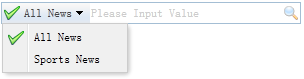
The searchbox prompts the user to enter a search value. It can be combined with a menu to allow the user to select different search categories. When the user presses the ENTER key or clicks the search button on the right side of the component, the search action will be executed.
Dependencies
- menubutton
Usage
Create Searchbox
1. Create from markup. Add the 'easyui-searchbox' class to the <input> tag.
<script type="text/javascript">
    function qq(value,name){
    alert(value+":"+name)
    }
</script>
<input id="ss" class="easyui-searchbox" style="width:300px"
    data-options="searcher:qq,prompt:'Please Input Value',menu:'#mm'"></input>
<div id="mm" style="width:120px">
    <div data-options="name:'all',iconCls:'icon-ok'">All News</div>
    <div data-options="name:'sports'">Sports News</div>
</div>
2. Create programmatically.
<input id="ss"></input>
<div id="mm" style="width:120px">
    <div data-options="name:'all',iconCls:'icon-ok'">All News</div>
    <div data-options="name:'sports'">Sports News</div>
</div>
$('#ss').searchbox({
    searcher:function(value,name){
    alert(value + "," + name)
    },
    menu:'#mm',
    prompt:'Please Input Value'
});
Properties
| Name | Type | Description | Default Value |
|---|---|---|---|
| width | number | The width of the component. | auto |
| height | number | The height of the component. This property is available since version 1.3.2. | 22 |
| prompt | string | The hint message displayed in the input box. | '' |
| value | string | The entered value. | '' |
| menu | selector | The menu of search types. Each menu item can have the following properties: name: The search type name. selected: The currently selected search type name. The following example demonstrates how to define a selected search type name. <input class="easyui-searchbox" style="width:300px" data-options="menu:'#mm'" /> <div id="mm" style="width:150px"> <div data-options="name:'item1'">Search Item1</div> <div data-options="name:'item2',selected:true">Search Item2</div> <div data-options="name:'item3'">Search Item3</div> </div> |
null |
| searcher | function(value,name) | When the user presses the search button or the ENTER key, the searcher function will be called. | null |
Methods
| Name | Parameters | Description |
|---|---|---|
| options | none | Returns the options object. |
| menu | none | Returns the menu object of search types. The following example demonstrates how to change the menu item icon.
var m = $('#ss').searchbox('menu');  // get the menu object
var item = m.menu('findItem', 'Sports News');  // find the menu item
// change the menu item icon
m.menu('setIcon', {
    target: item.target,
    iconCls: 'icon-save'
});
// select the searching type name
$('#ss').searchbox('selectName', 'sports');
|
| textbox | none | Returns the text box object. |
| getValue | none | Returns the current search value. |
| setValue | value | Sets a new search value. |
| getName | none | Returns the current search type name. |
| selectName | name | Selects the current search type name. Code example:
$('#ss').searchbox('selectName', 'sports');
|
| destroy | none | Destroys the component. |
| resize | width | Resets the width of the component. |
jQuery EasyUI Plugins Other Extensions