VSCode Linux Installation
VSCode is a cross-platform free source code editor developed by Microsoft, supporting Windows, macOS, and Linux.
Before installing VS Code, ensure your device meets the following minimum requirements:
| Operating System | Minimum Requirements |
|---|---|
| Windows | Windows 7 64-bit or later |
| macOS | macOS 10.11 El Capitan or later |
| Linux | Ubuntu 16.04+, Debian 9+, Fedora 30+, CentOS 7+ |
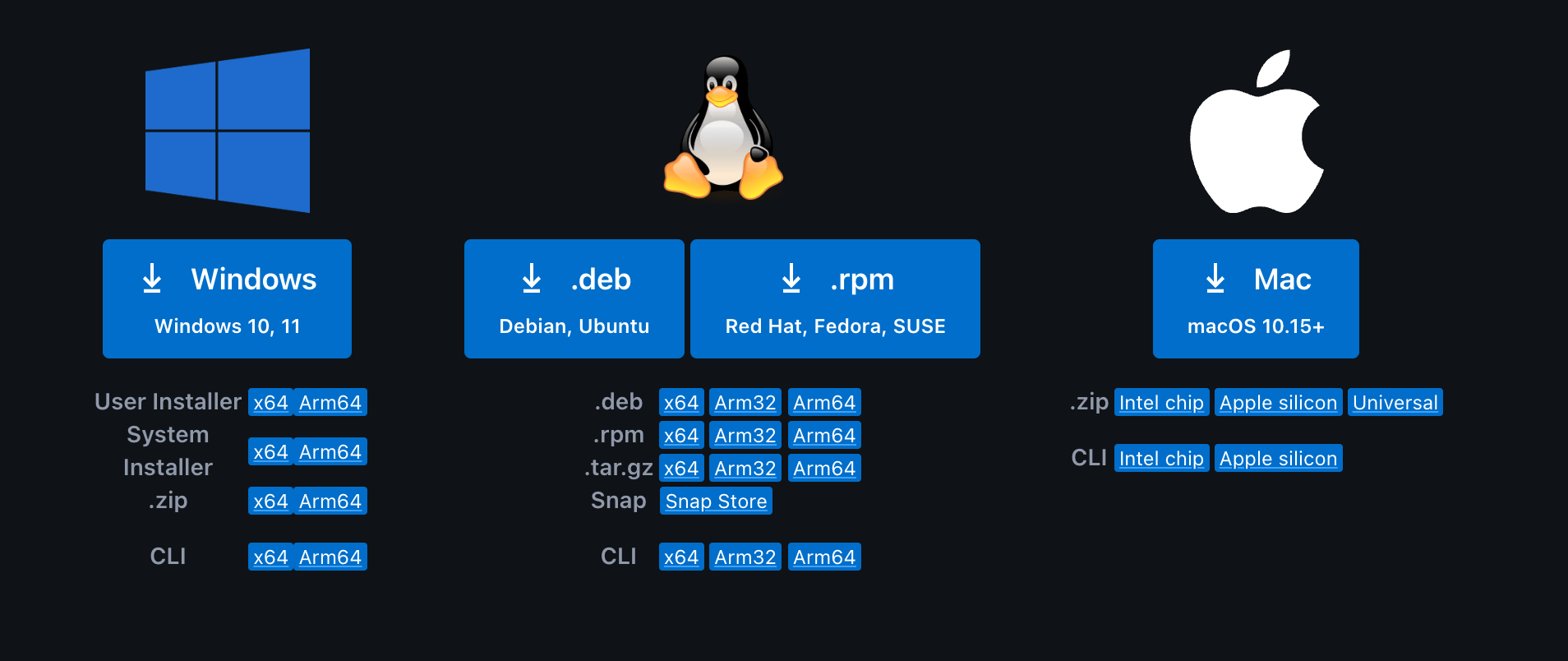
VS Code official website download page:https://code.visualstudio.com/Download。
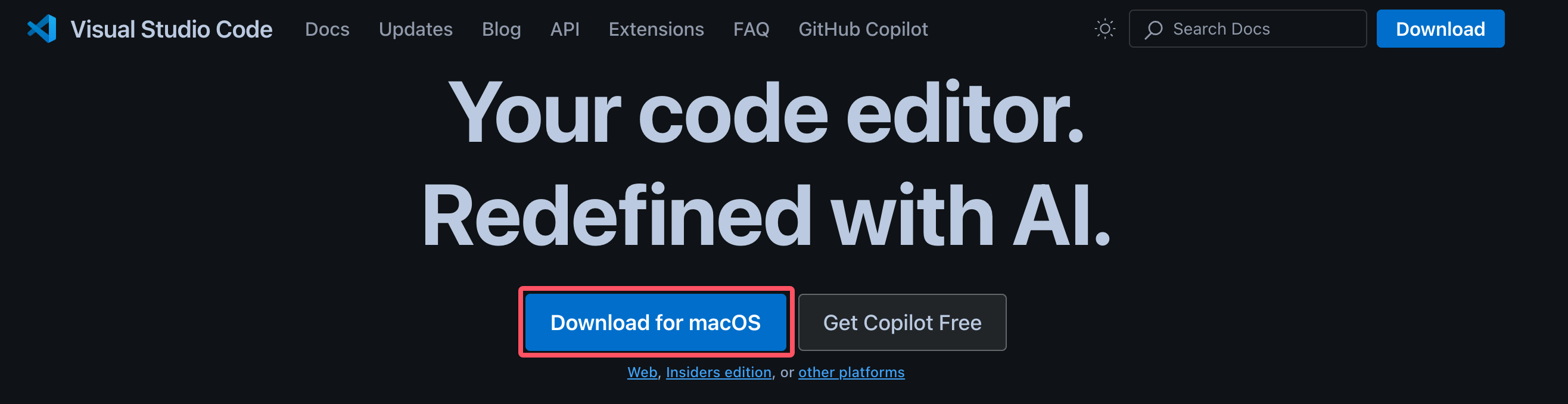
By default, when you visit the VS Code official websitehttps://code.visualstudio.com/, the page will automatically match the installer based on your system. For example, if I am on macOS, it will showDownload for macOSbutton:
Install on Linux
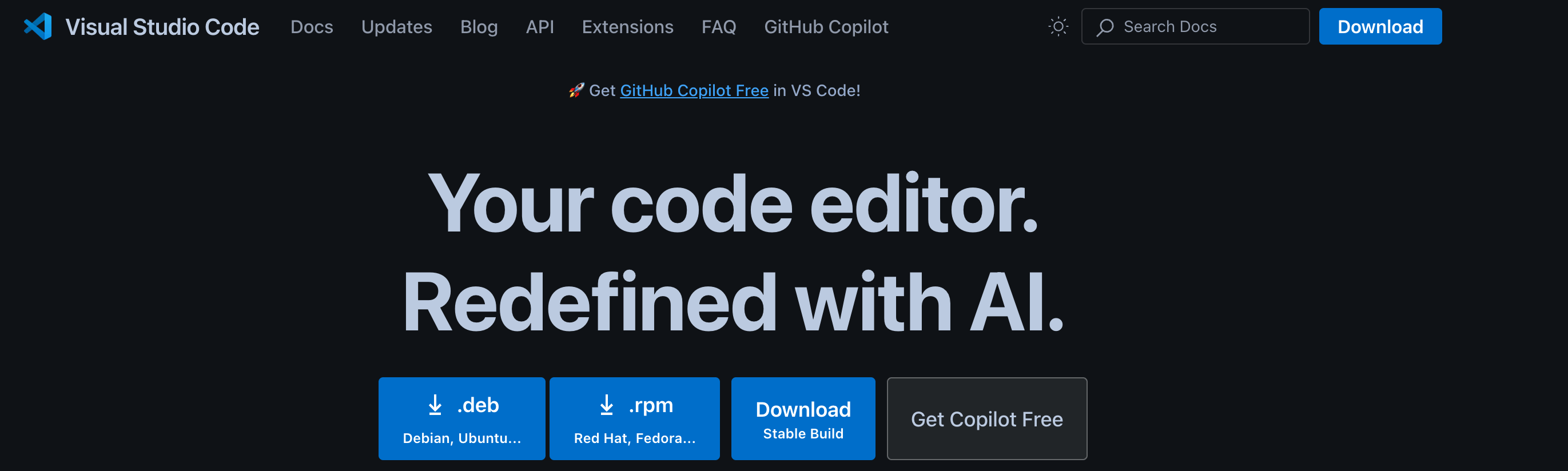
Visit the VS Code official websitehttps://code.visualstudio.com/, and it will show installation packages for major Linux distributions.
Install using a package manager (Recommended)
For Debian-based systems (such as Ubuntu):
sudo apt update
sudo apt install software-properties-common apt-transport-https
wget -qO- https://packages.microsoft.com/keys/microsoft.asc | gpg --dearmor > microsoft.gpg
sudo install -o root -g root -m 644 microsoft.gpg /usr/share/keyrings/
sudo sh -c 'echo "deb [arch=amd64 signed-by=/usr/share/keyrings/microsoft.gpg] https://packages.microsoft.com/repos/vscode stable main" > /etc/apt/sources.list.d/vscode.list'
sudo apt update
sudo apt install code
For Red Hat-based systems (such as Fedora):
sudo rpm --import https://packages.microsoft.com/keys/microsoft.asc
sudo sh -c 'echo -e "[code]\nname=Visual Studio Code\nbaseurl=https://packages.microsoft.com/yumrepos/vscode\nenabled=1\ngpgcheck=1\ngpgkey=https://packages.microsoft.com/keys/microsoft.asc" > /etc/yum.repos.d/vscode.repo'
sudo dnf check-update
sudo dnf install code
Directly download and install the binary package
Download the appropriate .deb or .rpm file from the VS Code official website.
For .deb files:
sudo dpkg -i code*.deb
sudo apt-get install -f
For .rpm files:
sudo rpm -i code*.rpm
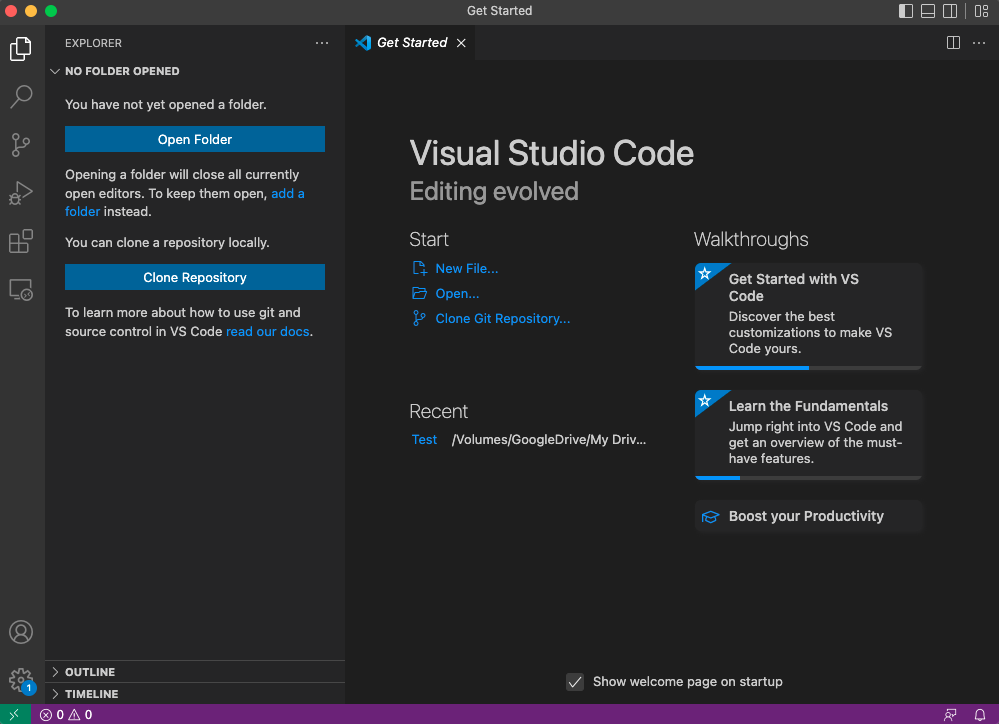
Run VS CodeEnter code in the terminal to start VS Code, or open it through the system menu.
VSCode's code command
Enabling VSCode's code command is very simple; first open the command palette:
- macOS shortcut:⇧⌘P
- Windows/Linux shortcut:Ctrl + Shift + P
Search install >shell command:
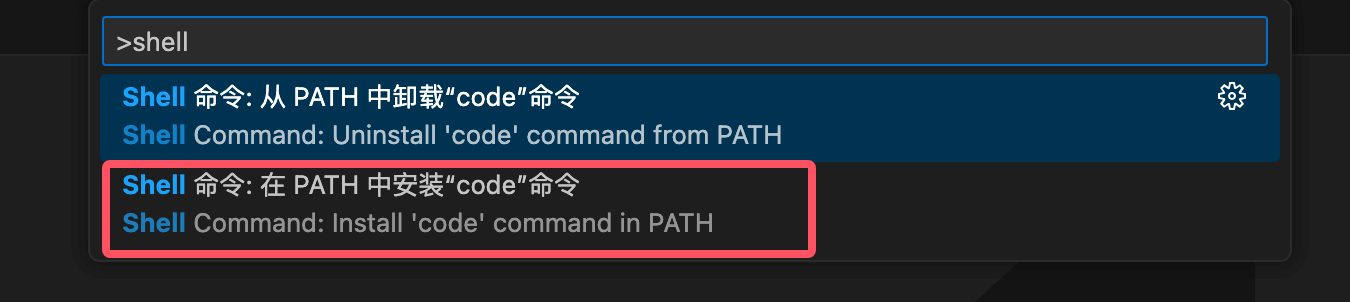
Then selectShell Command: Install 'code' command in PATHThis will add to the system PATH thecodecommand reference.
Other Extensions