VS Code Settings
VS Code (Visual Studio Code) is a feature-rich code editor. Its settings feature allows users to customize the editor's behavior and appearance to suit individual work habits and preferences.
Two ways to configure VS Code:
- Use the Settings Editor to modify settings.
- Directly edit the settings.json file.
Use keyboard shortcuts to open the settings page:
- macOS shortcut:⌘ + ,
- Windows/Linux shortcut: Ctrl + ,
You can also use the menu to selectCode > Preferences > Settingsto open the settings page:
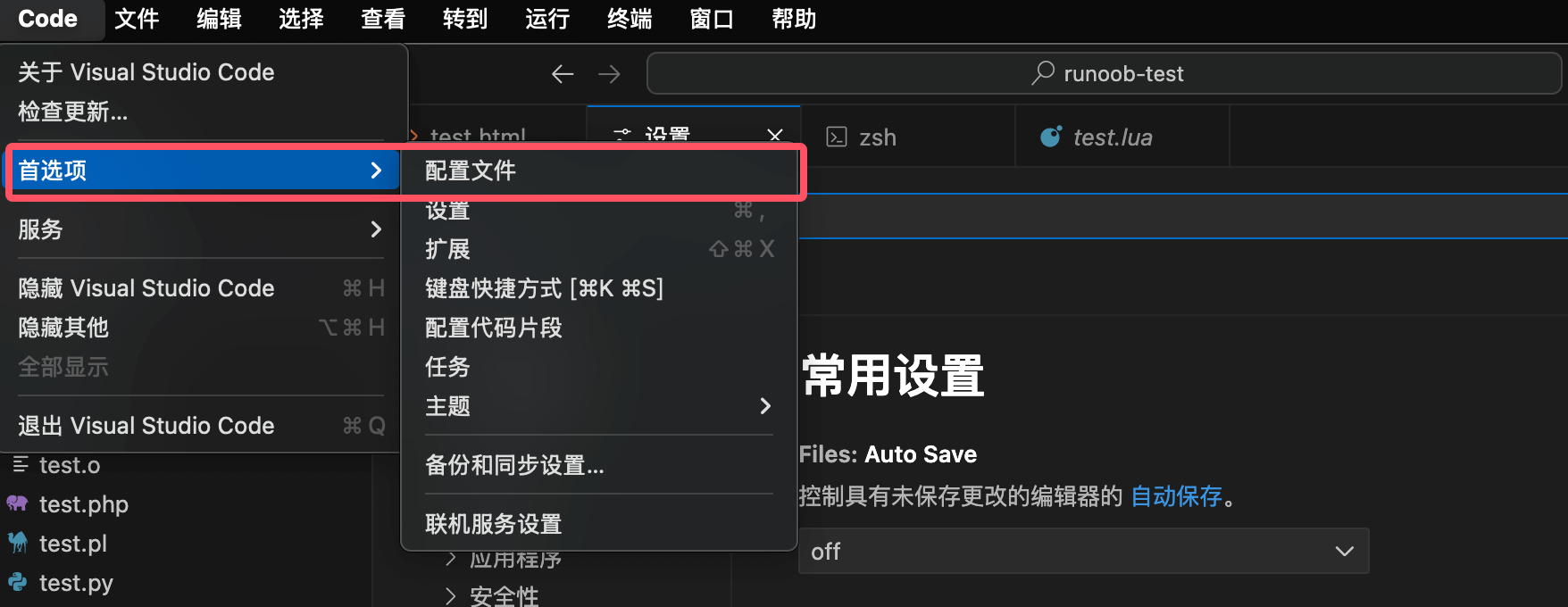
The settings page is shown below:
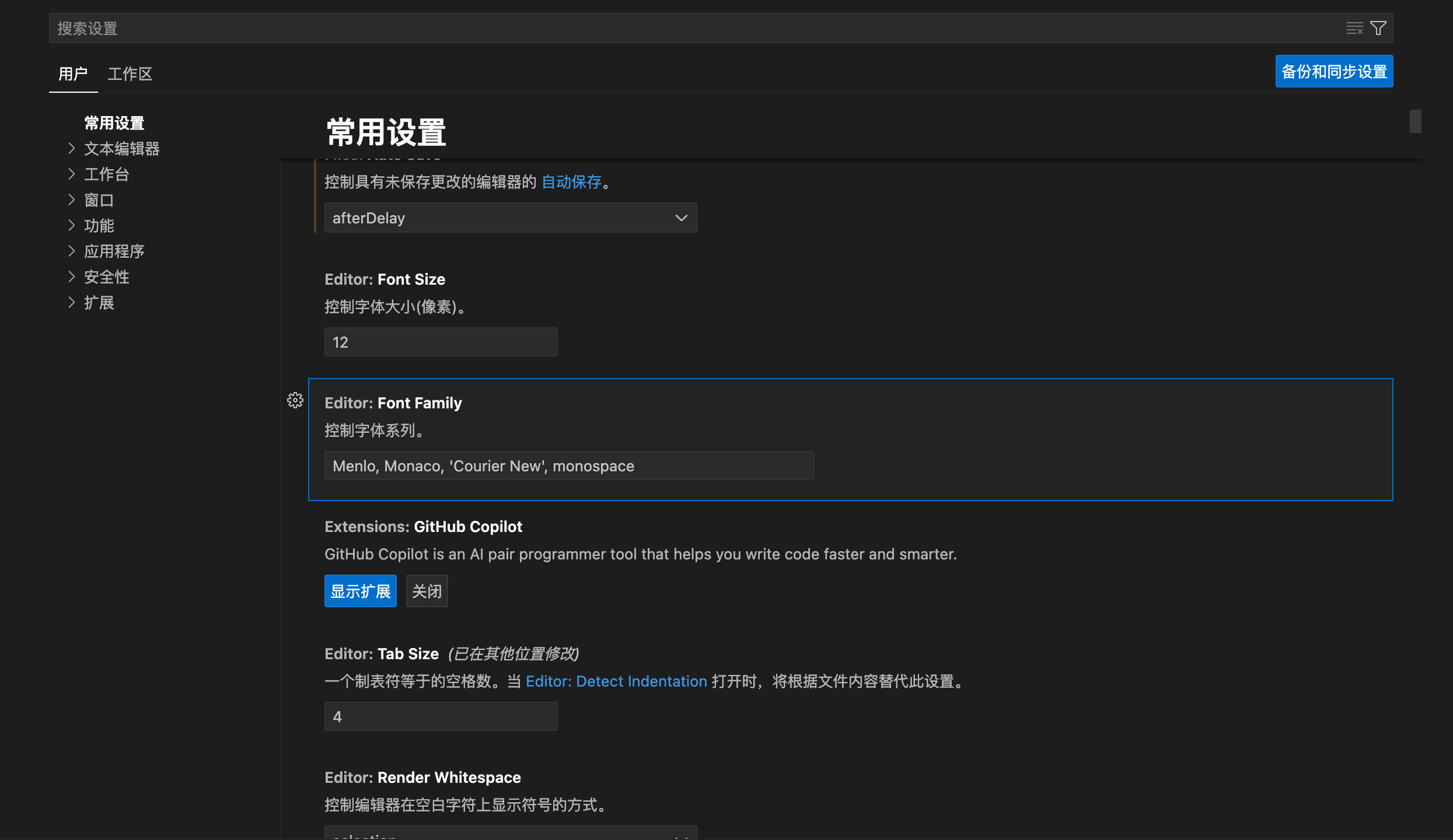
Page layout:
- Top of the settings page:The search box at the top of the page allows you to quickly filter settings; enter a keyword to see related configuration items.
- Left navigation bar:Displays different setting options by category, such as Common Settings, Text Editor, Workbench, Window, etc., making it easy to quickly locate items you need to modify.
- Settings details on the right:Shows specific settings and their corresponding values, each usually accompanied by a brief description.
Commonly used settings include:
- Font Size:Sets the font size of the editor.
- Font Family:Specifies the editor's font, e.g., Menlo, Monaco, etc.
- Tab Size:Controls the number of spaces a tab character uses; the default is 4.
- Auto Save:Determines whether files are automatically saved and the conditions that trigger saving.
Enable Auto Save
By default, VS Code does not automatically save modified files.
In the Settings Editor, select a value from the Auto Save dropdown to change this behavior.
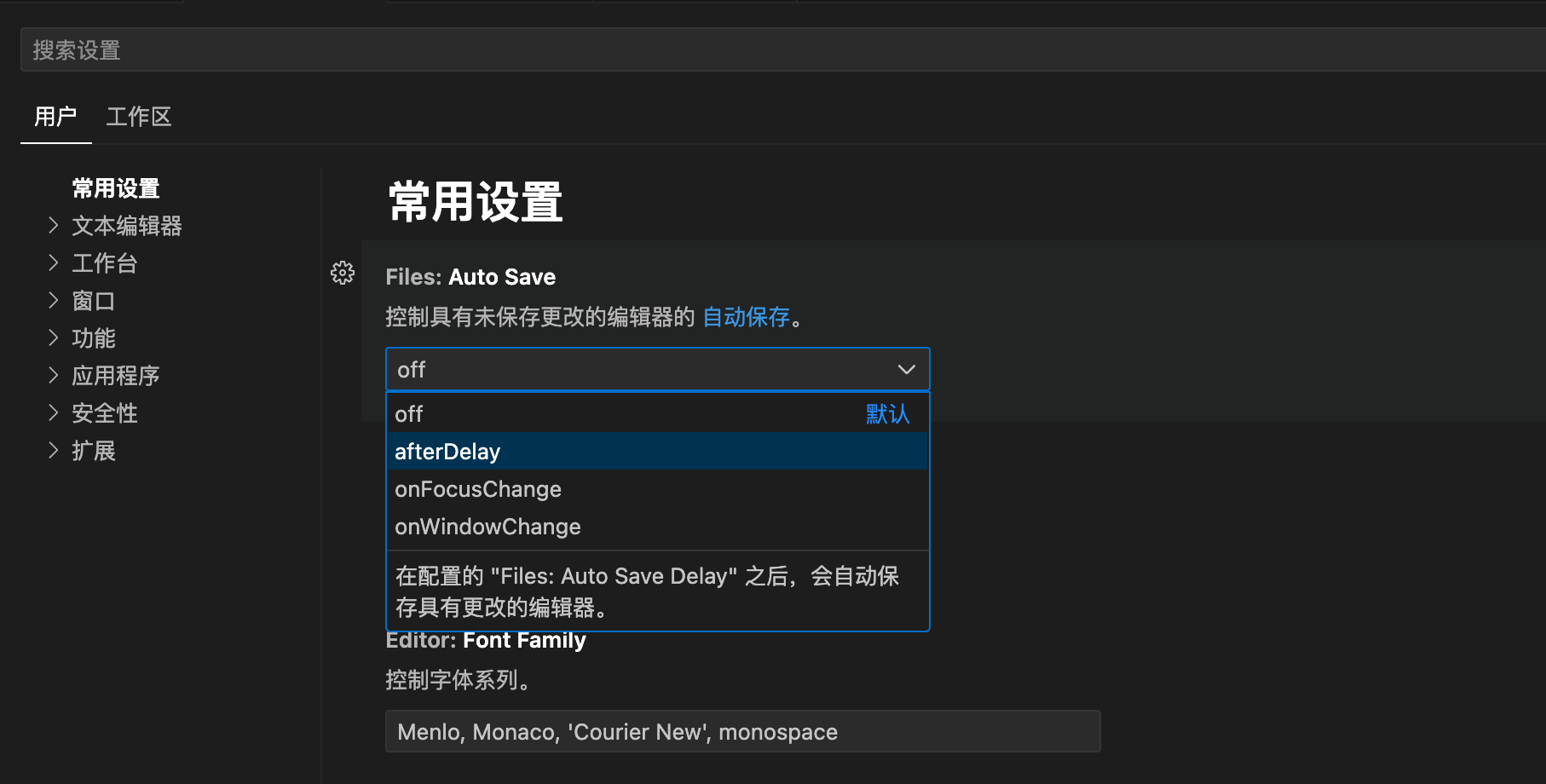
After modification, VS Code automatically applies the setting changes.
If auto-save is enabled, files will be automatically saved when you modify files in the workspace.
Restore Default Settings
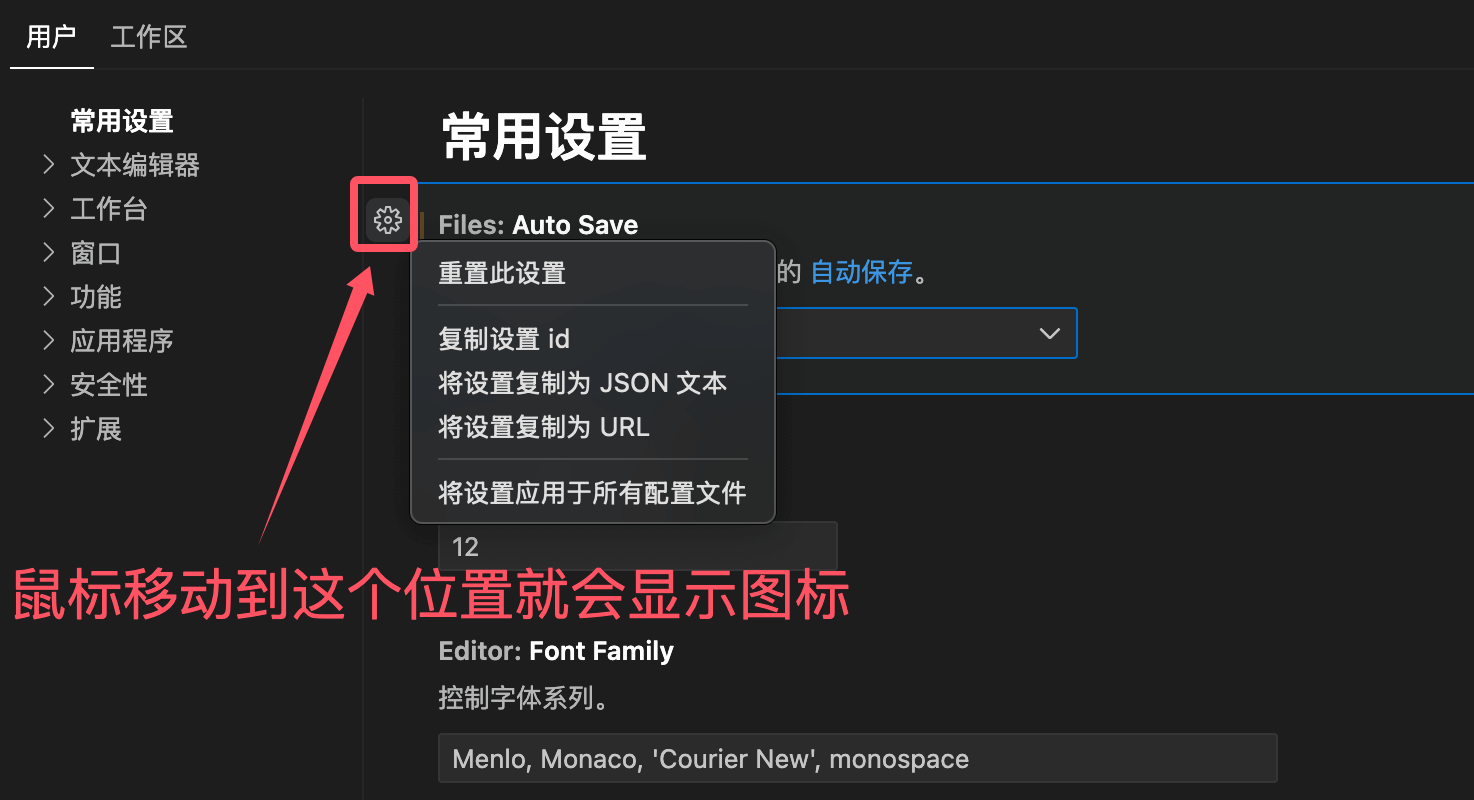
To restore a setting to its default value, move the mouse next to the setting item, a gear icon will appear, click it and then choose Reset Setting:
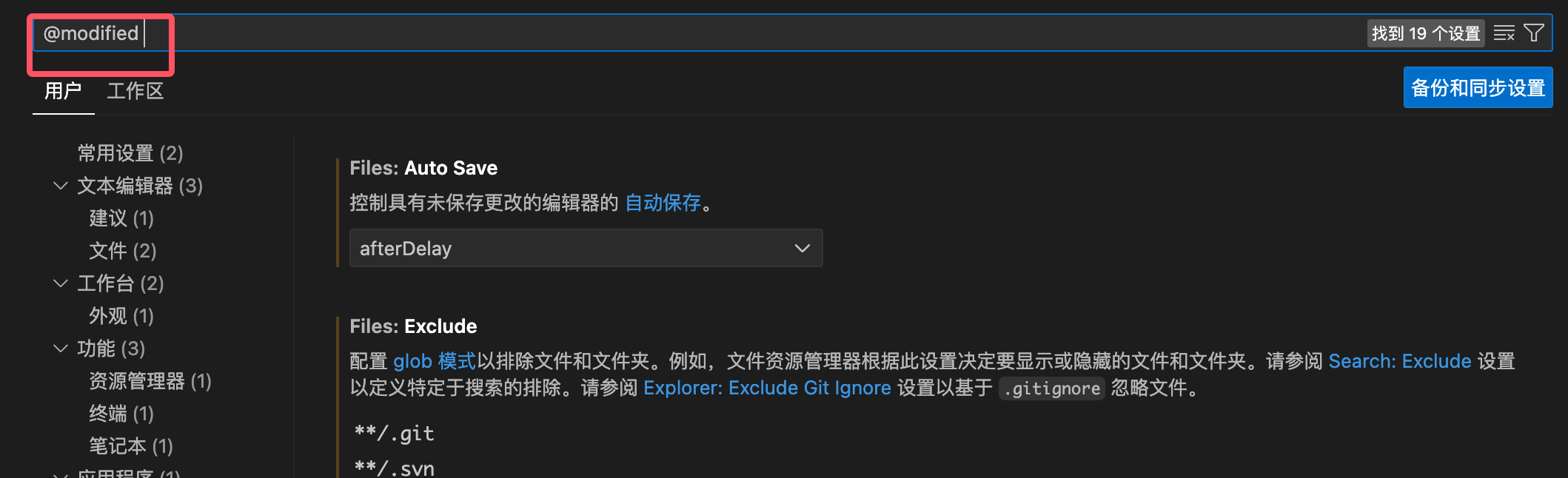
To quickly find all modified settings, you can type in the search box@modified:
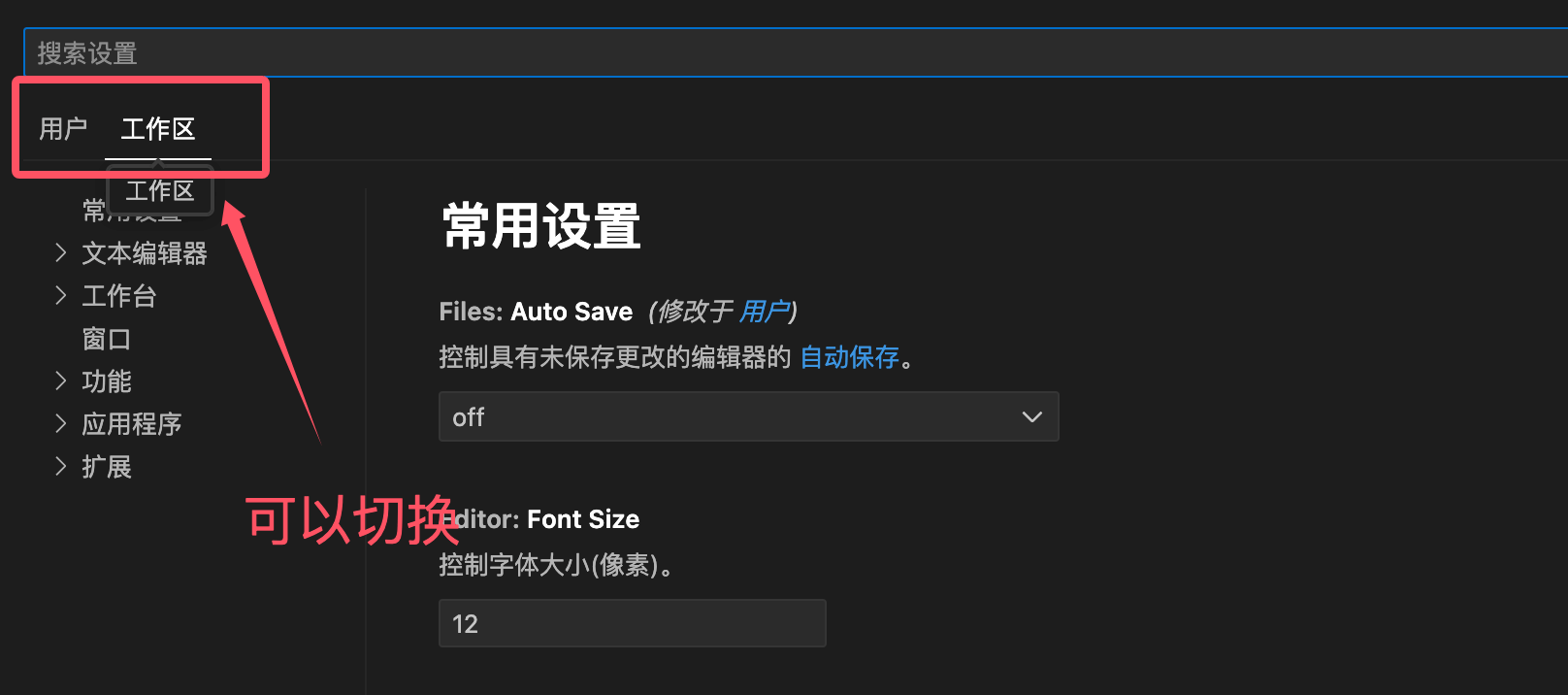
Switch between User Settings and Workspace Settings
- User settings: take effect for all workspaces.
- Workspace settings: apply only to the current workspace and override user settings.