VSCode Theme Settings
VSCode theme settings allow us to customize the color scheme of the Visual Studio Code user interface based on personal preferences and work environment.
A theme not only affects VS Code's user interface elements, but also affects the highlighting colors of the code editor.
Preview Themes from the Command Palette
Select from the Menu BarCode > Settings (Preferences) > Theme > Color ThemeMenu item: Or use the command Preferences: Color Theme (⌘K ⌘T) to open the theme picker.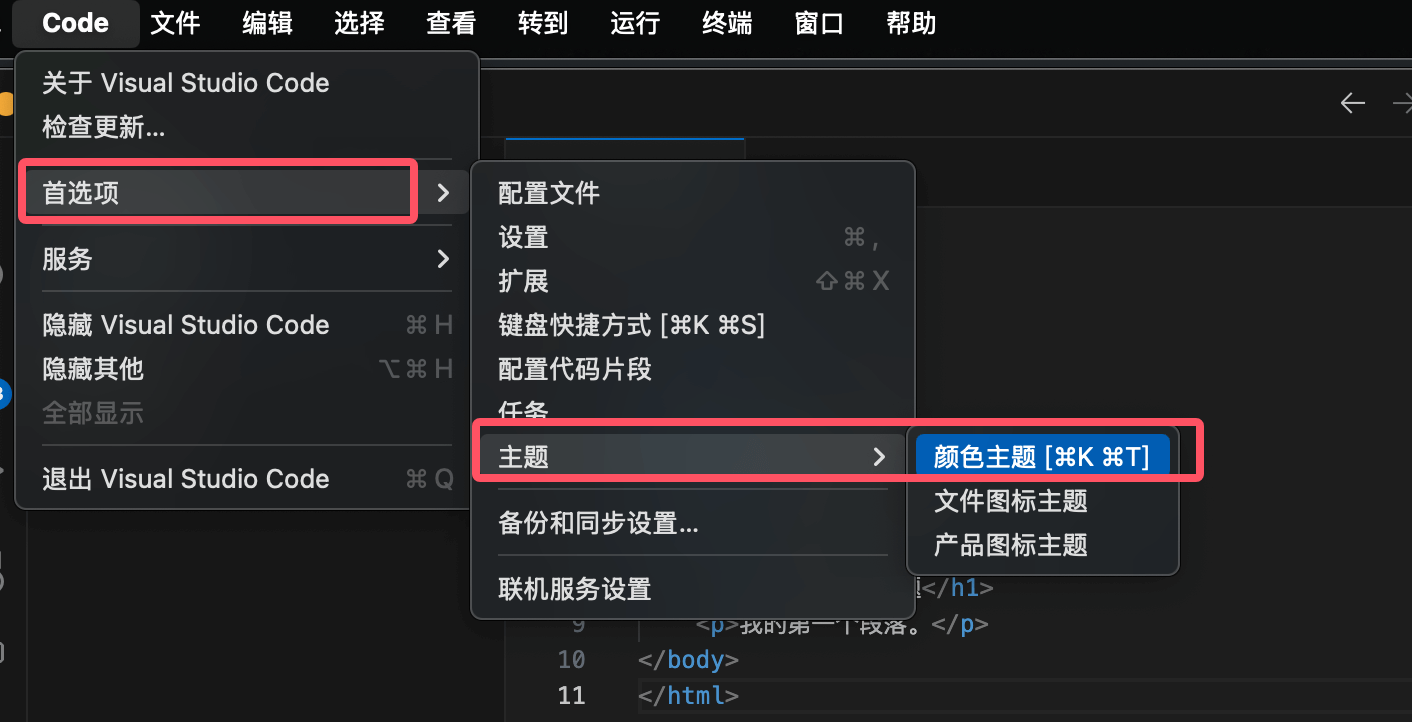
Open using shortcut keys:
- Windows/Linux: Ctrl + K Ctrl + TOpen the theme picker.
- macOS: ⌘K ⌘TOpen the theme picker
After opening, the command box appears as follows:
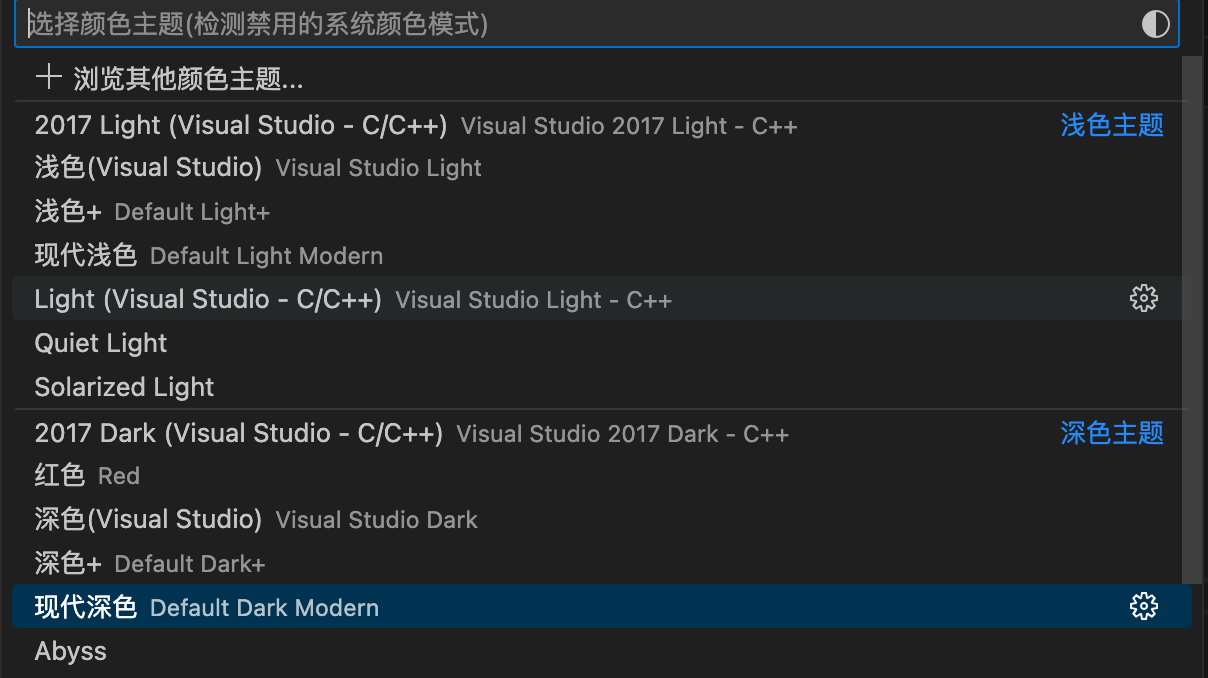
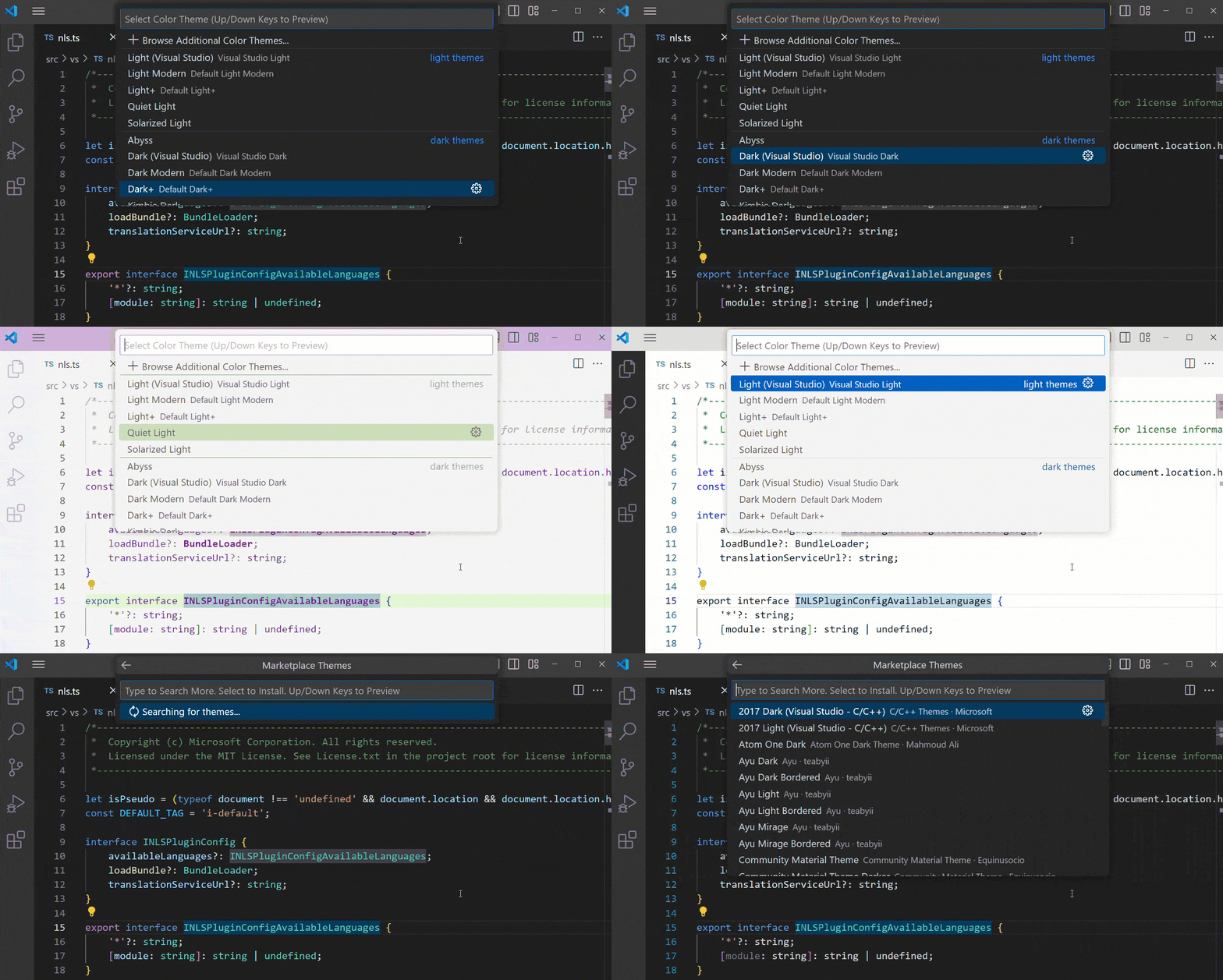
Useup and down arrow keysBrowse through the theme list and preview theme colors in real time. After selecting your preferred theme, press Enter to confirm.
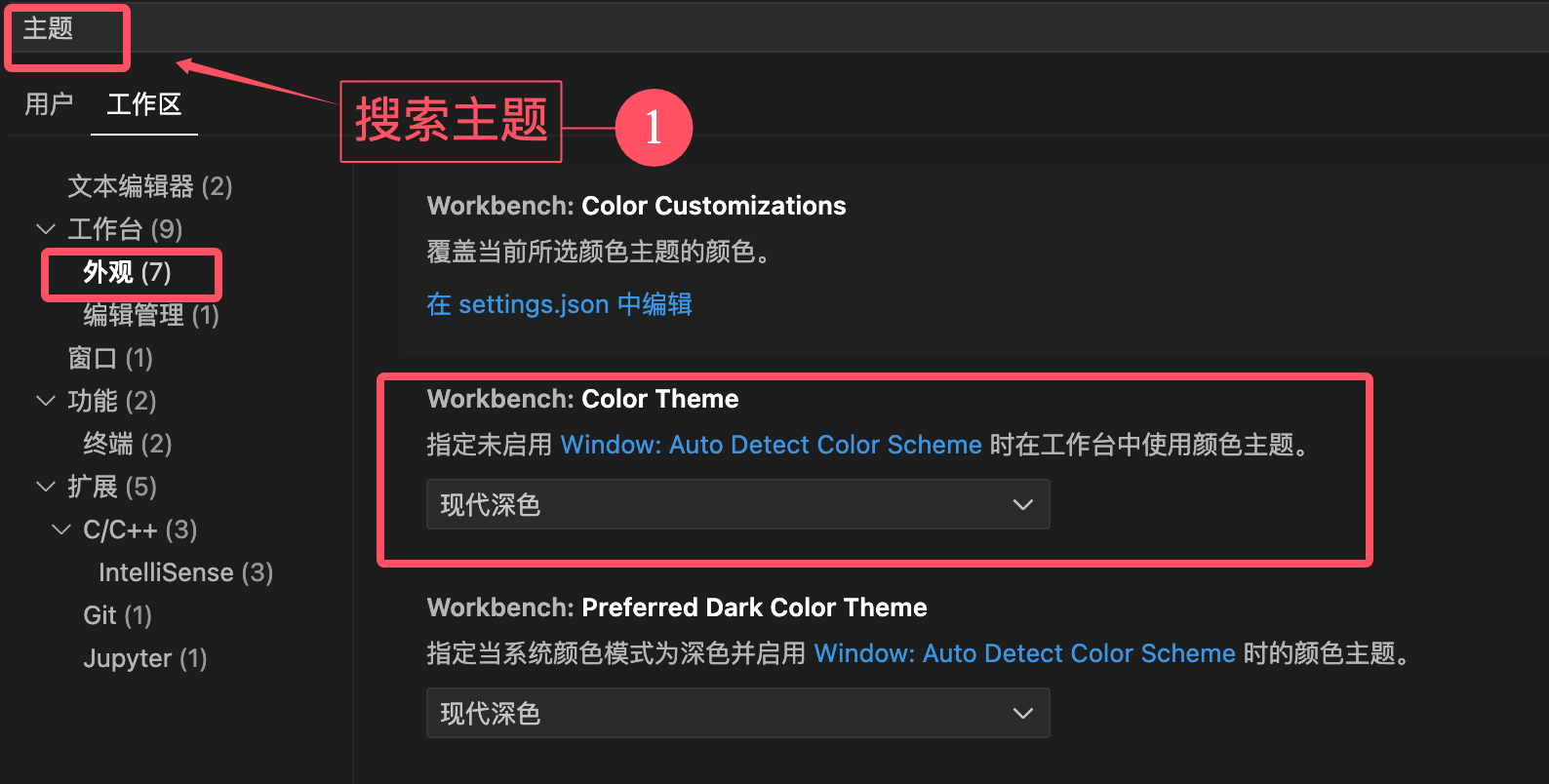
The currently active theme is stored in user settings. For reference on opening the settings menu, refer toVS Code Settings:
// 定义工作界面使用的颜色主题
"workbench.colorTheme": "Solarized Dark"
Tip:By default, themes are stored in user settings and applied globally to all workspaces.
If you want to configure a theme for a specific workspace, you can specify it in the workspace settings.
Get Themes from the Marketplace
Browse Marketplace Themes from the Theme Selector
In the color theme picker, click the 'Browse Additional Color Themes...' option to jump to the marketplace theme browsing page:
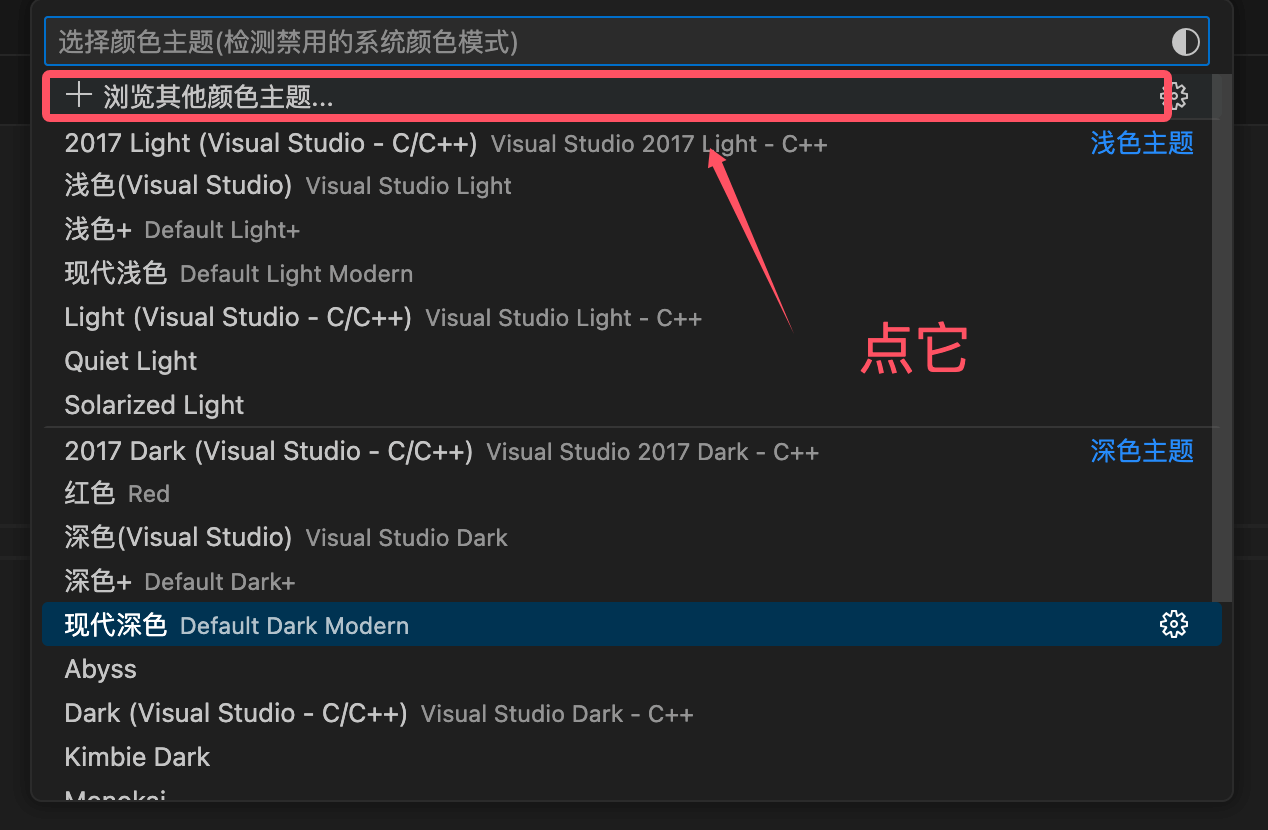
After clicking, a list of themes will be displayed. Useup and down arrow keysto browse through the theme list and preview theme colors in real time:
In the color theme picker, click the 'Browse Additional Color Themes...' option to jump to the marketplace theme browsing page:
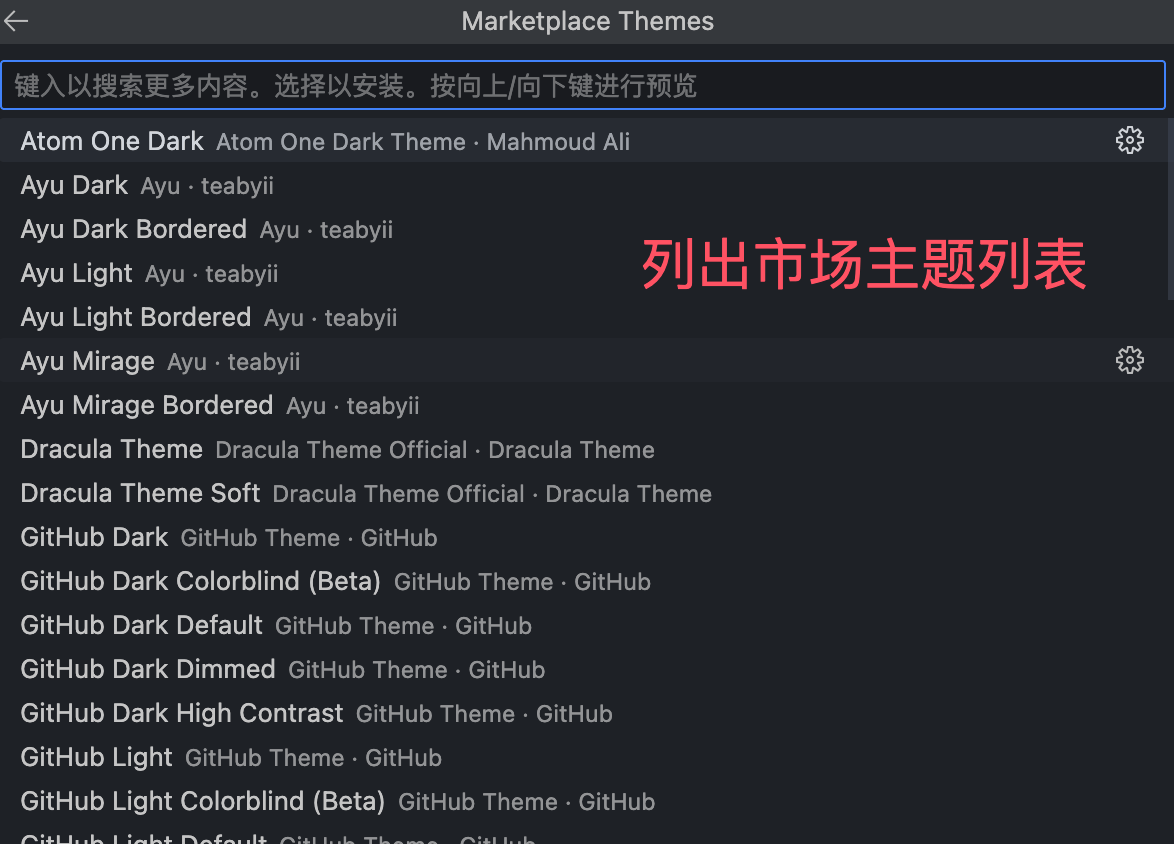
Search for Themes from the Extensions View
In addition to the built-in themes, VS Code's extension marketplace also provides many themes:
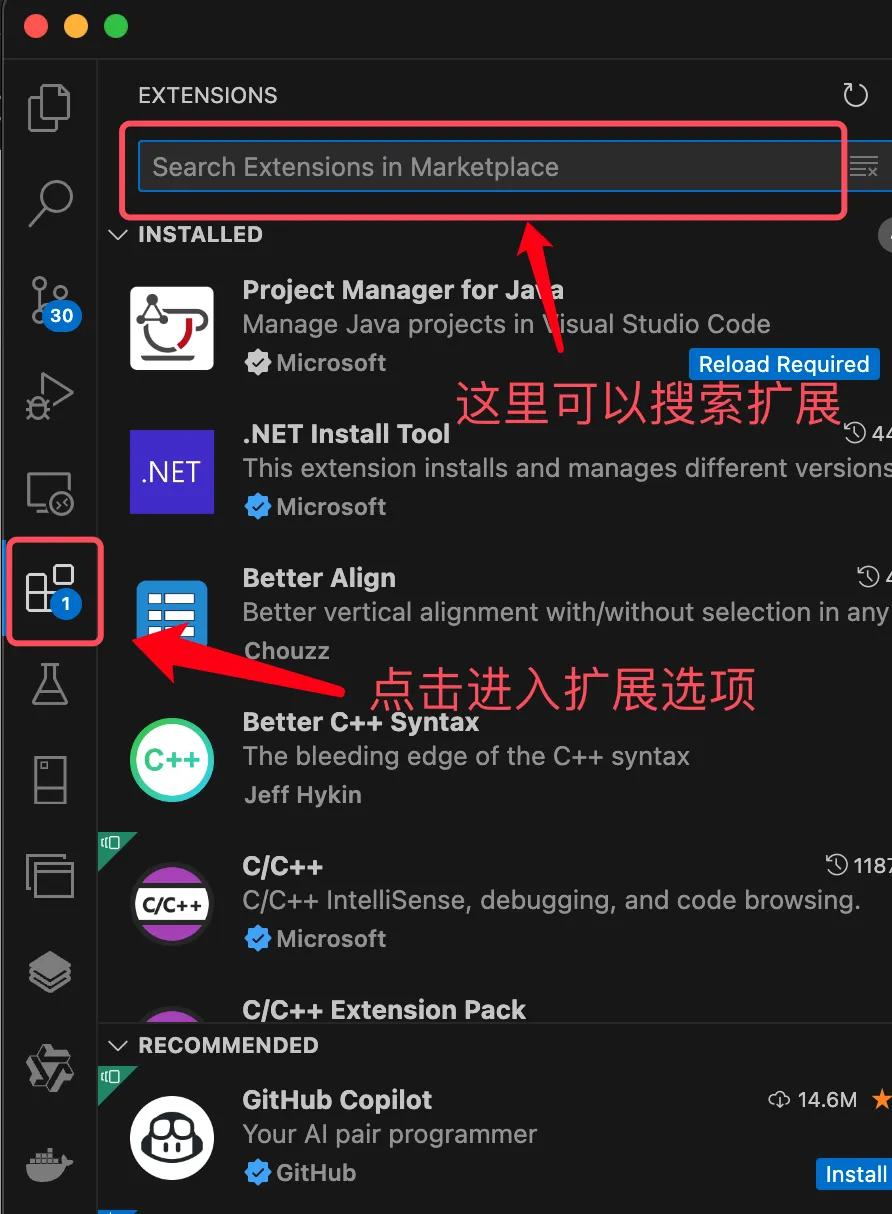
For example, search forOne Dark Prothis theme:
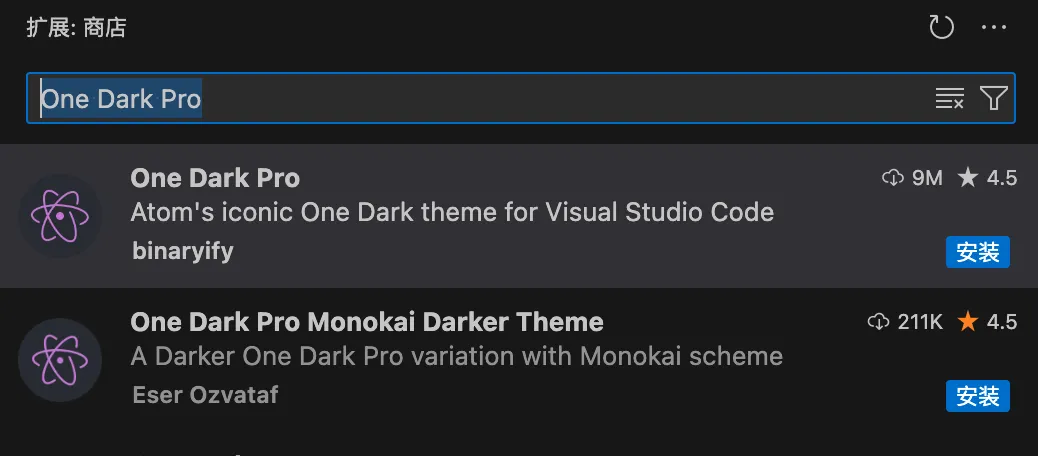
You can also use@category:"themes"the filter in the search box to find related themes:
