VSCode Version Control
VSCode (Visual Studio Code) implements version control primarily through integrated Git. It provides a complete set of interfaces and tools that allow developers to conveniently manage code versions.
Next, we will use the built-in Git support to commit the changes made earlier.
Open the Version Control View
Select the "Source Control" view in the Activity Bar to enable version control.
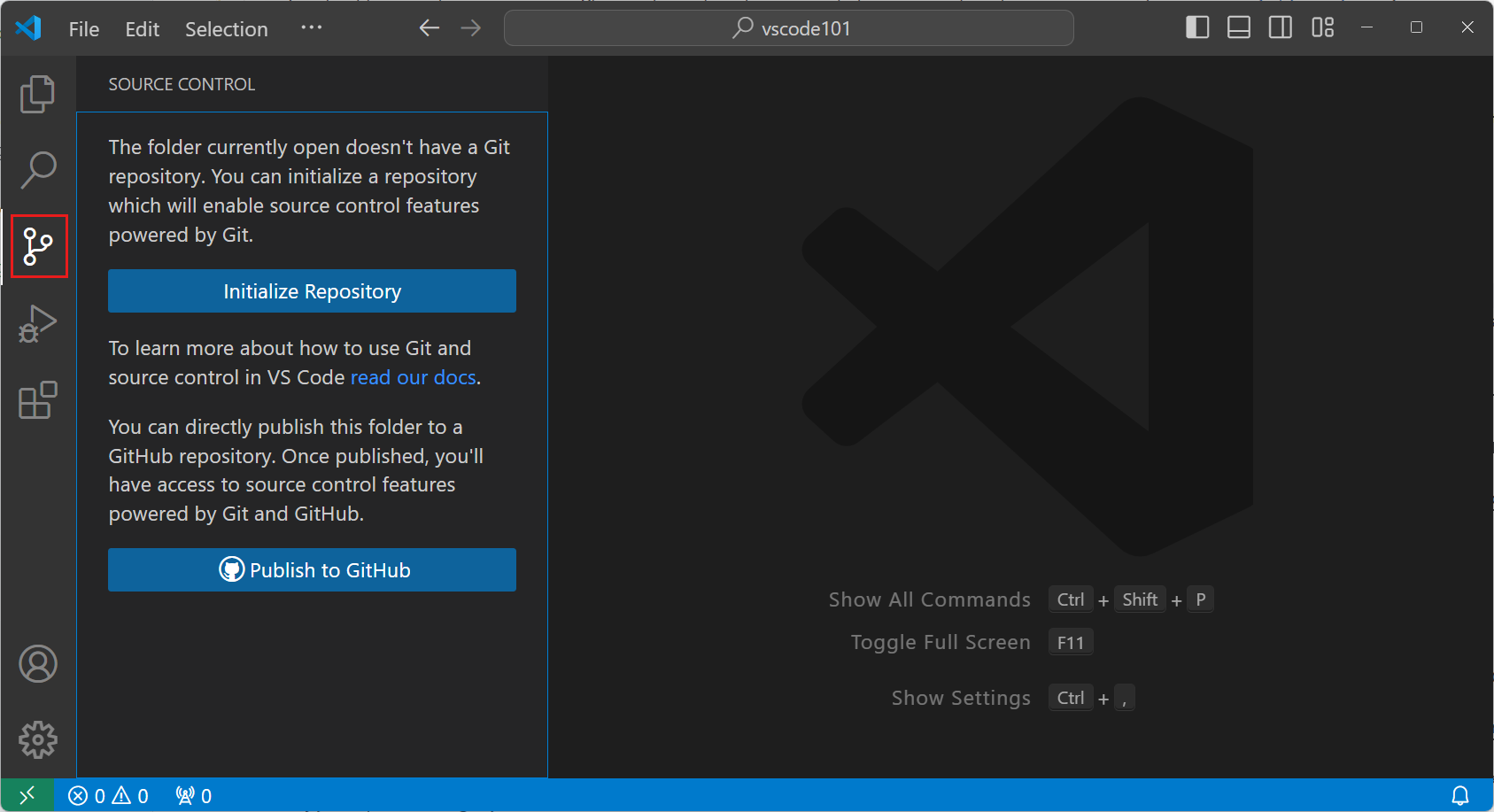
Before using it, make sure Git is installed on your computer. If Git is not installed, you will see a button in the "Source Control" view that you can click to install it.
Initialize a Git Repository
Select the "Initialize Repository" button to create a new Git repository for the current workspace.
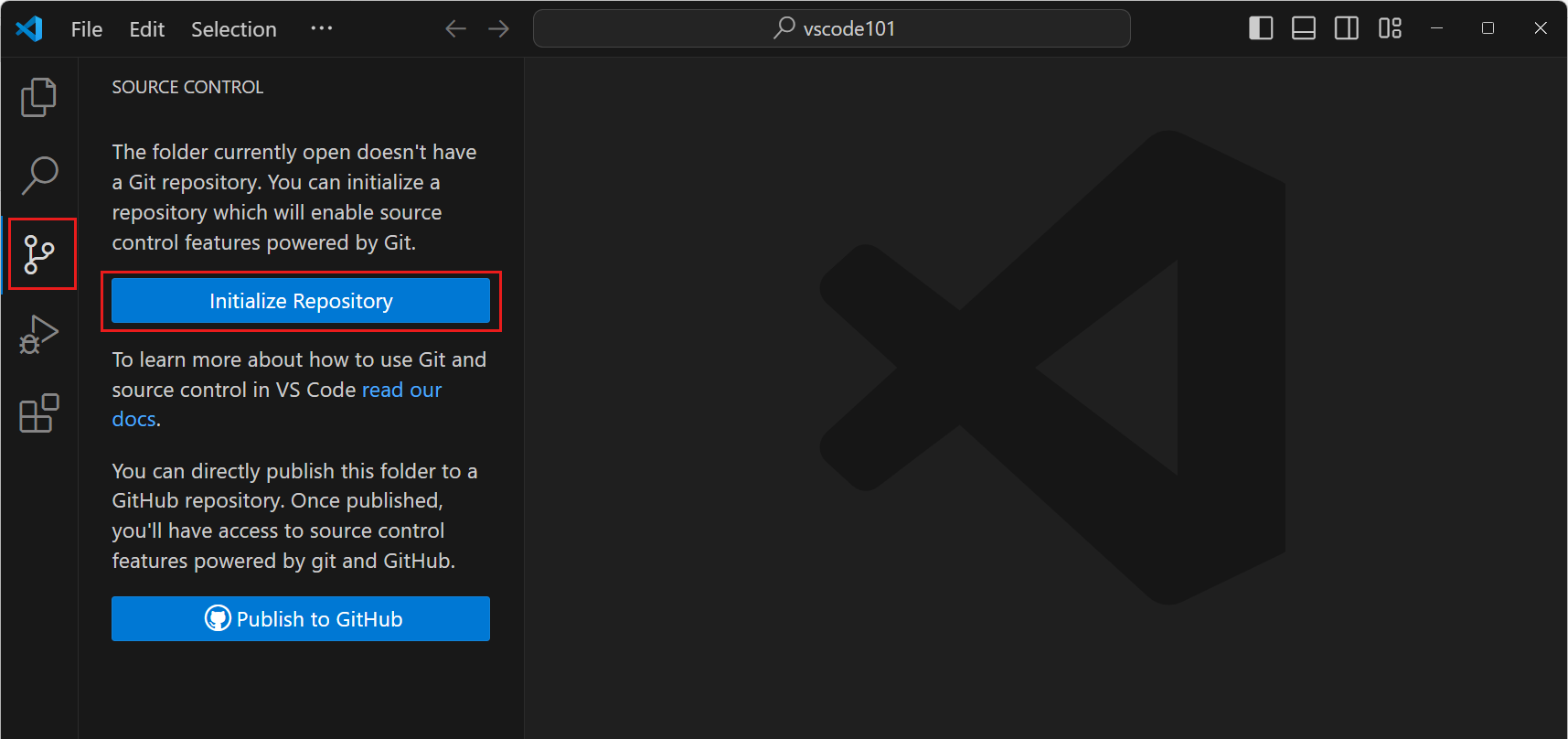
After initialization, the "Source Control" view will display the changes you have made in the workspace.
Stage Changes and Commit
Hover over a file and click the+icon to stage the changes of that file.
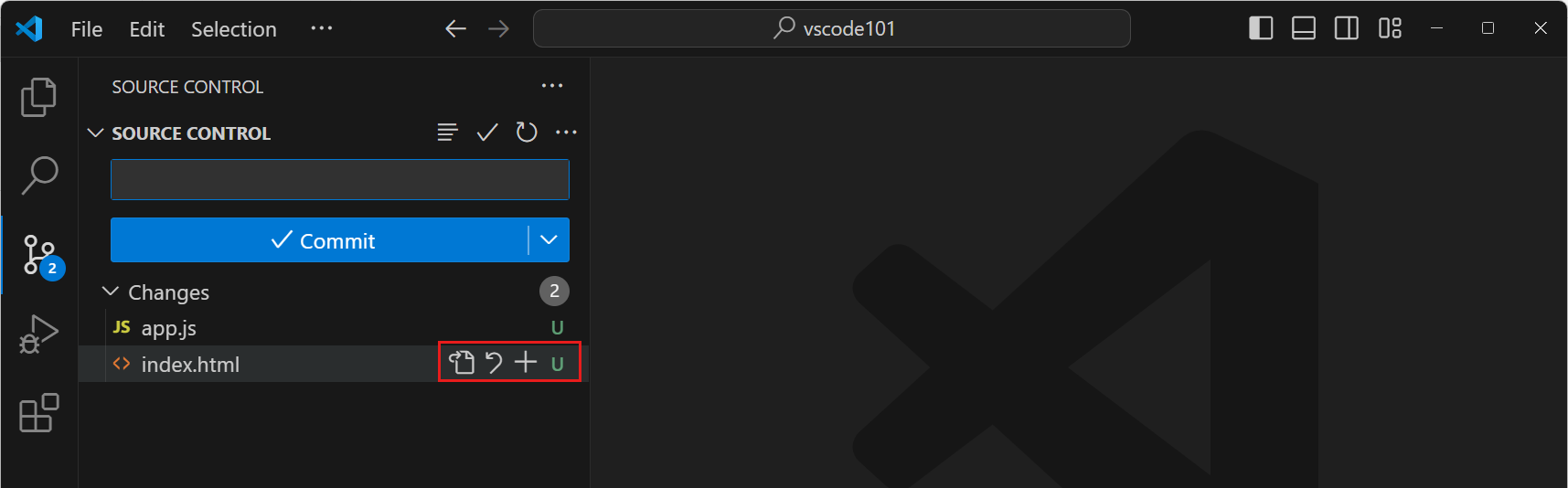
Hover over the "Changes" area and click the "Stage All Changes" button to quickly stage all files.
Commit Changes
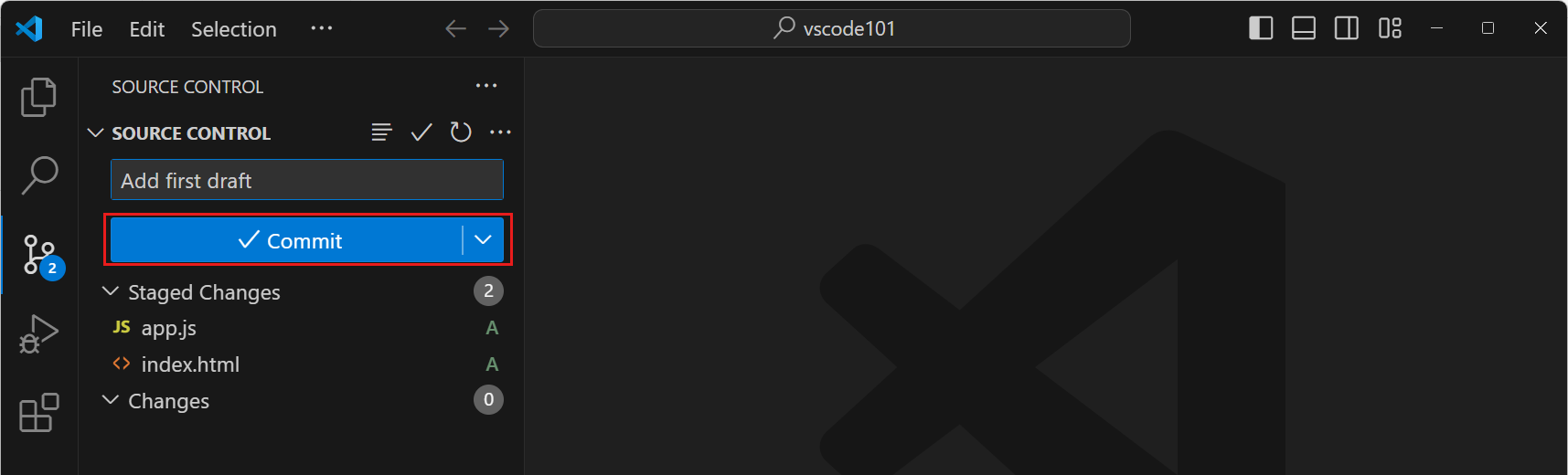
Enter a commit message, such as "Add hello function".
Click the "Commit" button to commit the changes to your Git repository.