VSCode Shortcut Keys Complete Guide
This chapter isVisual Studio Code (VS Code)a comprehensive guide to common shortcut keys, covering code editing, file management, debugging, and other operations, to improve development efficiency.
Shortcut keys can be configured through the menu bar'sCode > Preferences > Keyboard Shortcutsto view:
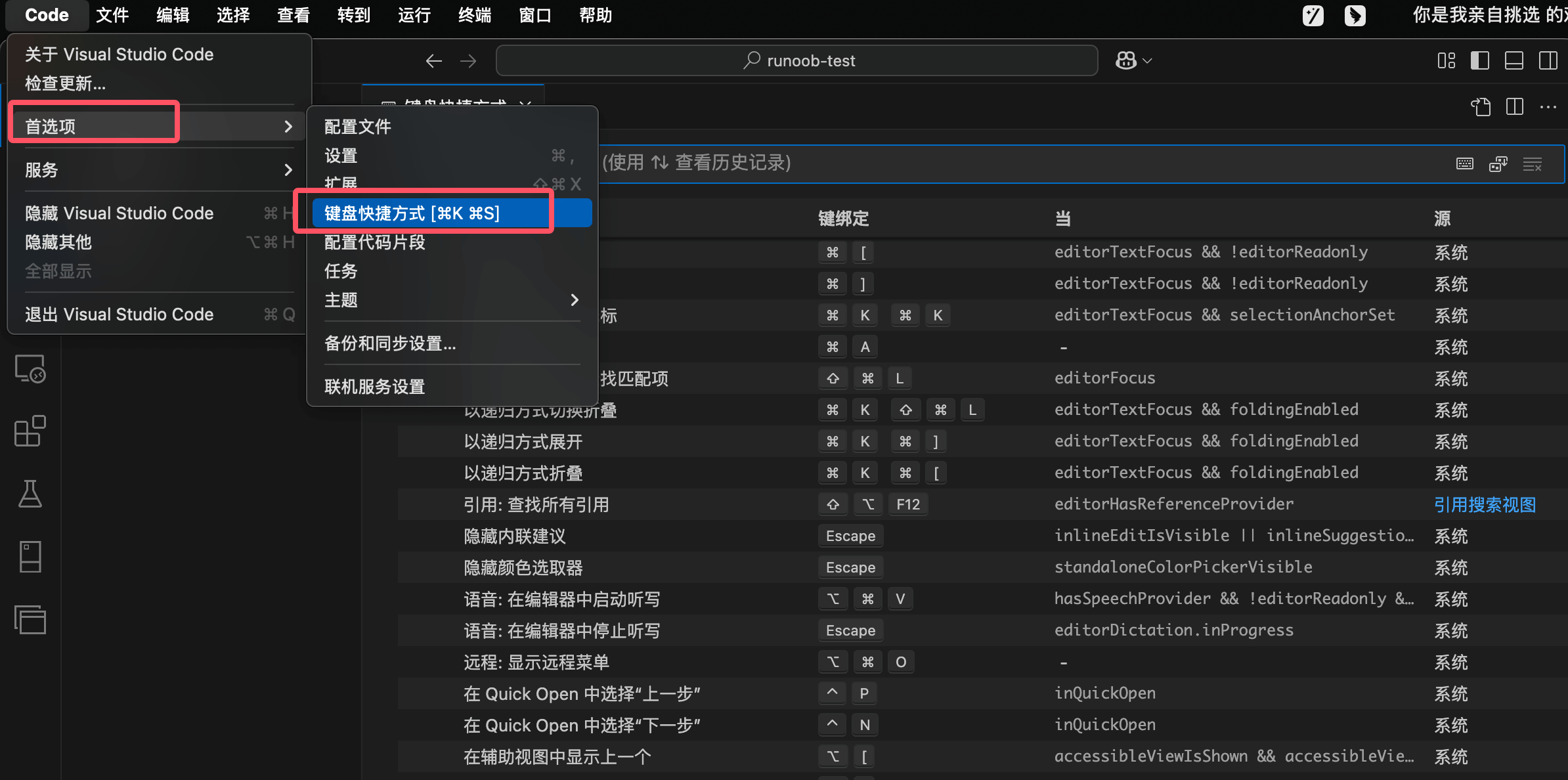
Through the shortcut key editor, you can customize keyboard shortcuts according to your needs and improve development efficiency.
Notes:
macOSof
CmdThe key corresponds to Windows/Linux'sCtrlkey.macOSof
OptionThe key corresponds to Windows/Linux'sAltkey.Some shortcut keys may vary depending on the system or configuration.
1. General Operation Shortcut Keys
| Function | Windows/Linux | macOS |
|---|---|---|
| Open Command Palette | Ctrl + Shift + P |
Cmd + Shift + P |
| Open Settings | Ctrl + , |
Cmd + , |
| Open Terminal | Ctrl + ` |
Ctrl + ` |
| New Window | Ctrl + Shift + N |
Cmd + Shift + N |
| Close Window | Ctrl + Shift + W |
Cmd + Shift + W |
| Save File | Ctrl + S |
Cmd + S |
| Save All | Ctrl + K S |
Cmd + Option + S |
| Toggle Auto Save | Ctrl + Shift + PBackward SearchAuto Save |
Same as left |
| Quick Open, Go to File | Ctrl + P |
Cmd + P |
| Keyboard Shortcut Settings | Ctrl + K, Ctrl + S |
Cmd + K, Cmd + S |
2. File and Editor Operations
| Function | Windows/Linux | macOS |
|---|---|---|
| New File | Ctrl + N |
Cmd + N |
| Open File | Ctrl + O |
Cmd + O |
| Save File | Ctrl + S |
Cmd + S |
| Save As | Ctrl + Shift + S |
Cmd + Shift + S |
| Close File | Ctrl + W |
Cmd + W |
| Close All Files | Ctrl + K, Ctrl + W |
Cmd + K, Cmd + W |
| Reopen Closed File | Ctrl + Shift + T |
Cmd + Shift + T |
| Open Folder | Ctrl+K O |
Cmd+K O |
| Previous File | Ctrl+Tab |
Cmd+Tab |
| Next File | Ctrl+Shift+Tab |
Cmd+Shift+Tab |
| Toggle Editor Layout | Alt+Shift+数字 |
Cmd+Option+数字 |
| Toggle Full Screen | F11 |
Ctrl+Cmd+F |
3. Code Editing Shortcut Keys
| Function | Windows/Linux | macOS |
|---|---|---|
| Undo | Ctrl + Z |
Cmd + Z |
| Redo | Ctrl + Y |
Cmd + Y |
| Copy | Ctrl + C |
Cmd + C |
| Cut | Ctrl + X |
Cmd + X |
| Paste | Ctrl + V |
Cmd + V |
| Find | Ctrl + F |
Cmd + F |
| Replace | Ctrl + H |
Cmd + H |
| Select All | Ctrl + A |
Cmd + A |
| Format Code | Shift + Alt + F |
Shift + Option + F |
| Comment Line | Ctrl + / |
Cmd + / |
| Multi-line Comment | Shift + Alt + A |
Shift + Option + A |
| Copy Current Line | Alt + Shift + Down |
Option + Shift + Down |
| Delete Current Line | Ctrl + Shift + K |
Cmd + Shift + K |
| Move Current Line | Alt + Up/Down |
Option + Up/Down |
| Select Current Line | Ctrl + L |
Cmd + L |
| Find and Replace | Ctrl + H |
Cmd + Option + F |
| Go to Line | Ctrl + G |
Cmd + G |
| Insert Line Below | Ctrl + Enter |
Cmd + Enter |
| Insert Line Above | Ctrl + Shift + Enter |
Cmd + Shift + Enter |
| Jump to Matching Bracket | Ctrl + Shift + \ |
Cmd + Shift + \ |
| Indent/Outdent | Ctrl + ] / [ |
Cmd + ] / [ |
| Go to Beginning/End of Line | Home / End |
Cmd + ← / → |
| Go to Beginning/End of File | Ctrl + Home / End |
Cmd + ↑ / ↓ |
| Fold/Unfold Region | Ctrl + Shift + [ / ] |
Option + Cmd + [ / ] |
| Toggle Block Comment | Shift + Alt + A |
Option + Shift + A |
| Toggle Word Wrap | Alt + Z |
Option + Z |
4. Multi-Cursor Operations
| Function | Windows/Linux | macOS |
|---|---|---|
| Insert Cursor | Alt + 点击 |
Option + 点击 |
| Insert Cursor Above/Below | Ctrl + Alt + ↑ / ↓ |
Option + Cmd + ↑ / ↓ |
| Undo Last Cursor Operation | Ctrl + U |
Cmd + U |
| Select Current Line | Ctrl + L |
Cmd + L |
| Select All Matches | Ctrl + F2 |
Cmd + F2 |
| Column Selection | Shift + Alt + 拖动 |
Shift + Option + 拖动 |
| Select All Matching Content | Ctrl + Shift + L |
Cmd + Shift + L |
| Select Next Match | Ctrl + D |
Cmd + D |
5. Debugging Shortcut Keys
| Function | Windows/Linux | macOS |
|---|---|---|
| Start Debugging | F5 |
F5 |
| Stop Debugging | Shift+F5 |
Shift+F5 |
| Step Over | F10 |
F10 |
| Step Into | F11 |
F11 |
| Step Out | Shift+F11 |
Shift+F11 |
| Toggle Breakpoint | F9 |
F9 |
6. Search and Navigation
| Function | Windows/Linux | macOS |
|---|---|---|
| Global Search | Ctrl+Shift+F |
Cmd+Shift+F |
| Go to Definition | F12 |
F12 |
| Go to Declaration | Ctrl+F12 |
Cmd+F12 |
| Find References | Shift+F12 |
Shift+F12 |
| Show Outline | Ctrl+Shift+O |
Cmd+Shift+O |
| Go to Previous Location | Ctrl+Alt+Left |
Cmd+Option+Left |
| Go to Next Location | Ctrl+Alt+Right |
Cmd+Option+Right |
7. Version Control
| Function | Windows/Linux | macOS |
|---|---|---|
| Open Version Control View | Ctrl+Shift+G |
Cmd+Shift+G |
| Commit Code | Ctrl+Enter |
Cmd+Enter |
| View Changes | Ctrl+Shift+D |
Cmd+Shift+D |
8. Terminal Operations
| Function | Windows/Linux | macOS |
|---|---|---|
| Show Integrated Terminal | Ctrl + ` | Ctrl + ` |
| New Terminal | Ctrl+Shift+`` |
Cmd+Shift+`` |
| Switch Terminal | Ctrl+PageUp/PageDown |
Cmd+PageUp/PageDown |
| Close Terminal | Ctrl+Shift+W |
Cmd+Shift+W |
9. Command Palette
| Operation | Windows/Linux | macOS |
|---|---|---|
| Open Command Palette | Ctrl + Shift + P |
Cmd + Shift + P |
| Open Keyboard Shortcut Reference | Ctrl + K, Ctrl + S |
Cmd + K, Cmd + S |
10. Display
| Function | Windows/Linux | macOS |
|---|---|---|
| Toggle Full Screen | F11 | Cmd + Ctrl + F |
| Zoom In/Zoom Out | Ctrl + = / - | Cmd + = / - |
| Toggle Sidebar Visibility | Ctrl + B | Cmd + B |
| Show Explorer | Ctrl + Shift + E | Cmd + Shift + E |
| Show Search | Ctrl + Shift + F | Cmd + Shift + F |
| Show Source Control | Ctrl + Shift + G | Cmd + Shift + G |
| Show Debug | Ctrl + Shift + D | Cmd + Shift + D |
| Show Extensions | Ctrl + Shift + X | Cmd + Shift + X |
11. Extension Operations
| Operation | Windows/Linux | macOS |
|---|---|---|
| Install Extension | Ctrl + Shift + X |
Cmd + Shift + X |
| Extension Management | Ctrl + Shift + P→ Type "Extensions" |
Same as left |
12. Other
| Function | Windows/Linux | macOS |
|---|---|---|
| Open Markdown Preview | Ctrl + K, V | Cmd + K, V |
| Zen Mode | Ctrl + K, Z | Cmd + K, Z |
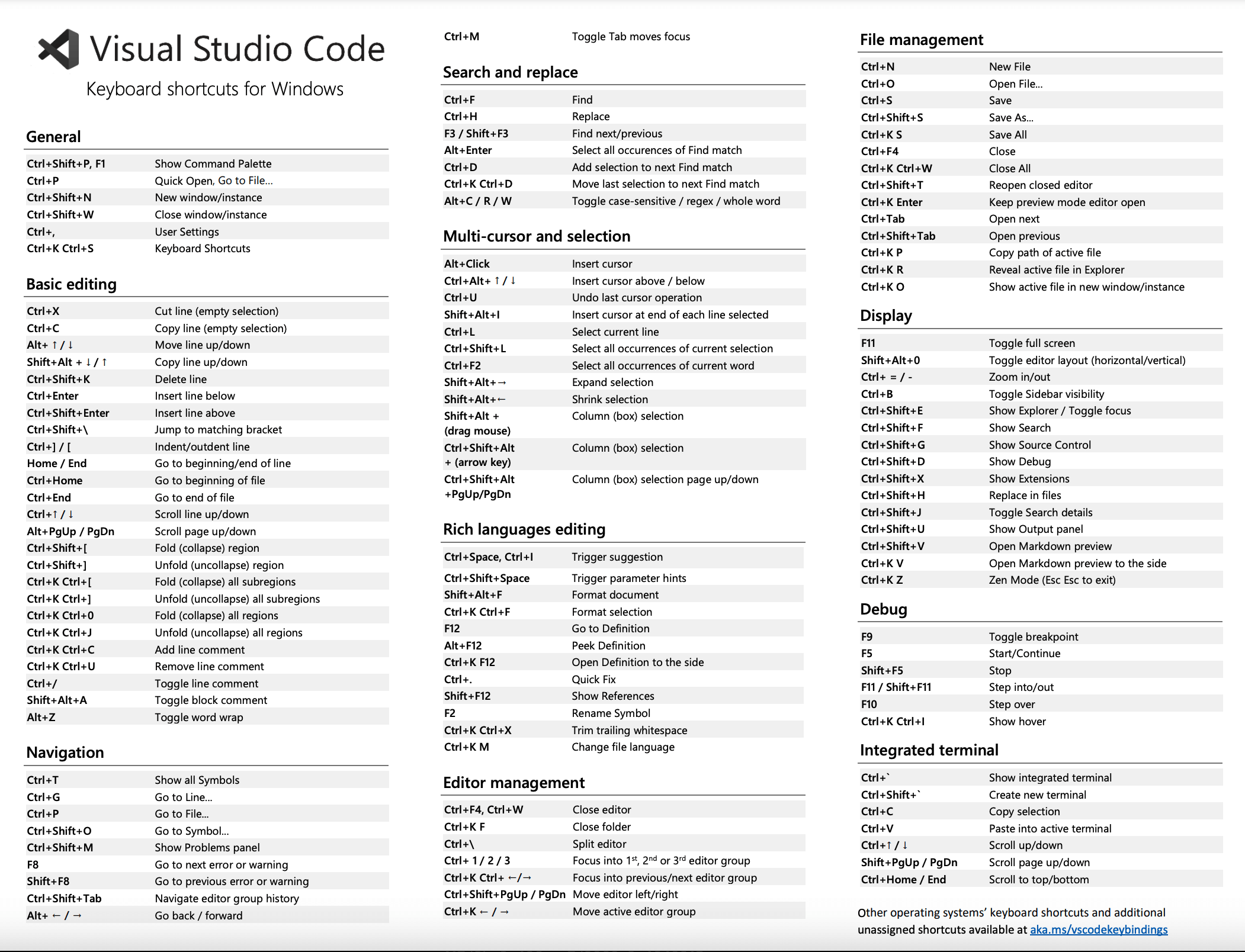
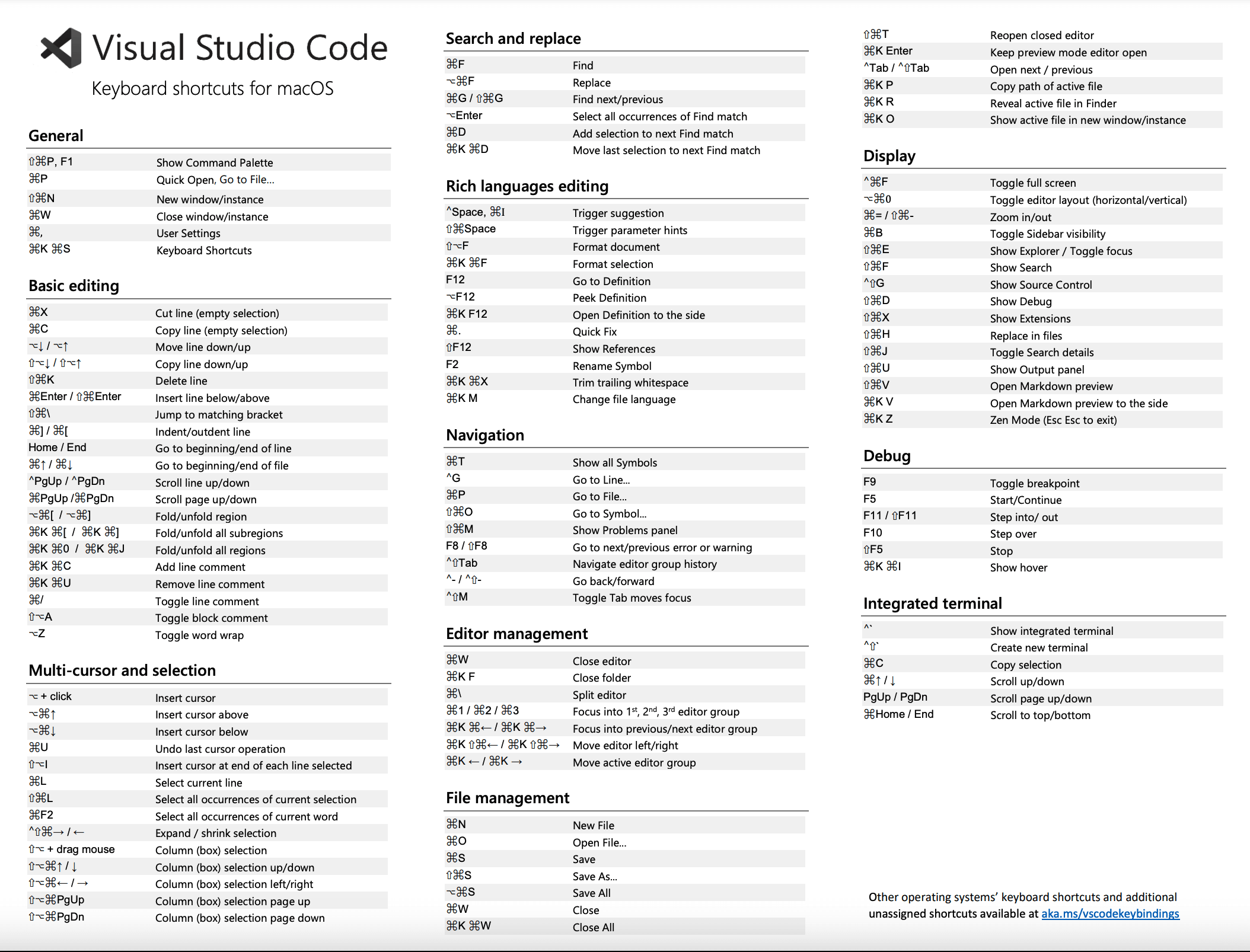
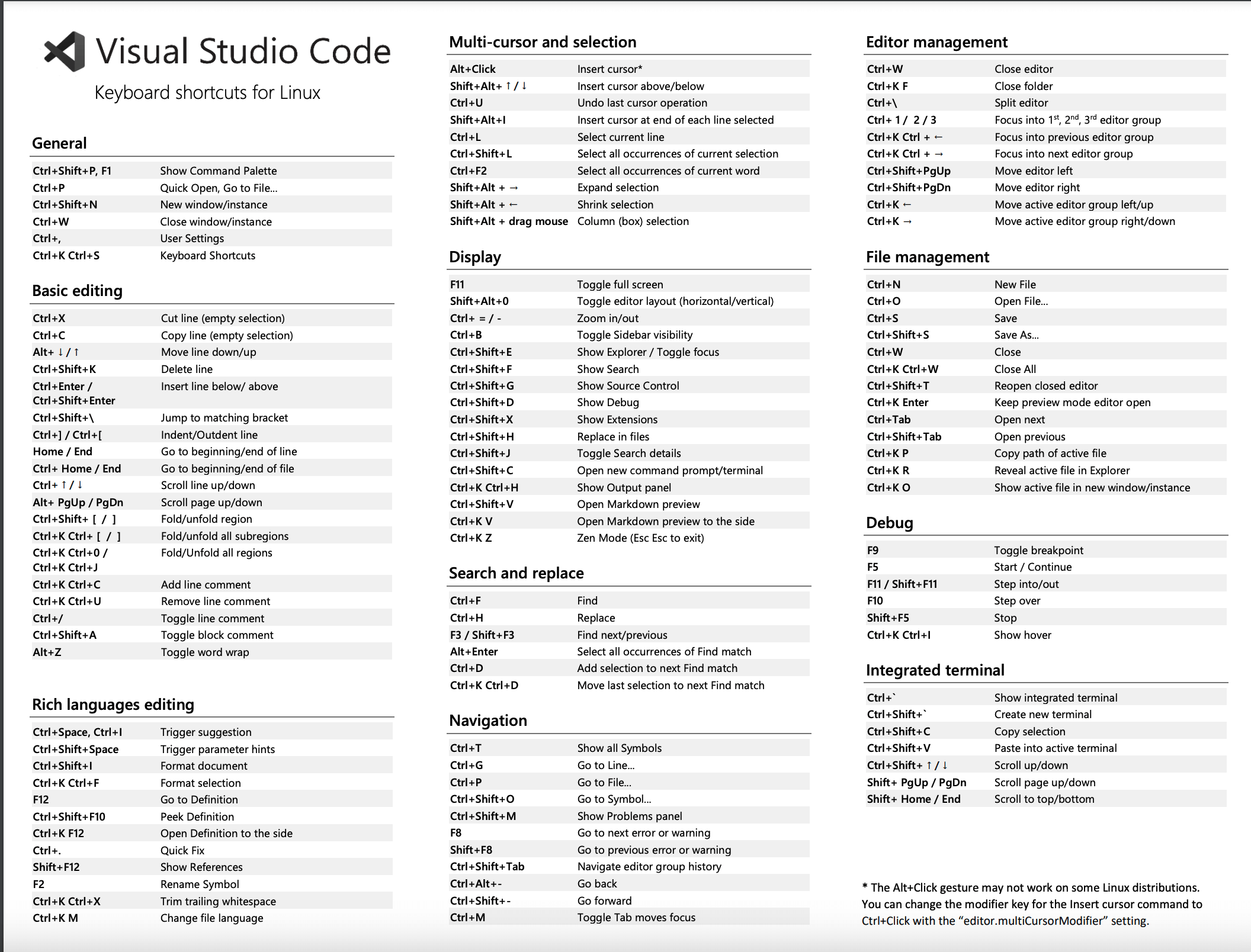
Official Shortcut Key Documentation
Windows Platform
macOS Platform
Linux Platform
The above shortcut keys can be customized throughKey Binding Settingsto customize. In VS Code, pressCtrl+K Ctrl+S(on macOSCmd+K Cmd+S) to open the Key Bindings page, making it easy to view and modify shortcut keys.