VSCode Create New File
The Activity Bar is used to switch between different view modules, such as Explorer, Search, Source Control, Run and Debug, etc.
Hovering the mouse over the icons in the Activity Bar shows the name of each view and its corresponding shortcut key hint.
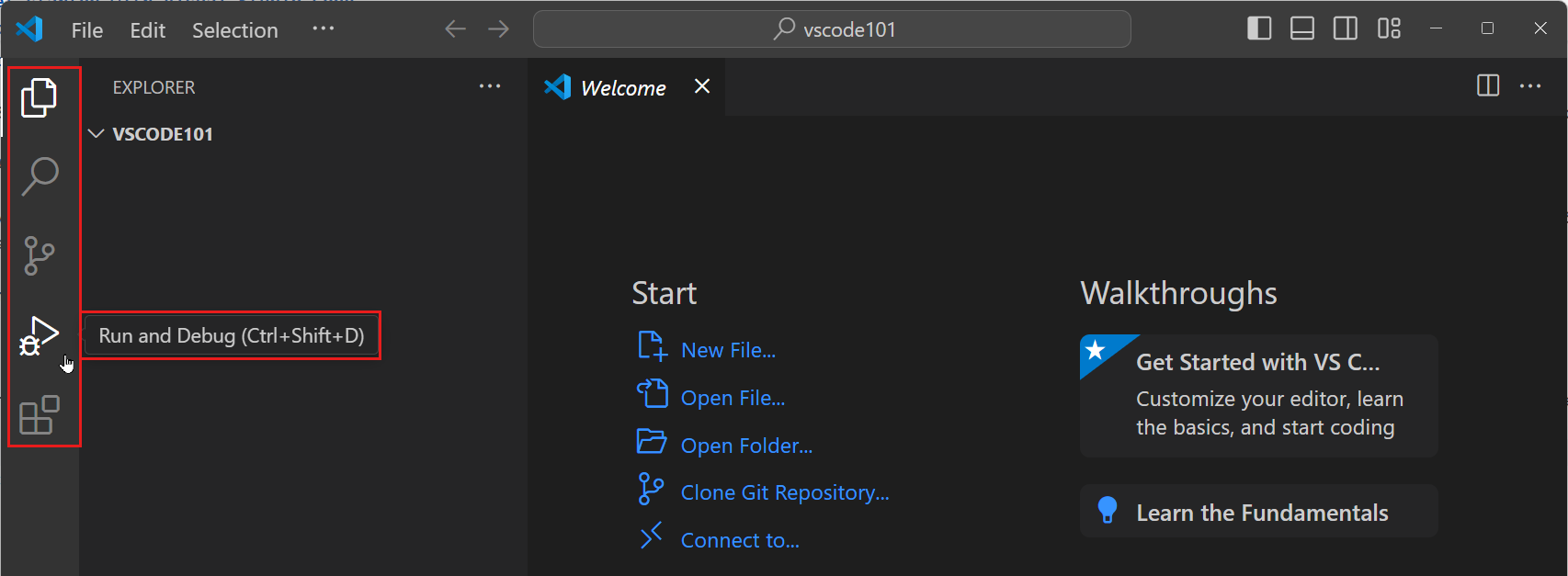
Tip:Click the view icon again, or press the shortcut key, to open or close that view.
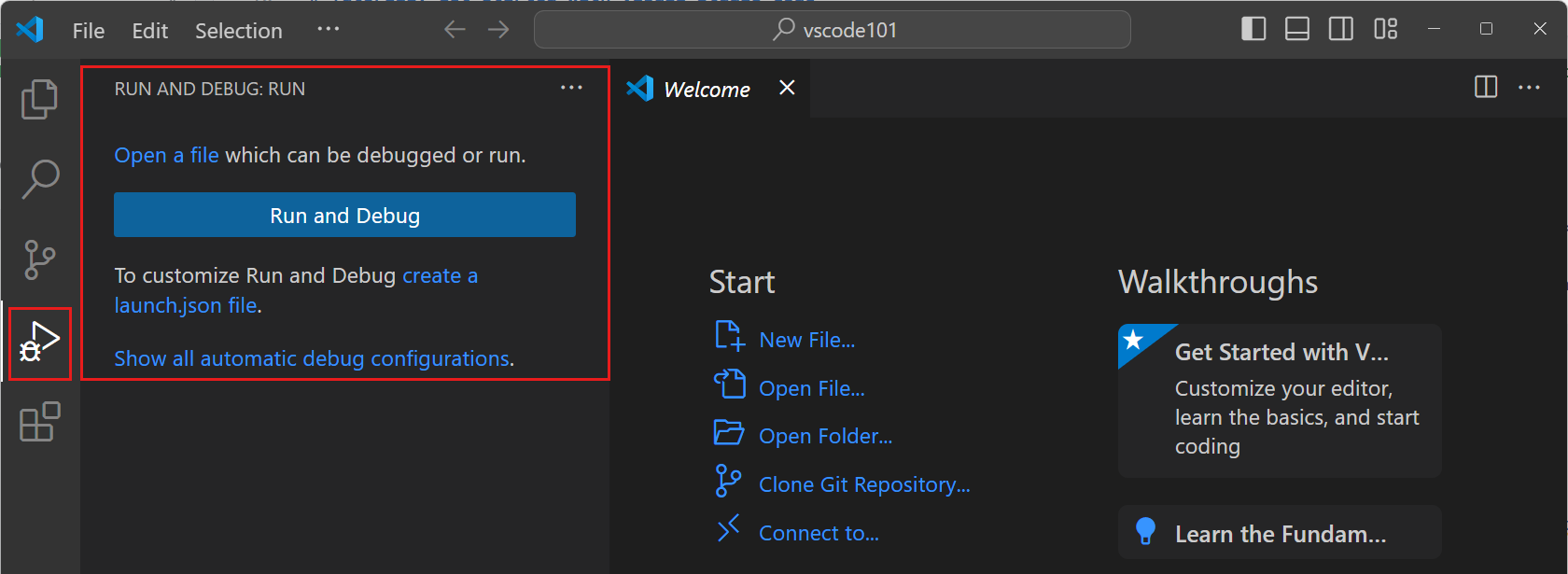
When you select a view in the Activity Bar, the primary sidebar opens and displays the specific information for that view.
After selecting the "Run and Debug" view, the primary sidebar will display options for configuring a debug session:
Use the editor to view and edit files
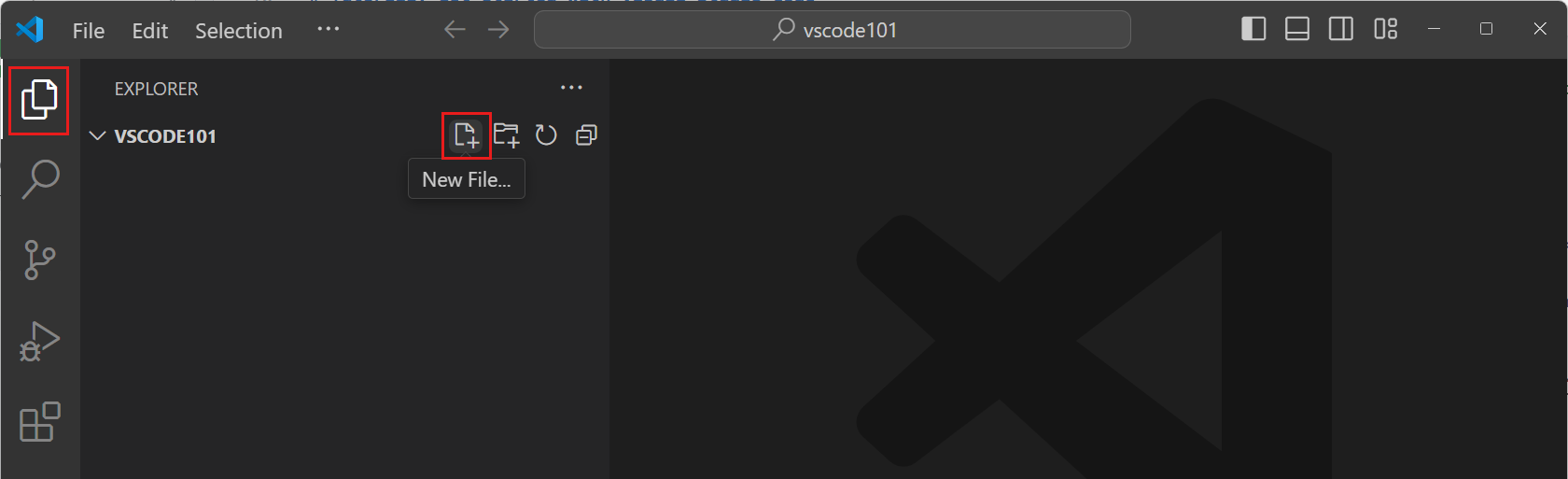
Select the "Explorer" view in the Activity Bar.
Click the "New File..." button to create a new file in the workspace.
Enter the file name index.html, then press Enter to confirm.
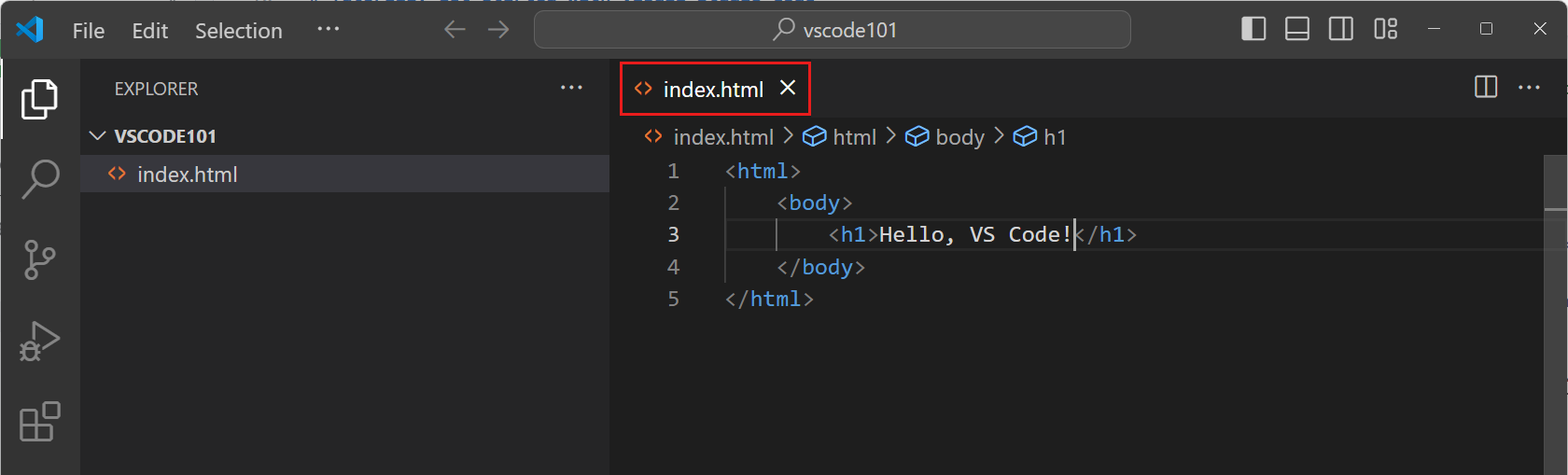
The newly created file is automatically added to the workspace and opens in the main editing area of the window.
Start typing HTML code in the index.html file. As you begin typing, code suggestions (IntelliSense) will automatically appear.
- Use↑and↓Key to browse suggestions.
- pressTabKey to insert the selected suggestion.
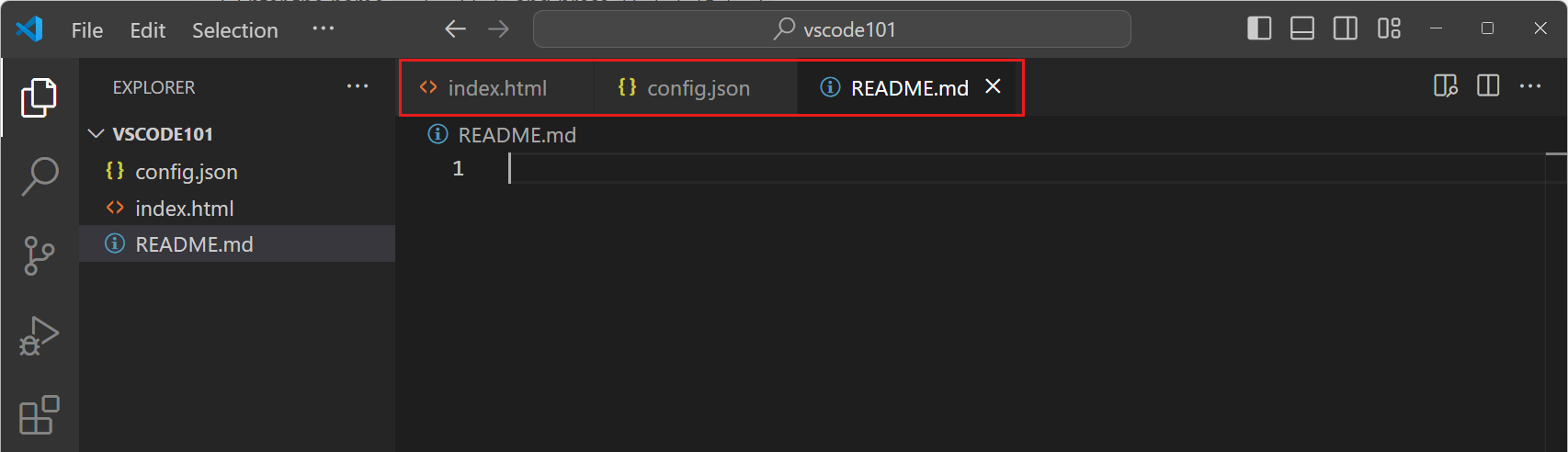
We add more files to the workspace, and each file will open in a new editor tab.
VS Code supports arranging multiple editor windows vertically or horizontally, so you can view multiple files at the same time.