VSCode Command Palette
The Command Palette of VSCode (Visual Studio Code) is a very powerful tool that allows users to quickly access and execute various commands and functions in VSCode.
We can use the Command Palette to execute built-in commands in VSCode, such as opening files, searching for symbols, renaming symbols, saving files, etc.
VSCode uses the following shortcuts to open the Command Palette:
- macOS system shortcut:⇧⌘P
- Windows/Linux shortcut:Ctrl + Shift + P
You can also select it from the menu barView > Command Palette...to open.
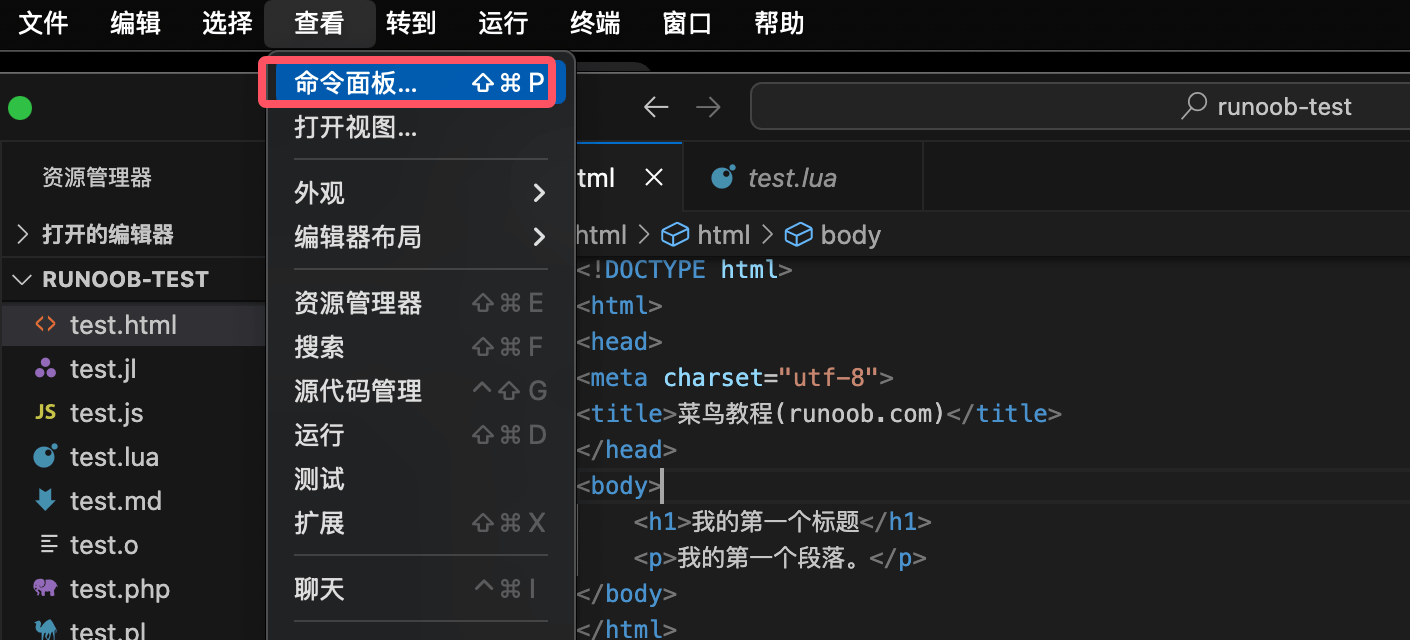
The Command Palette covers almost all commands in VS Code, including commands added by extensions you have installed.
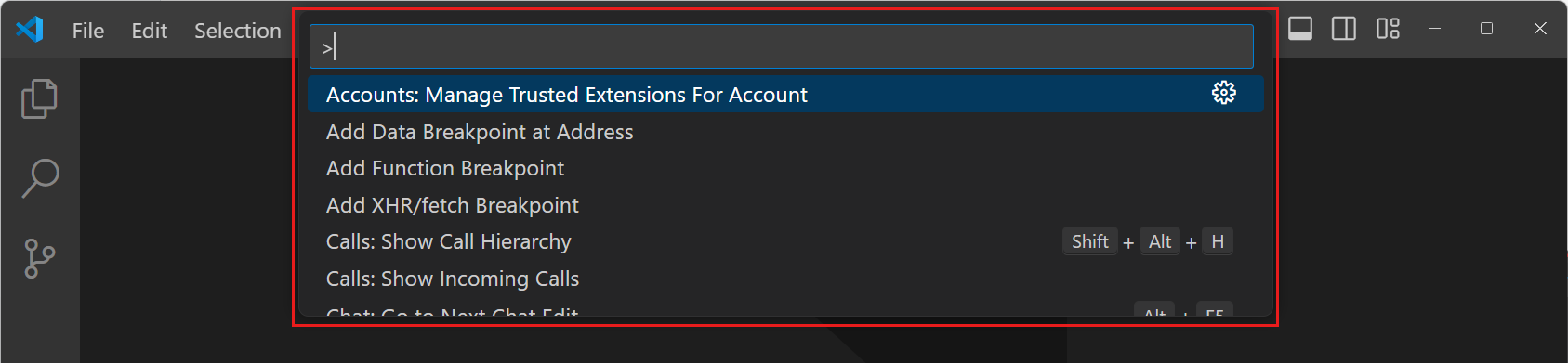
Note:The Command Palette displays commands with default shortcuts. If a command has a shortcut, you can directly use that shortcut to run the command without going through the Command Palette.
Command Palette operation modes
The Command Palette supports multiple operation modes and presents different functions depending on the input:
Enter>After the symbol: start typing to filter the command list.
For example, entermove terminal, you can find related commands to move the terminal to a new window.

Delete>After the symbol: the input content will search for files in the workspace.
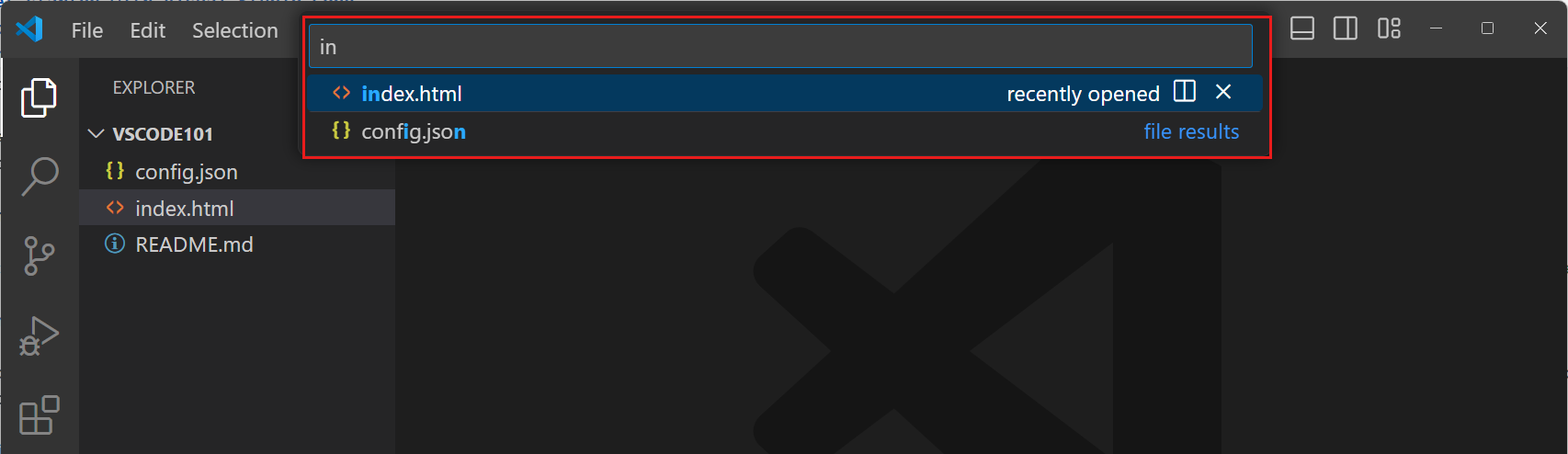
Press⇧⌘Pthe shortcut (Windows/Linux/macOS shortcut: Ctrl + Shift + P), and you can directly open the Command Palette and start searching for files.
Other extensions