VSCode code Command
In Visual Studio Code, the code command is a command-line tool used to quickly open VS Code and perform some code-related operations.
The code command directly helps developers launch VS Code from the terminal or command prompt, or handle specific tasks.
The most common way is to usecodethe command to directly open a file directory from the command line. At this point, you need to install the code command first.
After installing VS Code on Windows, the code command is automatically registered in the system environment variables. If it is not registered, you can manually add the VS Code installation path to the PATH environment variable.
Enabling the VSCode code command is very simple. First, open the command palette:
- macOS system shortcut keys:⇧⌘P(command + shift + p)
- Windows/Linux shortcut keys:Ctrl + Shift + P
Search install >shell command:
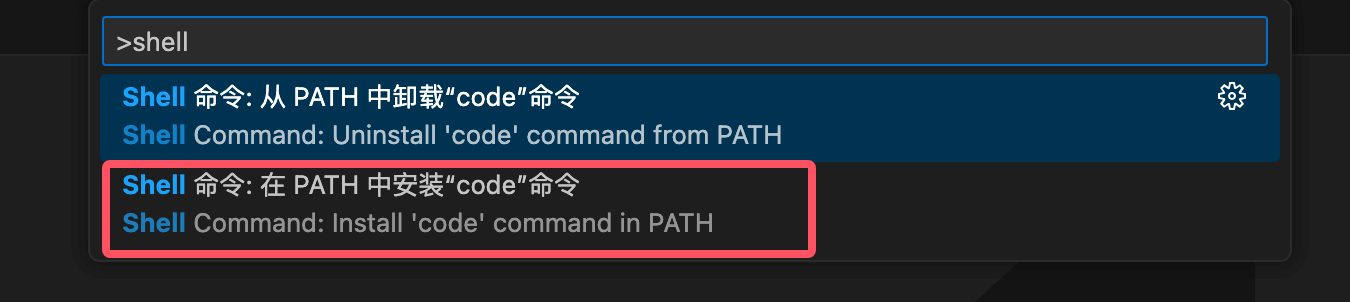
Then selectInstall the 'code' command in PATH - Shell Command: Install 'code' command in PATHThis will add thecodecommand reference to the system PATH.
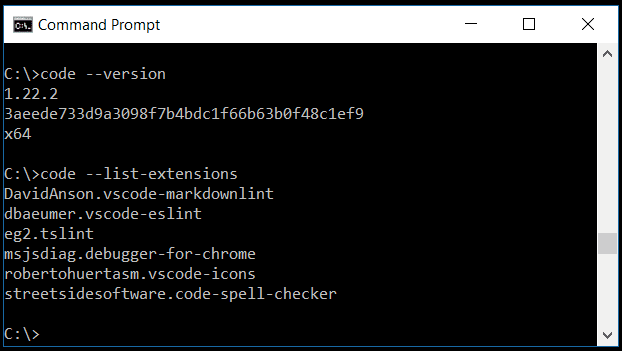
We can open files, install extensions, change the display language, and even view diagnostic information through the command line.
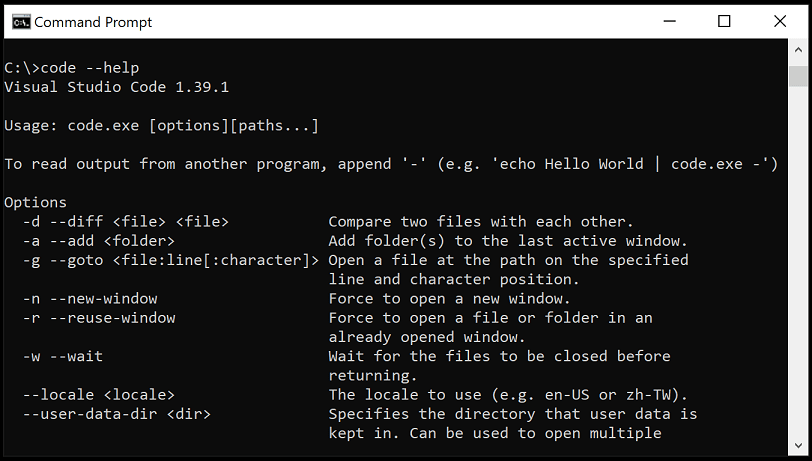
The following are some commonly used command-line options, which can be viewed through thecode --helpcommand:
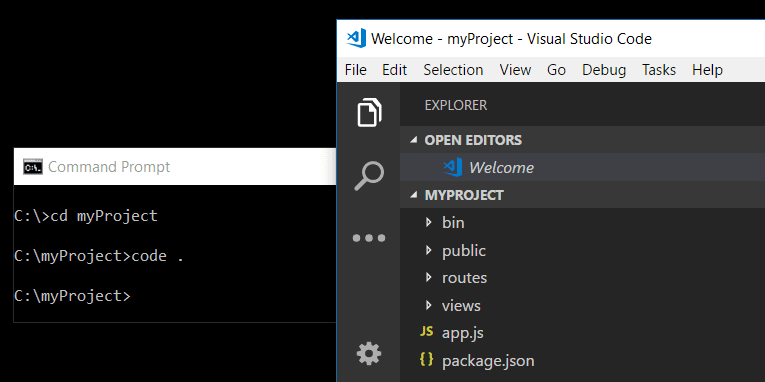
We can use thecode .command in the command line to open a folder in VS Code:
| Command | Function Description |
|---|---|
code <路径> | Open a file or folder |
code . | Open the current directory as a workspace |
code --new-window | Open in a new window |
code --diff | Compare the contents of two files |
code --wait | Wait for the window to close before returning to the terminal |
code --disable-extensions | Run VS Code with all extensions disabled |
code --install-extension <扩展名> | Install a specified extension |
code --list-extensions | List all installed extensions |
code --uninstall-extension <扩展名> | Uninstall a specified extension |
Common Functions of the code Command
1. Open a file or folder
code <文件路径>
For example, open the app.js file:
code app.js
Open a folder (as a workspace):
code <文件夹路径>
For example, open the my-project folder:
code my-project
2. Create a new file
If the specified file does not exist, code will create the file and open it:
code newfile.js
3. Open VS Code with the current directory as the workspace
Running the code command directly will start VS Code with the directory where the current terminal is located as the workspace:
code .
4. Compare files
The code command supports file content comparison:
code --diff <文件1> <文件2>
Example:
code --diff index.html index-backup.html
5. View help
View all available options of the code command:
code --help
Using the code Command to Open a Vue Project
Creating a Vue Project
Open a terminal or command prompt, and enter the following command to create a Vue project:
npm create vue@latest
The system will prompt you to enter the project name. Here I enterexample-vue3-app:
Vue.js - The Progressive JavaScript Framework

? 请输入项目名称: › example-vue3-app
After that, there will be some options. You can choose according to your needs, or just press Enter all the way:
Vue.js - The Progressive JavaScript Framework

> 请输入项目名称: … example-vue3-app
> 是否使用 TypeScript 语法? … 否 / 是
> 是否启用 JSX 支持? … 否 / 是
> 是否引入 Vue Router 进行单页面应用开发? … 否 / 是
> 是否引入 Pinia 用于状态管理? … 否 / 是
> 是否引入 Vitest 用于单元测试? … 否 / 是
> 是否要引入一款端到端(End to End)测试工具? › 不需要
> 是否引入 ESLint 用于代码质量检测? › 否

正在初始化项目 /Users/Example/example-vue3-app...

项目初始化完成,可执行以下命令:

  cd example-vue3-app
  npm install
  npm run dev
After the project is created, enter the project folder and install dependencies:
cd example-vue3-app
npm install
Installing dependencies may also take a few minutes.
Enter the following command to quickly start your Vue application:
npm run dev
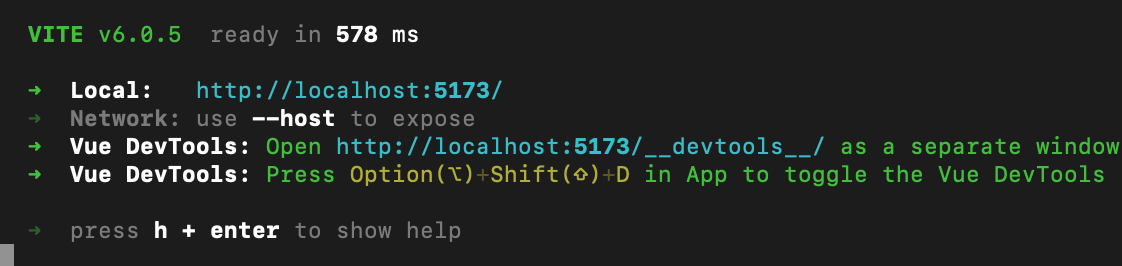
Open http://localhost:5173 in the browser, and it displays as follows:

Press Ctrl+C to stop the vue-cli-service server.
Using the code Command to Open a Vue Project
From the terminal or command prompt, enter the Vue project folder example-vue3-app we created, and then use thecodecommand to open the project in VS Code:
cd example-vue3-app
code .
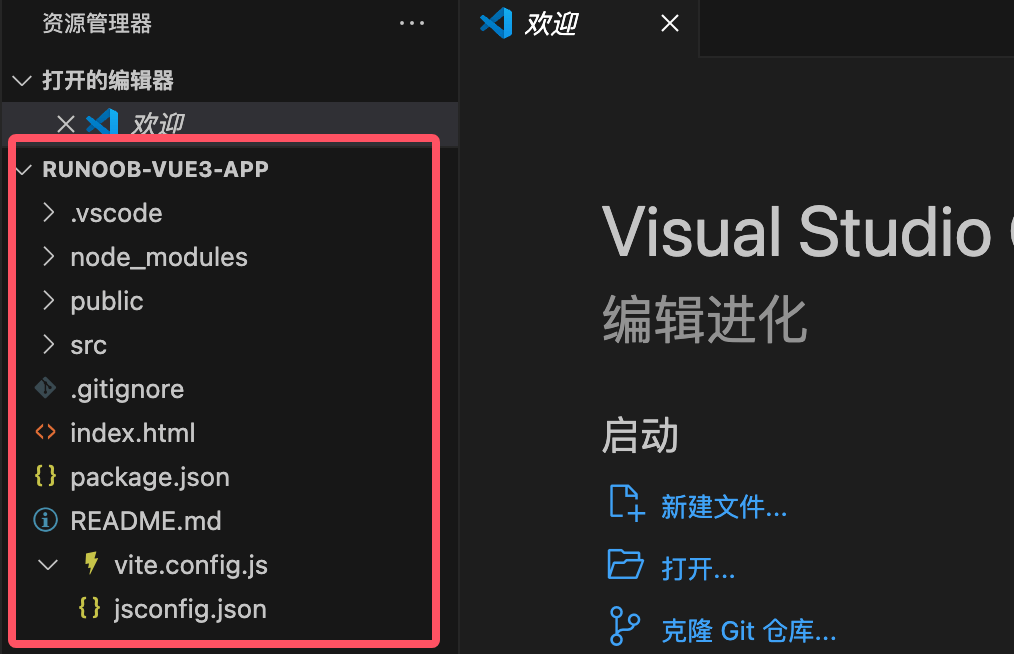
VS Code will start and display your Vue project in the file explorer, as shown below: