VSCode Open Directory
We can open a code file in VS Code, and opening a directory (folder) in VS Code is also a simple process, and the operations are all very simple.
First, we open the installed VS Code. When VS Code is opened for the first time, you will see a welcome page with different operations to get started.
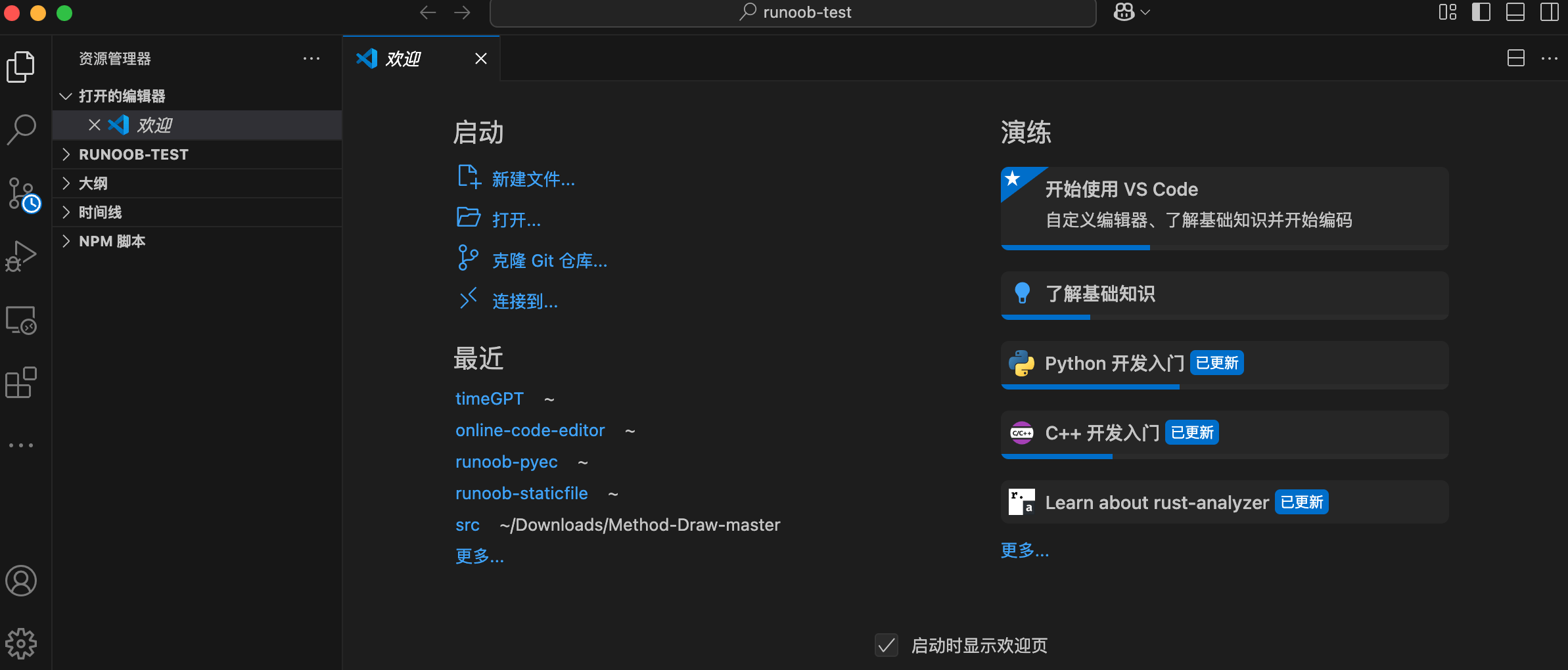
You canNew File...orOpen...Options:

Create a Python code file
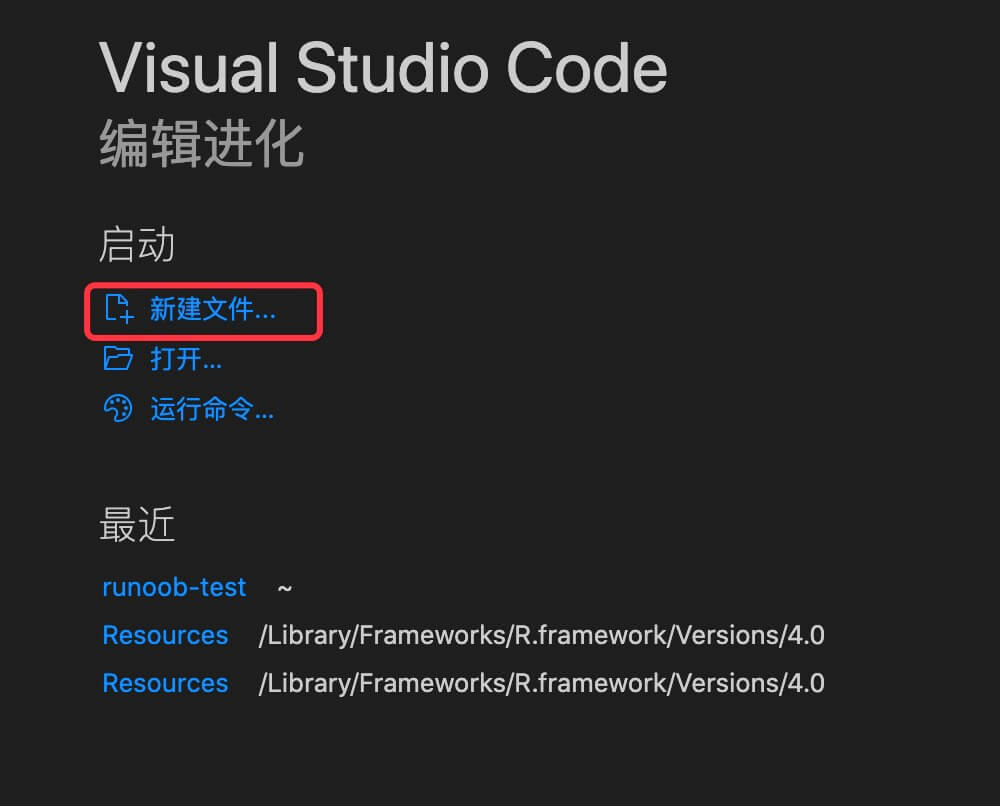
Open VSCode, then click New File:
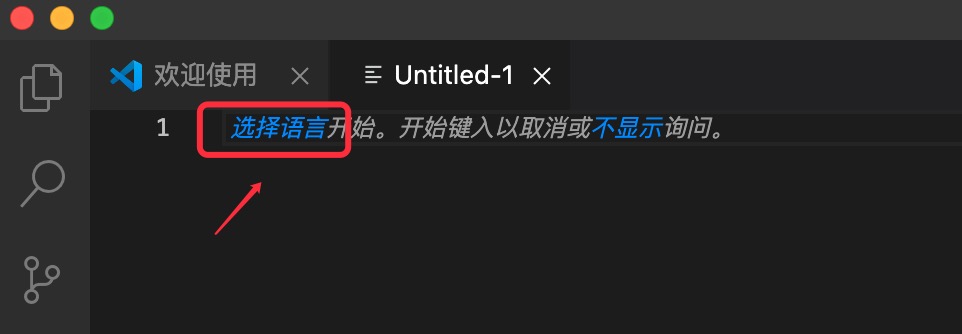
Click to select language:
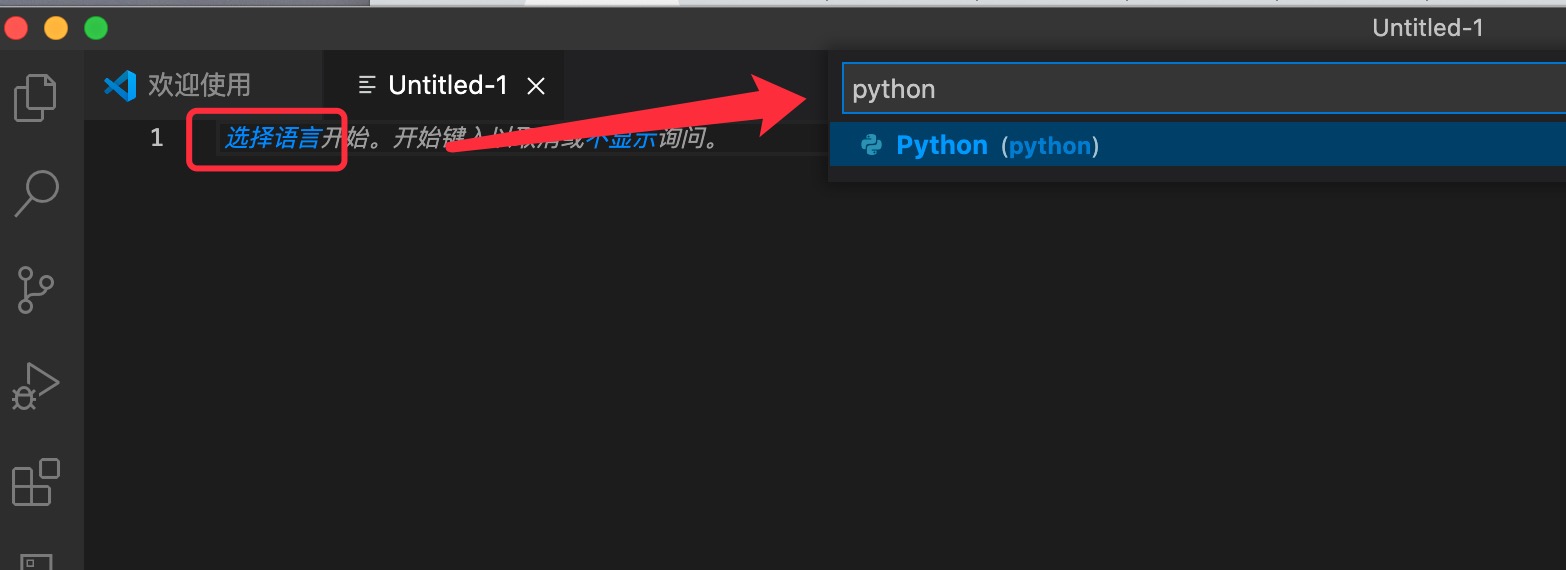
Enter Python in the search box, select the Python option:
Enter code:
print("Example")
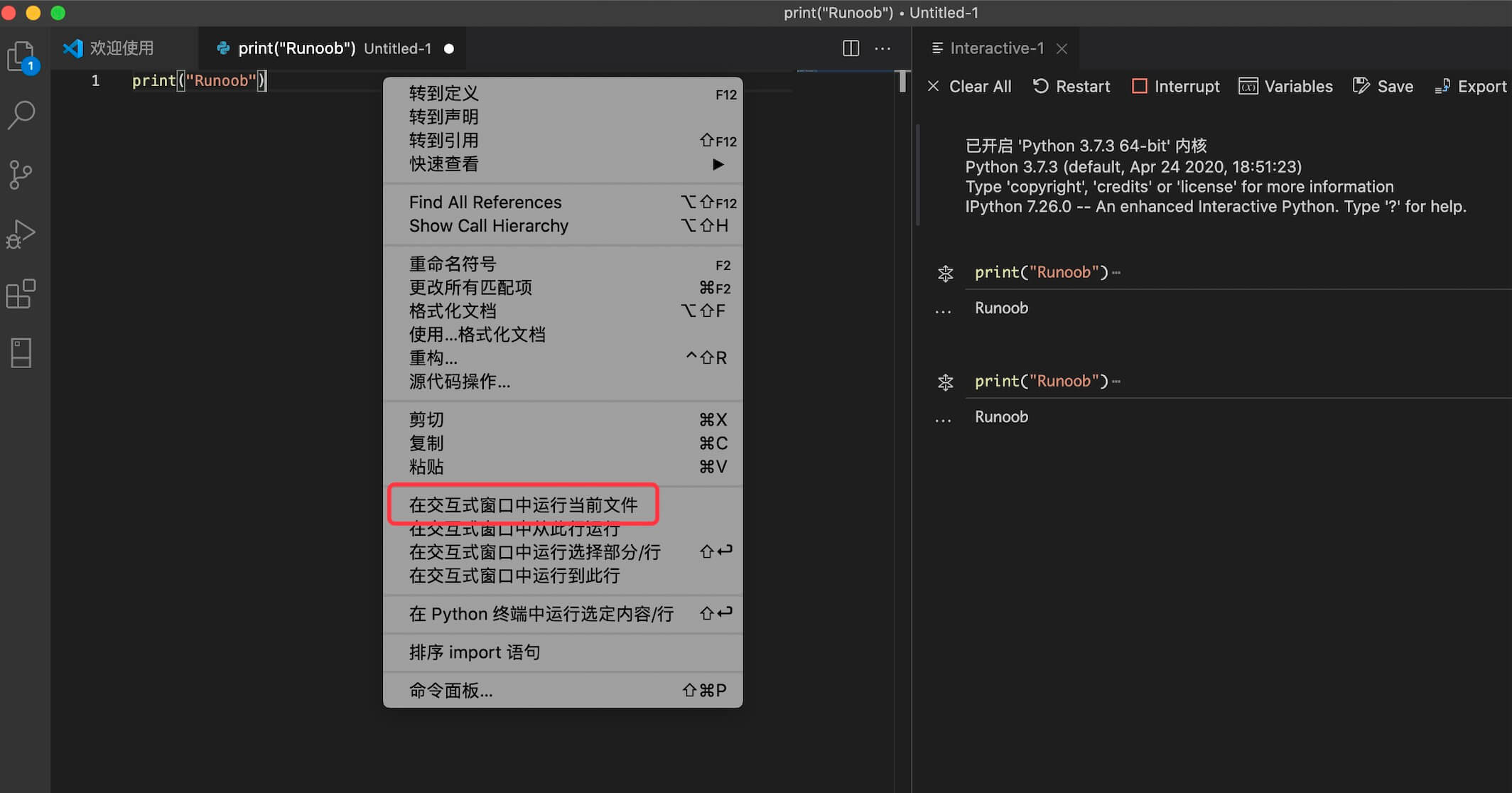
Right-click the mouse, select Run File in Interactive Window,If prompted to install an extension, just click Install (if not installed, it will keep showing "Connecting to Python Kernel"):
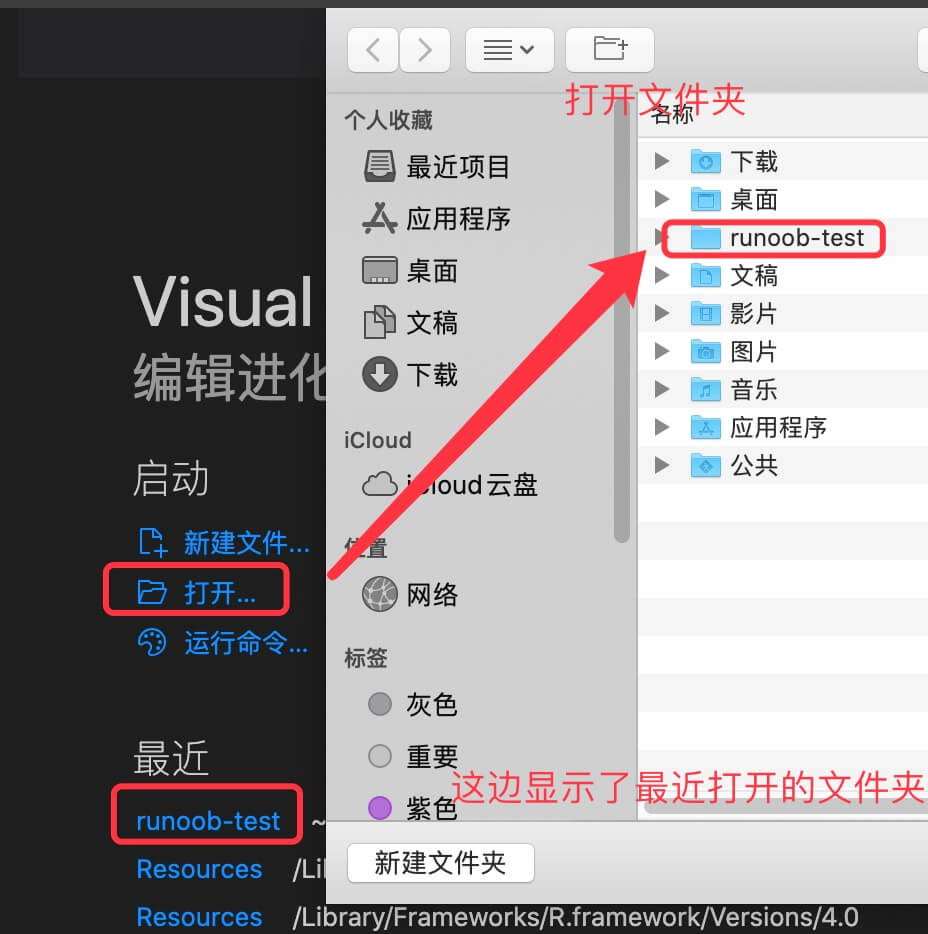
In addition, we can also open an existing file or directory (folder). For example, we open a example-test, or you can create one yourself:
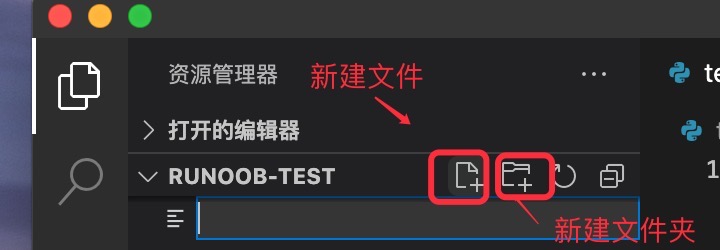
Then we create a test.py file. Click the New File icon below and enter the filename test.py:
Note:example-test contains a.vscodefolder, which is some configuration information, you can ignore it for now.
Enter the following code in test.py:
print("Example")
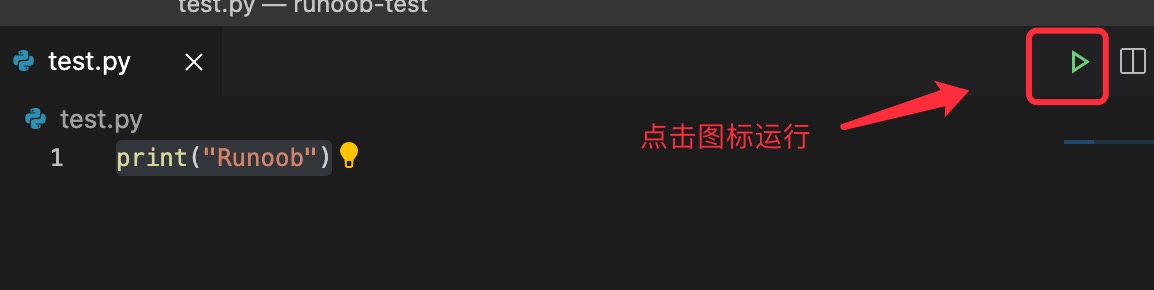
Click the green icon in the top-right corner to run:
You can right-click the file and select "Run Python File in Terminal":
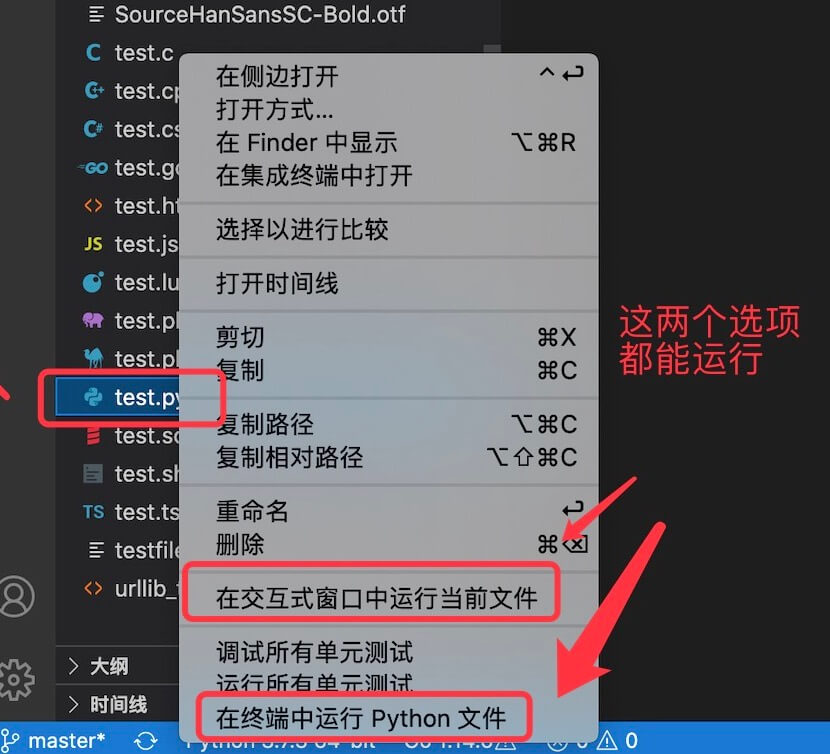
Of course, you can also right-click in the code window and select "Run Python File in Terminal".
Other Extensions