VSCode Integration with DeepSeek
VSCode has a huge extension marketplace. Users can install various extensions based on their needs to enhance the editor's functionality, including language support, code formatting tools, version control integration, themes, and icons.
VS Code can effectively integrate the large models we want through extensions. Common extensions can be found below:VS Code AI Extensions。
Next, let's learn how to install the recently popular DeepSeek on VS Code through the Roo Code extension.

This article uses Roo Code as an example to demonstrate how to integrate DeepSeek.
In addition to the official API interface, we can also useCoding Plan/Token Planplans to directly integrate mainstream large models such as DeepSeek, Kimi, GLM, Doubao, MiniMax, etc., without needing to purchase each API separately.
Install Roo Code Extension
Roo Code (formerly Roo Cline) is an AI programming assistant plugin based on VS Code. By integrating multiple AI models and powerful automation features, it provides developers with an efficient and intelligent programming experience.
Roo Code seamlessly connects with mainstream APIs such as OpenAI, DeepSeek, Anthropic, and Google Gemini, and also supports using local models via Ollama, allowing developers to switch flexibly based on their needs and budget.
Roo Code provides multiple preset modes, including Code, Architect, and Ask, and supports user customization. For example, users can create a QA engineer role focused on writing test cases.
Extension search keyword:Roo Code
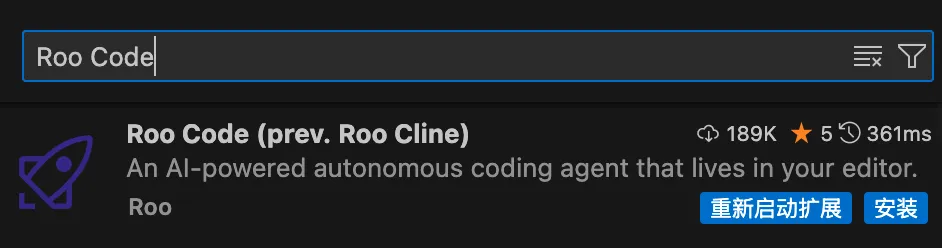
Plugin link address:https://marketplace.visualstudio.com/items?itemName=RooVeterinaryInc.roo-cline
GitHub address:https://github.com/RooVetGit/Roo-Code
Set API Key
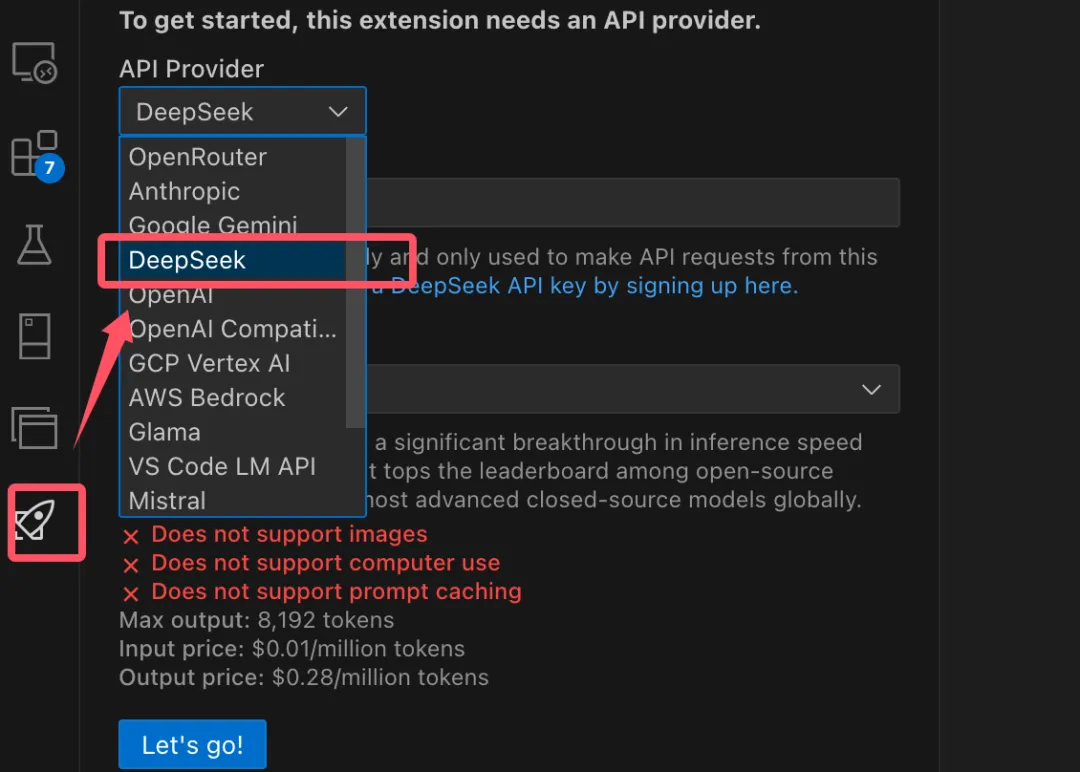
After installing the extension, there will be a small rocket icon in the left activity bar. Open it and you can see the supported large models. We can select DeepSeek:
Fill in the API Key we applied for:
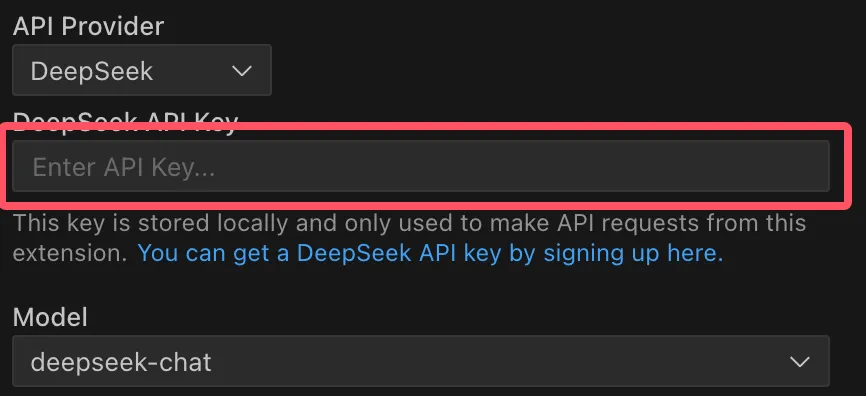
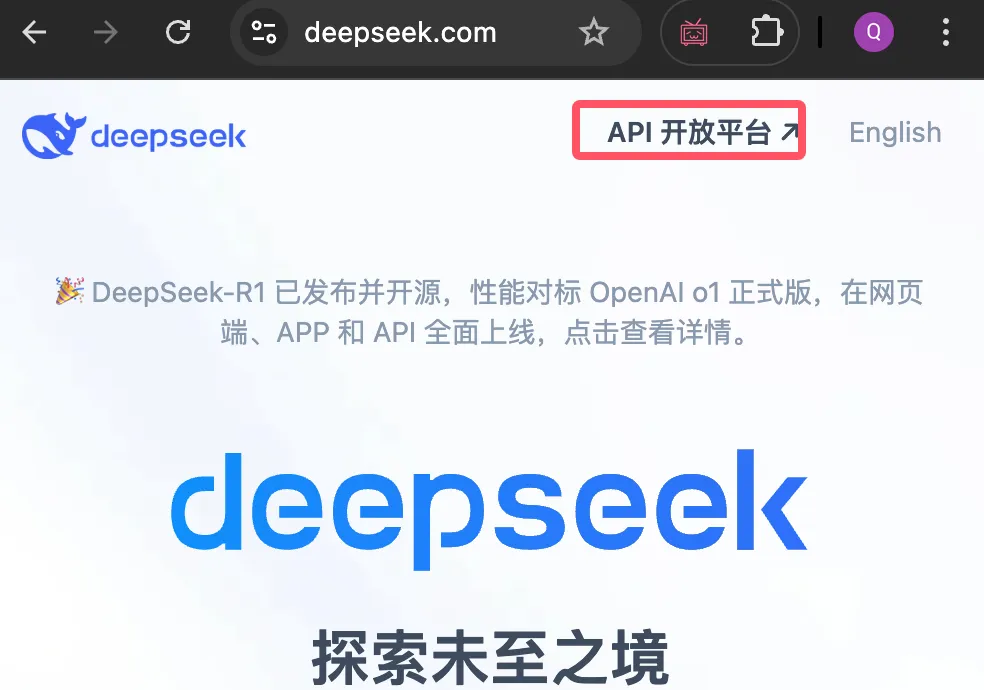
We can apply on the DeepSeek official website API open platformhttps://platform.deepseek.com/usagefor an API Key:
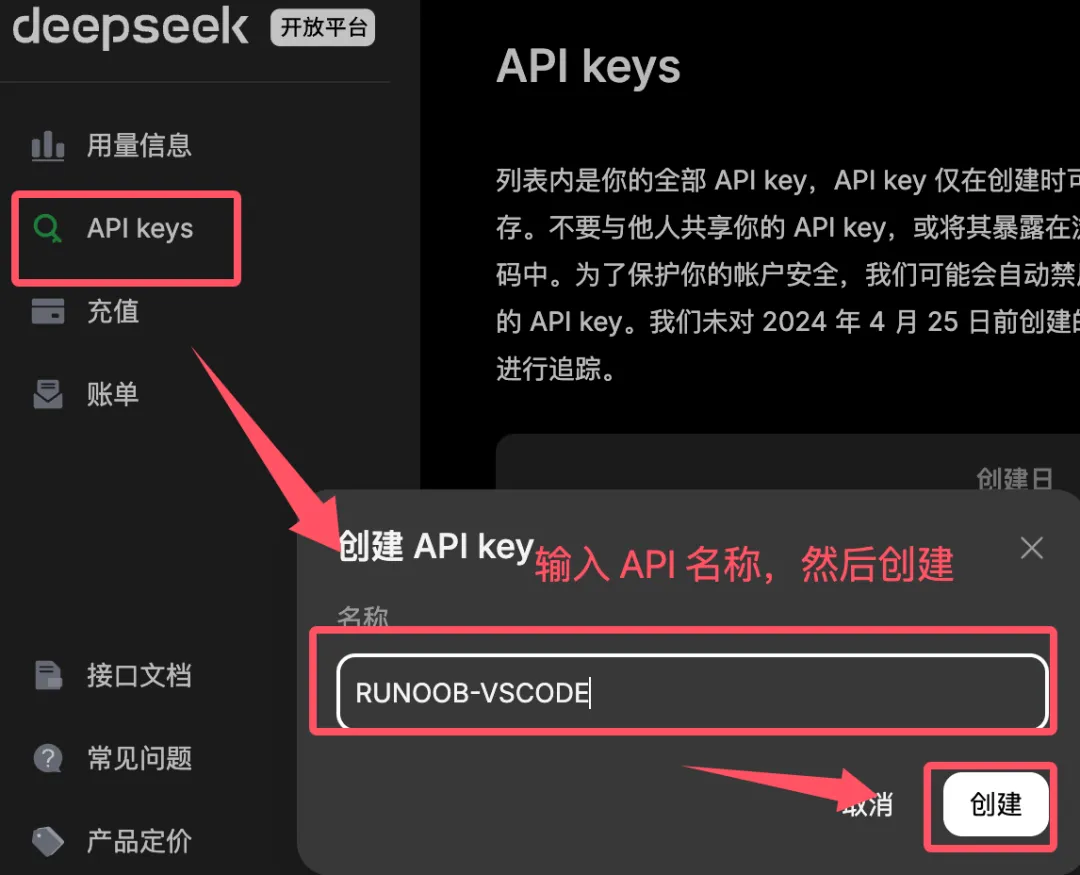
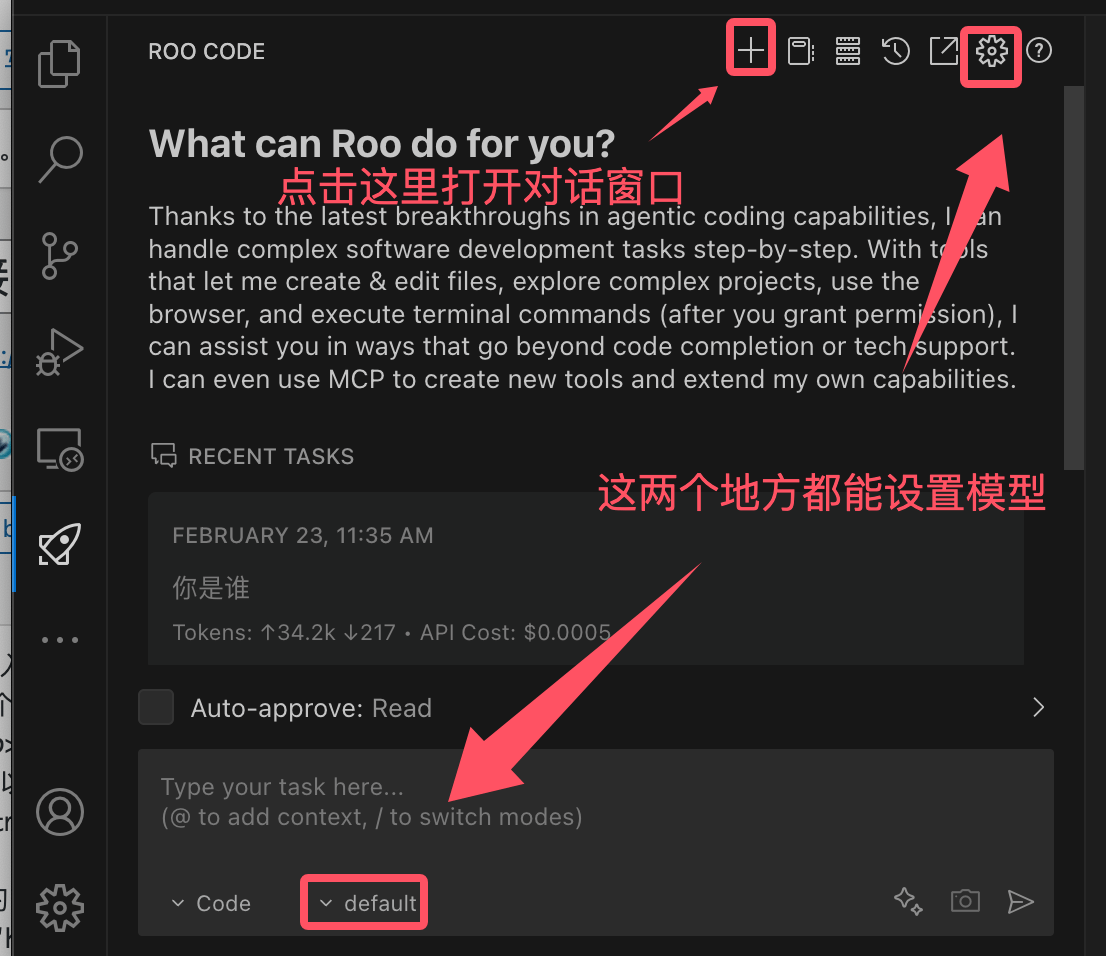
After successful installation, we can click the plus sign in the upper right corner of the extension+to open the conversation window:
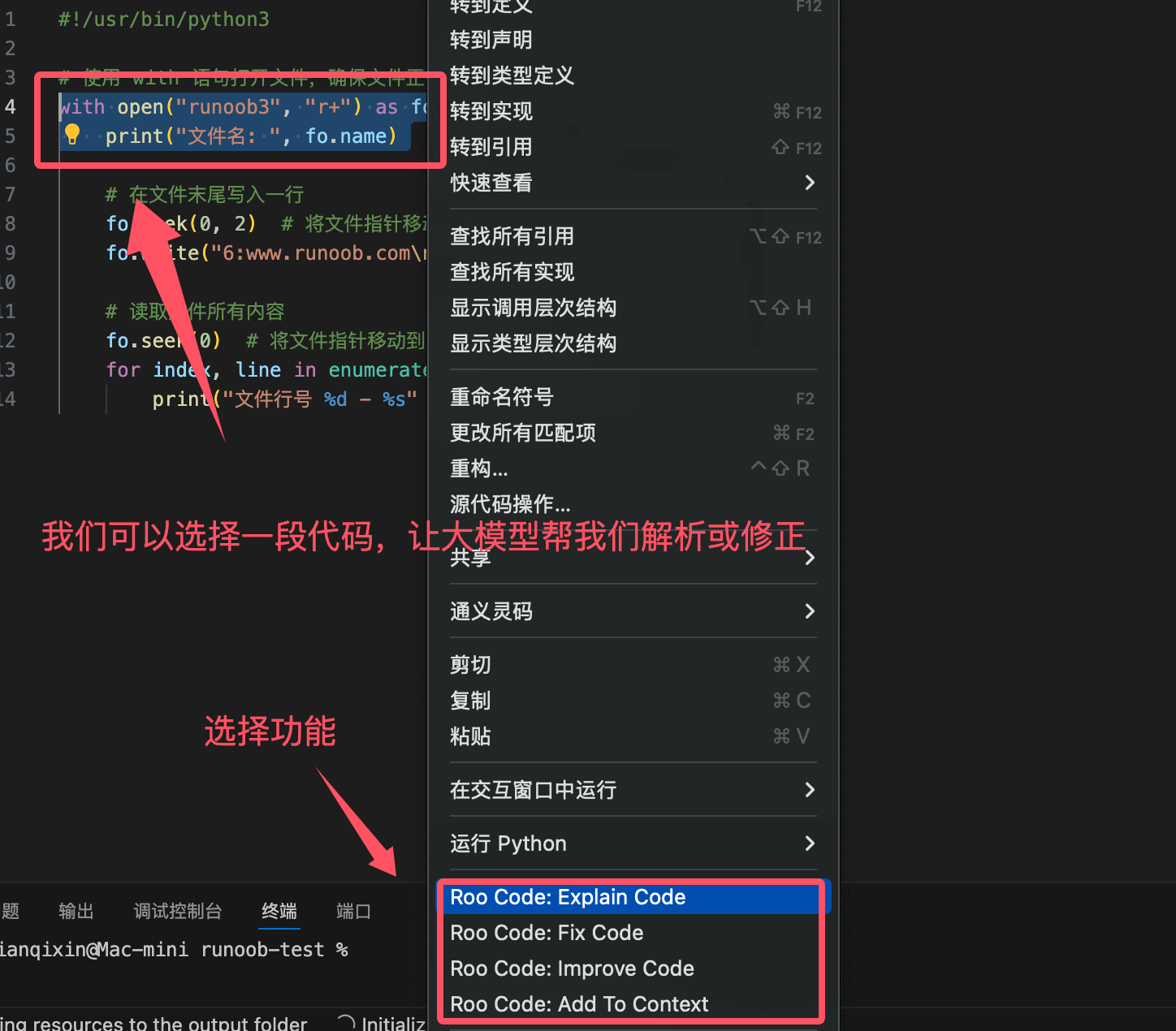
We can also select a small piece of code in the file and let the large model help us parse or fix it:
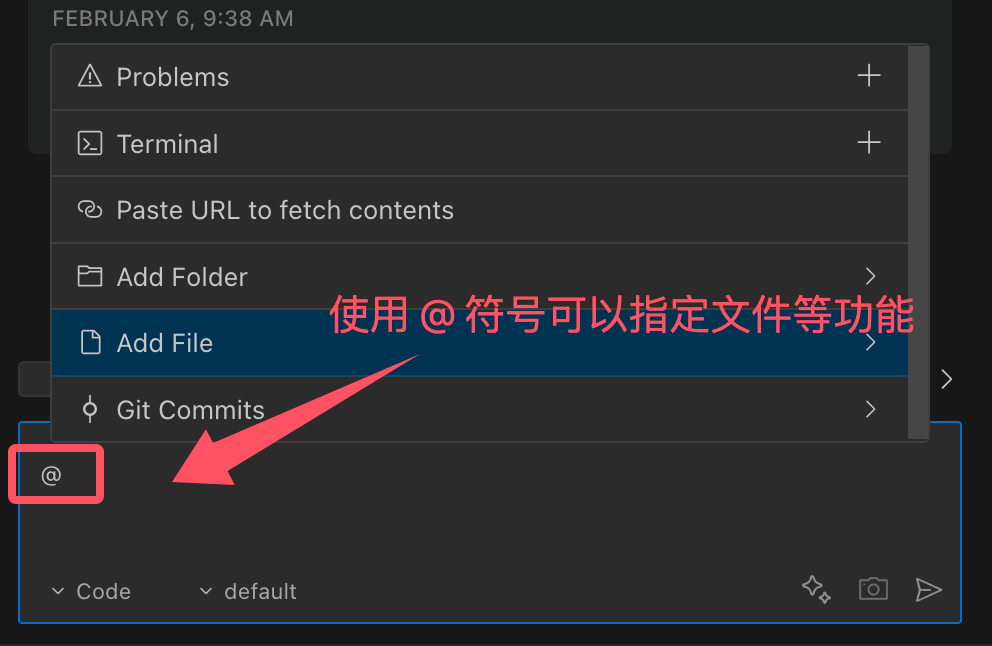
Use@the symbol to provide context for the AI. Enter@to view a list of all files and code symbols in the folder.