VSCode Integrated Terminal
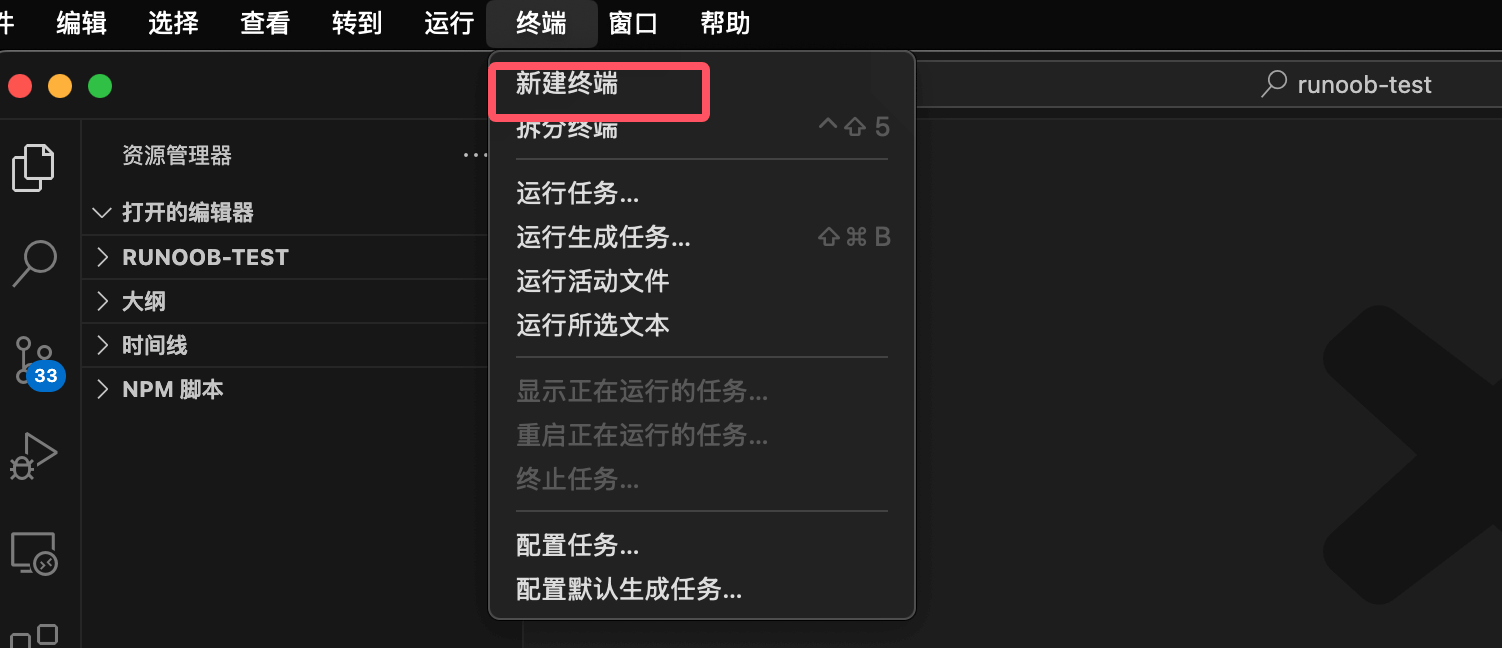
VS Code has a built-in integrated terminal. We can select from the menu bar"Terminal"option, and then choose"New Terminal":
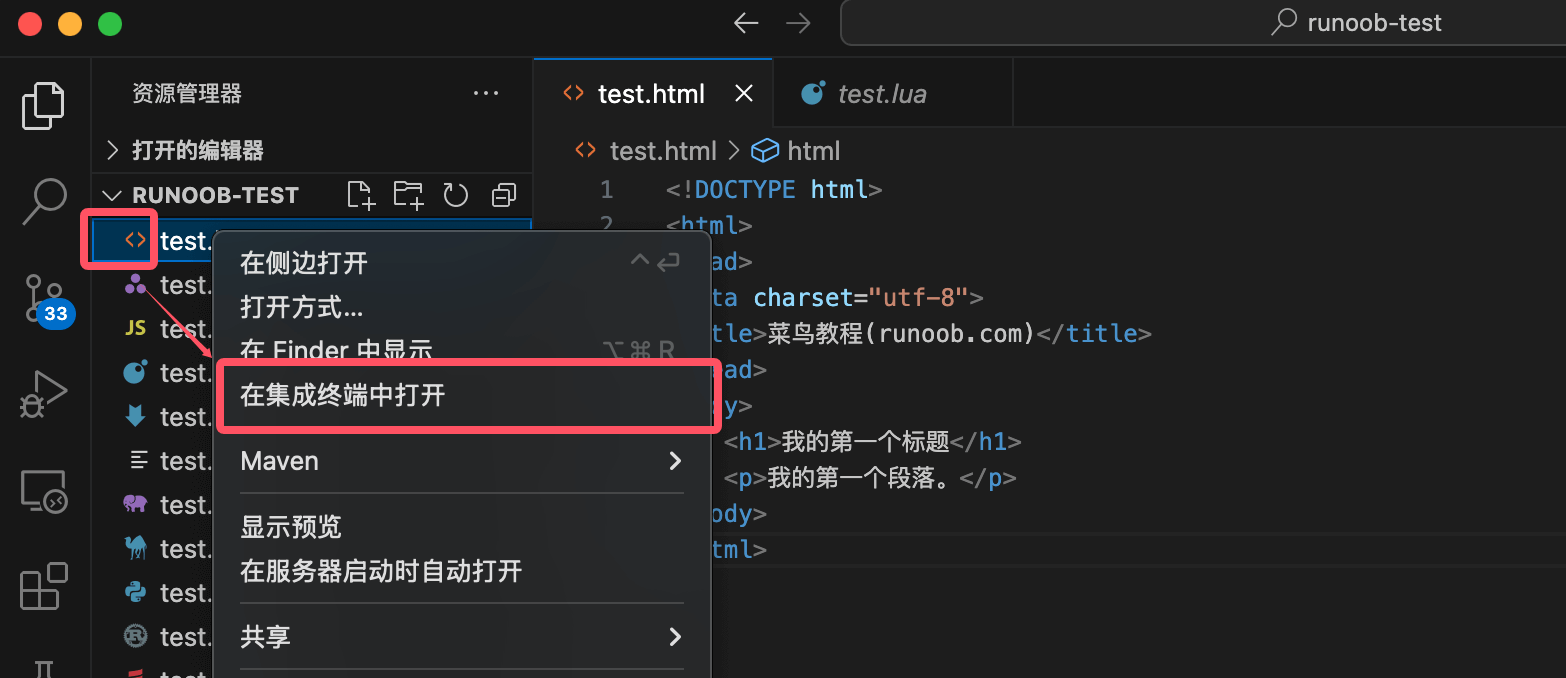
You can also select a file in the directory, right-click, and in the drop-down menu choose"Open in Integrated Terminal":
Terminal shortcuts:
| Function | Windows/Linux | macOS |
|---|---|---|
| Show integrated terminal | Ctrl + ` | Ctrl + ` |
| New terminal | Ctrl+Shift+`` |
Cmd+Shift+`` |
| Switch terminal | Ctrl+PageUp/PageDown |
Cmd+PageUp/PageDown |
| Close terminal | Ctrl+Shift+W |
Cmd+Shift+W |
Depending on the operating system, we can select different terminal environments, such as PowerShell, Command Prompt, or Bash.
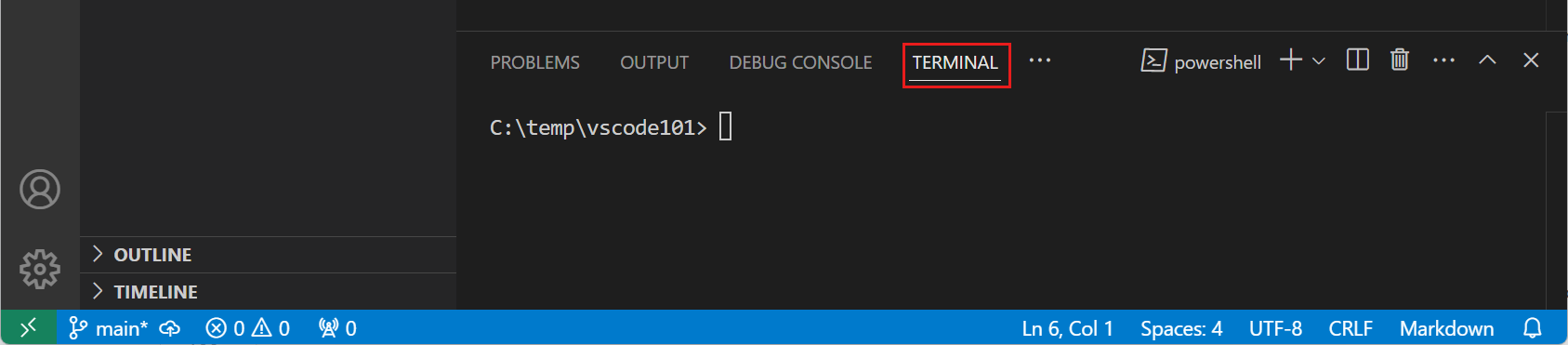
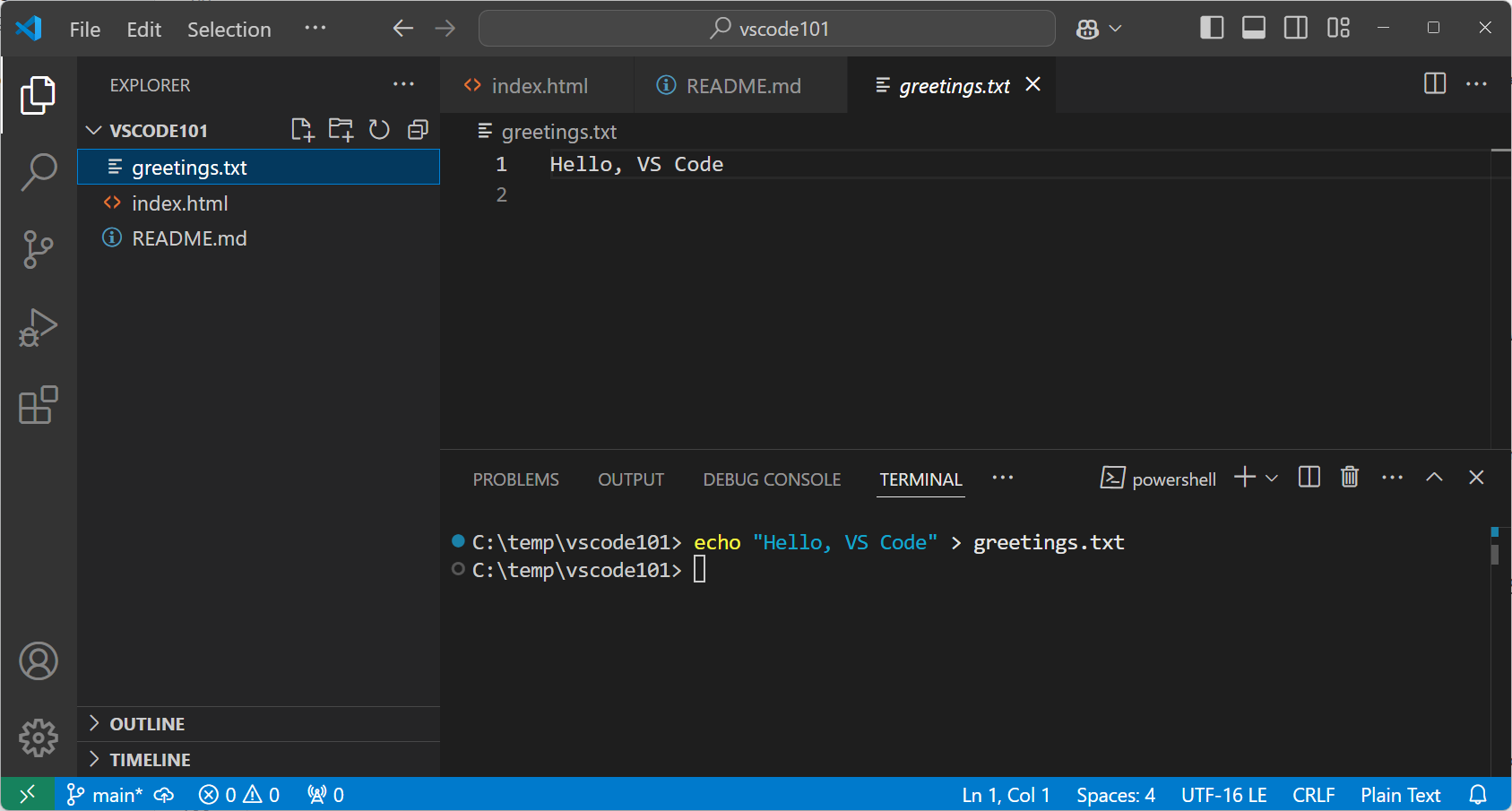
Enter the following command in the terminal to create a new file greetings.txt:
echo "Hello, VS Code" > greetings.txt
The default folder of the workspace is the root directory of the current project.
After creating the file, "Explorer" will automatically display the new file.
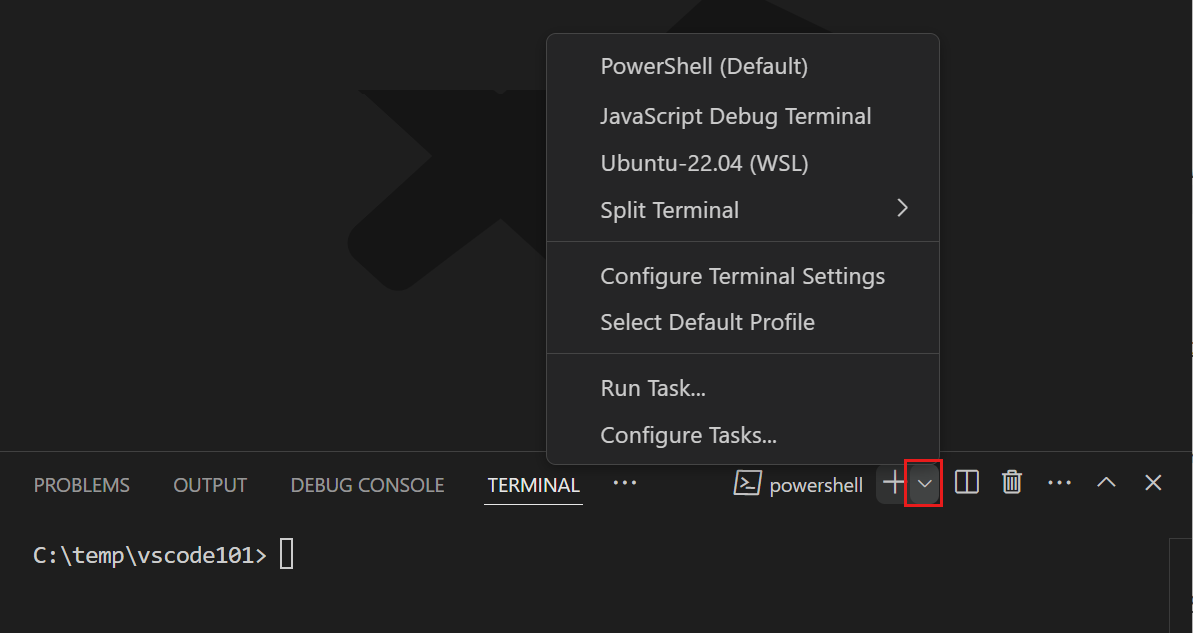
We can open multiple terminals at the same time; click the "Launch Profile" drop-down menu in the upper-right corner of the terminal to view available terminal environments and select one.
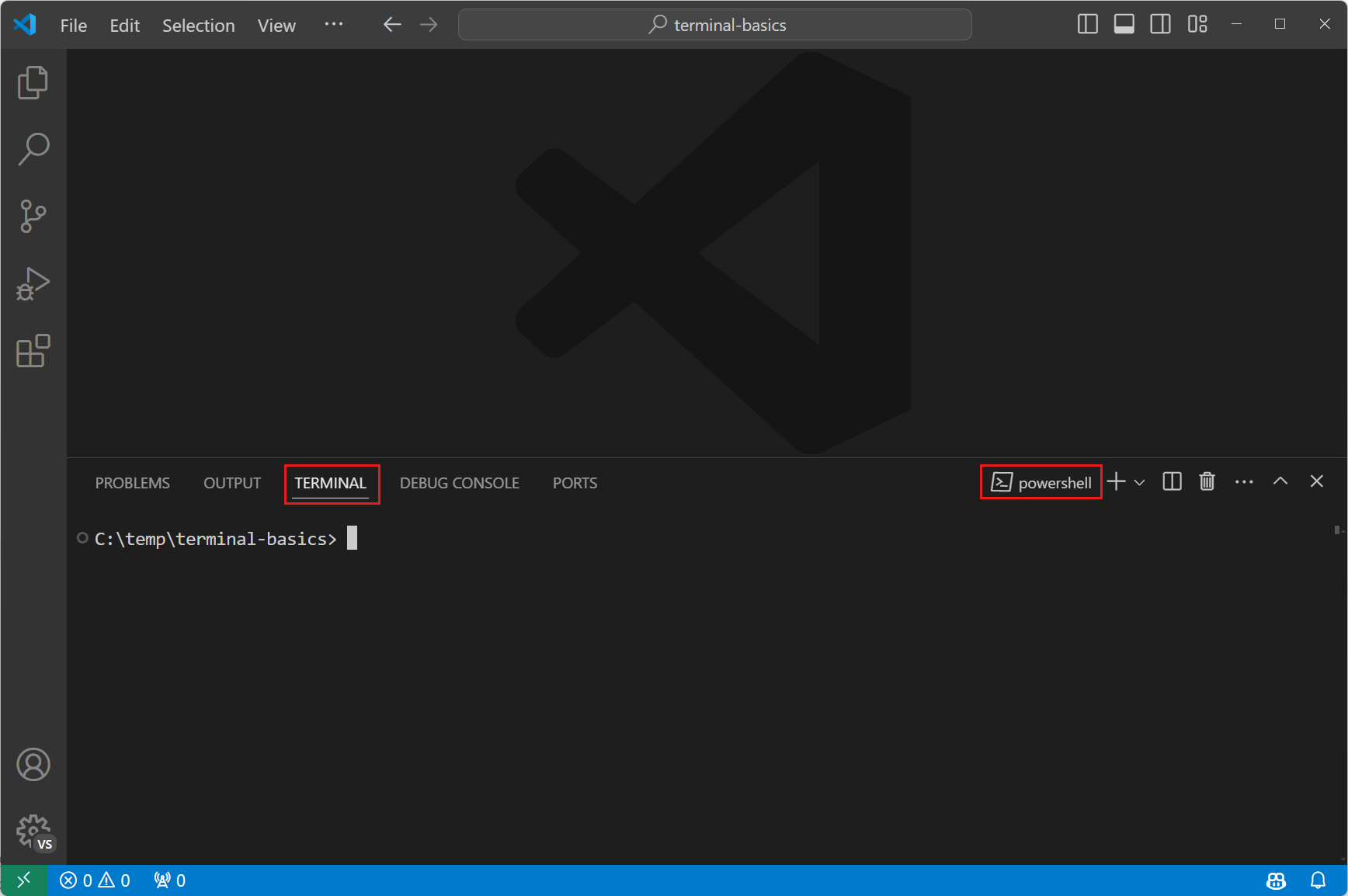
Use the terminal to run commands
The terminal opens a default Shell, such as Bash, PowerShell, or Zsh, and the terminal's working directory starts from the root of the workspace folder.
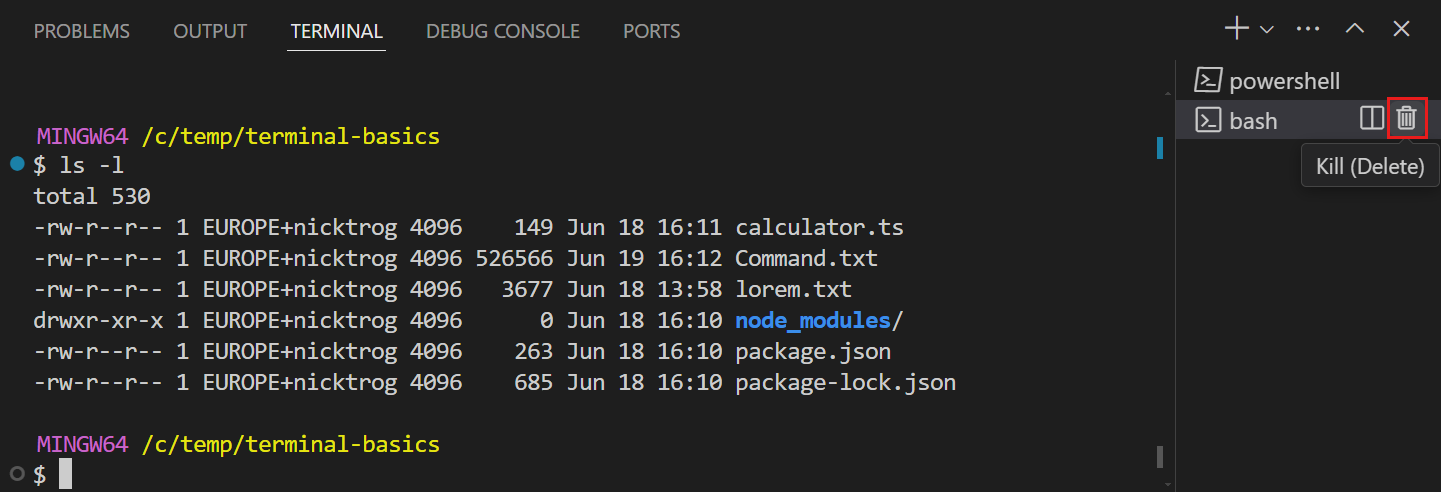
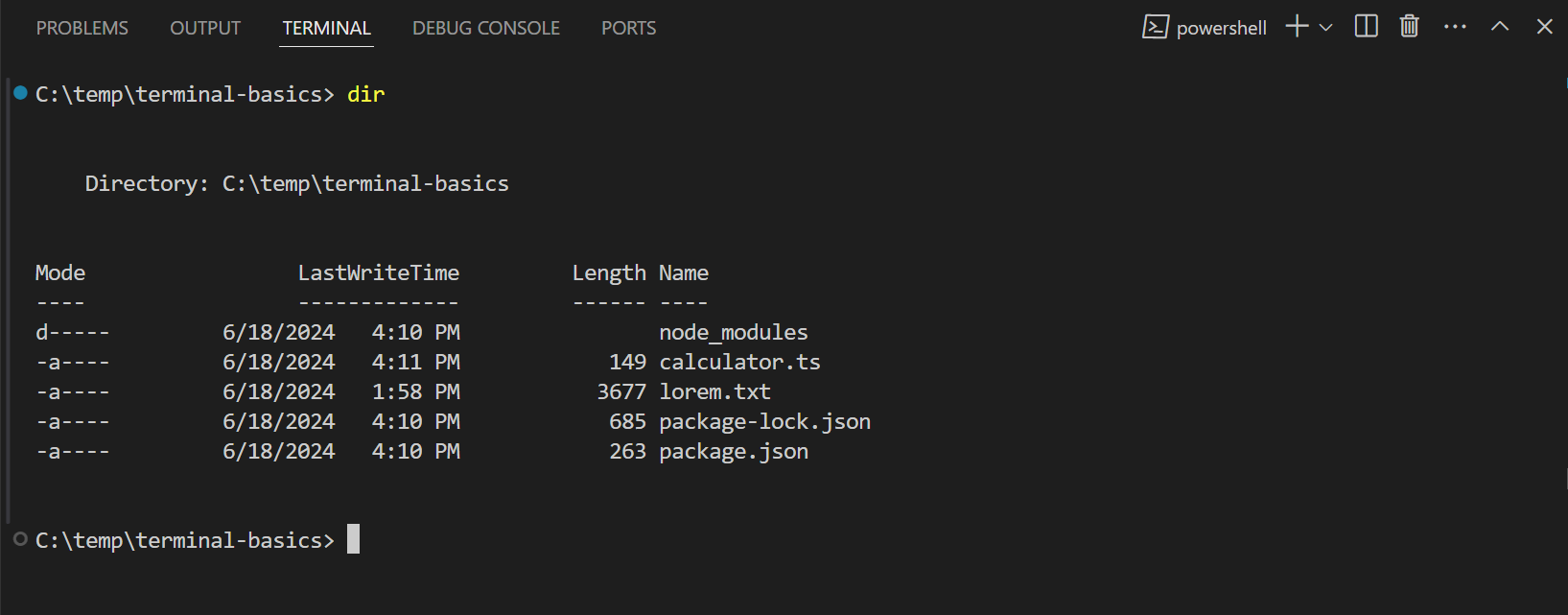
Enter basic commands like ls or dir to list the files in the current directory.
The terminal will directly display the output of the command:
Interact with command output
The terminal in VS Code also provides the ability to interact with command output. Commands often output file paths or URLs, and you may want to directly open or jump to these links.
For example, a compiler or linter may return an error message containing a file path and line number. You don't need to manually search for the file; simply select the link in the terminal output to open the file directly in the editor.
Let's see how to interact with command output in the terminal:
- Open the terminal where you previously ran
lsordircommands. - In the terminal, press and hold
Ctrl/Cmdthe key, hover the mouse over the file name, and then select the link.
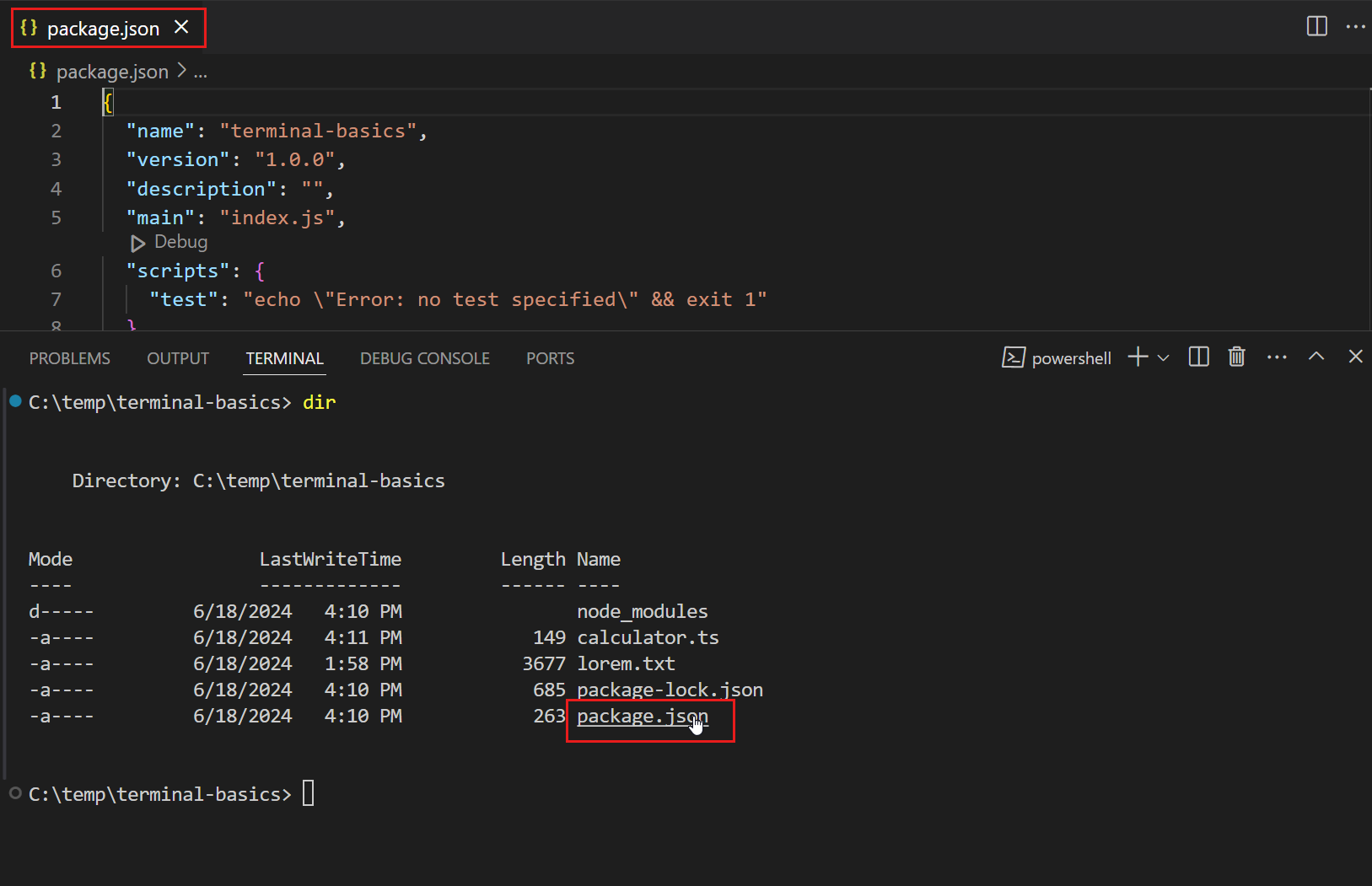
Note that when you hover over text in the output, it becomes a link.
When you select a file name, VS Code will open the selected file in the editor.
All text in the terminal output is clickable. If you select a hyperlink in the terminal, it will open the link in the default browser.
Create a Command.txt file containing available Shell commands
In PowerShell:
Get-Command | Out-File -FilePath .\Command.txt
In Bash / Zsh:
ls -l /usr/bin > Command.txt
Enter the following command to search for commands in the Command.txt file:
In PowerShell:
Get-ChildItem *.txt | Select-String "dir"
In Bash / Zsh:
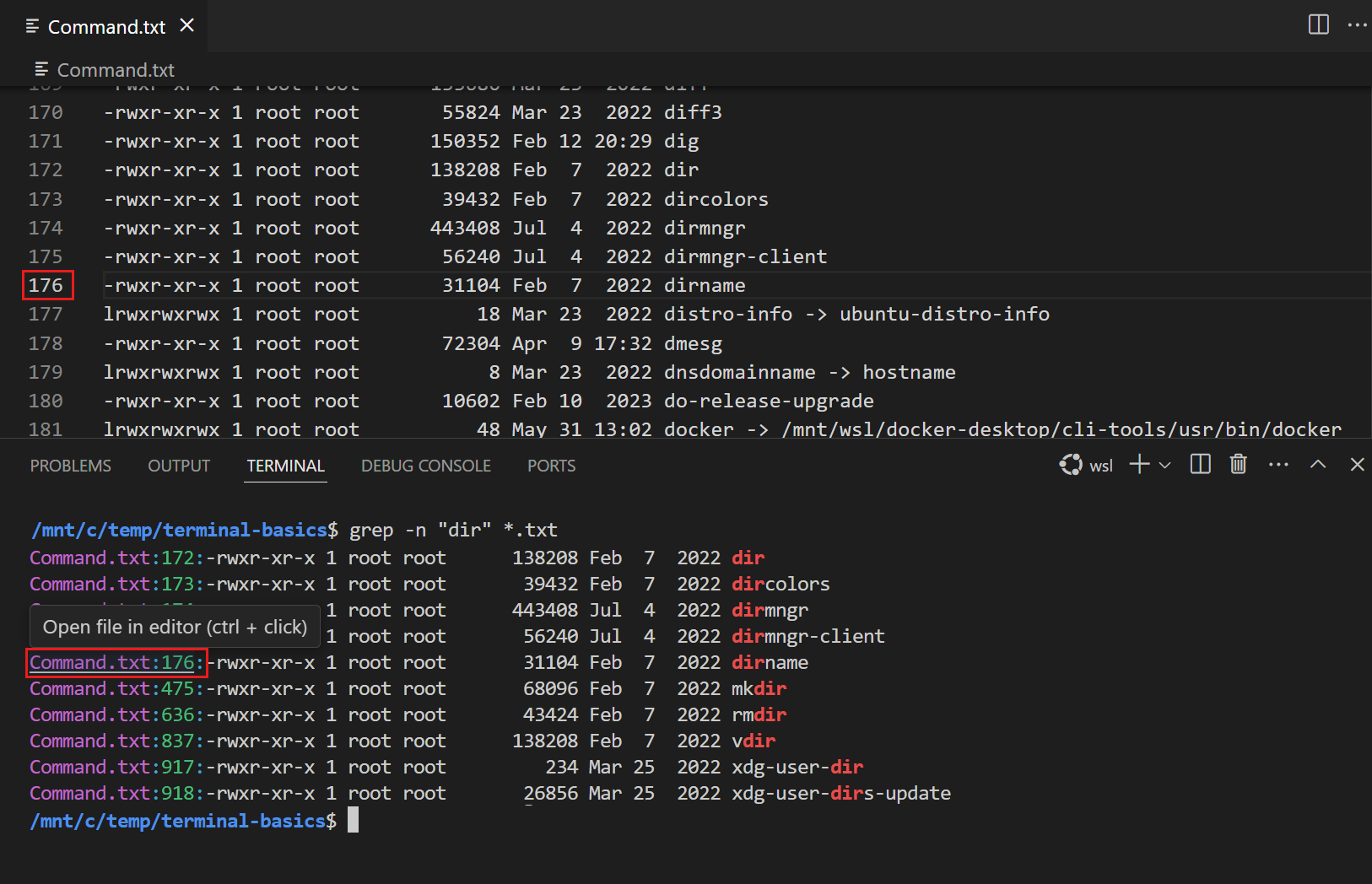
grep -n "dir" *.txt
Note that the command output will contain the file name and the line number where the search result was found, and the terminal will recognize this text as links.
Select one of the links to open the file in the editor and jump to a specific line in the file.
Browse command history
When using the terminal, we may need to view previous commands and their output, or we may want to re-run a command.
We can use a shortcut to quickly browse command history: pressCtrl + ↑or⌘ + ↑the shortcut key to scroll up to the previous command in the terminal history.
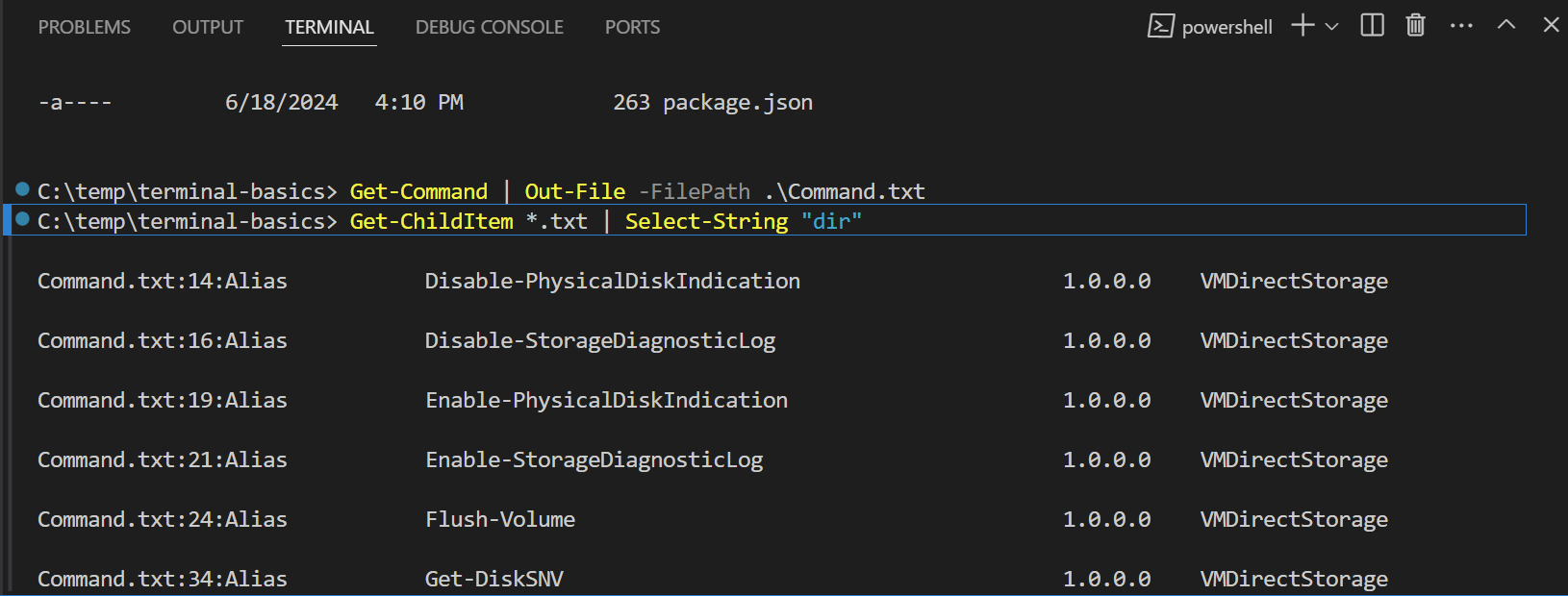
If you press it multiple times,Ctrl + ↑the terminal will continue scrolling up through the history. You can also useCtrl + ↓the shortcut key to browse down through the history.
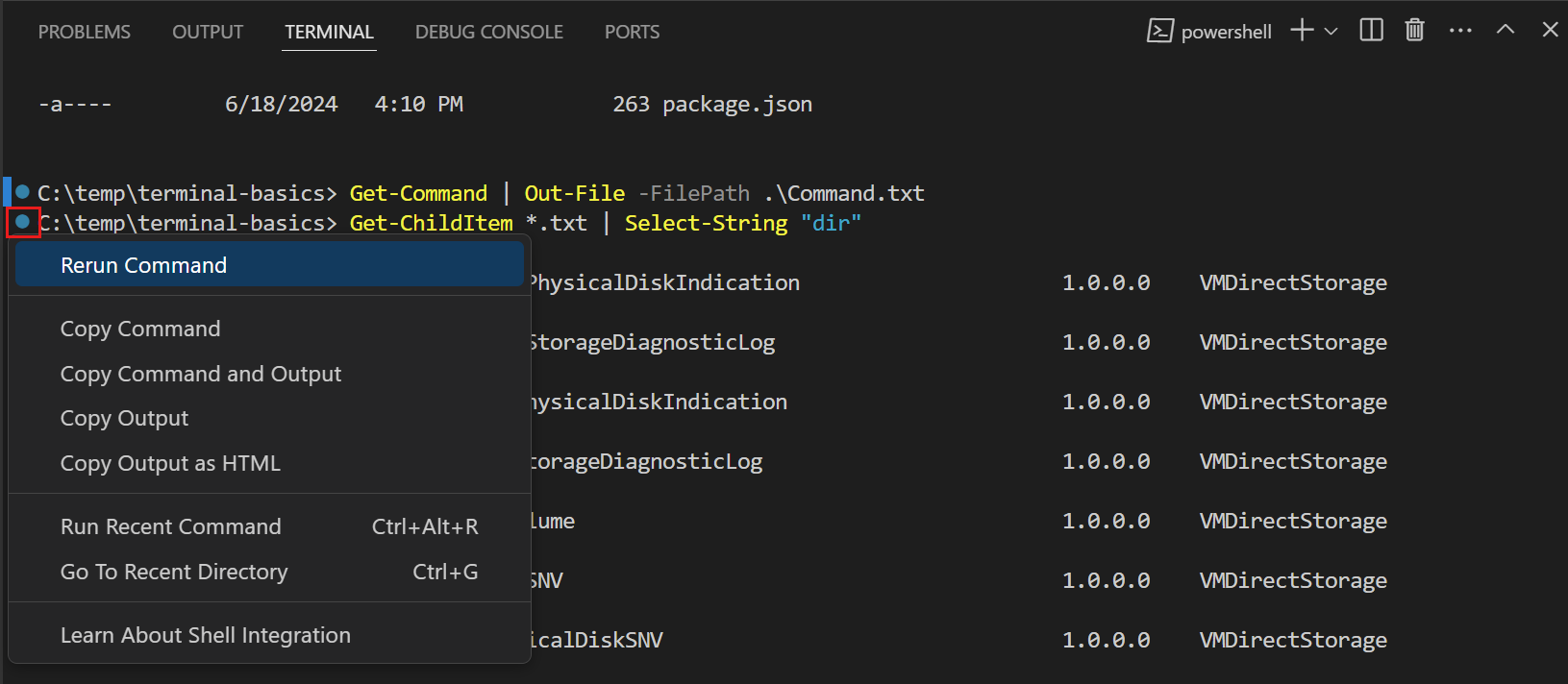
Finally, we will see a circular icon appear next to a previously run command. Select that circular icon, then choose "Re-run Command" to re-execute the command.
Run commands in different Shells
The terminal supports opening multiple terminals at the same time.
For example, we can use one terminal for running Git commands and another terminal for running build scripts.
To add a new terminal in a different Shell: select the ˅ icon in the terminal panel to open the terminal drop-down menu, then choose one from the available Shells.
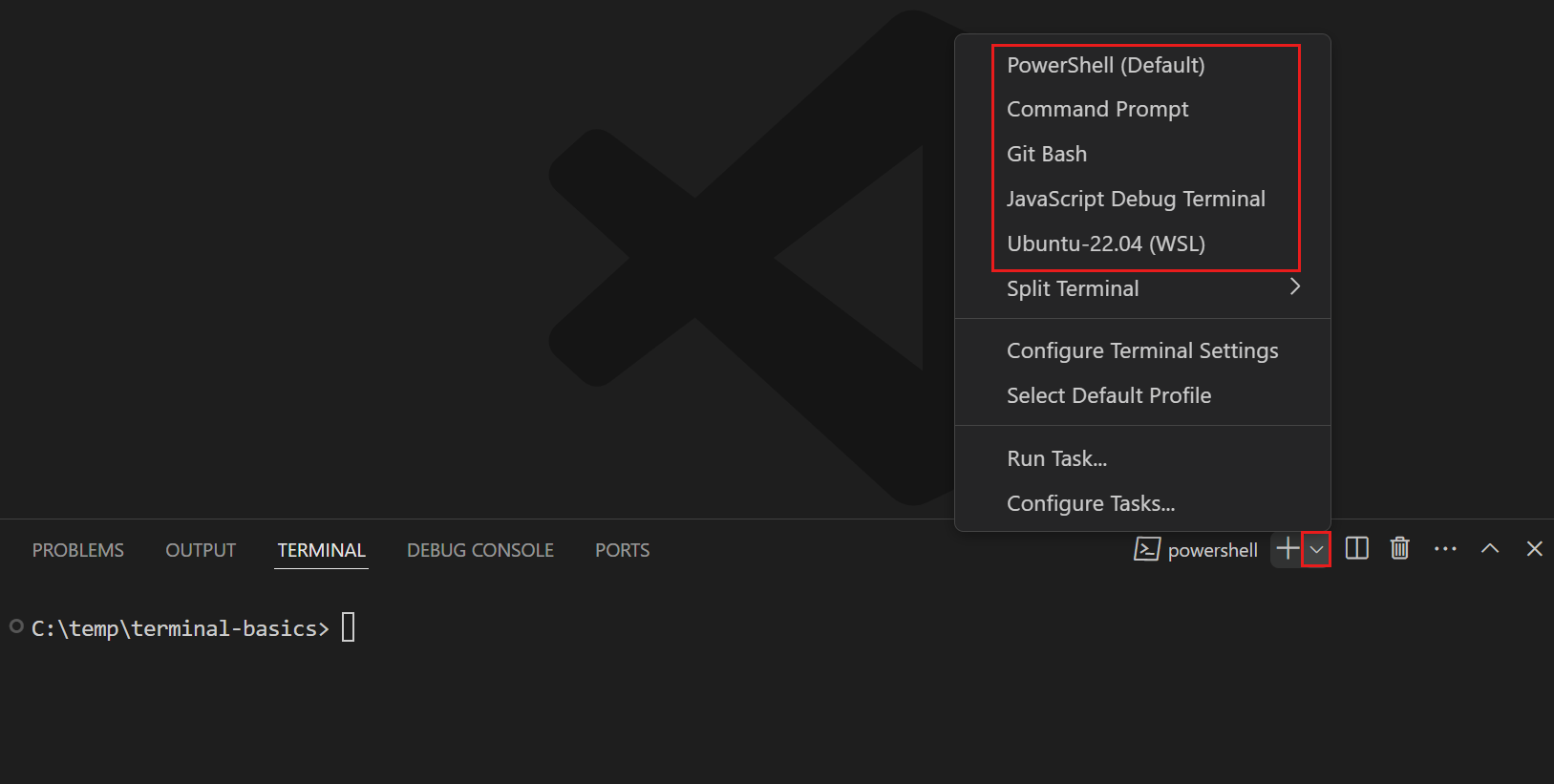
Note:The available Shells depend on the Shells installed on your computer.
The new terminal will open with the Shell you selected, and you can enter commands just like before.
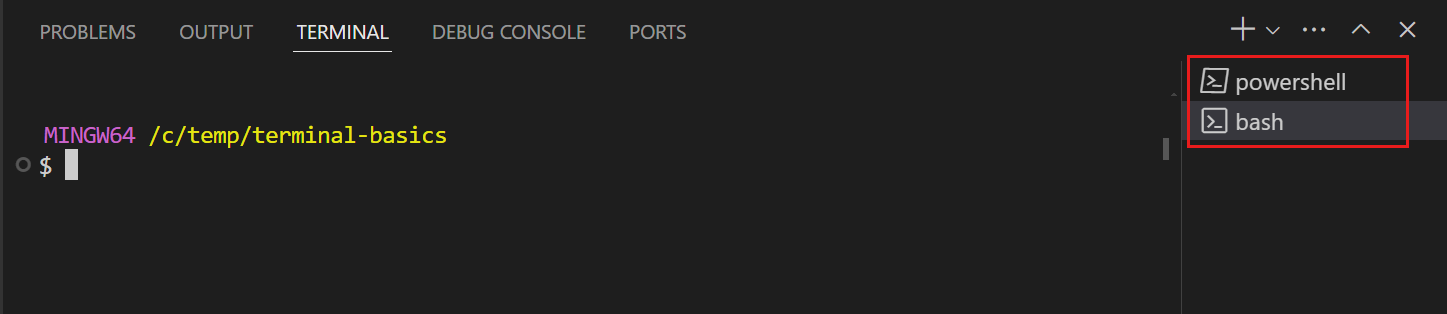
Tip:You can also select the + icon to create a new terminal for the default Shell, use the shortcut⌃⇧(Ctrl + Shift + `), or select from the menu barTerminal > New Terminalto create a new terminal.
We can also drag a terminal from the terminal list into the editor area.
For example, we drag the terminal tab out of the VS Code window to make it a floating window.
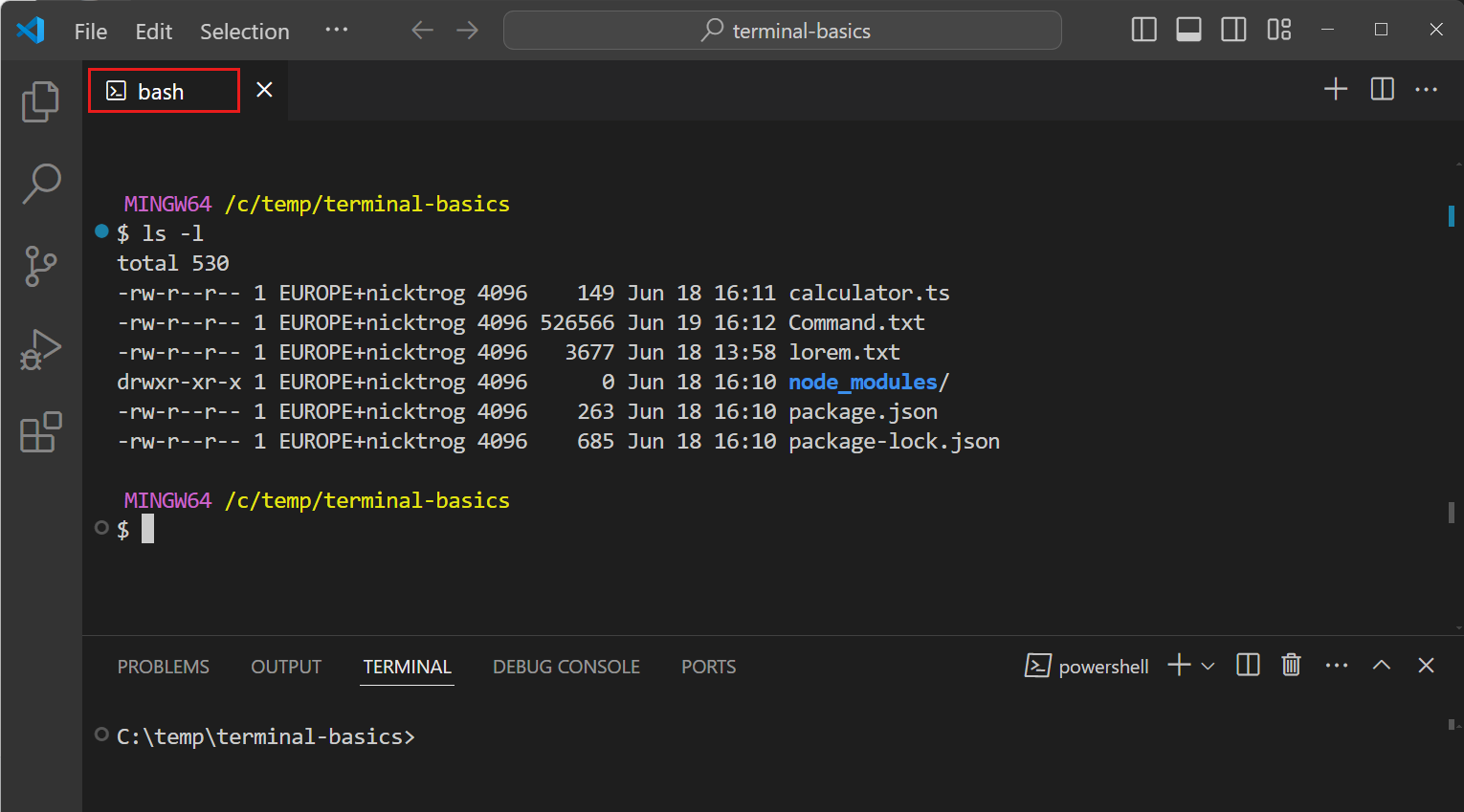
Move the terminal to the editor area:When you hover over the terminal list, select the trash icon to close an open terminal.