Ollama FAQ
This chapter condenses troubleshooting knowledge into a handy reference manual: start with log analysis, triage by symptom, and cover six major categories of problems - insufficient VRAM, download failures, port conflicts, GPU anomalies, overload, and upgrade compatibility.
The Universal First Step: Check the Logs First
Ollama's error messages are often very brief; the real root cause is almost always written in the logs.
| Environment | View Command / Location |
|---|---|
| macOS | cat ~/.ollama/logs/server.log |
| Linux(systemd) | journalctl -u ollama --no-pager --follow --pager-end |
| Windows | %LOCALAPPDATA%\Ollama\server.log |
| Docker | docker logs <container_name> |
| Manual serve | Logs are printed directly in the current terminal |
When the default logs lack detail, enable debug mode and restart the service to see key processes such as GPU discovery and VRAM estimation:
# 调试模式启动
OLLAMA_DEBUG=1 ollama serve
When encountering an anomaly, first triage using the navigation diagram below, then jump to the corresponding section:
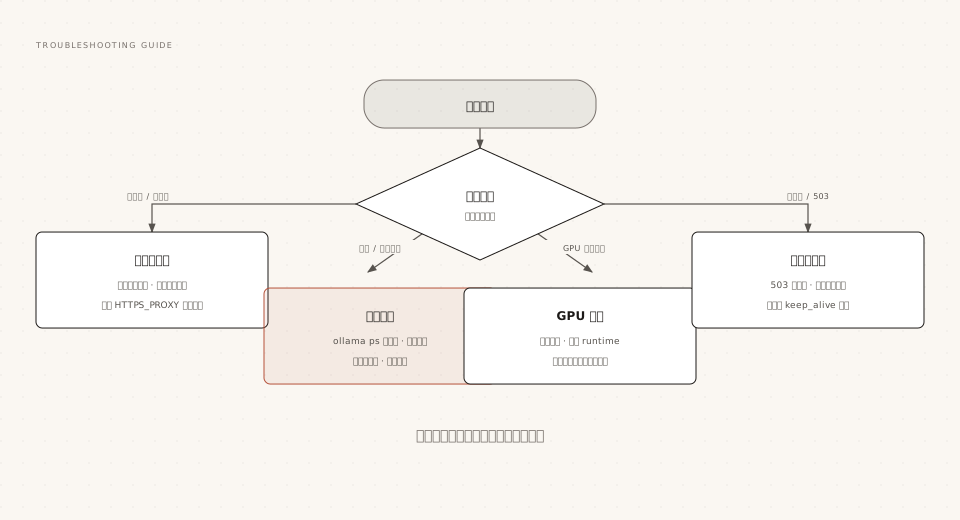
Insufficient VRAM / Memory (OOM)
This is the most common runtime problem, typically manifesting as the process disappearing mid-generation, the system freezing, or memory allocation failures in the logs.
| Symptom | Cause | Countermeasure |
|---|---|---|
| Process killed when loading a large model | Insufficient physical memory | Switch to a smaller tag; or use create to quantize and reduce the size |
| Crash during generation | Context accumulation causes KV cache to expand | Lower num_ctx; enable Flash Attention and KV cache quantization |
| Collective failure under multiple requests | NUM_PARALLEL is too large, VRAM usage multiplies | Set it back to 1, then gradually increase it while observing ollama ps |
| Model runs but is offloaded to CPU | VRAM is slightly less than required | Clear background VRAM usage; drop down one parameter size level |
The diagnostic command trio: ollama ps to check model occupancy and split ratio, nvidia-smi (or rocm-smi) to check real-time VRAM, and free -h to check system memory.
Model Download Failures and Resumable Interruptions
Download problems almost always lie in the network path; the good news is that Ollama supports layer-by-layer resumable downloads, making retries very cheap.
| Symptom | Cause | Countermeasure |
|---|---|---|
| Downloads repeatedly interrupted | Unstable network to the source server | Re-run the same command to resume; configure HTTPS_PROXY if necessary |
| Still fails after configuring proxy | HTTP_PROXY was mistakenly set | Keep only HTTPS_PROXY, delete HTTP_PROXY |
| Proxy certificate error | Self-signed certificate is not trusted | Install the CA certificate as a system certificate |
| Disk space insufficient warning | Target partition capacity is not enough | Clean up space, or use OLLAMA_MODELS to migrate the storage path |
Port Conflicts and Connection Refused
When the client reports "connection refused", the essence is that no service is responding on port 11434.
| Symptom | Cause | Countermeasure |
|---|---|---|
| Local curl connection refused | Ollama service is not started | Open the app on macOS / Windows; run sudo systemctl start ollama on Linux |
| Logs report port is already in use | 11434 is taken by another program | Stop the occupying process, or start on a different port: OLLAMA_HOST=127.0.0.1:11435 |
| Remote machines cannot connect | Service is only listening on the loopback address | Set OLLAMA_HOST=0.0.0.0 on the server side and allow it through the firewall |
| Linux manual install exits immediately after startup | /tmp is mounted with noexec, inference library cannot be loaded | Set OLLAMA_TMPDIR to point to an executable directory |
GPU Not Used / Discovery Failure
The symptom is ollama ps showing 100% CPU, or logs showing GPU discovery failure. NVIDIA and AMD have different troubleshooting paths.
NVIDIA Specifics
First check the driver and passthrough environment, then handle according to the log error codes:
| Check Item | Method |
|---|---|
| Driver version | nvidia-smi outputs normally; upgrade to the latest driver |
| Container passthrough | If docker run --gpus all ubuntu nvidia-smi fails, it's a Container Toolkit issue |
| Driver module anomaly | Reload with sudo rmmod nvidia_uvm && sudo modprobe nvidia_uvm and retry |
| Fails after resume from suspend | After Linux sleep/wake, reload the nvidia_uvm module |
| Docker loses GPU after running for a long time | Add native.cgroupdriver=cgroupfs to /etc/docker/daemon.json and restart Docker |
The CUDA error codes in the logs are worth memorizing: 3 means not initialized, 46 means device unavailable, 100 means no device, 999 means unknown error - most point to driver or passthrough configuration.
AMD Specifics
| Symptom | Cause | Countermeasure |
|---|---|---|
| Completely undetected on Linux | User is not in the video / render group | Add the running user to the corresponding group and restart the service |
| Logs show discovery timeout | ROCm driver is too old (below v7) | Upgrade ROCm v7 with amdgpu-install and restart |
| Old cards are not supported | Architecture is not in the official supported list | Try HSA_OVERRIDE_GFX_VERSION to specify a similar architecture |
| Some old cards have no ROCm on Windows | Driver stack limitation | Use the default Vulkan path; check GGML_VK_VISIBLE_DEVICES if abnormal |
Systematic Troubleshooting for 503 Overload and Slow Response
Link the methods from previous chapters into a fixed procedure; within six steps you can locate the vast majority of performance problems:
Step one, use ollama ps to confirm whether PROCESSOR is 100% GPU; if splitting appears, go back to VRAM optimization first.
Step two, check the logs for records of queueing, unloading, or discovery failures.
Step three, receiving 503 means the queue is full; check the concurrent request volume and OLLAMA_MAX_QUEUE, and evaluate whether to scale up.
Step four, in multi-user shared scenarios, verify the multiplicative relationship between OLLAMA_NUM_PARALLEL and VRAM.
Step five, check the keep_alive strategy: frequent unloading and reloading will cause first-token latency to spike.
Step six, use the API's usage field to calculate token/s, and compare with the historical baseline to quantify the effect of each adjustment.
Post-Upgrade Compatibility Issues and Rollback
When behavior is abnormal after an upgrade, three actions resolve most cases:
# 1. Linux 手动升级前先清理旧库,避免新旧混用
sudo rm -rf /usr/lib/ollama

# 2. 回退到指定版本
curl -fsSL https://ollama.com/install.sh | OLLAMA_VERSION=0.5.7 sh

# 3. AMD 显卡同步升级 ROCm v7 驱动后重启
Garbled blocks appearing in the Windows terminal are an old terminal font issue, unrelated to the model; just switch to Windows Terminal.
Other Extensions