Ollama Model Management
In this chapter, we will cover Ollama's model management commands: pulling, viewing, copying, deleting, and how models reside in memory.
Pull Model: ollama pull
The pull command only downloads the model without starting a conversation, making it suitable for preparing models in advance.
Download the default tag (latest):
ollama pull qwen3.5
Download a specific specification tag:
ollama pull qwen3.5:4b
After execution, you will see the standard download progress output:
$ ollama pull qwen3.5:4b
pulling manifest
pulling 87497c5f0e8f... 100% |████████████████████| 3.4GB
verifying sha256 digest
writing manifest
success
If a download is interrupted, you don't need to start over. Ollama verifies and stores data by layer; re-running the same command will automatically resume the unfinished layers.
It should also be noted that ollama run has built-in pull logic: the first time you run a model, downloading and loading are completed automatically, so in daily use you often don't need to pull separately.
Different specification tags correspond to different official pre-built model files; you cannot specify additional quantization precision when pulling. If you want to compress a large model into a smaller size yourself, you need to use the create command for quantization, which is covered in the Modelfile customization chapter.
View Local Models: list and show
list lists all local models and their disk usage; it is the most commonly used inventory command.
List local models:
ollama list
For example:
$ ollama list
NAME               ID            SIZE      MODIFIED
qwen3.5:0.8b       9e3f4b3a1c2d  1.0GB     5 minutes ago
qwen3.5:4b         b1c7d9e2f3a4  3.4GB     2 days ago
qwen3.5:latest     a8b2c9d3e4f5  6.6GB     2 hours ago
The four columns are the model name, version fingerprint, disk usage, and last modified time. When disk space is running low, checking the SIZE column is the most direct approach.
To look deeper into a model's details, use the show command:
# 查看模型详情:能力、参数、系统提示词、许可证等
ollama show qwen3.5
show can answer several typical questions: what capabilities the model supports (chat, vision, tool calling), what the default generation parameters are, what the system prompt says, and how large the context window is.
It also has an advanced use: exporting the model's complete configuration as a Modelfile:
Example
ollama show --modelfile qwen3.5
This "view the recipe - modify - rebuild" workflow will be fully covered in the Modelfile customization chapter.
View Running Models: ollama ps
list looks at disk, while ps looks at memory: what has been loaded, how much it occupies, and when it will be unloaded.
Example
ollama ps
$ ollama ps
NAME             ID            SIZE      PROCESSOR    CONTEXT    UNTIL
qwen3.5:9b       a8b2c9d3e4f5  9.6GB     100% GPU     131072     4 minutes from now
The meaning of each column is as follows:
| Column | Meaning |
|---|---|
| NAME / ID | Model name and version fingerprint, same as in list |
| SIZE | Total memory currently occupied by the model (including RAM and VRAM) |
| PROCESSOR | Loading location: 100% GPU means fully on the graphics card; 100% CPU means fully in RAM; a ratio such as 48%/52% CPU/GPU indicates insufficient VRAM and the model has been split |
| CONTEXT | The currently allocated context window size |
| UNTIL | Time remaining before automatic unload (keep-alive countdown) |
The PROCESSOR column is the first place to check when troubleshooting "why is the model slow": as long as it's not 100% GPU, it means the model isn't fully loaded into VRAM. Specific performance optimization methods are discussed in detail in the GPU and Performance chapter.
Copy and Rename: ollama cp
cp gives an existing model a new name, commonly used for renaming or keeping a snapshot.
Example
ollama cp qwen3.5:4b example-test
# Use it like a normal model
ollama run example-test
It has a very practical advanced trick: "borrowing a name" for a model.
Some tools hardcode model names (e.g., gpt-3.5-turbo). By using cp to copy a local model to that name, you can let such tools directly use the local model:
Example
ollama cp qwen3.5 gpt-3.5-turbo
cp completes almost instantly because it only creates a new model name entry pointing to the original model files; it doesn't create a second multi-GB copy of data on disk.
Delete Models and Disk Cleanup: ollama rm
rm deletes local models and is the antidote to the "only ever grows, never shrinks" problem in the model library.
Example
ollama rm qwen3.5:0.8b
$ ollama rm qwen3.5:0.8b
deleted 'qwen3.5:0.8b'
The recommended cleanup workflow is: first use ollama list to find models that are large and no longer used, then rm them one by one.
If multiple tags share the same underlying files, deleting one of the tags won't affect the normal use of the other tags.
Make sure to also handle models whose names were borrowed with cp: after deleting the original model, the name-borrowed copy still exists and continues to occupy space. Don't let them become invisible disk black holes.
Stopping Models and the keep-alive Residency Mechanism
Let's first look at a model lifecycle diagram, and it will be clear at a glance which step each management command acts on.
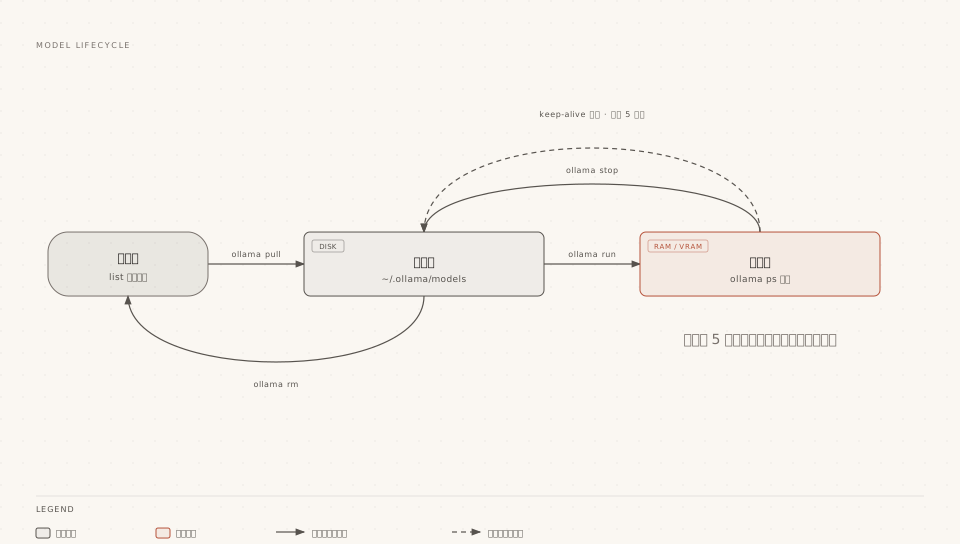
The key mechanism is keep-alive: after a model conversation ends, the model isn't unloaded immediately, but by default stays resident in memory or VRAM for 5 minutes.
If another request comes within those 5 minutes, the response no longer waits for model loading; if there are no new requests after that time, the model is automatically unloaded and memory is released.
To make the model release resources immediately, use the stop command to unload it manually:
Example
ollama stop qwen3.5:4b
There are three ways to adjust the residency duration:
| Method | How to do it | Use case |
|---|---|---|
| Change global default | Set the environment variable OLLAMA_KEEP_ALIVE, e.g., 30m, 2h | When the server wants a unified residency policy |
| Specify per request | Pass the keep_alive parameter when calling the API; for example, -1 means it stays resident and is never unloaded | When the application layer treats different models differently |
| Unload immediately | ollama stop <model name> | Temporarily free VRAM for other tasks |