Ollama Chat and Generation Parameters
This chapter dives into the details of using Ollama in conversational mode: multiple chat modes, generation parameters that control the model's "personality," context windows, thinking mode, and multimodal conversations.
Three chat modes: Interactive, One-shot, and Pipeline
The same run command has different usages and applies to different scenarios.
Interactive mode: Multi-turn chat
Run directly to enter a conversation; the model remembers the context of the current session, making it suitable for follow-up questions:
Example
ollama run qwen3.5
One-shot Q&A: One question, one answer
Append the question directly as an argument; exit immediately after getting the answer. Suitable for one-off tasks:
Example
ollama run qwen3.5 "Introduce Python in one sentence"
Pipeline input: Embedding into scripts
Feed text to the model via a pipe, making it easy to combine with other commands:
Example
cat README.md | ollama run qwen3.5 "Summarize this content"
Additionally, entering three double quotes in a conversation wraps multi-line text; pressing Enter for a newline is not treated as submitting.
Generation parameters: Controlling the model's "personality"
Every time the model generates a word (token), it goes through the same internal pipeline; generation parameters intervene at different stages of this pipeline.
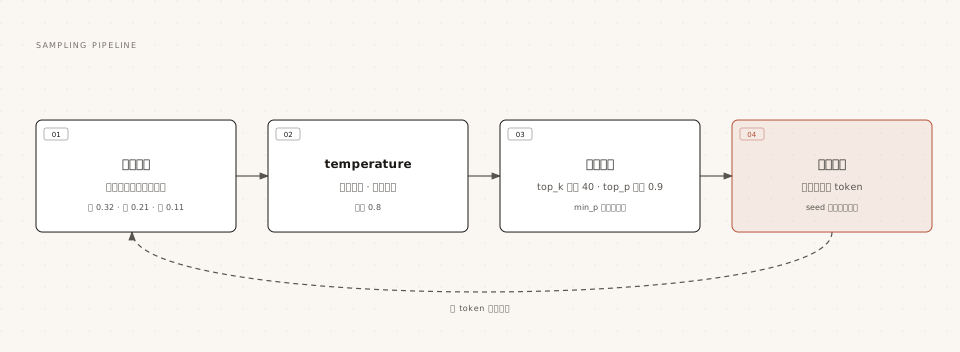
temperature steepens or flattens the probability distribution; top_k / top_p / min_p remove low-quality candidates; finally, random sampling selects the next token.
Common parameters are summarized below (defaults from official documentation):
| Parameter | Default value | Effect | Typical usage |
|---|---|---|---|
| temperature | 0.8 | Higher is more creative, lower is more rigorous. | Use 0~0.3 for code writing and information extraction; around 1.0 for creative writing. |
| top_k | 40 | Sample only from the top k candidates by probability. | Lower it to make output more conservative. |
| top_p | 0.9 | Sample only from candidates whose cumulative probability reaches p. | Use as an alternative to top_k for fine-tuning. |
| min_p | 0.0 | Set a candidate floor based on the proportion of the highest probability. | 0.05 is often used as a substitute for top_p. |
| repeat_penalty | 1.0 | Penalize repeated content. | 1.1 mitigates repetitive rambling. |
| seed | 0 | Fix the random seed to ensure reproducibility. | Fix results during testing and debugging. |
| stop | None | Stop generation immediately upon encountering a specified string. | Trim unnecessary pleasantries or fixed formatting. |
| num_predict | -1 | Maximum number of generated tokens; -1 means no limit. | Limit the output length of long answers. |
Adjust at any time with built-in commands in interactive mode:
Example
>>> /set parameter seed 42
To make parameters permanently effective, write them into a Modelfile to create a "pre-tuned" model. This is the core usage of Modelfile in the next article.
A small experiment to verify the seed effect: fix the seed and ask the same question twice; the outputs will be identical. Release the seed and each answer will differ.
Context window num_ctx: The model's working memory
The context window determines how much content the model can "see" at once, including the system prompt, conversation history, and your question, measured in tokens.
Content that does not fit in the window gets truncated; this is the root cause of the model "forgetting the beginning as the conversation goes on."
Ollama automatically selects the default context length based on VRAM: less than 24GiB defaults to 4K, 24-48GiB defaults to 32K, and above 48GiB defaults to 256K. Cloud models default to the maximum context.
There are three ways to adjust it manually:
Example
/set parameter num_ctx 8192
# Method 2: Set a global default when starting the service
OLLAMA_CONTEXT_LENGTH=8192 ollama serve
# Method 3: Specify on demand in API requests (options.num_ctx, see the API chapter)
The cost of increasing the window is higher memory usage; use ollama ps from the previous chapter to check the CONTEXT column to confirm the current value.
When integrating Ollama into agents, coding tools, or web search scenarios, the official recommendation is to set the context to at least 64K; otherwise, the large amount of content returned by tools will crowd out the conversation space.
Thinking mode: Let the model think before answering
Reasoning models (such as qwen3.5, deepseek-r1) support outputting a thinking process first and then giving an answer, suitable for math and logic tasks.
Ollama enables thinking by default and also provides full control switches:
Example
ollama run qwen3.5 --think "What is 17 times 23?"
# Turn off thinking and give the answer directly
ollama run qwen3.5 --think=false "Introduce Python in one sentence"
# Think as usual, but do not display the thinking process in the terminal
ollama run qwen3.5 --hidethinking "Which is bigger, 9.9 or 9.11?"
In interactive mode, use/set thinkand/set nothinkto switch at any time.
Some models support thinking effort levels; for example, gpt-oss only accepts three levels: low, medium, and high. Use--think=mediumto specify it in this form.
Turning off thinking can significantly reduce response time, but the accuracy of reasoning tasks may drop. Scenarios that prioritize response speed, such as coding assistants, often choose hidethinking—preserving thinking quality while keeping the terminal from being flooded with the process.
Multimodal: Let the model see images
qwen3.5 natively supports image input; in the command line, simply put the image path after the question:
Example
ollama run qwen3.5 ./screenshot.png What page is in this screenshot?
API and SDK usage is slightly more complex (base64 encoding) and is demonstrated in the vision capability chapter. It can also be combined with structured output to do "image to structured data."
Structured output: Turn answers into reliable JSON
When having a program parse model responses, the biggest fear is that the format differs each time. Ollama supports forcing the model to output according to a JSON Schema.
Example
"model": "qwen3.5",
"messages": [{ "role": "user", "content": "Introduce Python" }],
"format": {
"type": "object",
"properties": {
"name": { "type": "string" },
"category": { "type": "string" },
"free": { "type": "boolean" }
},
"required": ["name", "category", "free"]
},
"stream": false
}'
The returned content is a JSON string that strictly conforms to the schema and can be directly deserialized into a program object.
In Python, using Pydantic to define the schema and then validate the result is the most convenient combination; the complete practice is in the model capability chapter.
Two practical details: lowering temperature to 0 during structured output is more stable; if you only write format without explaining the requirements in the prompt, the effect may be diminished. It is best to also describe the field meanings in the prompt.
Context management and common pitfalls in multi-turn conversations
In interactive mode, for each round of conversation, Ollama concatenates the full history into the context window and sends it to the model. This has two consequences you must know.
First, within a session the model has memory; after exiting (/bye), the memory is cleared. Running again starts a brand new session; it does not remember what you said last time.
Second, when the history is too long, the oldest content is pushed out of the window first, appearing as the model suddenly "forgetting" the agreements from the beginning.
Corresponding practical strategies:
| Symptom | Cause | Countermeasure |
|---|---|---|
| Model completely forgets after reopening the conversation | Session context is not preserved across processes | Write important agreements into the SYSTEM field of a Modelfile, or use the API to manage message history yourself |
| The second half of a long conversation starts "losing memory" | Context window is full; old content is truncated | Increase num_ctx; or start a new session periodically, bringing only key conclusions |
| Answers become slower and worse after pasting a long document | Long content crowds out the context | Paste only relevant excerpts; hand the entire document to an RAG knowledge base solution |
To bypass these restrictions for persistent memory, you must use the API to maintain the messages array yourself; that is the focus of the API chapter.
Quick reference for built-in commands in interactive mode
The built-in commands available directly at the conversation prompt are as follows. Enter /? at any time to see the actual list for the current version.
| Command | Description |
|---|---|
| /? | Show help and all available commands |
| /set parameter <name> <value> | Adjust generation parameters, such as temperature, num_ctx |
| /set system "<prompt>" | Temporarily change the system prompt |
| /set think / /set nothink | Enable / disable thinking mode |
| /clear | Clear the current session context and start over |
| /load <model> | Switch to another model without exiting the terminal |
| /save <name> | Save the current session (including system prompt and parameters) as a new model |
| /show info / /show parameters | View current model info / currently active parameters |
| /bye | Exit the conversation |
Other extensions/save deserves special mention: it freezes a conversation with tuned parameters directly into a new model, equivalent to quick customization without writing a Modelfile. The next chapter will compare it with the Modelfile approach.