R Environment Installation
R's development environment itself has a graphical development environment, which is different from many other engineering languages, so it is best to install the development environment on an operating system designed for desktop personal computers (such as Windows, macOS, or Ubuntu Desktop, etc.).
First, we need to download the installation package for the R language environment:
Windows
- Official address:https://cloud.r-project.org/bin/windows/base/
- USTC mirror:https://mirrors.ustc.edu.cn/CRAN/bin/windows/base/
- TUNA mirror:https://mirrors.tuna.tsinghua.edu.cn/CRAN/bin/windows/base/
Linux
- Official address:https://cloud.r-project.org/bin/linux/
- USTC mirror:https://mirrors.ustc.edu.cn/CRAN/bin/linux/
- TUNA mirror:https://mirrors.tuna.tsinghua.edu.cn/CRAN/bin/linux/
macOS
- Official address:https://cloud.r-project.org/bin/macosx/
- USTC mirror:https://mirrors.ustc.edu.cn/CRAN/bin/macosx/
- TUNA mirror:https://mirrors.tuna.tsinghua.edu.cn/CRAN/bin/macosx/
The above versions may be outdated. If you need the latest version, you can visit:
- Tsinghua University source:https://mirrors.tuna.tsinghua.edu.cn/CRAN/bin/
- Official website:https://cloud.r-project.org/bin/
Windows Operating System
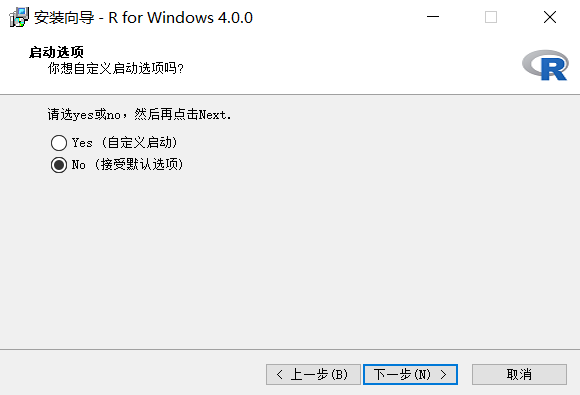
Windows installation is very simple. After downloading the installation package, double-click the downloaded installation package to start the installation wizard:
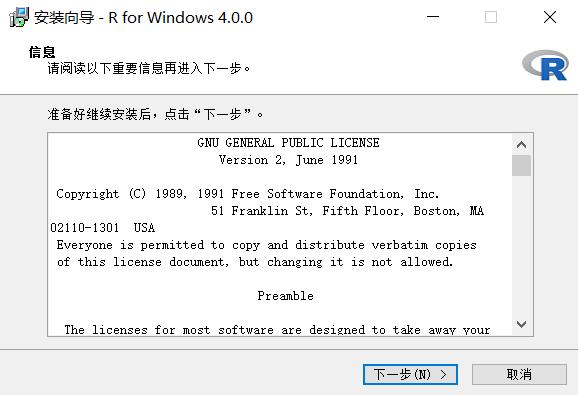
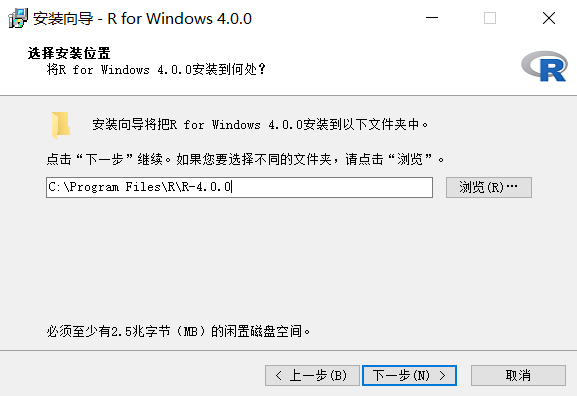
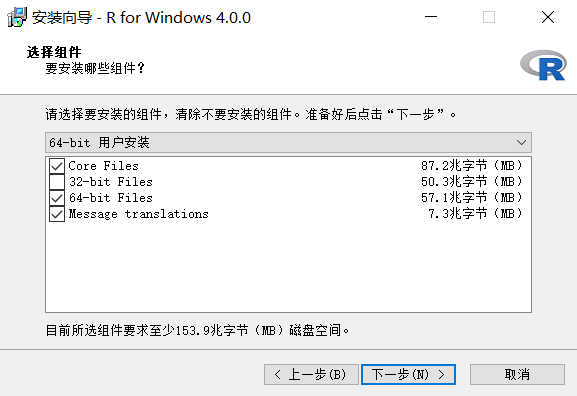
Note:The operating system used here is 64-bit, but there are still a few computers that use 32-bit operating systems. If your operating system is 32-bit, please select the "32-bit User Installation" option at this step.
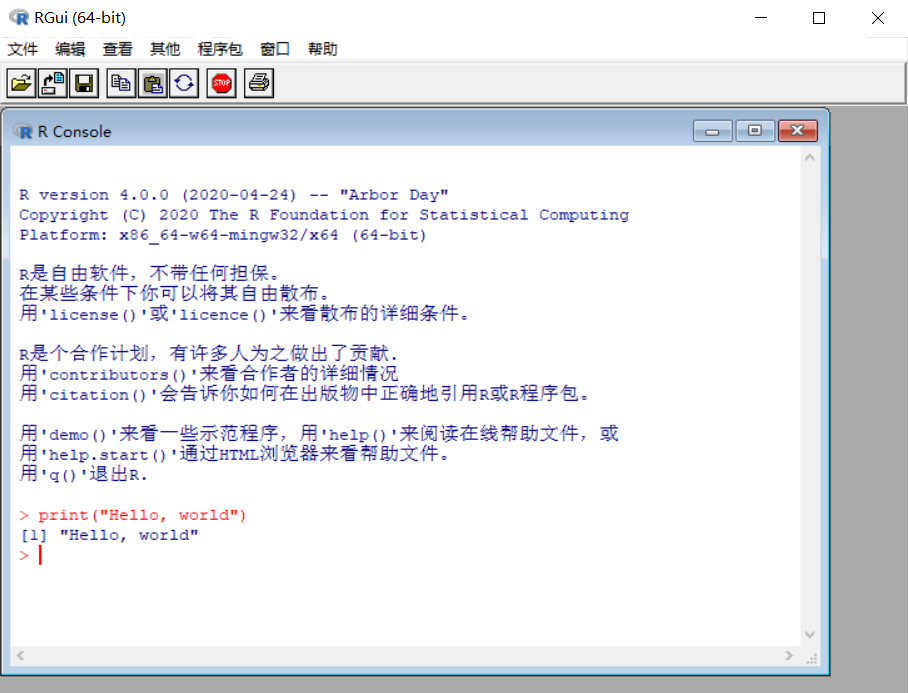
When we enter the following code in the interactive command window:
print("Hello, world")
The output result is:
"Hello, world"
Linux
Ubuntu Installation
Execute the following command to install the R language runtime environment:
# sudo apt update
# sudo apt -y upgrade
# sudo apt -y install r-base
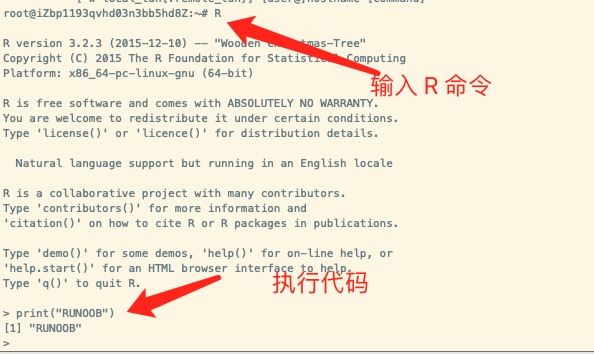
After successful installation, runRcommand to enter the interactive programming window:
CentOS Installation
# sudo yum install R
Enter the following command to check the installed version:
# R --version
The interactive command can be exited by entering q():
> q()
Save workspace image? [y/n/c]: y
macOS Installation
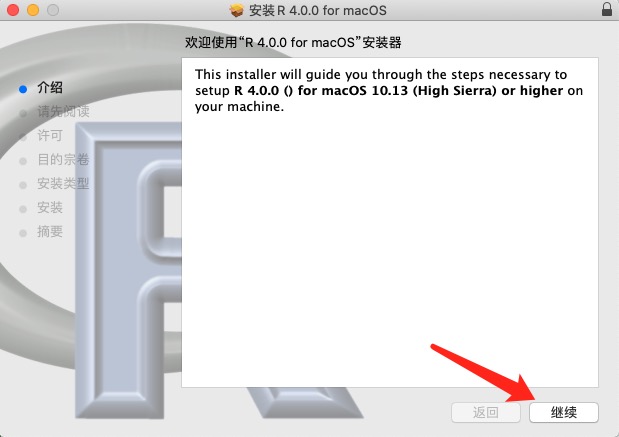
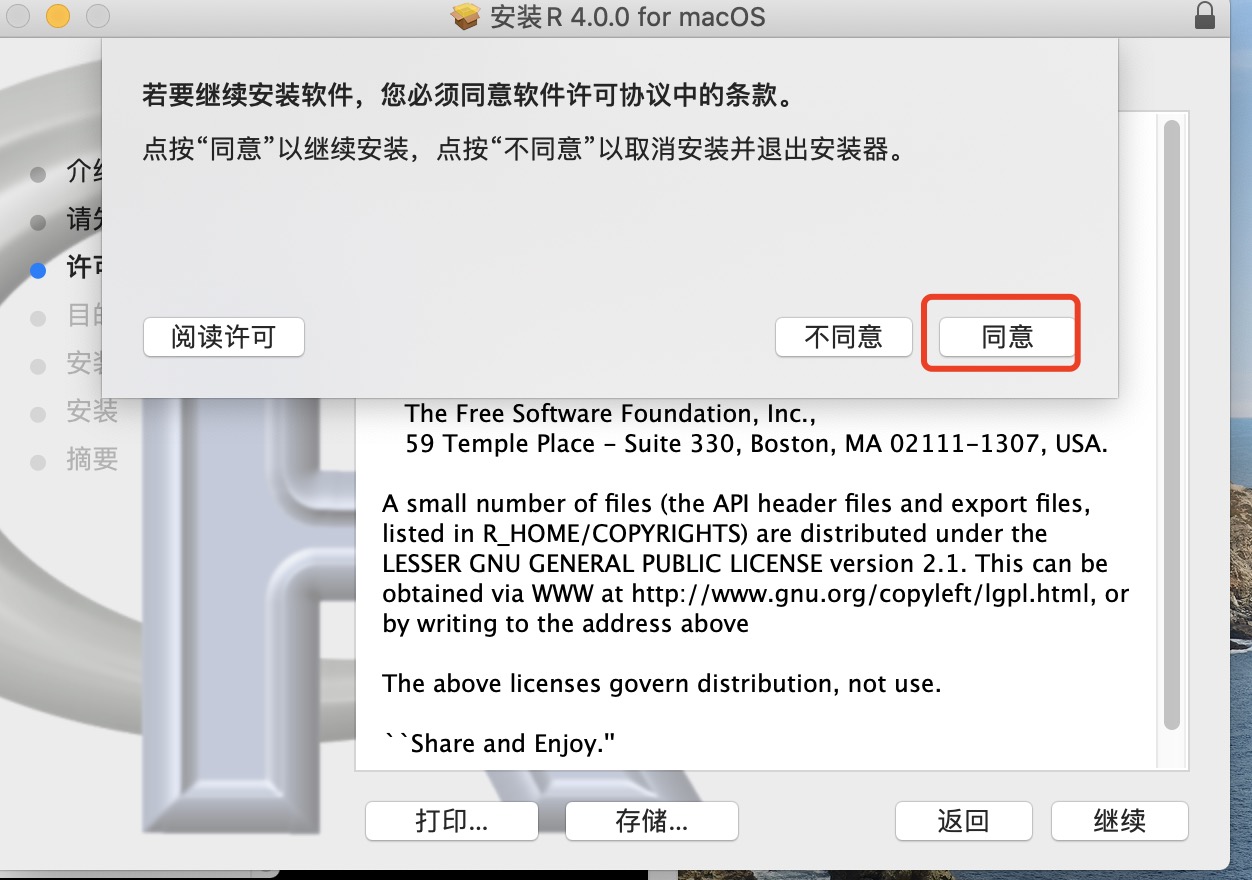
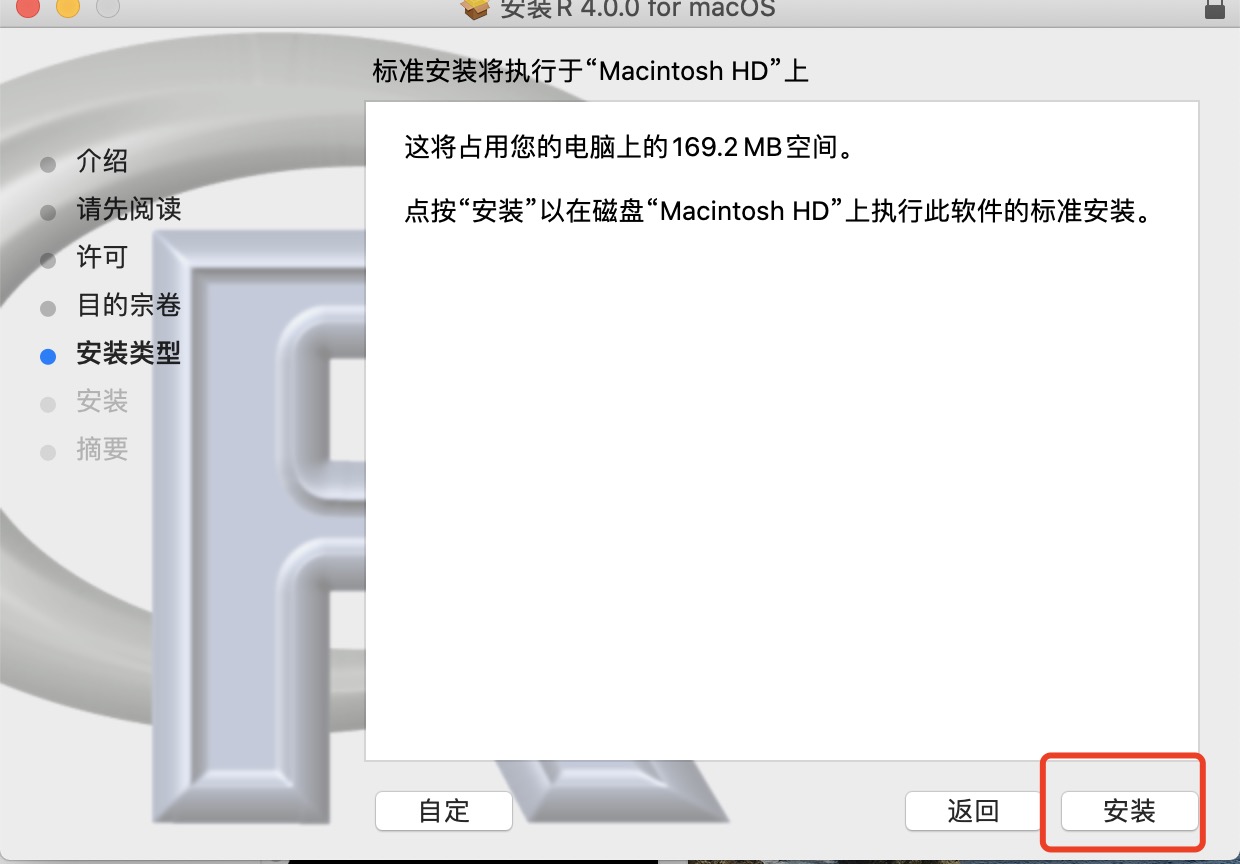
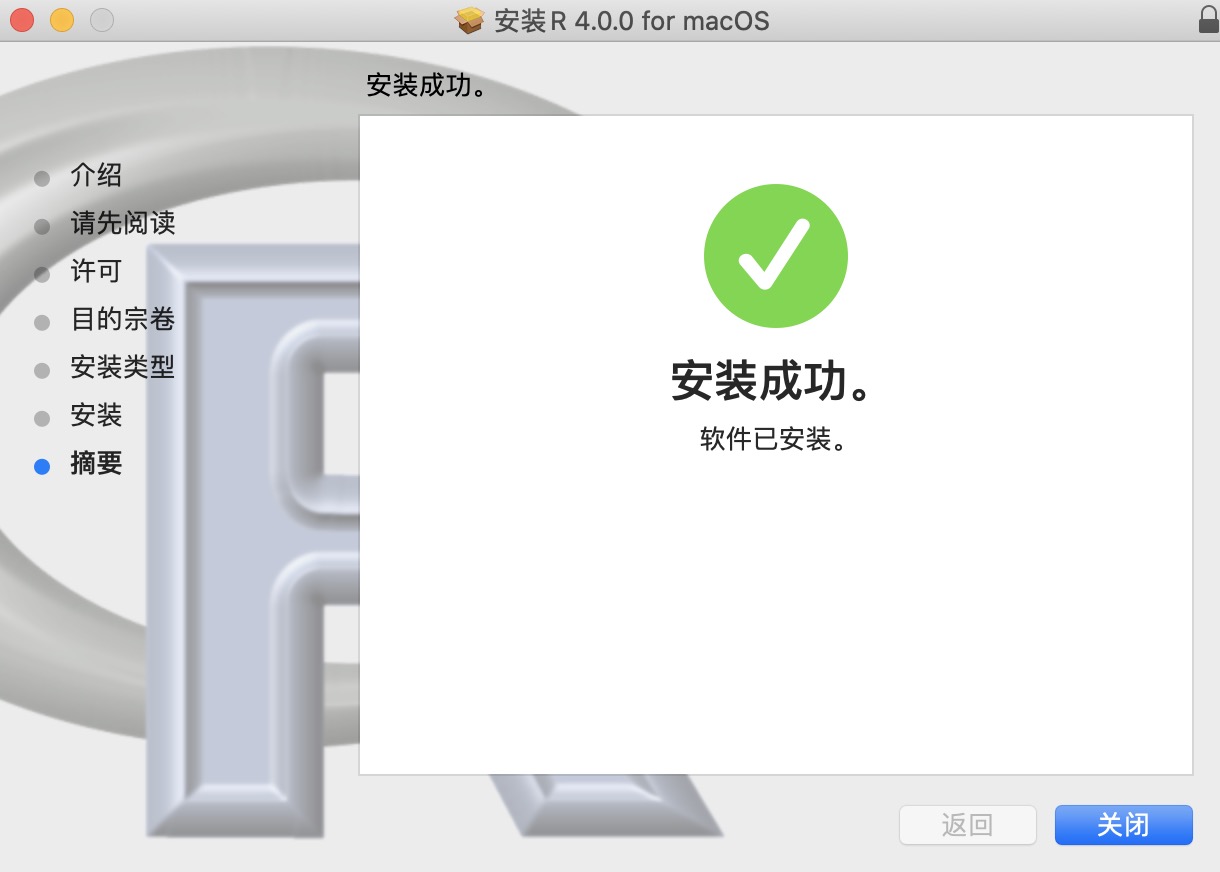
Installing the R language environment on macOS is similar to Windows. Download the pkg installation package, double-click the package to open it, and then follow the installation wizard to install:
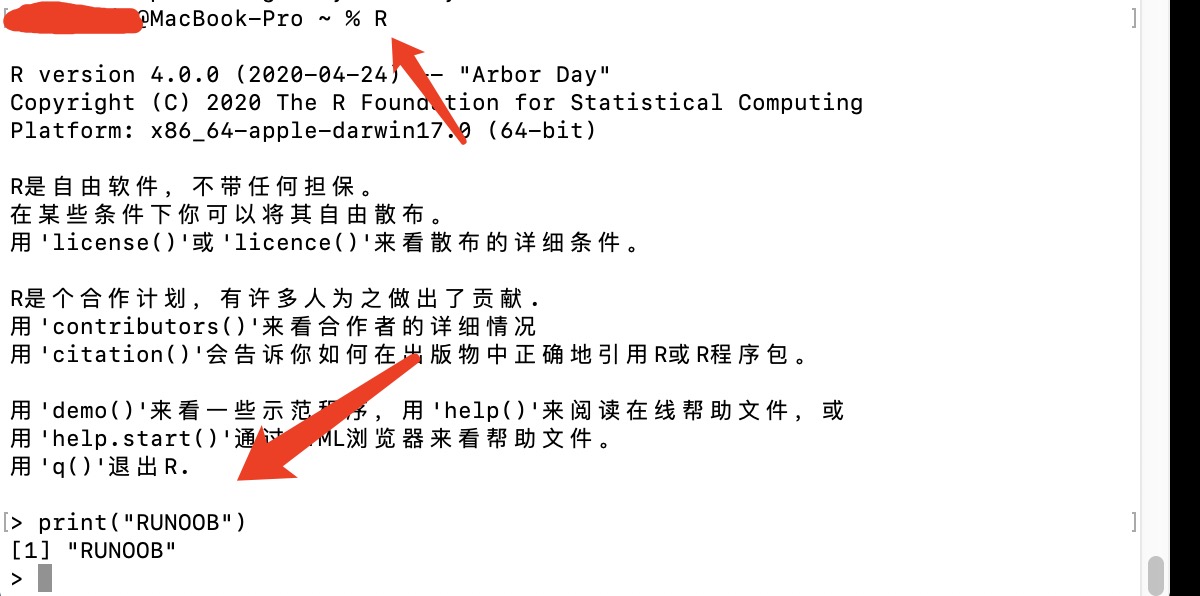
After successful installation, runRcommand to enter the interactive programming window:
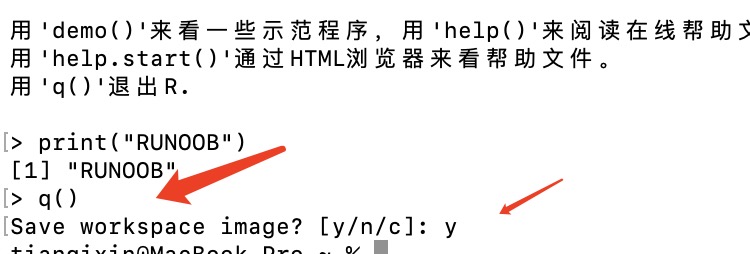
The interactive command can be exited by entering q():
> q()
Save workspace image? [y/n/c]: y
Script Execution
In R, you can use the command lineRscriptcommand to execute R script files.
RscriptThis command allows you to run R scripts directly from the command line without opening the R console.
To useRscriptcommand to execute R script files, you can follow the steps below:
Create an R script file that contains the R code to be executed. For example, save the following code asscript.Rfile:
script.R file code:
x <- 1:10
y <- x^2
print(y)
Open a terminal or command-line interface, go to the directory where the current filescript.Ris located, and use the followingRscriptcommand in the command line to execute the script file:
Rscript script.R
After executing the above command, the R script file will be read and executed by the Rscript interpreter.
Other Extensions