R CSV Files
As a professional statistical tool, if R could only import and export data manually, its functionality would become meaningless. Therefore, R supports batch retrieval of data from mainstream tabular storage format files (such as CSV, Excel, XML, etc.).
CSV Table Interaction
CSV (Comma-Separated Values, CSV, sometimes also called character-separated values because the separator character need not be a comma) is a very popular tabular storage file format, suitable for storing small or medium-sized data.
Since most software supports this file format, it is often used for data storage and interaction.
CSV is essentially text, and its file format is extremely simple: data is saved line by line as text, each record is separated into fields by delimiters, and each record has the same field sequence.
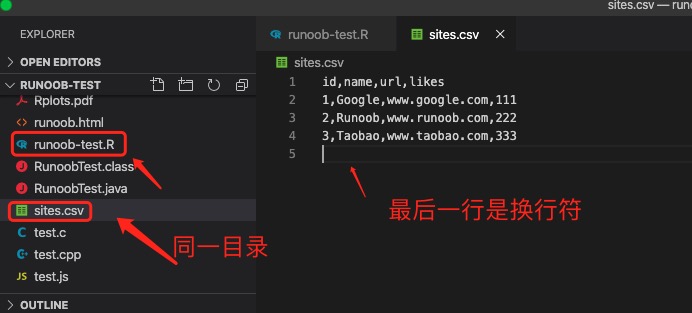
The following is a simple sites.csv file (stored in the same directory as the test program):
id,name,url,likes
1,Google,www.google.com,111
2,Example,www.example.com,222
3,Taobao,www.taobao.com,333
CSV uses commas to separate columns. If the data contains commas, the entire data block must be enclosed in double quotes.
Note:For text containing non-English characters, pay attention to the saved encoding. Since many computers commonly use UTF-8 encoding, I saved it using UTF-8.
Note:The last line of the CSV file needs to keep an empty line; otherwise, the program will produce a warning message.
Warning message:
In read.table(file = file, header = header, sep = sep, quote = quote,  :
  incomplete final line found by readTableHeader on 'sites.csv'
Reading CSV Files
Next, we can use the read.csv() function to read data from a CSV file:
Example
print(data)
If the encoding attribute is not set, the read.csv function will read using the operating system's default text encoding. If you are using the Chinese version of Windows and have not set the system default encoding, then the system default encoding should be GBK. Therefore, please try to unify the text encoding as much as possible to avoid errors.
Executing the above code produces the following output:
  id   name            url likes
1  1 Google www.google.com   111
2  2 Example www.example.com   222
3  3 Taobao www.taobao.com   333
The read.csv() function returns a data frame, allowing us to conveniently perform statistical processing on the data. In the following example, we view the number of rows and columns:
Example
print(is.data.frame(data)) # Check whether it is a data frame
print(ncol(data)) # Number of columns
print(nrow(data)) # Number of rows
Executing the above code produces the following output:
[1] TRUE
[1] 4
[1] 3
The following is the data with the maximum likes field in the data frame:
Example
# Data with the maximum likes
like <- max(data$likes)
print(like)
Executing the above code produces the following output:
[1] 333
We can also specify search conditions to query data similar to the SQL WHERE clause. The function to use issubset()。
The following example looks for data with likes equal to 222:
Example
# Data with likes equal to 222
retval <- subset(data, likes == 222)
print(retval)
Executing the above code produces the following output:
  id   name            url likes
2  2 Example www.example.com   222
Note: Conditional statements use equal to==。
Multiple conditions use&as the separator. The following example looks for data where likes is greater than 1 and name is Example:
Example
# Data with likes > 1 and name Example
retval <- subset(data, likes > 1 & name=="Example")
print(retval)
Executing the above code produces the following output:
  id   name            url likes
2  2 Example www.example.com   222
Save as CSV File
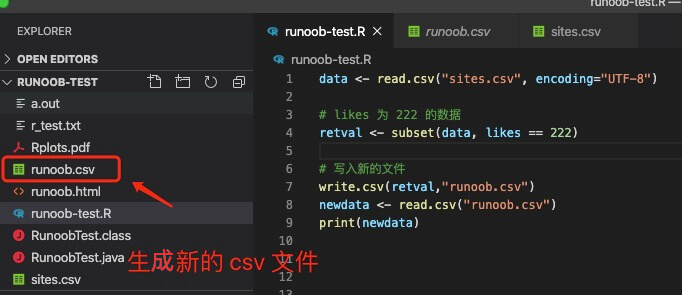
The R language can use thewrite.csv()function to save data as a CSV file.
Continuing from the above example, we save the data with likes equal to 222 to the example.csv file:
Example
# Data with likes equal to 222
retval <- subset(data, likes == 222)
# Write to a new file
write.csv(retval,"example.csv")
newdata <- read.csv("example.csv")
print(newdata)
Executing the above code produces the following output:
 X id   name            url likes
1 2  2 Example www.example.com   222
X comes from the dataset newper, and it can be removed using the parameter row.names = FALSE:
Example
# Data with likes equal to 222
retval <- subset(data, likes == 222)
# Write to a new file
write.csv(retval,"example.csv", row.names = FALSE)
newdata <- read.csv("example.csv")
print(newdata)
Executing the above code produces the following output:
  id   name            url likes
1  2 Example www.example.com   222
After execution, we can see that the example.csv file is generated: