R Language Basics
Learning a new language usually starts with outputting a "Hello, World!" program. The "Hello, World!" program code in R is as follows:
The example above assigns the string "Hello, World!" to the variable myString, then outputs it using the print() function.
Note:R language assignment uses the left arrow<-symbol, though some newer versions also support the equals sign.=。
Note:The most common script file extension for R is.R。
For example:
hello.R data_analysis.R stock.RAlthough.ris also usable, the community mainstream is almost entirely .R。
Variables
Valid variable names in R consist of letters, numbers, and dots.or underscores_.
Variable names begin with a letter or a dot.
| Variable name | Is it correct | Reason |
|---|---|---|
| var_name2. | Correct | starts with a character and consists of letters, numbers, underscores, and dots. |
| var_name% | Incorrect | % is an illegal character |
| 2var_name | Incorrect | Cannot start with a number |
.var_name, var.name |
Correct | Can start with a dot, but note that a dot cannot be followed by a digit. |
| .2var_name | Incorrect | A dot cannot be followed by a digit when starting with a dot. |
| _var_name | Incorrect | Cannot start with an underscore _ |
Variable Assignment
The latest version of R language assignment can use the left arrow<-, equals sign=, right arrow->for assignment:
Example
> var.1 = c(0,1,2,3)
> print(var.1)
[1] 0 1 2 3
# Assign using the left arrow <-
> var.2 <- c("learn","R")
> print(var.2)
[1] "learn" "R"
# Assign using the right arrow ->
> c(TRUE,1) -> var.3
> print(var.3)
[1] 1 1
To view defined variables, you can use thels()function:
Example
[1] "var.1" "var.2" "var.3"
To delete variables, you can use therm()function:
Example
> print(ls())
[1] "var.1" "var.2"
>
In the previous chapter, we learned how to install the R programming environment. Next, we will introduce interactive programming and file scripting in R.
Interactive Programming
We just need to execute the following command in the command line:Rto enter the interactive programming window:
R
After executing this command, the R interpreter will be invoked. We can enter code after the > symbol.
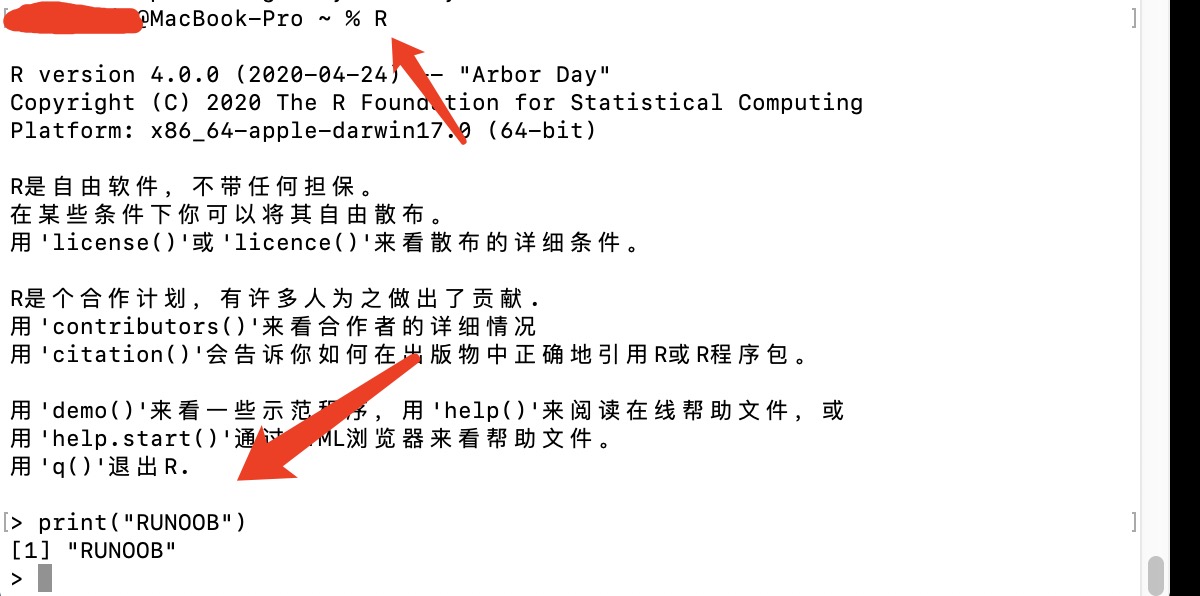
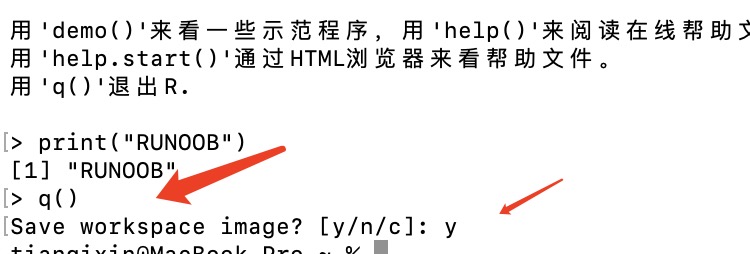
Interactive commands can be exited by enteringq()to quit:
> q()
Save workspace image? [y/n/c]: y
File Scripts
The file extension for R language is.R。
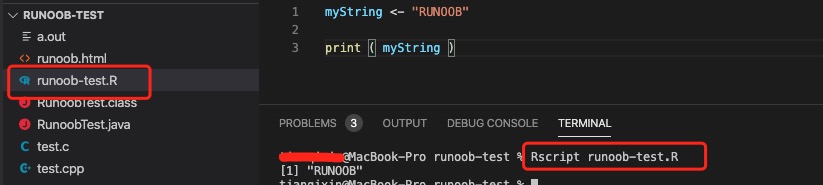
Next, we create a example-test.R file: the code is as follows:
example-test.R file
print ( myString )
Next, we use Rscript in the command-line window to execute this script:
Rscript example-test.R
The output result is as follows:
[1] "EXAMPLE"
Input and Output
print() Output
print()is R's output function.
Like other programming languages, R supports output of numbers, characters, and so on.
The output statement is very simple:
print("EXAMPLE")
print(123)
print(3e2)
Execution result:
[1] "EXAMPLE"
[1] 123
[1] 300
R, like node.js and Python, is an interpreted language, so we can often use R just like using a command line.
If we enter just a value on a line, R will also output it directly in standard form:
> 5e-2
[1] 0.05
Why does R's print output have
Many beginners see this for the first time:
[1] 30
and don't know what it means. This[1]is not an array index.
[1]This line of output starts from the 1st element.
Because R is inherently a vectorized language.
For example:
x <- c(10,20,30)

print(x)
Output:
[1] 10 20 30
If the content is too long:
[1] ...
[4] ...
[7] ...
indicates which element number this line starts from.
The cat() Function
If you need to concatenate output results, you can use thecat()function:
Example
1add1equals2
cat()The function automatically adds a space between every two concatenated elements.
Outputting Content to a File
R has many convenient methods for outputting to files.
cat()The function supports directly outputting results to a file:
cat("EXAMPLE", file="/Users/example/example-test/r_test.txt")
This statement will not produce a result in the console; instead, it outputs "EXAMPLE" to the file "/Users/example/example-test/r_test.txt".
The file parameter can be an absolute or relative path. It is recommended to use an absolute path. The Windows path format isD:\\r_test.txt。
cat("EXAMPLE", file="D:\\r_test.txt")
Note: This operation is an "overwrite" operation. Use it with caution, because it will clear the existing data in the output file. If you want to "append", don't forget to set the append parameter:
cat("GOOGLE", file="/Users/example/example-test/r_test.txt", append=TRUE)
After executing the above code, opening the r_test.txt file shows the following content:
EXAMPLEGOOGLE
sink()
The sink() function can directly output console text to a file:
sink("/Users/example/example-test/r_test.txt")After this statement is executed, any console output will be written to the file "/Users/example/example-test/r_test.txt", and the console will not display the output.
Note: This operation is also an "overwrite" operation and will directly clear the original file content.
If we still want to keep console output, we can set the split attribute:
sink("/Users/example/example-test/r_test.txt", split=TRUE)
If you want to cancel output to a file, you can call sink with no arguments:
sink()
Example
for (i in 1:5)
print(i)
sink() # Cancel output to file
sink("r_test.txt", append=TRUE) # Console does not output, append to file
print("EXAMPLE")
After executing the above code, a r_test.txt file will be generated in the current directory. Opening the file shows the following content:
[1] 1
[1] 2
[1] 3
[1] 4
[1] 5
[1] "EXAMPLE"
The console output is:
[1] 1
[1] 2
[1] 3
[1] 4
[1] 5
Text Input
You might think of scanf in C, or java.util.Scanner in Java, and if you've learned Python, you may be more familiar with the input() function. However, R, as an interpreted language, is more similar to terminal scripting languages (such as bash or PowerShell). These languages are based on a command system, inherently require input and output, and are not suitable for developing user-facing applications (because they are ultimately used by end users themselves). Therefore, R does not have a dedicated function for reading from the console; text input is always happening during R usage.
Reading Text from a File
R has a rich set of file-reading functions. However, if you simply want to read the contents of a file as strings, you can use the readLines function:
readLines("/Users/example/example-test/r_test.txt")
Execution result:
[1] "EXAMPLEGOOGLE"
The read result is two strings, corresponding to the two lines contained in the read file.
Note:Each line of the text file being read (including the last line) must end with a newline character; otherwise, an error will occur.
Other Methods
In addition to simple text input and output, R also provides many methods for inputting and outputting data. The most convenient feature of R is that data structures can be directly saved to files, and it supports saving in formats such as CSV and Excel spreadsheets, as well as directly reading them. This is undoubtedly very convenient for mathematical researchers. However, these features do not have much impact on learning R, and we will mention them in later chapters.
Working Directory
For file operations, we need to set the file path. R can get and set the current working directory through the following two functions:
- getwd(): Get the current working directory
- setwd(): Set the current working directory
Example
print(getwd())
# Set the current working directory
setwd("/Users/example/example-test2")
# View the current working directory
print(getwd())
Executing the above code produces the following output:
[1] "/Users/example/example-test"
[1] "/Users/tianqixin/example-test2"
R's Core Feature: Vectorization
This is one of R's most powerful aspects.
Python:
for i in range(10):
    ...
R:
x <- c(1,2,3)
x * 2
Result:
[1] 2 4 6
Compute the entire vector directly.
This makes R extremely powerful in mathematics, statistics, and data analysis.
Other Extensions