Qoder Tutorial
Qoder is a new-generation Agentic programming platform officially released by Alibaba in August 2025. It is an AI programming partner that can deeply understand the entire codebase and autonomously complete complex development tasks.
Qoder is built on VSCode's open-source code (code-oss), so there isn't much difference in operation compared to VS Code.
Based on VSCode, Qoder has deeply customized and built in AI capabilities (NES, inline chat, Agent, Quest Mode, etc.) rather than attaching them as plugins.

Qoder Personal Edition currently offers a free trial to all users.
1. Register and Install Qoder
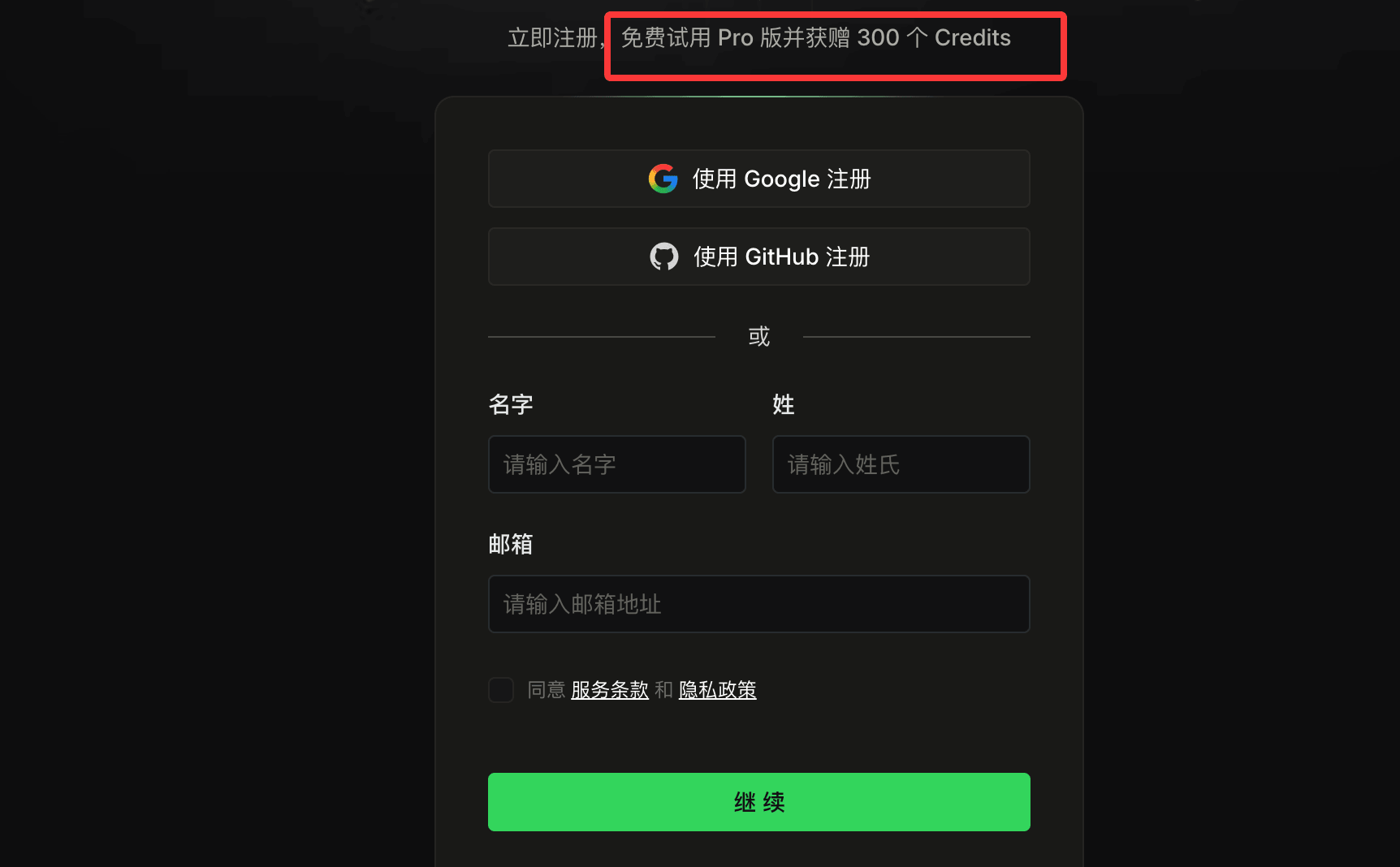
After registration, click theDownloadbutton in the upper right corner, and download the installer according to your computer system.

After downloading, double-click the file to start installation. For example, on macOS you just drag the app to the Applications folder:
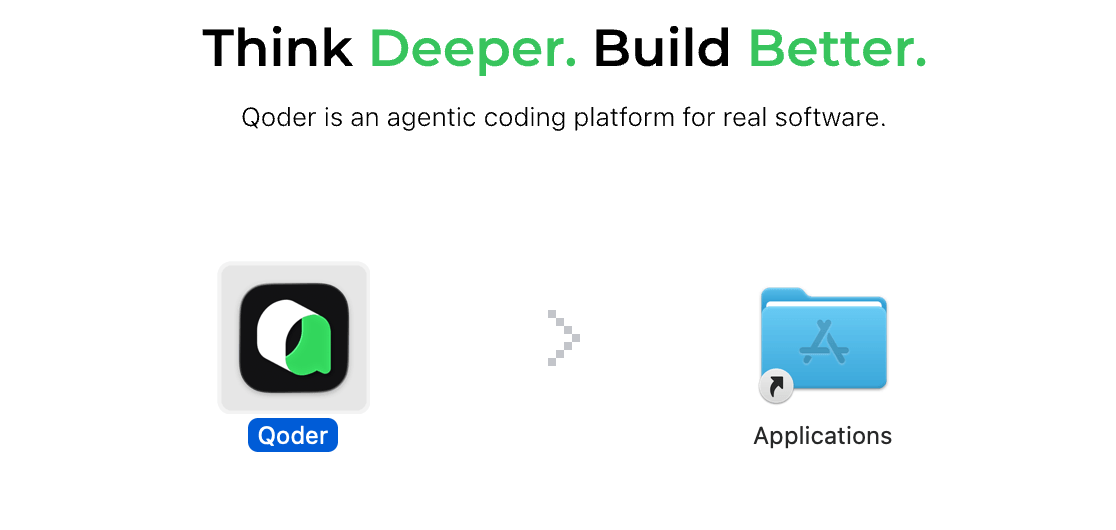
Then, double-click the Qoder IDE icon to launch Qoder.
2. Log in to Qoder
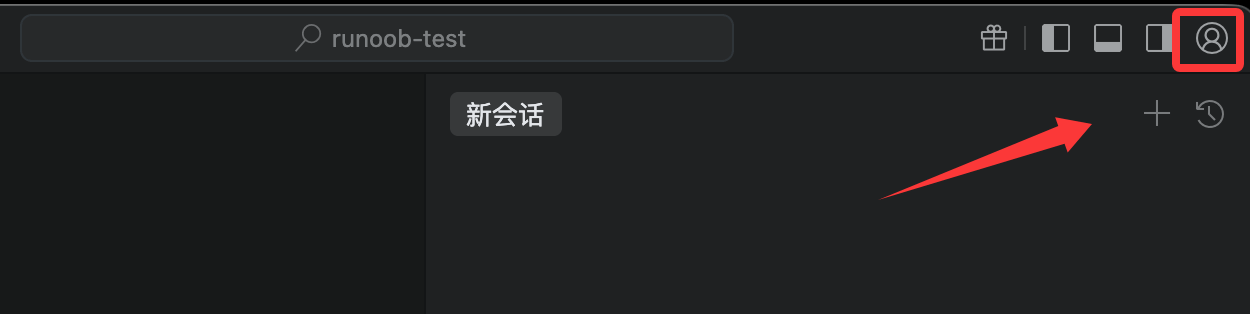
In the upper right corner of Qoder IDE, click the user icon, or use the keyboard shortcut (⌘ ⇧ , (macOS) or Ctrl Shift , (Windows)), then select Log in.
If you don't have an account yet, click theRegister Nowlink at the bottom of the opened webpage to register an account, or use your Google or GitHub account to register directly.
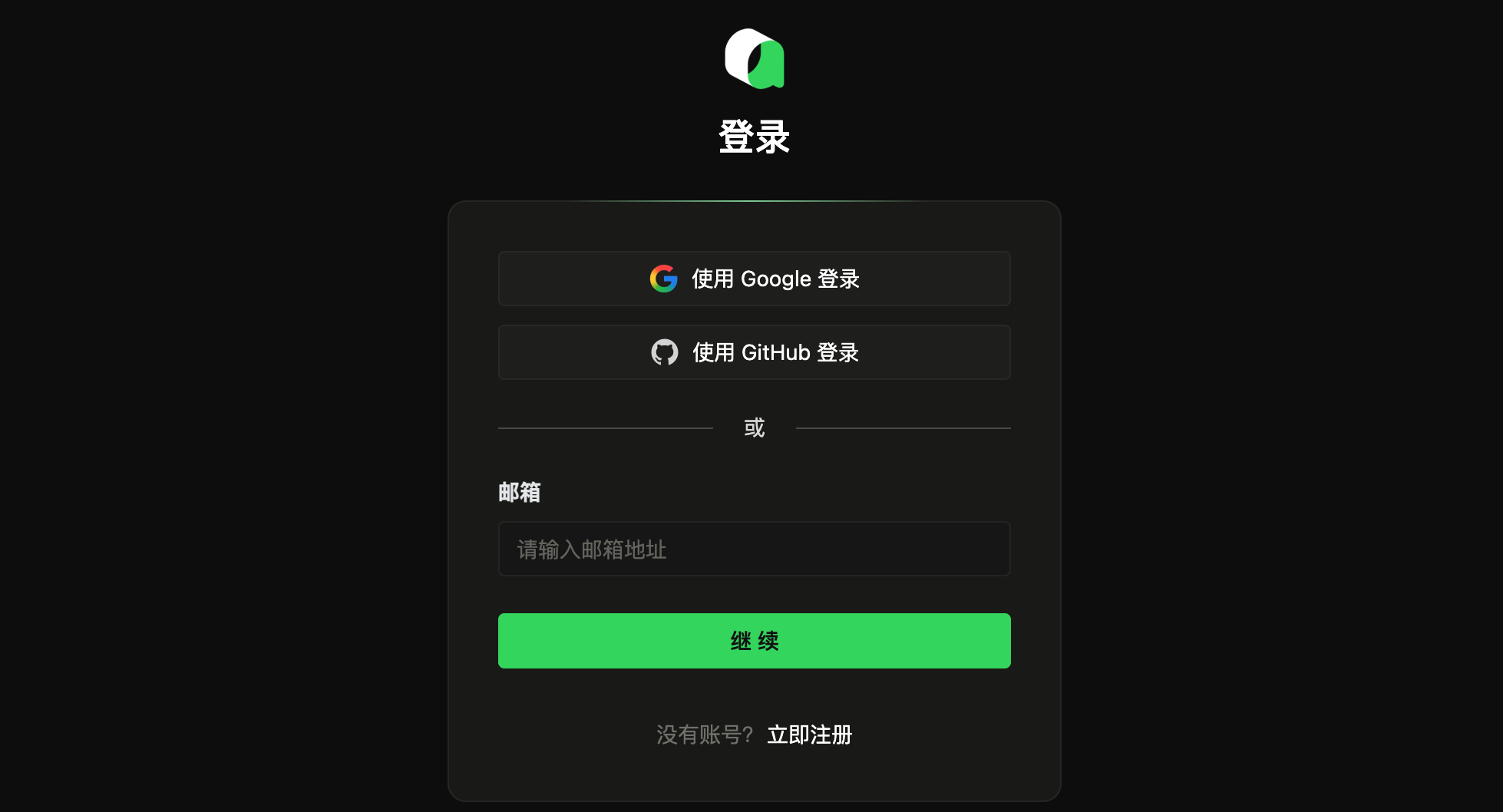
After logging in successfully, you will return to the Qoder IDE, and then you can freely use all features.
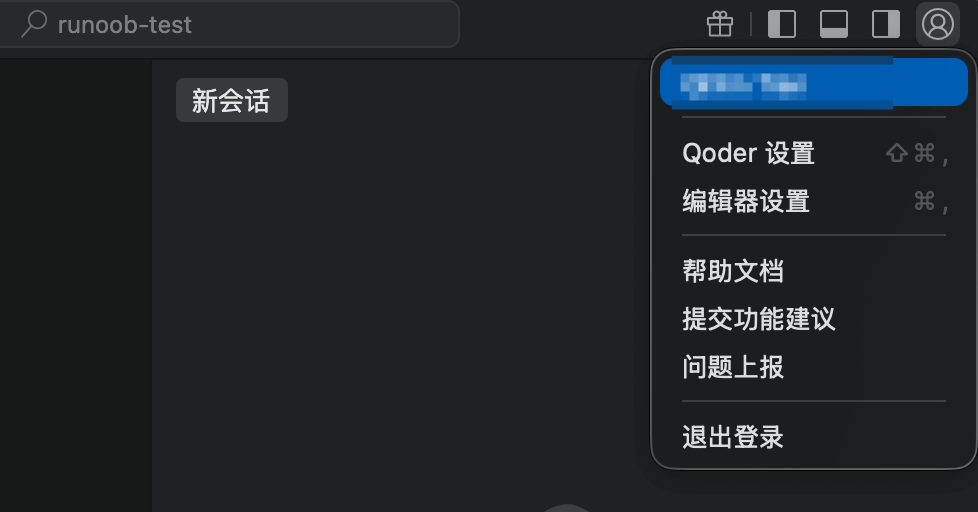
Looking at the overall interface, Qoder operates basically the same as VS Code. Since Qoder itself is built on VSCode, those familiar with VS Code will find it a breeze.
Open Project
For example, let me open a React project:
-
Open Qoder.
-
Method 1: MenuFile → Open Folder, select your project folder (e.g.
my-first-react-app)。 -
Method 2 (Recommended): In the terminal, navigate to the project directory, then open it with one click:
cd my-first-react-app
qoder .
qoder .The command will directly open the current folder with Qoder.
Now you can see the file explorer on the left, showing the project structure (e.g., src, public, etc.).
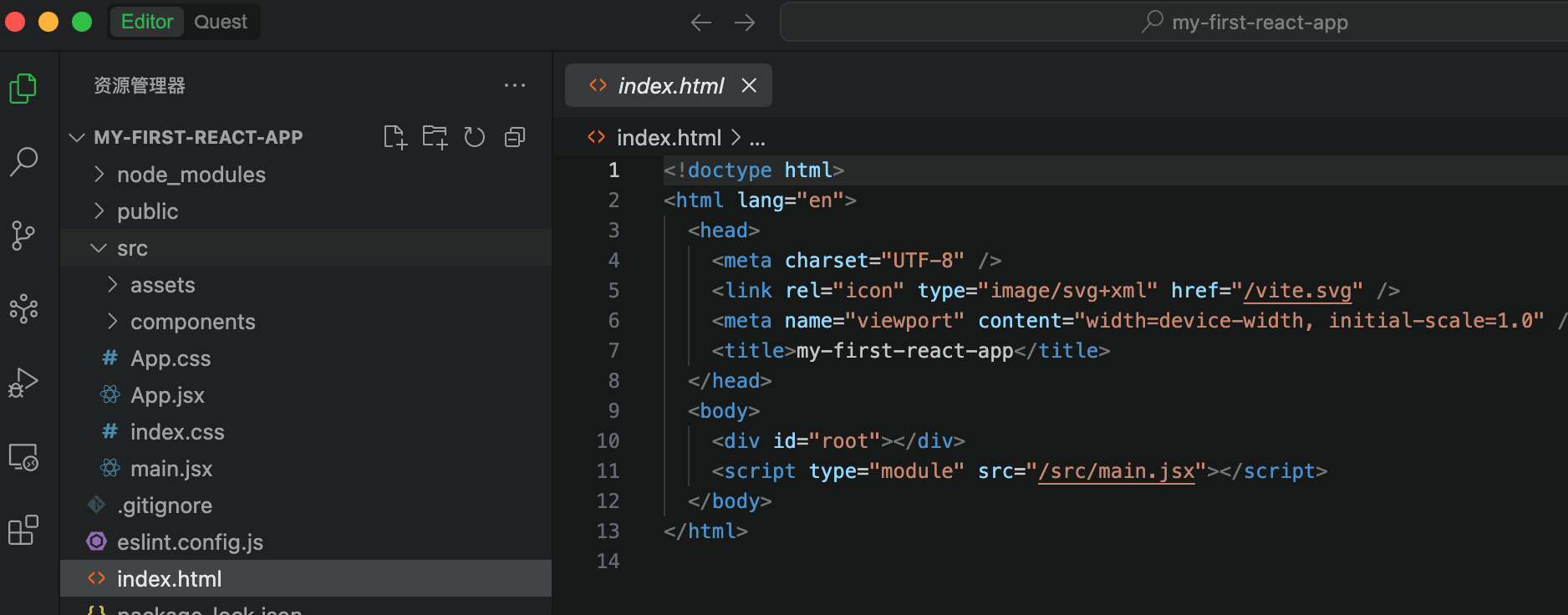
To invoke Qoder from the terminal, use the following command:
qoder
Command to open the current directory with Qoder:
qoder .
To specify a directory path, use the following command:
qoder ~/example-test # 打开指定目录的项目
Related Links
- Qoder official website:https://qoder.com/
- Qoder documentation:https://docs.qoder.com/zh/quick-start
- Qoder command-line tool:https://docs.qoder.com/zh/cli/quick-start