Trae Solo
Trae is an AI-powered Integrated Development Environment (IDE) for developers launched by ByteDance. Based on VS Code, it provides intelligent Q&A, code auto-completion, and Agent-based AI automatic programming capabilities.
Simply put, it is an AI tool for writing code and developing, supporting multiple programming languages and development scenarios.
By default, the download button automatically matches our computer's system. We can also find a Trae installation package suitable for our computer's operating system and download it.

For Trae installation, refer to:https://www.example.com/w3cnote/trae-tutorial.html
SOLO Mode is one of Trae's core features, where AI leads the entire development process.
In SOLO Mode, we only need to clearly describe our requirements in natural language (for example: write a function that retrieves low-priced products), and the AI will automatically decompose tasks, generate code, and even help you review changes, without the need to manually perform complex operations.
SOLO Mode
SOLO Mode is centered around AI, automatically planning and executing the entire development process from requirement understanding, code generation, testing, to result preview.
In SOLO Mode, we can submit requirements through flexible methods such as natural language descriptions, voice communication, or uploading local files. The AI will quickly and autonomously decompose tasks and efficiently drive execution, making the development process extremely simplified and fully intelligent.
Visit the official website to download and install: https://www.trae.cn/
Enable SOLO Mode
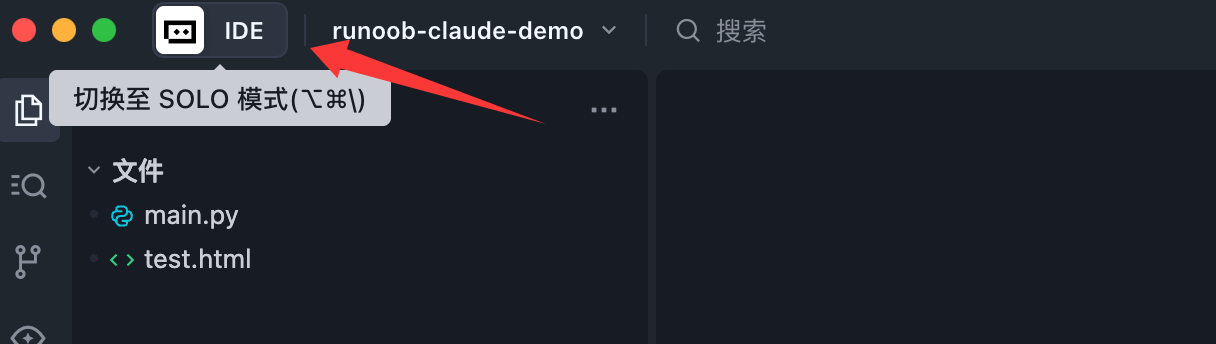
After installing Trae, open Trae and click the mode switch button in the upper-left corner of the interface to switch TRAE to SOLO Mode.
User Interface
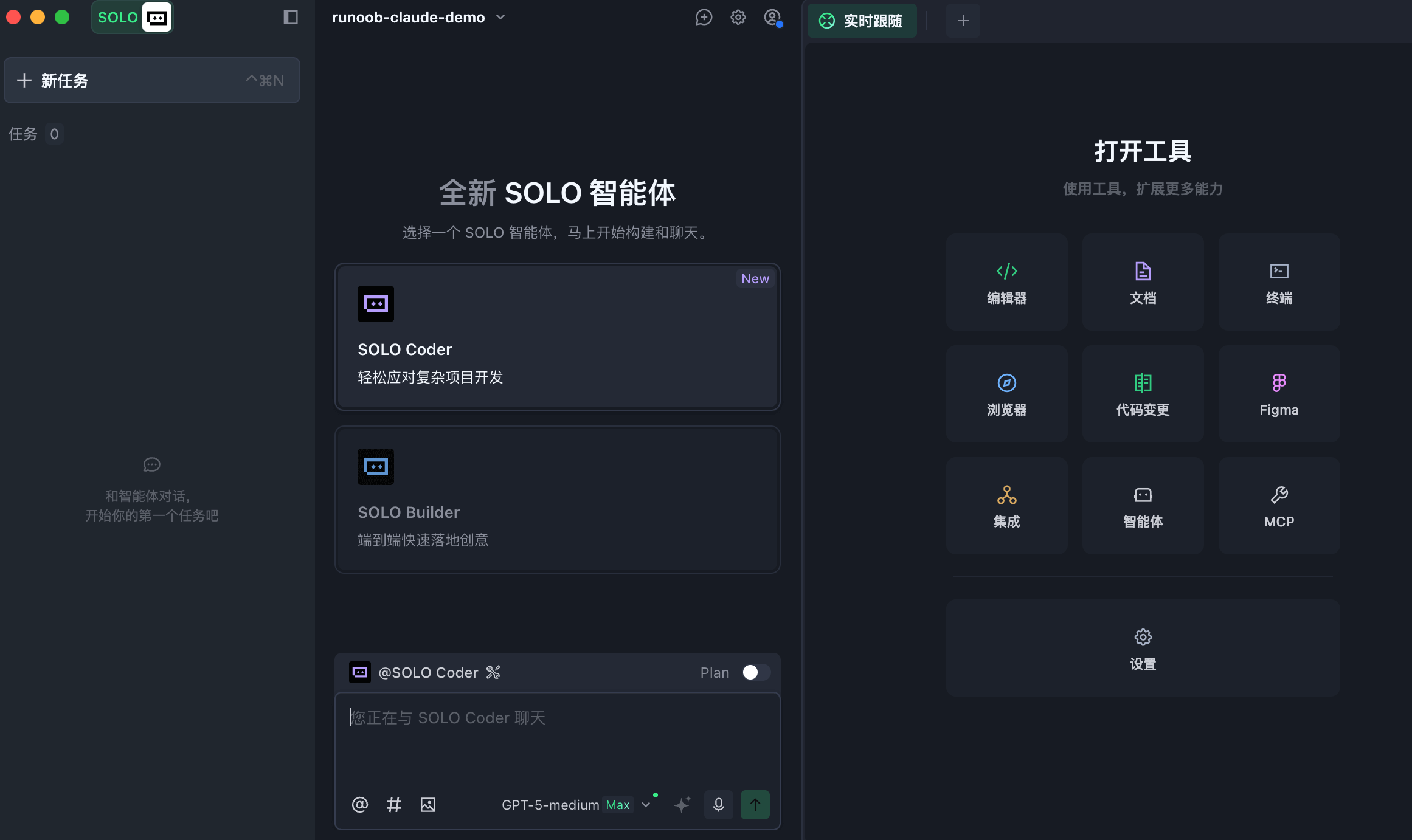
SOLO Mode uses a three-column layout, from left to right: Task Management Panel, AI Chat Panel, and Tools Panel.
Introduction to SOLO Coder
SOLO Coder is an agent designed for complex project development, helping you efficiently complete the entire development process from requirement iteration to architecture refactoring.
SOLO Coder has intelligent task planning and precise execution capabilities. After you confirm the plan, it will automatically advance the development progress. You can also independently orchestrate multiple agents to build a dedicated AI team, enabling multi-role collaboration and accelerating project delivery.
Note:SOLO Coder has Auto Mode enabled by default and it cannot be modified. This mode comprehensively balances Q&A speed, performance, and resource usage, intelligently matching suitable models to provide a smoother AI interaction experience.
Enable SOLO Coder
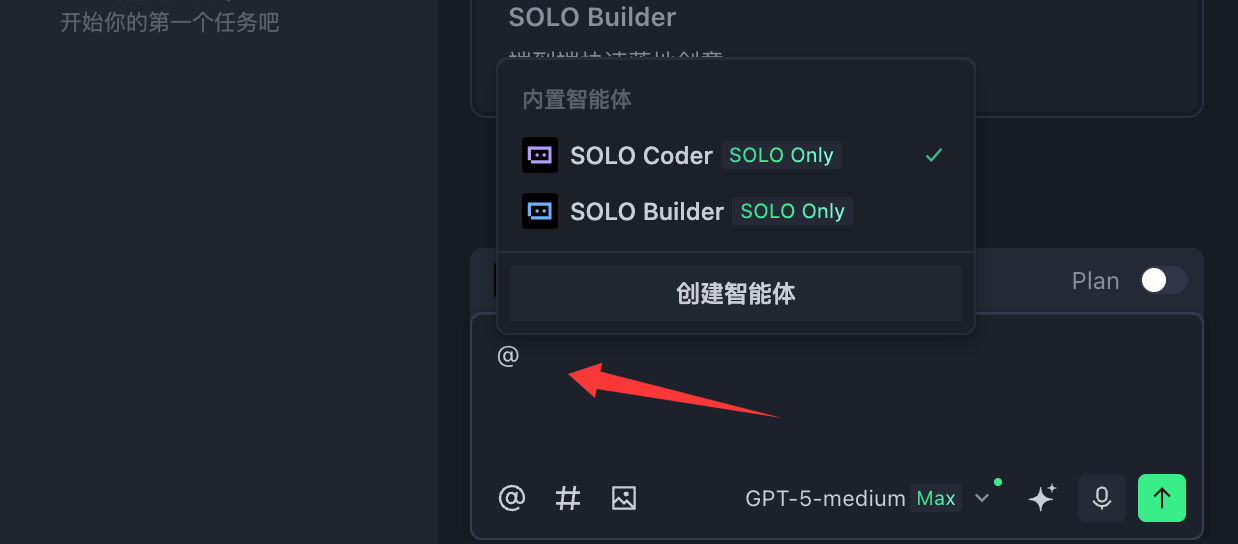
After entering SOLO Mode, click the @ symbol in the lower-left corner of the AI chat input box, and select SOLO Coder from the agent menu.
Edit SOLO Coder
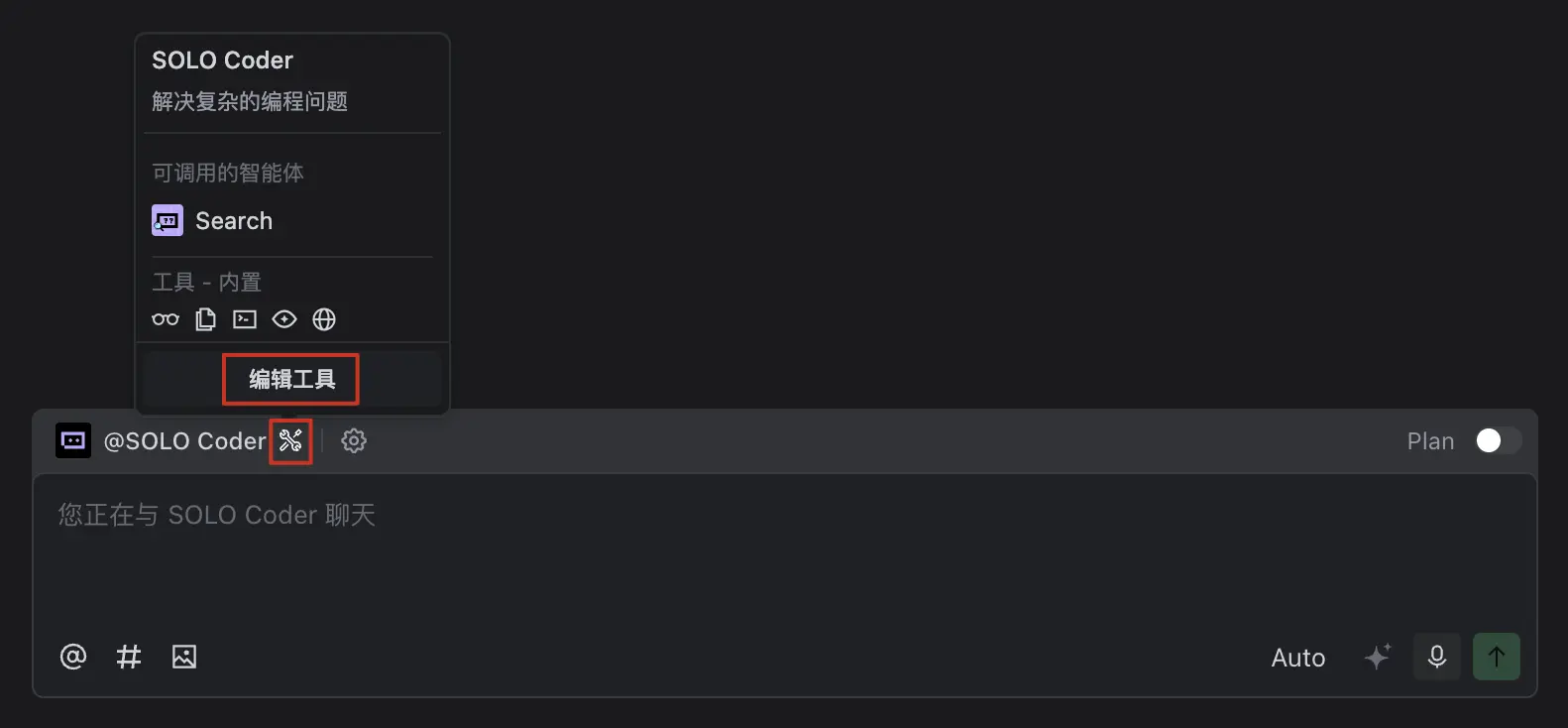
You can configure invokable custom agents, MCP Servers, and built-in tools for SOLO Coder.
Hover the mouse over the configuration icon to the right of SOLO Coder, click the "Edit Tools" button in the panel to enter the SOLO Coder configuration panel, and complete the corresponding configuration.
Invoking Custom Agents
SOLO Coder supports invoking custom agents to handle modular tasks.
It has a built-in Search agent by default, which can retrieve and view files, assisting in precisely dispatching other agents to collaboratively complete tasks.
After configuring available agents for SOLO Coder, it can act as the master agent. When handling long-context, high-complexity tasks, it automatically splits and isolates tasks, invoking the corresponding agents as needed, allowing each agent to focus on execution within an independent context, improving overall execution efficiency and result quality.
You can also directly specify the target agent in the prompt, and SOLO Coder will complete the invocation at an appropriate time based on the context.
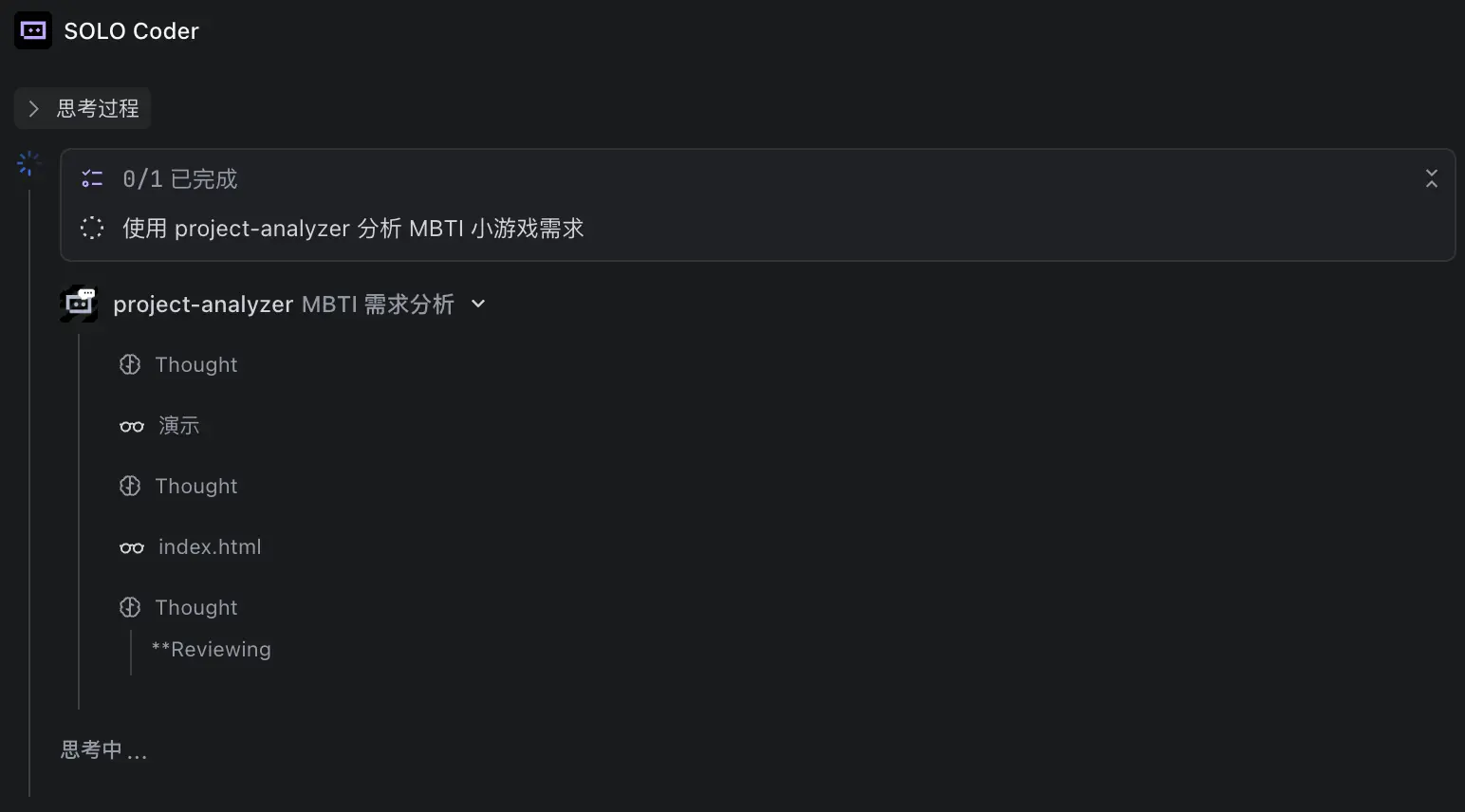
Plan Mode
Plan Mode is suitable for complex, long tasks. The toggle is located in the upper-right corner of the dialog box, and can also be quickly enabled via a keyboard shortcut: on macOS it isOption + P, on Windows it isAlt + P。

Once enabled, SOLO Coder will first analyze and plan the task upon receiving the requirement, and then execute step by step after your confirmation.
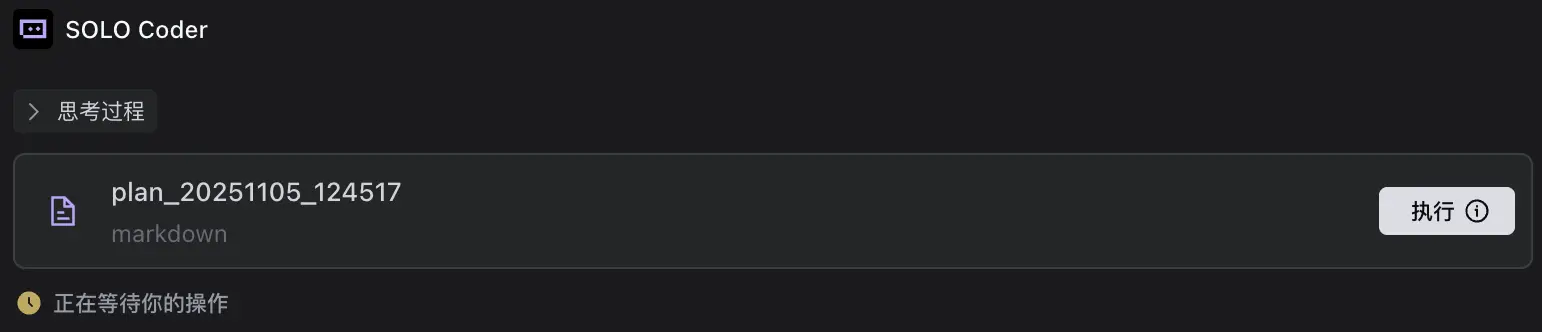
If the generated plan does not meet expectations, it can be modified in two ways:
- Directly edit the plan content manually, then click the "Execute" button when done;
- Send modification instructions to SOLO Coder, and it will automatically adjust the plan content.
Enable SOLO Builder
SOLO Builder is one of the two core agents built into TRAE's SOLO Mode, focusing on rapidly delivering complete Web applications from 0 to 1. Developers can efficiently implement creative prototypes or build brand-new projects without manually writing large amounts of code, making it suitable for scenarios such as prototype validation and rapid implementation of ideas.
Enable SOLO Builder
After entering SOLO Mode, click the@symbol in the lower-left corner of the AI chat input box, then select SOLO Builder from the agent menu.