CC Switch One-Click API Switching
As AI coding tools like Claude Code, OpenAI Codex, and Gemini CLI grow in popularity, developers often need to switch frequently between multiple API providers — official APIs, domestic mirrors, third-party proxies... Manually editing configuration files every time is both tedious and error-prone.
CC Switch is a desktop tool that solves this pain point. It provides a unified graphical interface that lets you:
| Features | Description |
|---|---|
| 🔄 One-Click Provider Switching | Save multiple API configurations and switch with a single click — no need to manually edit JSON |
| 🖥️ Unified Management for Multiple Applications | Simultaneously manage five tools: Claude Code, Codex, Gemini CLI, OpenCode, and OpenClaw |
| 🛡️ Local API Proxy | Built-in high-performance HTTP proxy with automatic failover and request monitoring |
| 🔌 MCP Server Management | Visually add, edit, and sync MCP server configurations |
| 📊 Usage Statistics | View token consumption and API costs in real time |
| 💾 Backup and Restore | Automatically back up configurations to prevent data loss caused by accidental operations |
Supported Applications
- 🤖 Claude Code(Anthropic)
- ⚡ Codex(OpenAI)
- ✨ Gemini CLI(Google)
- 🧩 OpenCode(Open Source)
- 🦅 OpenClaw(Fifth application, new in v3.11.0)
Installation
Go toGitHub Releases: https://github.com/farion1231/cc-switch/releases/latestDownload the installer for your platform.
Scroll to the very bottom of the page, to the resource package section, and download the installer for your platform:
System Requirements
| System | Minimum Version | Architecture |
|---|---|---|
| Windows | Windows 10 and above | x64 |
| macOS | macOS 10.15 (Catalina) and above | Intel (x64) / Apple Silicon (arm64) |
| Linux | See table below | x64 / arm64 |
Windows
| File | Description |
|---|---|
CC-Switch-vX.X.X-Windows.msi |
✅ Recommended— MSI installer, supports automatic updates |
CC-Switch-vX.X.X-Windows-Portable.zip |
Portable version, extract and run, does not write to the registry |
Double-click the MSI file and follow the wizard to complete the installation. Then search for "CC Switch" in the Start menu to launch it.
⚠️ The "one-click install" feature is disabled in the Windows version to avoid side effects of protocol handlers. If you need to install tools like Claude Code, please install them manually and then manage them through CC Switch.
macOS
Method 1: Direct Download (Recommended)
- Download
CC-Switch-vX.X.X-macOS.zip - After extracting, drag
CC Switch.appinto the "Applications" folder - On first launch, right-click → Open, or go to "System Settings → Privacy & Security → Open Anyway"
⚠️ Since the author does not have an Apple Developer account, macOS may show an "Unidentified Developer" warning. After dismissing the prompt, go to "System Settings → Privacy & Security" and click "Open Anyway". After that, it will launch normally every time.
Method 2: Homebrew
# 添加 tap 并安装
brew tap farion1231/ccswitch
brew install --cask cc-switch
# 更新
brew upgrade --cask cc-switch
Linux
Choose the corresponding format based on your distribution:
| Distribution | Recommended Format | Installation Command |
|---|---|---|
| Ubuntu / Debian / Mint | .deb |
sudo apt install ./CC-Switch-*.deb |
| Fedora / RHEL / Rocky | .rpm |
sudo dnf install ./CC-Switch-*.rpm |
| openSUSE | .rpm |
sudo zypper install ./CC-Switch-*.rpm |
| Arch / Manjaro / Others | .AppImage |
See below |
AppImage Usage:
chmod +x CC-Switch-*.AppImage
./CC-Switch-*.AppImage
Quick Start
After installation, complete the initial setup by following these steps:
Step 1: Launch CC Switch
On first launch, CC Switch automatically detects installed CLI tools and attempts to import existing configurations. The CC Switch icon will appear in the system tray.
Step 2: Select the Application to Manage
The top of the main interface is the application switcher bar. Click the corresponding icon (Claude Code / Codex / Gemini CLI, etc.) to switch the currently managed application. You can hide unneeded applications in Settings.

Step 3: Add Your First Provider
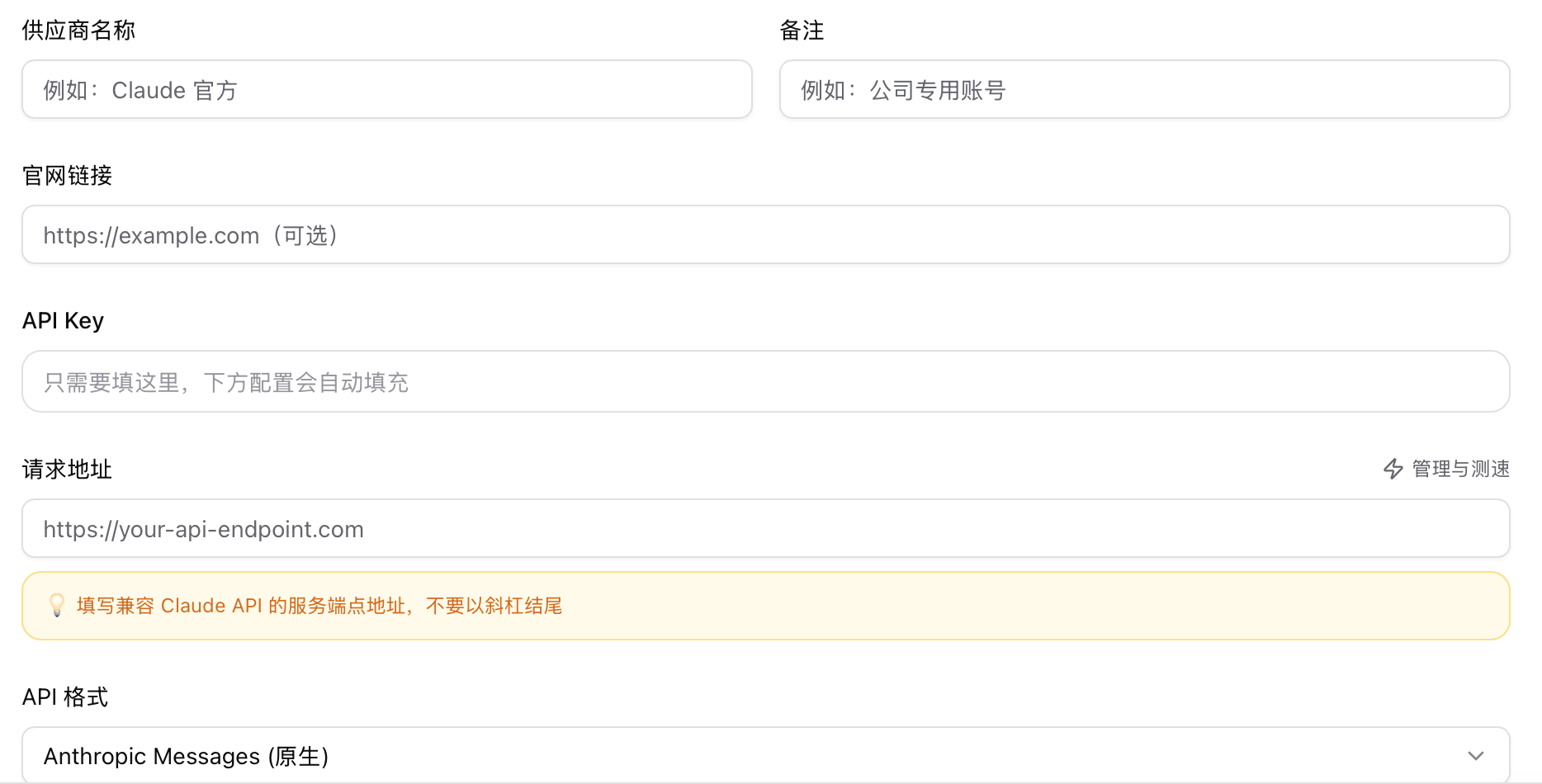
Click the button in the top-right corner+and choose from the built-in presets (such as official Anthropic API, DeepSeek, Alibaba Bailian, etc.), or manually fill in the following information:

- Name: A remark name for easy identification
- API Key: The API key provided by the service provider
- Base URL(Optional): Custom proxy address
- Model: Specify the default model name to use
- API Format: Anthropic Messages native format or OpenAI Chat Completions compatible format
Step 4: Switch Provider
In the list, click the target Provider, then click "Enable". CC Switch will automatically write the configuration to the corresponding CLI tool's configuration file:
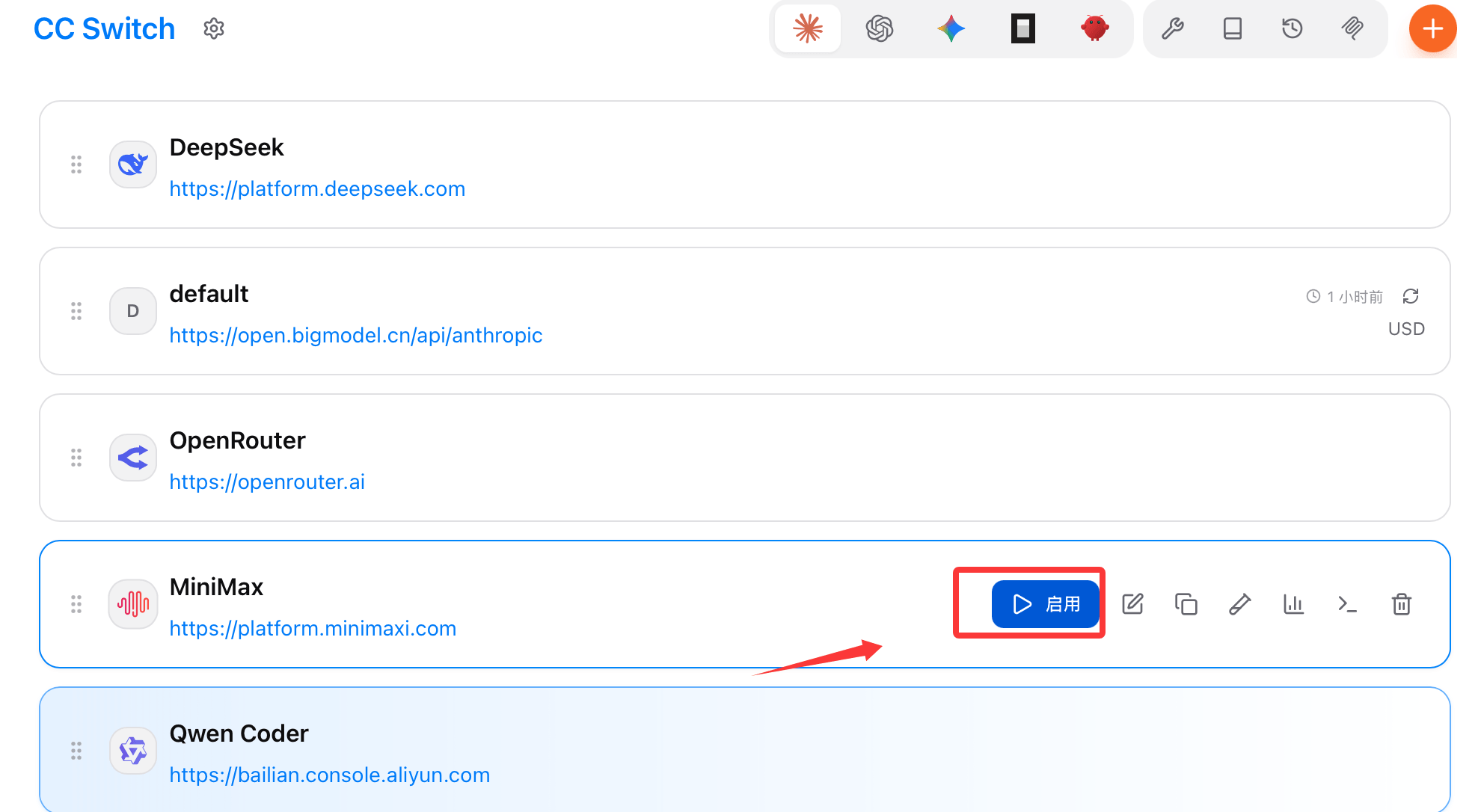
Run theclaudecommand directly in the terminal, and the new configuration will be used.
Step 5: Verify Configuration (Optional)
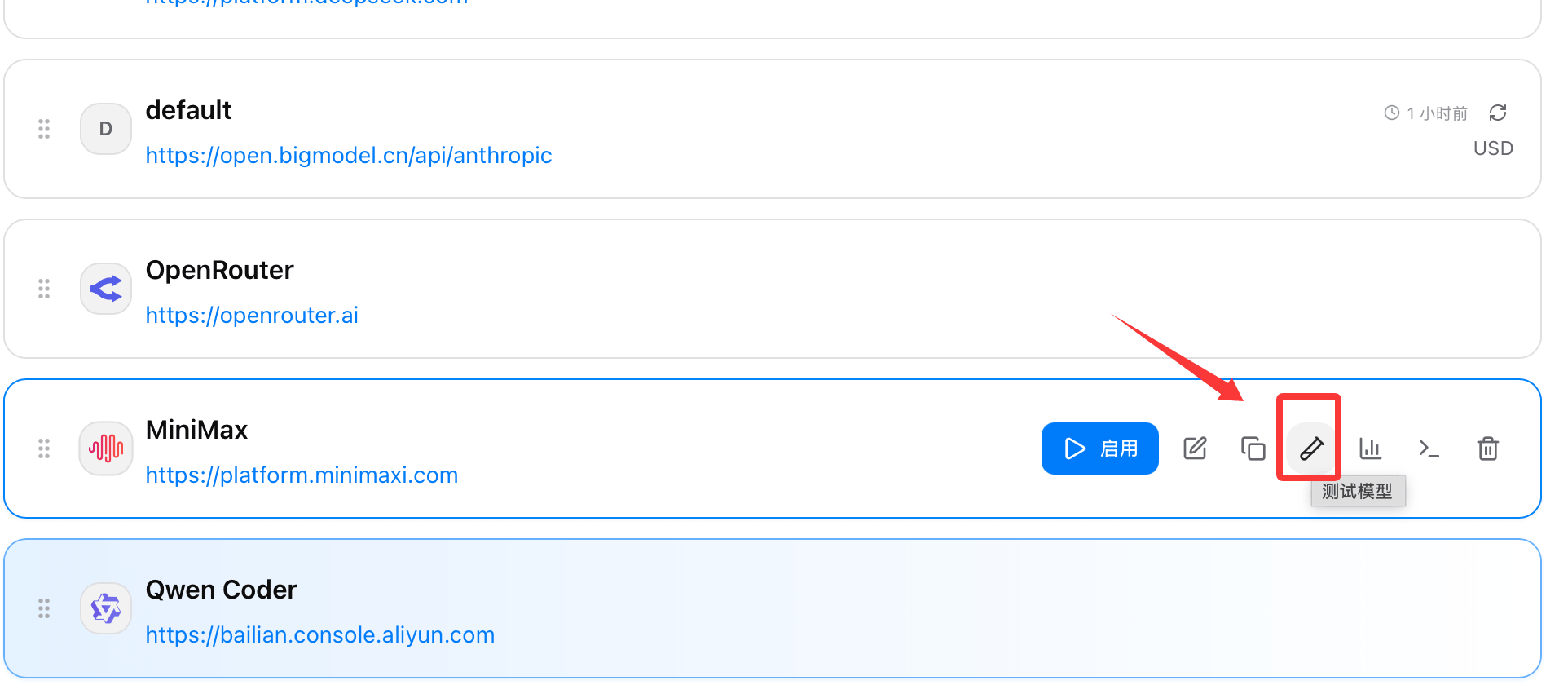
Click the "Health Check" button next to the Provider to send a test request and verify the API key and network connectivity.
💡 Press
Cmd/Ctrl + ,to quickly open Settings; pressESCto close the current panel.
Advanced Features
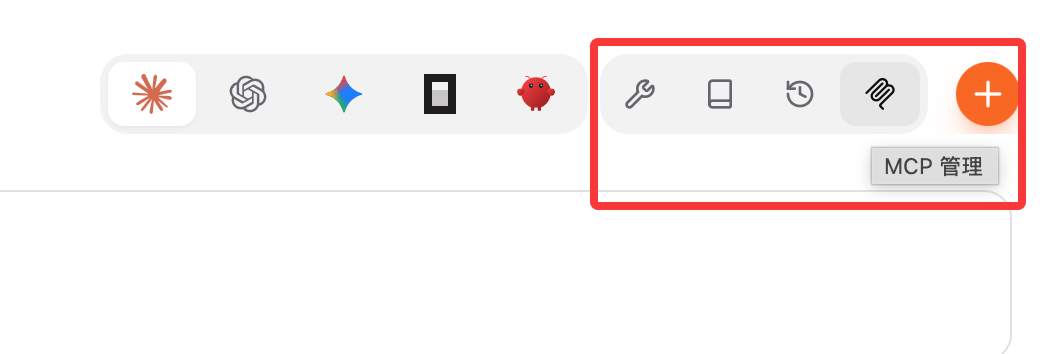
MCP Server Management
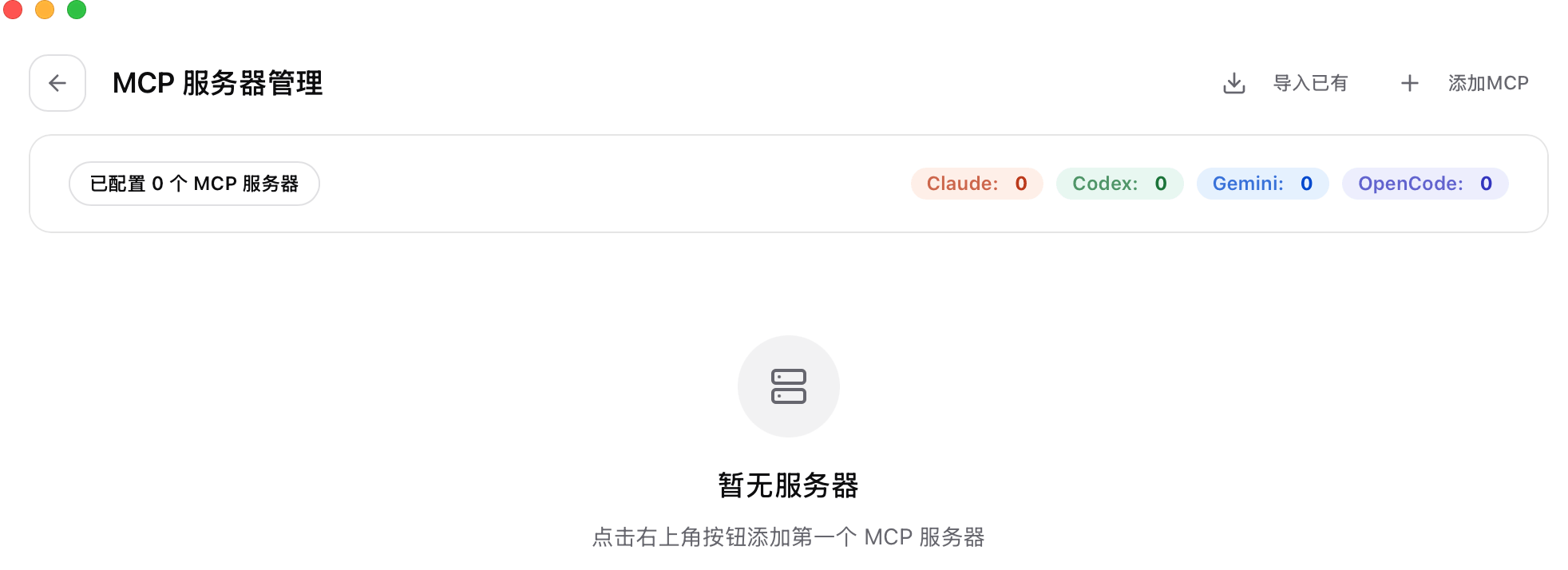
In the "MCP" panel, visually add, edit, and delete MCP (Model Context Protocol) servers. Configurations are automatically synced to the corresponding CLI tools, with support for one-click import of existing MCP configurations from installed applications.
Skills Management
Skills are a prompt enhancement feature of Claude Code. CC Switch supports:
- Installing Skills from GitHub repositories (built-in preset repositories such as
baoyu-skillsetc.) - Installing from local ZIP files
- Managing Skills for Claude Code and Codex

Session Manager
On the "Sessions" page, you can browse the historical conversation records of all five applications. It supports directory navigation and in-session search, and automatically filters the display based on the current application.

Backup Management
CC Switch automatically backs up the database on a regular basis and also before database migration. In "Settings → Backup Management", you can: view all backups, rename, delete, and manually create backups.
Usage Statistics and Billing
The "Usage" page displays token consumption statistics, with support for auto-refresh, cache hit rate analysis, and viewing costs by model and Provider, helping you keep API spending under control.
Claude Rectifier (Thinking Signature Fix)
When using certain third-party API gateways, Claude's thinking block format may be incompatible. After enabling Rectifier, the proxy layer will automatically fix this issue. You can toggle it in "Settings → Advanced".
WebDAV Auto Sync
Supports syncing the database to a WebDAV service (such as Nutstore), enabling configuration sharing across multiple devices. A built-in large-file protection mechanism prevents accidental uploads.
Other Extensions