Claude Code Getting Started Tutorial
Claude Code is Anthropic's official CLI-level agent tool.
Claude Code is not positioned as a chat tool, but as a tool for executing high-privilege, context-aware engineering tasks in local code repositories.
Claude Code is an Agent, not a Chat.
For detailed tutorials, see:https://www.example.com/claude-code/claude-code-tutorial.html
Core Capabilities:
- Directly read the entire project directory
- Understand real code structure
- Perform multi-file modifications
- Strictly follow instructions rather than pleasing through conversation
Installation and Configuration
MacOS/Linux:
curl -fsSL https://claude.ai/install.sh | bash
Homebrew (MacOS):
brew install --cask claude-code
Windows:
irm https://claude.ai/install.ps1 | iex
NPM:
Install via npm. Please ensure your system has Node.js v18 or higher installed.
npm install -g @anthropic-ai/claude-code
Next, you can enter your created project directory and start using Claude Code:
cd your-project
claude
Log in to Your Account
When starting an interactive session with the claude command, you need to log in:
claude
# 首次使用时会提示您登录
/login
# 按照提示使用您的账户登录
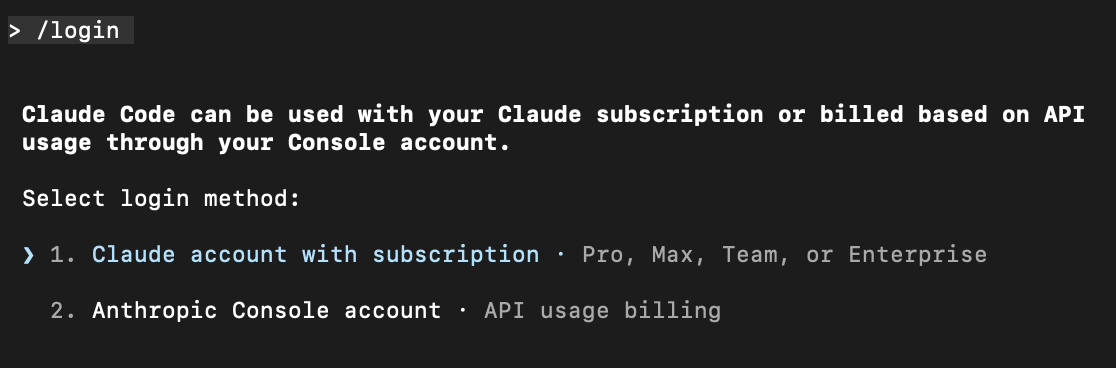
If you can use an Anthropic account normally, you can start using it. If not, you can use DeepSeek or GLM and others domestically.
Integrating DeepSeek with Claude Code
After installing Claude Code, set the following environment variables in the terminal:
export ANTHROPIC_BASE_URL=https://api.deepseek.com/anthropic
export ANTHROPIC_AUTH_TOKEN=<你的 DeepSeek API Key>
export ANTHROPIC_MODEL=deepseek-v4-pro[1m]
export ANTHROPIC_DEFAULT_OPUS_MODEL=deepseek-v4-pro[1m]
export ANTHROPIC_DEFAULT_SONNET_MODEL=deepseek-v4-pro[1m]
export ANTHROPIC_DEFAULT_HAIKU_MODEL=deepseek-v4-flash
export CLAUDE_CODE_SUBAGENT_MODEL=deepseek-v4-flash
export CLAUDE_CODE_EFFORT_LEVEL=max
Parameter Description:
CLAUDE_CODE_EFFORT_LEVEL: Thinking depth, options: low / medium / maxANTHROPIC_MODEL: Specify the deepseek-v4-pro[1m] modelCLAUDE_CODE_DISABLE_NONESSENTIAL_TRAFFIC=1: Disable unnecessary traffic
Then enter the project directory, execute the claude command, and you can start using it.
cd my-project
claude
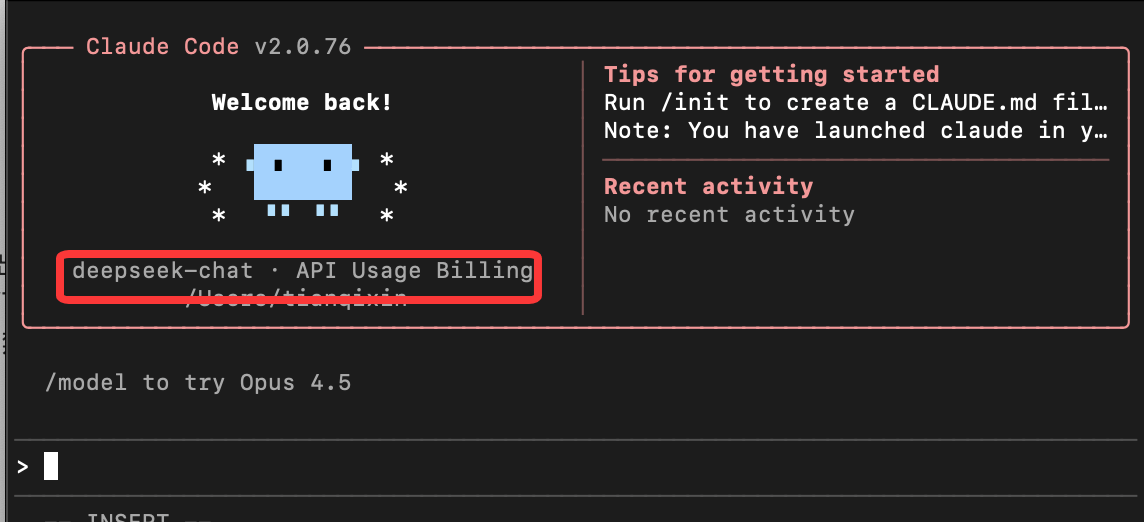
Reference Documentation:https://api-docs.deepseek.com/zh-cn/guides/anthropic_api
Integrating Alibaba Bailian with Claude Code
Alibaba Cloud Bailian's Qwen series models support Anthropic API-compatible interfaces. By modifying the following parameters, you can call Qwen series models in Claude Code.
ANTHROPIC_API_KEY (or ANTHROPIC_AUTH_TOKEN): Replace with the Bailian API Key. Application address:https://bailian.console.aliyun.com/cn-beijing/?tab=model#/api-key。
-
ANTHROPIC_BASE_URL: Replace with Bailian's compatible endpoint addresshttps://dashscope.aliyuncs.com/apps/anthropic。
-
Model name: Replace with a model name supported by Bailian (e.g., qwen3-max, qwen3-coder-plus, etc.)
macOS/Linux:
Create and open the configuration file~/.claude/settings.json。
~Represents the user's home directory. If the.claudedirectory does not exist, it needs to be created first. You can execute in the terminalmkdir -p ~/.claude to create it.
Edit the configuration file:
vim ~/.claude/settings.json
Replace YOUR_API_KEY with your dedicated API Key.
{
    "env": {
        "ANTHROPIC_AUTH_TOKEN": "YOUR_API_KEY",
        "ANTHROPIC_BASE_URL": "https://dashscope.aliyuncs.com/apps/anthropic",
        "ANTHROPIC_MODEL": "qwen3-coder-plus"
    }
}
Open a new terminal again to make the environment variable configuration take effect.
Windows:
Run the following commands in CMD to set environment variables:
setx ANTHROPIC_AUTH_TOKEN "YOUR_API_KEY"
setx ANTHROPIC_BASE_URL "https://dashscope.aliyuncs.com/apps/anthropic"
setx ANTHROPIC_MODEL "qwen3-coder-plus"
Replace YOUR_API_KEY with the plan's dedicated API Key.
Open a new CMD window and run the following command to check whether the environment variable has taken effect.
echo %ANTHROPIC_AUTH_TOKEN%
echo %ANTHROPIC_BASE_URL%
echo %ANTHROPIC_MODEL%
Run the following commands in PowerShell to set environment variables:
# 用套餐专属 API Key 替换 YOUR_API_KEY
[Environment]::SetEnvironmentVariable("ANTHROPIC_AUTH_TOKEN", "YOUR_API_KEY", [EnvironmentVariableTarget]::User)
[Environment]::SetEnvironmentVariable("ANTHROPIC_BASE_URL", "https://dashscope.aliyuncs.com/apps/anthropic", [EnvironmentVariableTarget]::User)
[Environment]::SetEnvironmentVariable("ANTHROPIC_MODEL", "qwen3-coder-plus", [EnvironmentVariableTarget]::User)
Open a new PowerShell window and run the following command to check whether the environment variable has taken effect.
echo $env:ANTHROPIC_AUTH_TOKEN
echo $env:ANTHROPIC_BASE_URL
echo $env:ANTHROPIC_MODEL
Integrating Qwen Series Models in Claude Code
During the conversation, execute the/model <model name>command to switch models.
/model qwen3-coder-plus
You can also create a file in the project root directory.claude/settings.jsonand write the model configuration information into the file for permanent configuration.
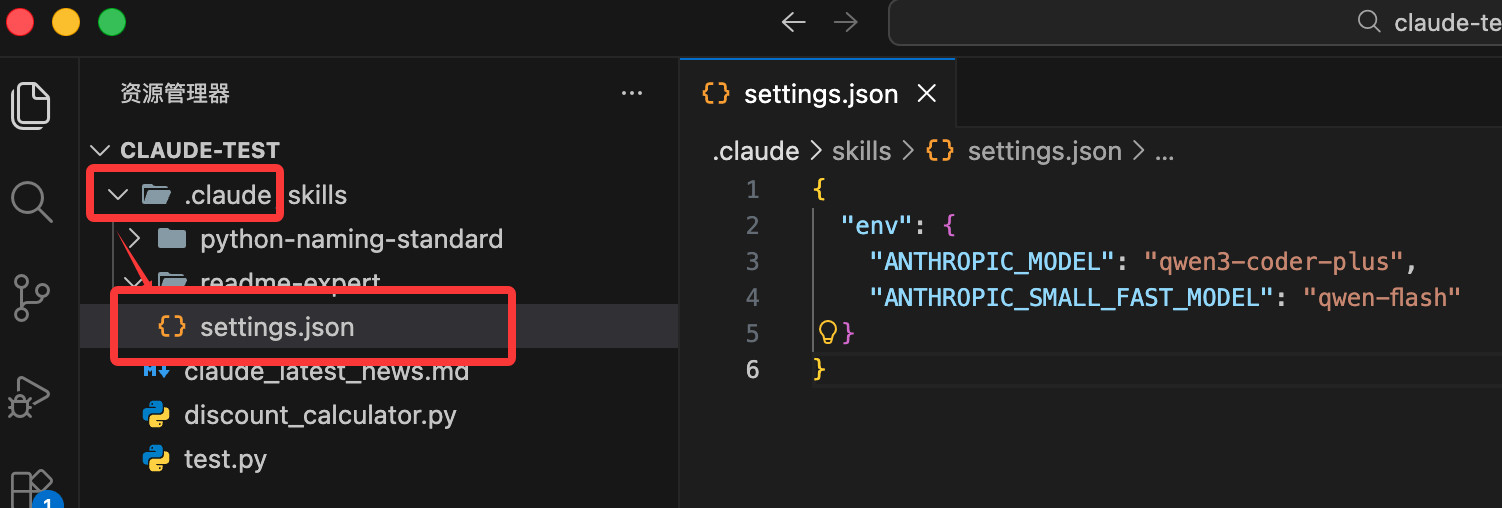
{
  "env": {
    "ANTHROPIC_MODEL": "qwen3-coder-plus",
    "ANTHROPIC_SMALL_FAST_MODEL": "qwen-flash"
  }
}
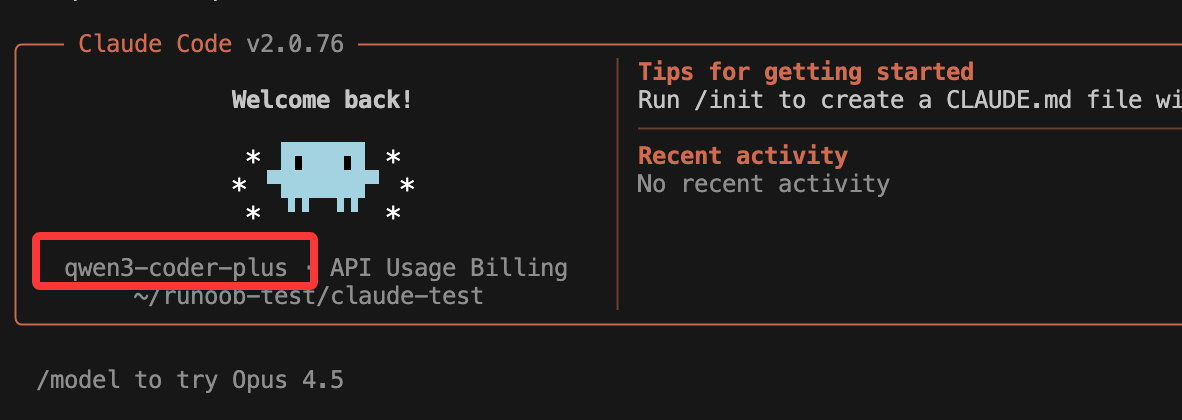
Start Claude and you can see the configuration information:
Integrating Zhipu AI Large Models with Claude Code
In this section, we use the ~/.claude/settings.json file to configure the large model. Before starting, you need to obtain an API key from the official platform:GLM Coding Plan。
Edit or add the Claude Code configuration file ~/.claude/settings.json, and add or modify the env field inside it
# 注意替换里面的your_zhipu_api_key 为您上一步获取到的 API Key
{
    "env": {
        "ANTHROPIC_AUTH_TOKEN": "your_zhipu_api_key",
        "ANTHROPIC_BASE_URL": "https://open.bigmodel.cn/api/anthropic",
        "API_TIMEOUT_MS": "3000000",
        "CLAUDE_CODE_DISABLE_NONESSENTIAL_TRAFFIC": 1
    }
}
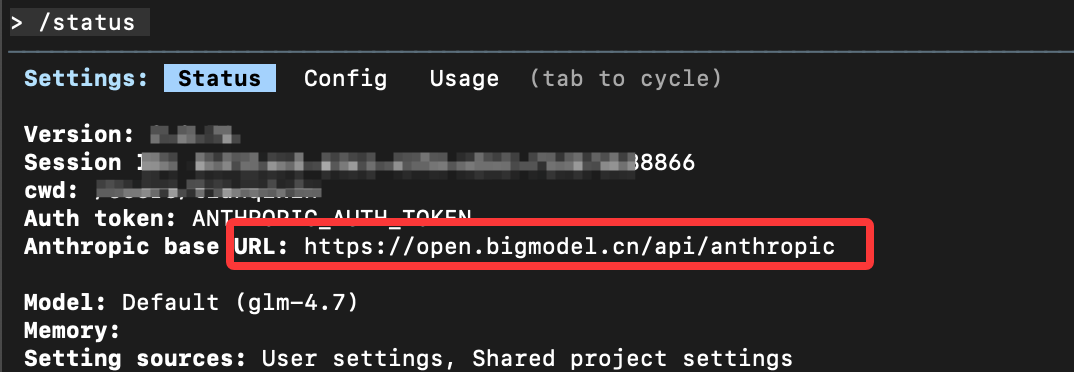
Run claude to start Claude Code, enter/statusto confirm the model status:
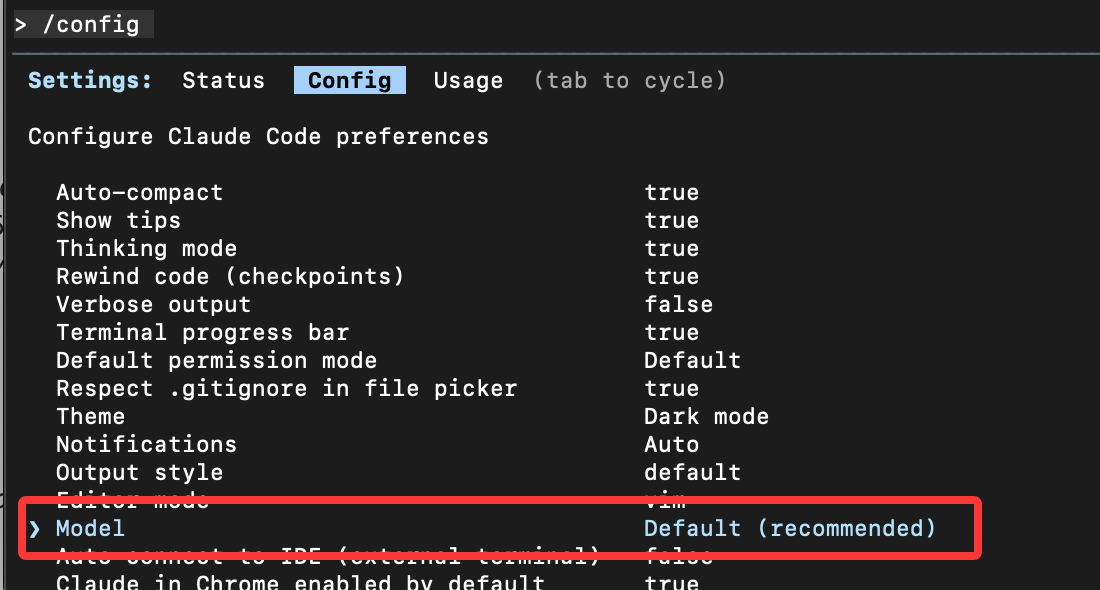
If not, you can enter/configto switch models.
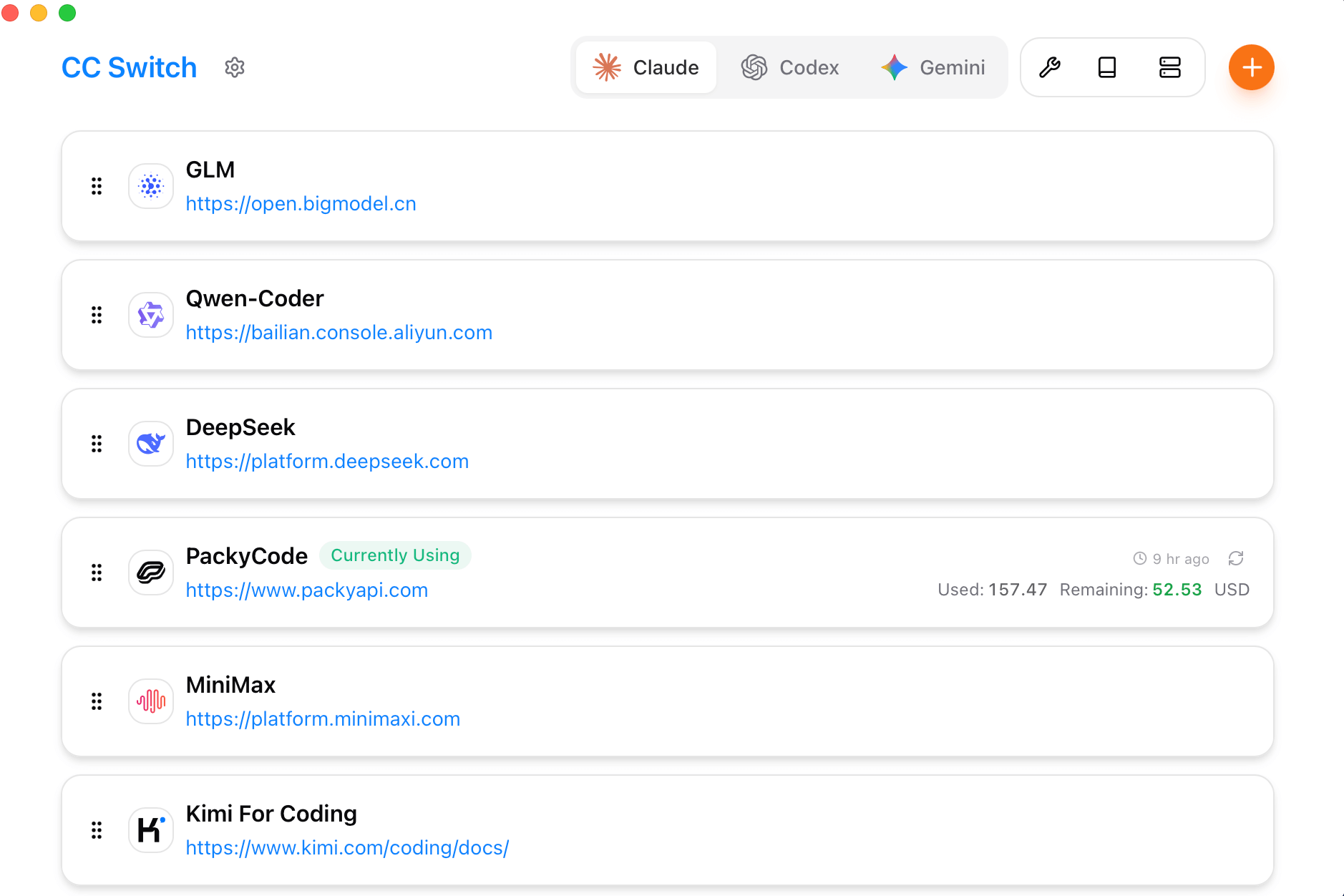
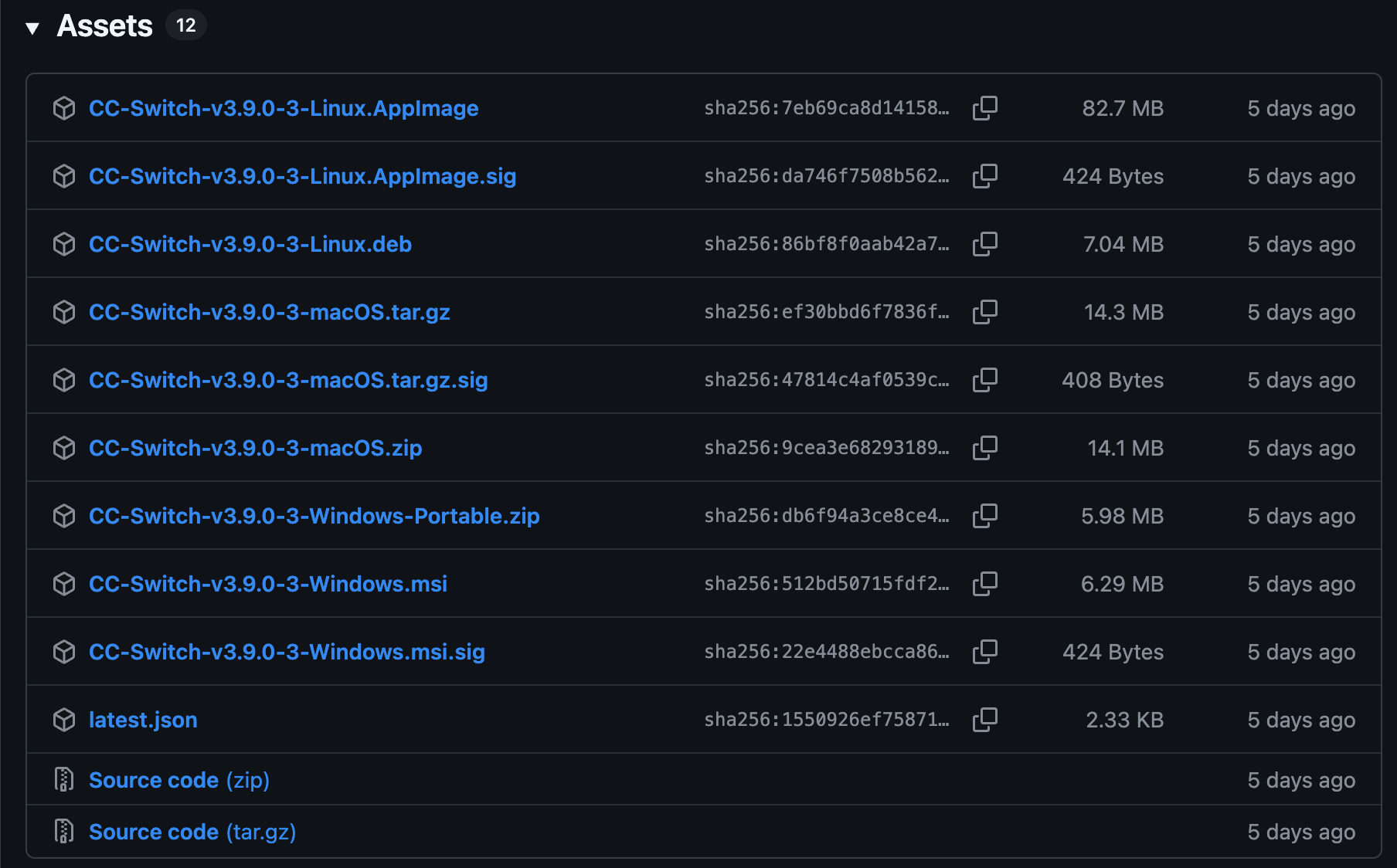
With many large models, configuration becomes troublesome. You can use the third-party tool CC Switch to easily manage the API configurations of these popular tools:https://github.com/farion1231/cc-switch/, Windows / macOS / Linux fully supported.
Download addresses for installation packages on each platform:https://github.com/farion1231/cc-switch/releases。
Installing Claude Code in VS Code
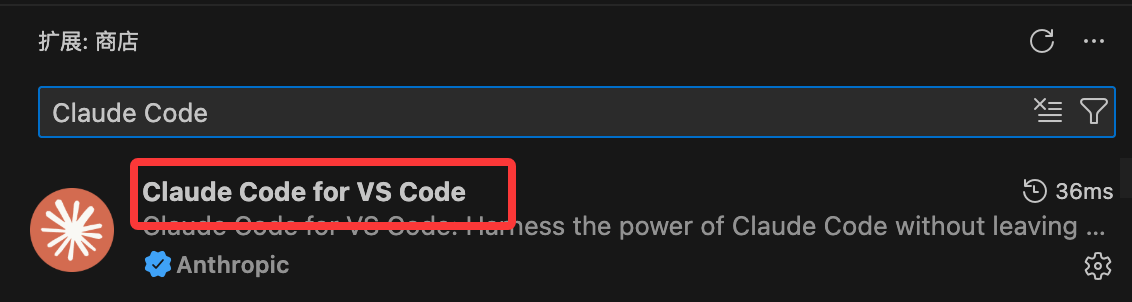
If you don't like using Claude Code's command-line model, we can install Claude Code in the VS Code editor.
Open VS Code, go to the extension marketplace, search forClaude CodeInstall:
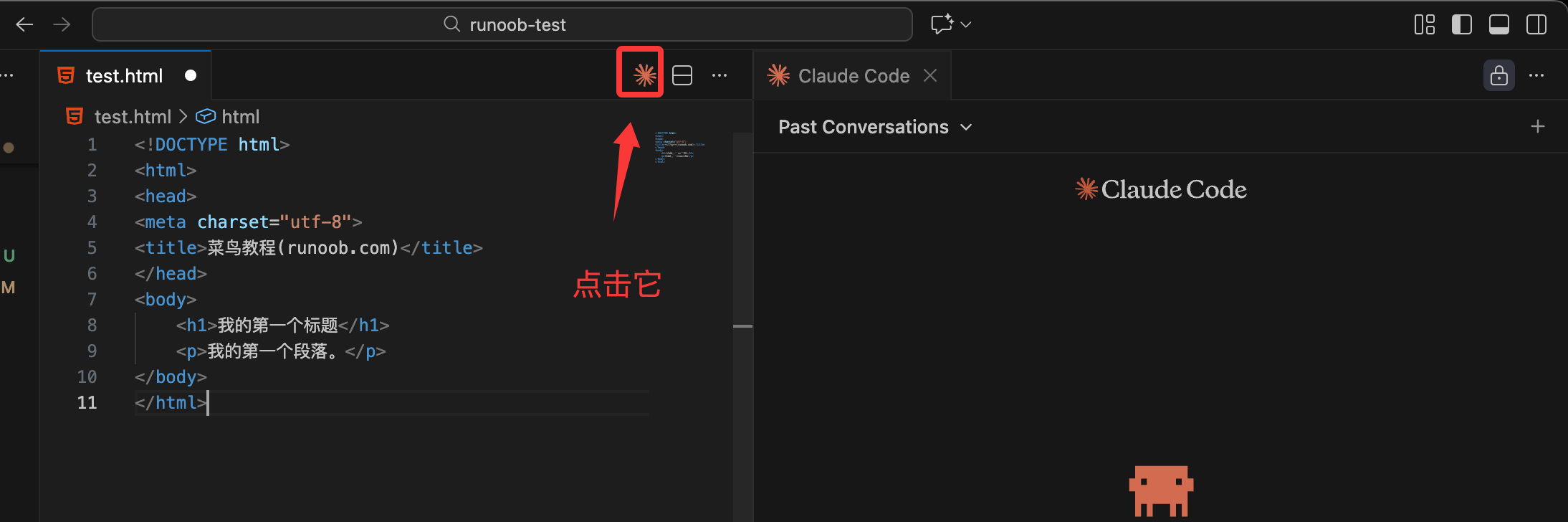
After installation, click the Claude Code icon in the upper right corner to enter the Claude Code page:
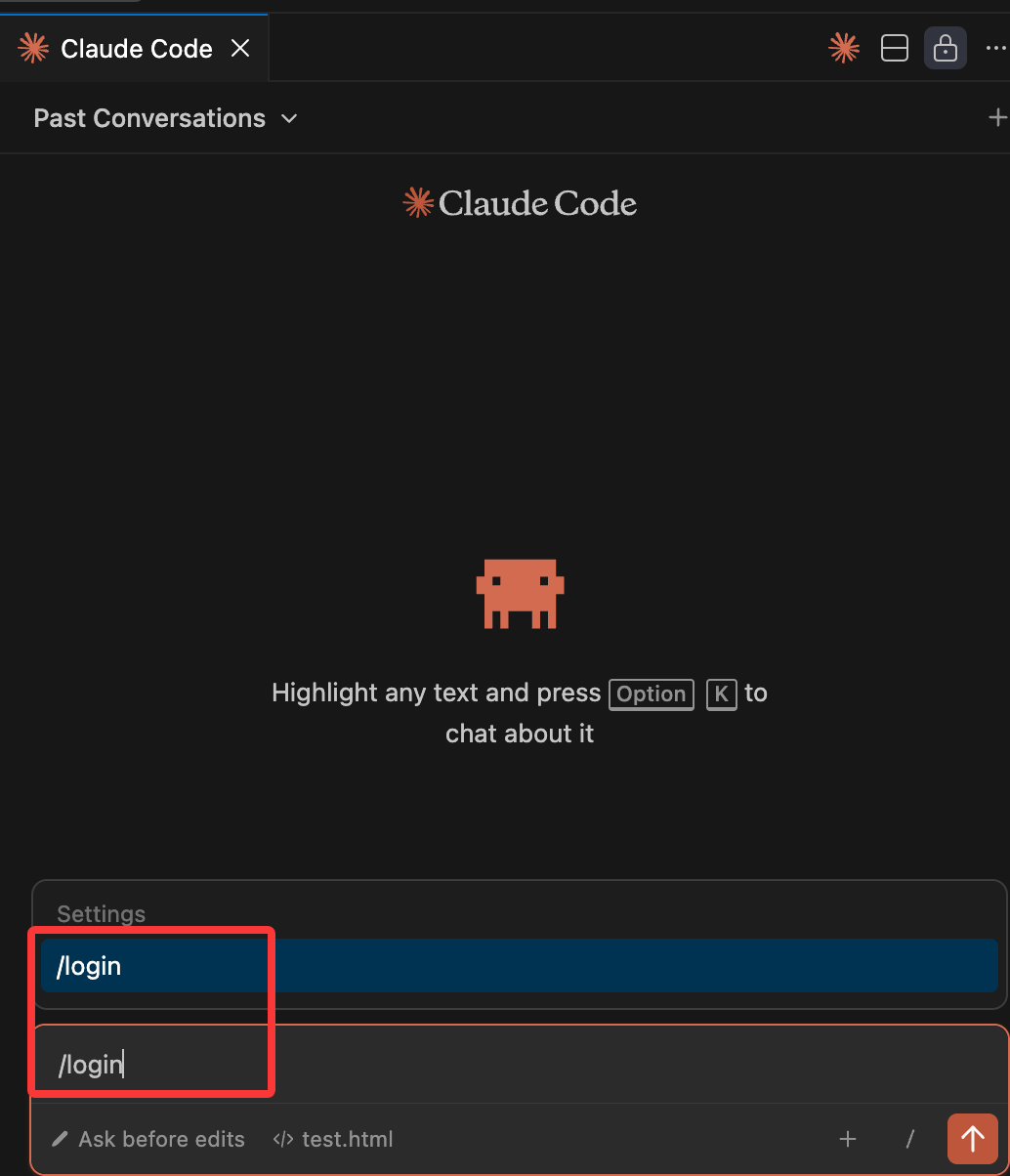
This way, those with accounts can use /login to log in:
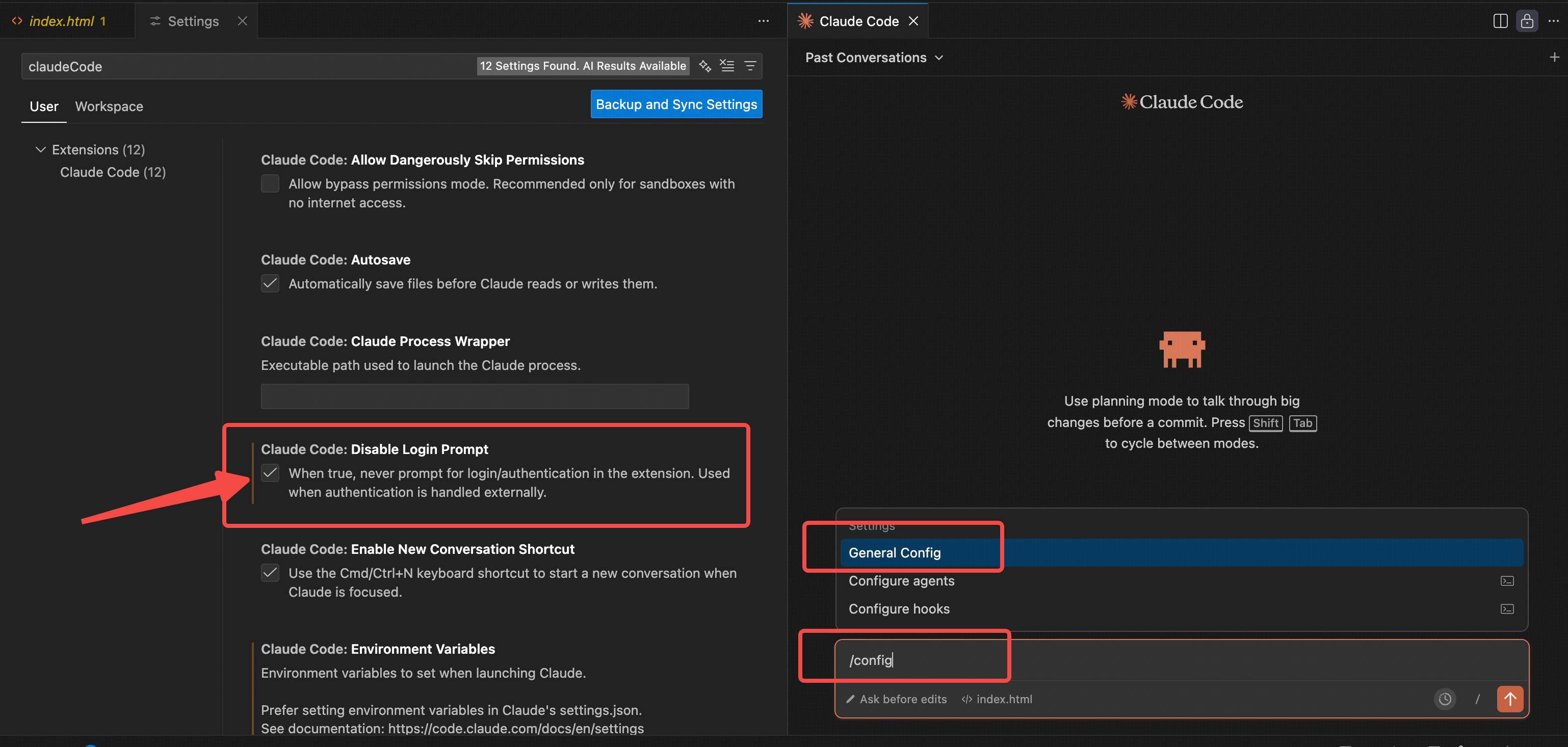
You can also enter /config in the dialog box to enter settings, and check the Disable Login Prompt configuration to close the login page:
Related Command Reference
Claude Code Built-in Command List
| Command | Description |
|---|---|
/add-dir |
Add an additional working directory |
/agents |
Manage dedicated AI subagents |
/bashes |
List and manage background tasks |
/bug |
Report a bug (send the conversation to Anthropic) |
/clear |
Clear conversation history |
/compact [指令] |
Compress the conversation, optionally add key instructions |
/config |
Open the settings interface (Configuration tab) |
/context |
Visualize current context usage in a colored grid |
/cost |
Display token usage statistics |
/doctor |
Check Claude Code installation health |
/exit |
Exit the REPL |
/export [文件名] |
Export the current conversation to a file or clipboard |
/help |
Get usage help, display all available commands |
/hooks |
Manage hook configurations for tool events |
/ide |
Manage IDE integrations and display status |
/init |
Initialize a project using the CLAUDE.md guide |
/install-github-app |
Set up Claude GitHub Actions for the repository |
/login |
Switch Anthropic accounts |
/logout |
Log out of the Anthropic account |
/mcp |
Manage MCP server connections and OAuth authentication |
/memory |
Edit the CLAUDE.md memory file |
/model |
Select or change the AI model |
/output-style [样式] |
Directly set the output style or choose from a selection menu |
/permissions |
View or update permissions |
/plugin |
Manage Claude Code plugins |
/pr-comments |
View PR comments |
/privacy-settings |
View and update privacy settings |
/release-notes |
View release notes |
/resume |
Resume a conversation |
/review |
Request a code review |
/rewind |
Roll back conversation and/or code |
/sandbox |
Enable the sandbox bash tool, with filesystem and network isolation |
/security-review |
Perform a security review of pending changes on the current branch |
/status |
Open the settings interface (Status tab), showing version, model, account, and connection status |
/statusline |
Set up Claude Code's status line UI |
/terminal-setup |
Install the Shift+Enter newline key binding (iTerm2 and VSCode only) |
/todos |
List current todos |
/usage |
Display plan usage limits and rate limit status (subscription plans only) |
/vim |
Enter vim mode, alternating between insert and command modes |
Custom Command Types
| Command Type | Location | Description |
|---|---|---|
| Project Commands | .claude/commands/ |
Stored in the repository, shared with the team |
| Personal Commands | ~/.claude/commands/ |
Available across all projects |
| Plugin Commands | The plugin'scommands/Table of Contents |
Distribution via Plugin Marketplace |
| MCP Commands | Provided by MCP Server | Format:/mcp__<服务器名>__<提示名> |
Shell Commands (Outside Sessions)
| Command | Description |
|---|---|
claude |
Launch an interactive Claude Code session |
claude -p "查询" |
Non-interactive mode, exits after printing results |
claude --dangerously-skip-permissions |
Skip all permission checks (dangerous mode) |
claude --debug |
Enable debug mode |
claude --mcp-debug |
MCP debug mode |
claude mcp add |
Add MCP server |
claude mcp list |
List configured MCP servers |
claude mcp remove |
Remove MCP server |
Special Features
Custom command support:
$ARGUMENTS- Capture all arguments$1, $2, $3...- Access individual positional arguments@filename- Reference file contents!command- Execute bash commands and include output
Command frontmatter metadata:
allowed-tools- List of tools available to the commandargument-hint- Parameter prompt descriptionsdescription- Short command descriptionmodel- Specify modeldisable-model-invocation- Prevent SlashCommand tool invocation
For more related information, you can/helpView the full list of available commands (including your custom commands).
Related Resources
-
Claude Code Tutorial:https://www.example.com/claude-code/claude-code-tutorial.html
-
Open Source Repository:https://github.com/anthropics/claude-code
Official Documentation:https://code.claude.com/docs/zh-CN/overview
DeepSeek Anthropic API:https://api-docs.deepseek.com/zh-cn/guides/anthropic_api
Zhipu AI Model Integration with Claude Code:https://docs.bigmodel.cn/cn/coding-plan/tool/claude#claude-code