Python VSCode Configuration
In the previous chapter, we have already installed the Python environment. In this chapter, we will introduce the configuration of Python VSCode.
Preparation:- Install VS Code
- Install the VS Code Python Extension
- Install Python 3
Install VS Code
VSCode (full name: Visual Studio Code) is a free, cross-platform source code editor developed by Microsoft. The VSCode development environment is very simple and easy to use.
Installing VSCode is also very simple. Open the official websitehttps://code.visualstudio.com/, download the software package, and install it step by step. During the installation process, pay attention to the installation path settings. The environment variables are automatically added to the system by default. Check all of the following options:
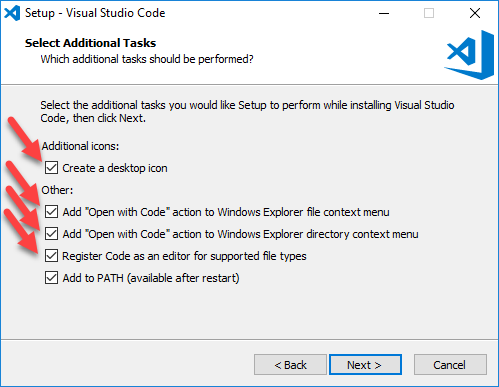
For the complete VSCode installation tutorial, refer to:https://www.example.com/vscode/vscode-tutorial.html
Next, we install thePythonextension:
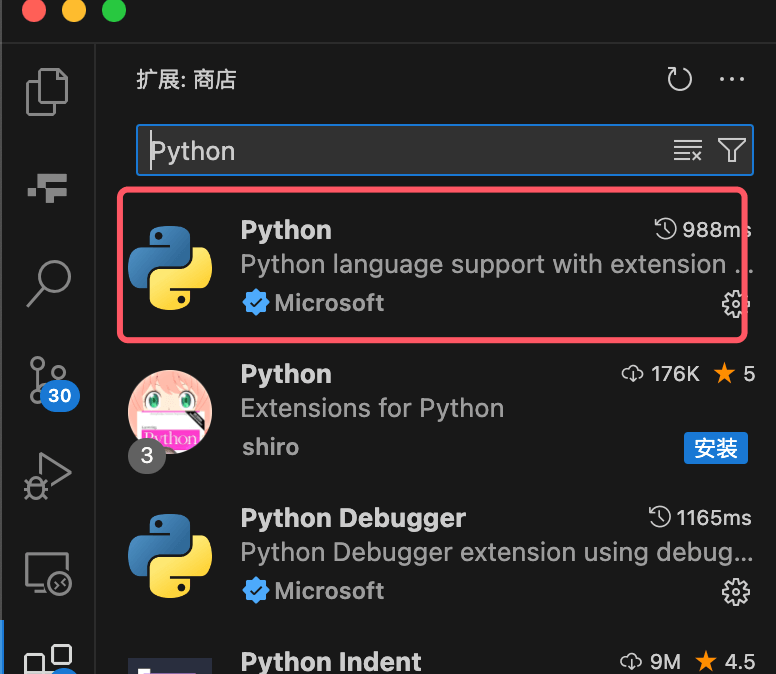
Create a Python Code File
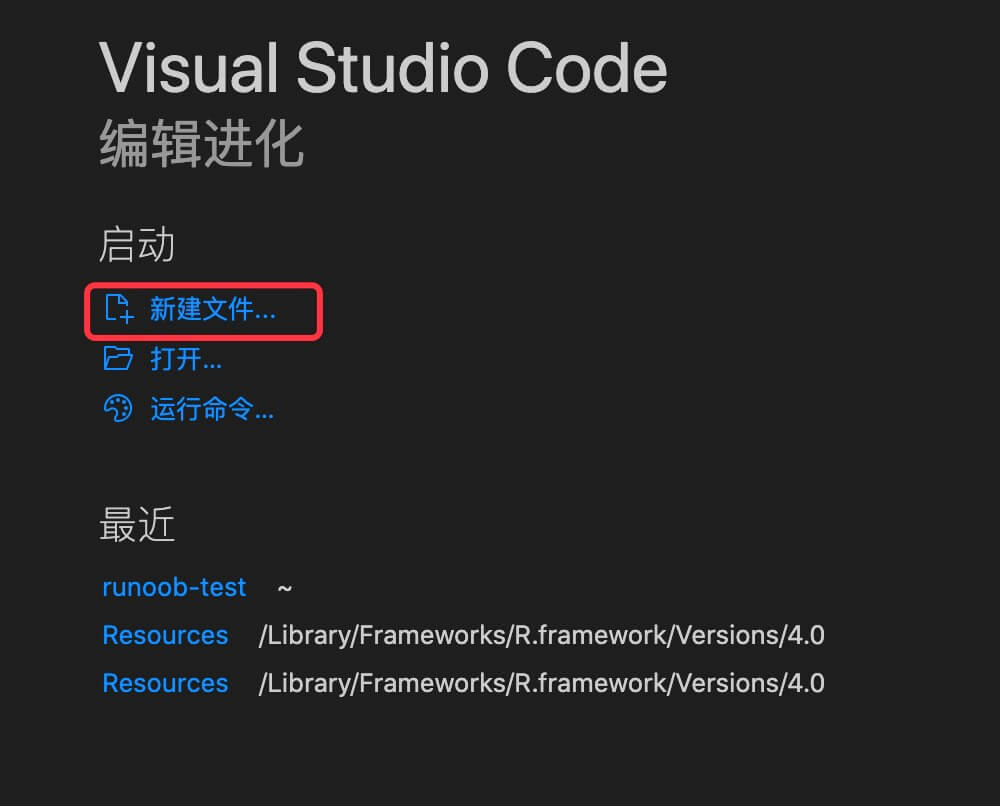
Open VSCode, then click New File:
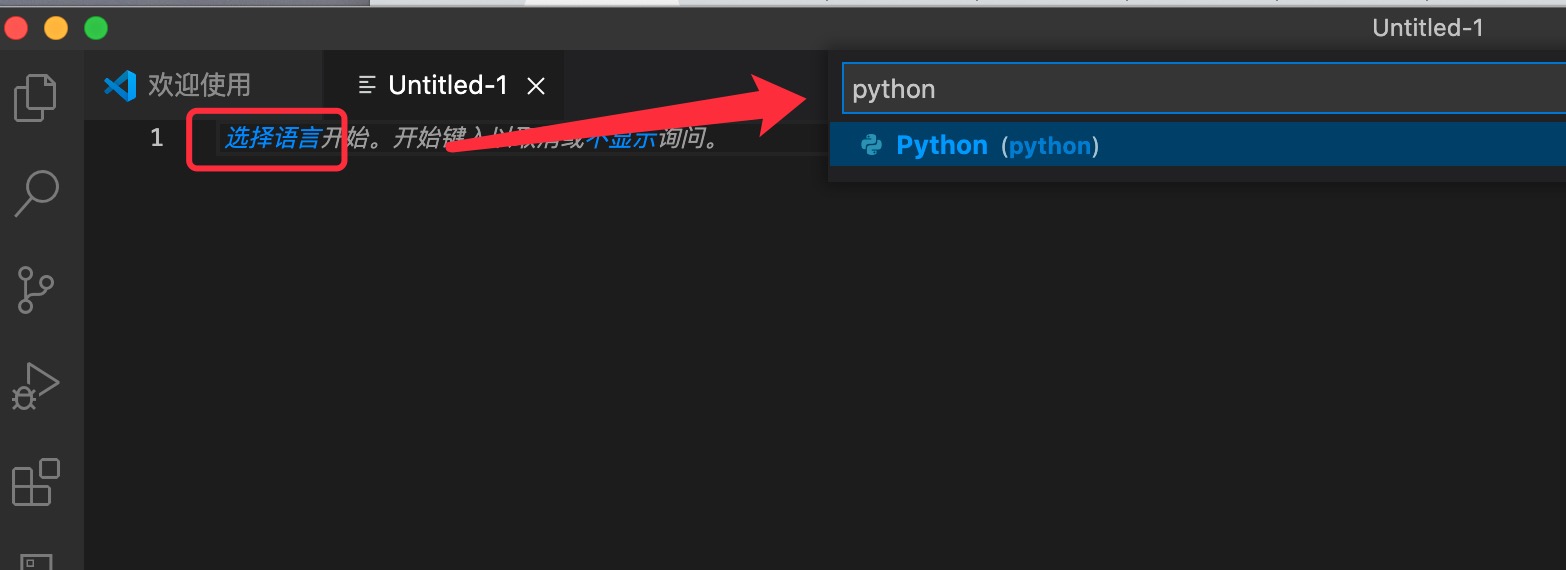
Click to select the language:
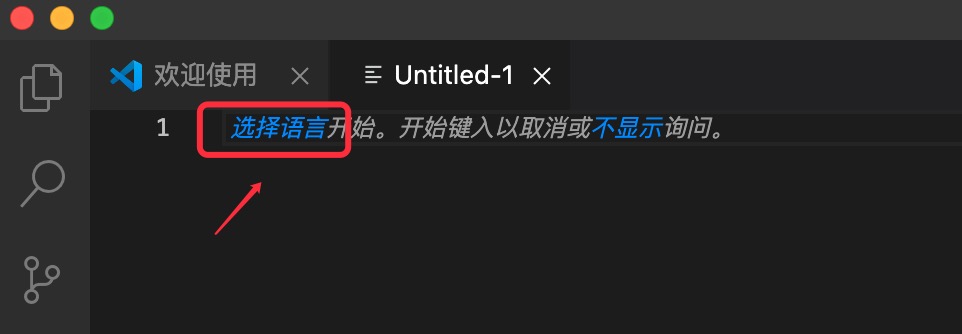
Enter Python in the search box, and select the Python option:
Enter the code:
print("Example")
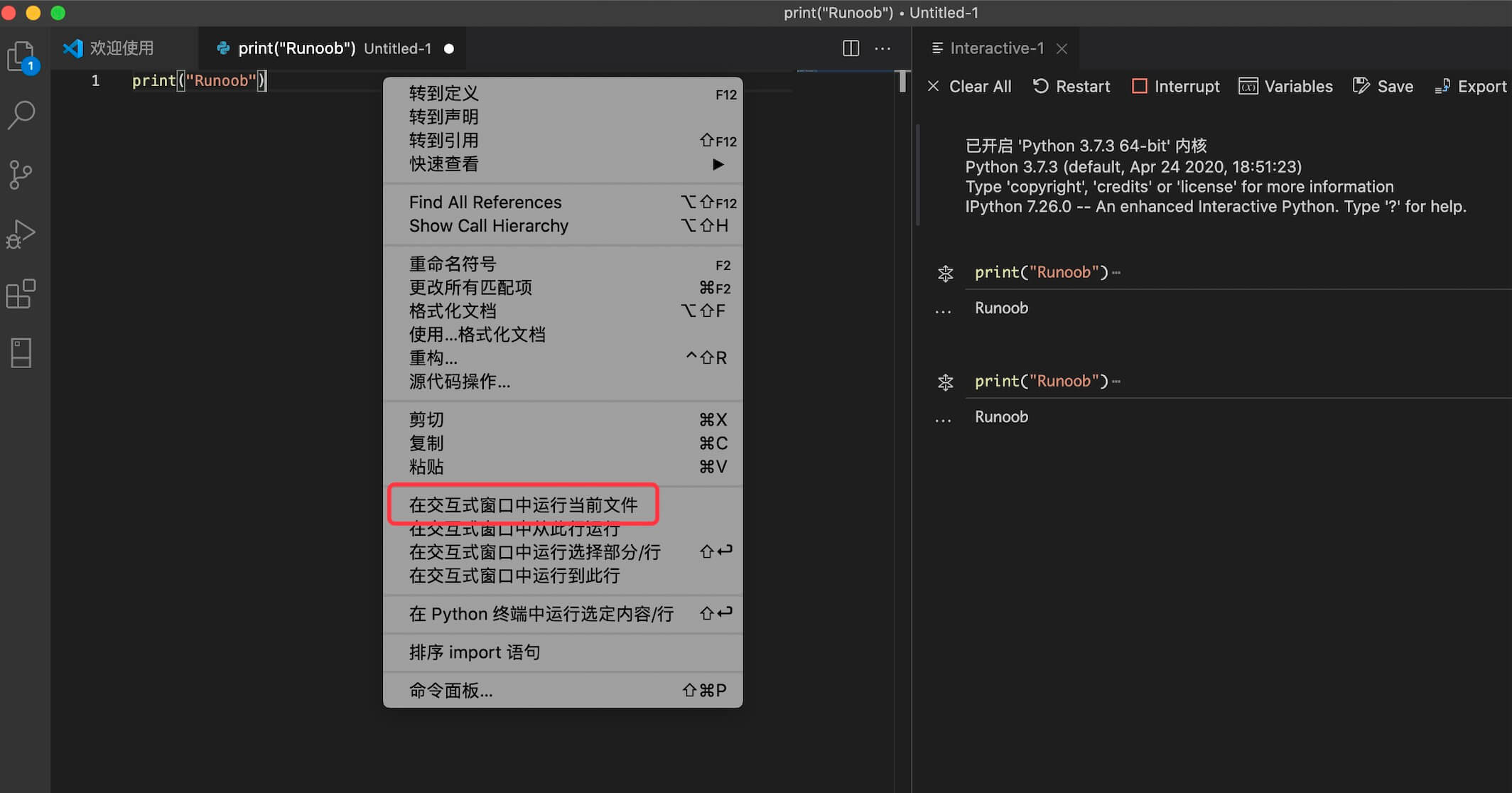
Right-click the mouse, and select Run File in Interactive Window.If prompted to install an extension, just click Install (if it is not installed, it will keep showing "Connecting to Python kernel"):
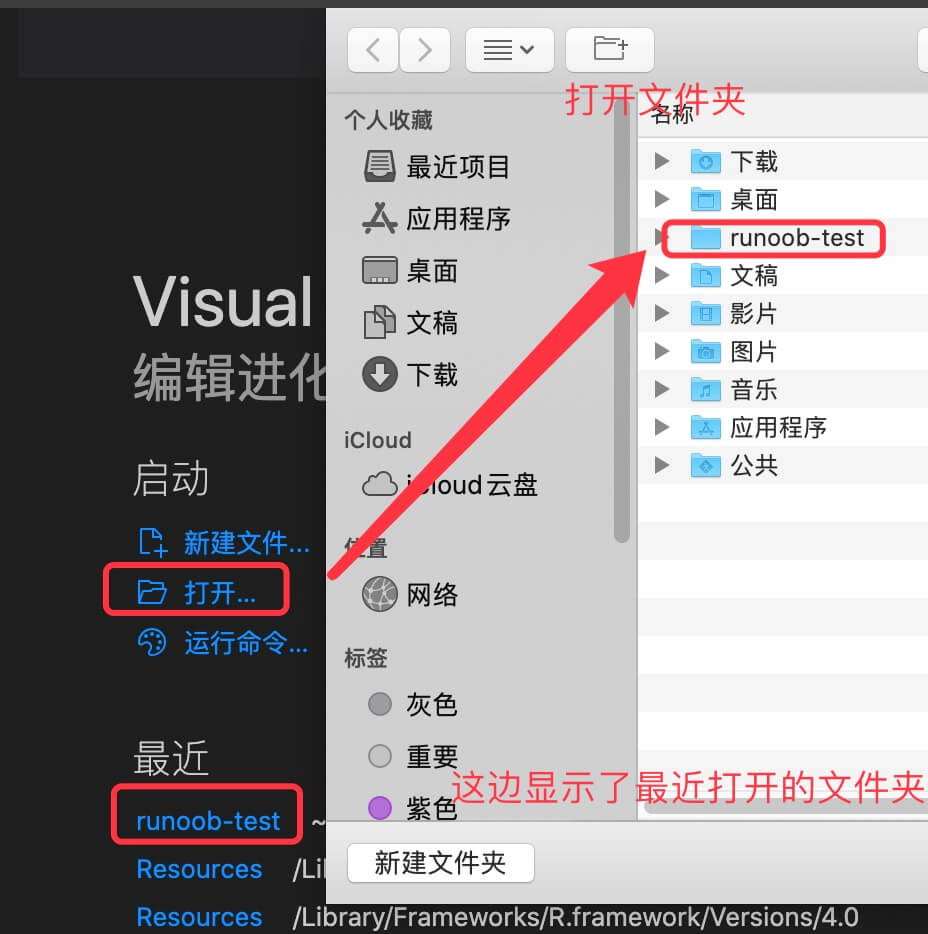
Additionally, we can also open an existing file or directory (folder). For example, we open a example-test, or you can create one yourself:
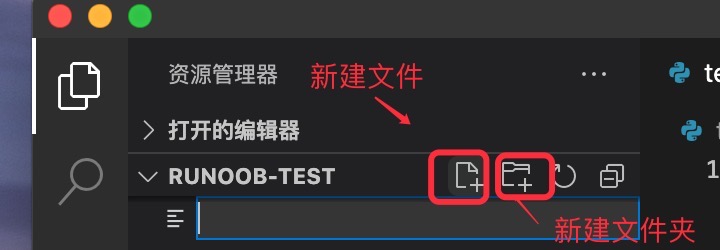
Then we create a test.py file. Click the New File icon below, and enter the file name test.py:
Note:example-test contains a.vscodefolder, which contains some configuration information. You can ignore it for now.
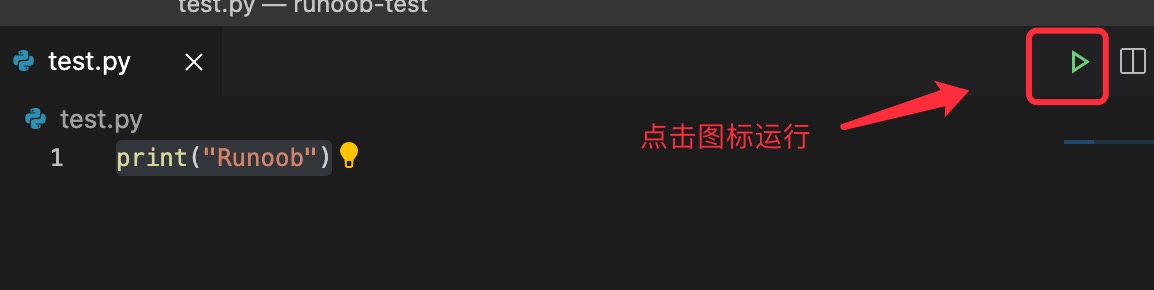
Enter the following code in test.py:
print("Example")
Click the green icon in the upper right corner to run it:
You can right-click the file and select "Run Python File in Terminal":
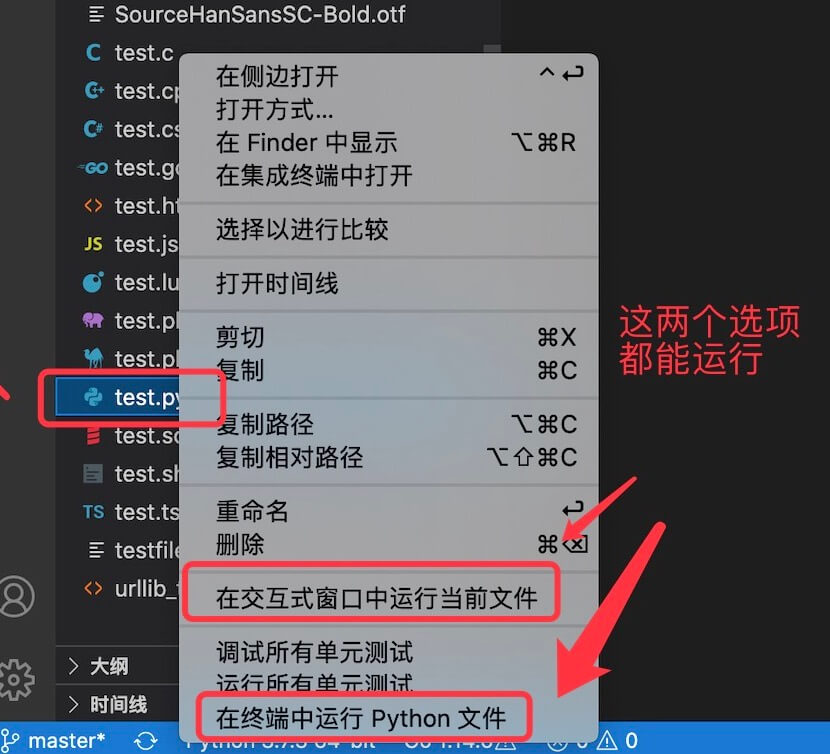
Of course, you can also right-click in the code window and select "Run Python File in Terminal".