Bootstrap Typography
Bootstrap uses Helvetica Neue, Helvetica, Arial, and sans-serif as its default font stack.
With Bootstrap's typography features, you can create headings, paragraphs, lists, and other inline elements.
Headings
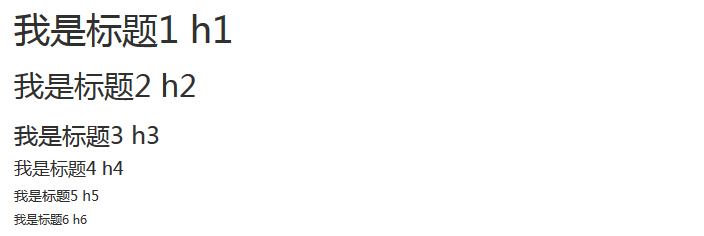
Bootstrap defines styles for all HTML headings (h1 to h6). See the example below:
Example
Try it yourself »
The result is as follows:
Inline Subheadings
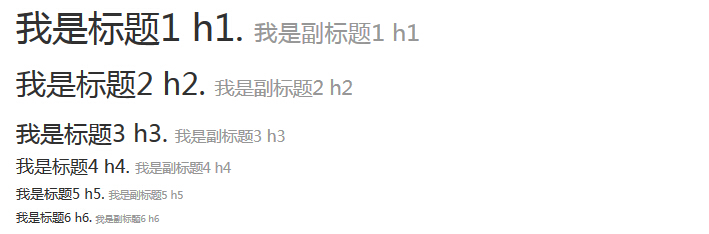
If you want to add an inline subheading to any heading, simply add <small> alongside the element, or add.smallclass, so that you get a text with smaller font size and lighter color, as shown in the example below:
Example
Try it yourself »
The result is as follows:
Lead Body Copy
To add emphasized text to a paragraph, you can add class="lead", which will result in larger, bolder text with a higher line height, as shown in the example below:
Example
Try it yourself »
The result is as follows:

Emphasis
HTML's default emphasis tags <small> (sets the text to 85% of the parent text size), <strong> (sets the text to bolder text), <em> (sets the text to italic).
Bootstrap provides some classes for emphasizing text, as shown in the example below:
Example
Try it yourself »
The result is as follows:

Abbreviations
HTML The element provides markup for abbreviations, such as WWW or HTTP. Bootstrap defines the style of the <abbr> element as a dotted border displayed at the bottom of the text, and when the mouse hovers over it, the full text is displayed (as long as you have added text to the <abbr> title attribute). To get a smaller font text, add .initialism to <abbr>.
Example
Try it »
The result is as follows:

Address
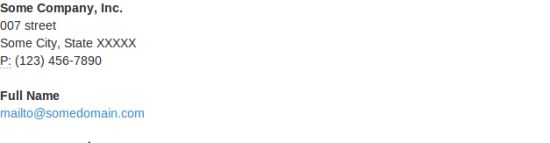
Use<address>tag, you can display contact information on the web page. Since<address>defaults todisplay:block;, you need to use<br>tag to add line breaks to the enclosed address text.
Example
Try it »
The result is as follows:
Blockquote
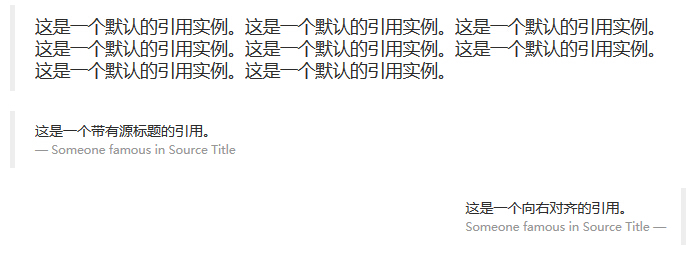
You can use the default <blockquote> next to any HTML text. Other options include adding a <small> tag to identify the source of the quote, using the class.pull-rightaligns the quote to the right. The following example demonstrates these features:
Example
Try it »
The result is as follows:
Lists
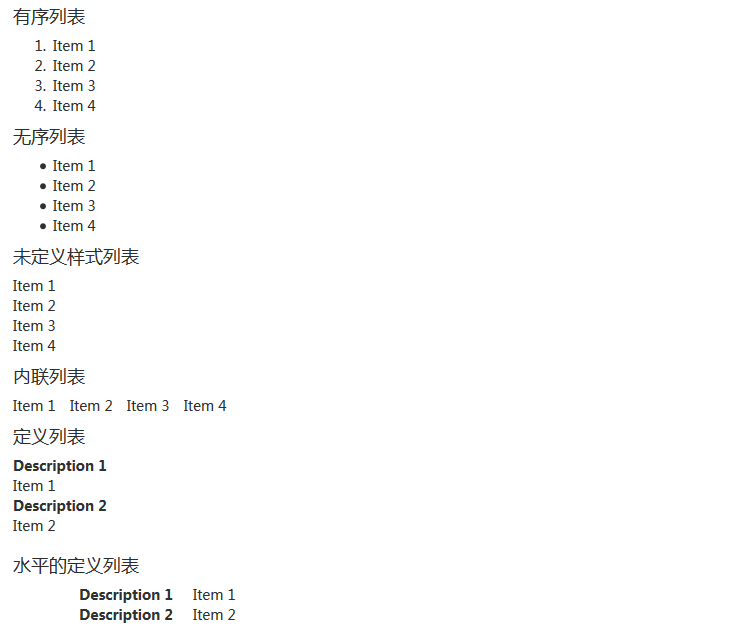
Bootstrap supports ordered lists, unordered lists, and definition lists.
- Ordered list: An ordered list is a list that begins with numbers or other ordered characters.
- Unordered list: An unordered list is a list without a specific order, a list that begins with traditional-style bullets. If you do not want to display these bullets, you can use the class.list-unstyledto remove the style. You can also use the class.list-inlineto place all list items on the same line.
- Definition list: In this type of list, each list item can contain <dt> and <dd> elements. <dt> stands fordefinition term, just like a dictionary. Then, <dd> is the description of <dt>.
.dl-horizontalcan make<dl>the phrases and their descriptions inside line up in a row. It starts like<dl>the default styles are stacked together, and as the navbar gradually expands, they are arranged in a row.
The following example demonstrates these types of lists:
Example
Try it »
The result is as follows:
More Typography Classes
The following table provides examples of more Bootstrap typography classes:
| Class | Description | Example |
|---|---|---|
| .lead | Make a paragraph stand out | Try it |
| .small | Set small text (set to 85% the size of the parent text) | Try it |
| .text-left | Set text left-aligned | Try it |
| .text-center | Set text center-aligned | Try it |
| .text-right | Set text right-aligned | Try it |
| .text-justify | Set text justified; text in a paragraph that exceeds the screen automatically wraps | Try it |
| .text-nowrap | Text in a paragraph that exceeds the screen does not wrap | Try it |
| .text-lowercase | Set text to lowercase | Try it |
| .text-uppercase | Set text to uppercase | Try it |
| .text-capitalize | Set the first letter of each word to uppercase | Try it |
| .initialism | Text displayed in the <abbr> element is shown in a small font, and can convert lowercase letters to uppercase | Try it |
| .blockquote-reverse | Set the quote right-aligned | Try it |
| .list-unstyled | Remove the default list style, list items are left-aligned (in <ul> and <ol>). This class only applies to direct child list items (if you need to remove nested list items, you need to use this style in the nested list). | Try it |
| .list-inline | Place all list items on the same line | Try it |
| .dl-horizontal | This class sets float and offset, applied to <dl> and <dt> elements. For specific implementation, see the example. | Try it |
| .pre-scrollable | Make the <pre> element scrollable. The code block area has a maximum height of 340px. Once it exceeds this height, a scrollbar will appear on the Y-axis. | Try it |