PyCharm Package Management and Virtual Environments
The power of the Python ecosystem lies in its rich collection of third-party packages, and managing these packages and their dependencies is an essential lesson for every project.
PyCharm provides a graphical package management interface and an integrated terminal tool, making package installation, upgrade, and removal intuitive and efficient.
Meanwhile, PyCharm'svirtual environmentsupport can effectively isolate dependency conflicts between different projects.
Viewing and Installing Packages via the GUI
PyCharm provides an intuitive package management panel, allowing you to handle routine package operations without memorizing command lines.
In the right panel, you can see all packages installed under the current interpreter and their versions.
Enter a package name in the search box (e.g.,requests), after finding the target package, clickInstall Packagebutton.
Once installed, the new package will appear in the installed list and be immediately available.

When searching for a package, PyCharm fetches the latest information from the PyPI repository, including the package's description, version, and dependencies, to help you make a decision.
Installing Packages Using the Built-in Terminal
If you are more comfortable with command-line operations, PyCharm's built-inTerminaltool window is an excellent choice.
Open the Terminal
Click the bottom toolbar'sTerminaltab, or use the shortcutAlt + F12to open the built-in terminal.
The terminal automatically activates the current project's virtual environment, and the environment name will be displayed before the command prompt.
Common pip Commands
# 安装单个包
pip install requests

# 安装指定版本的包
pip install requests==2.28.0

# 同时安装多个包
pip install requests flask numpy

# 升级已安装的包到最新版本
pip install --upgrade requests

# 卸载包
pip uninstall requests

# 查看已安装的所有包
pip list

# 查看某个包的详细信息
pip show requests
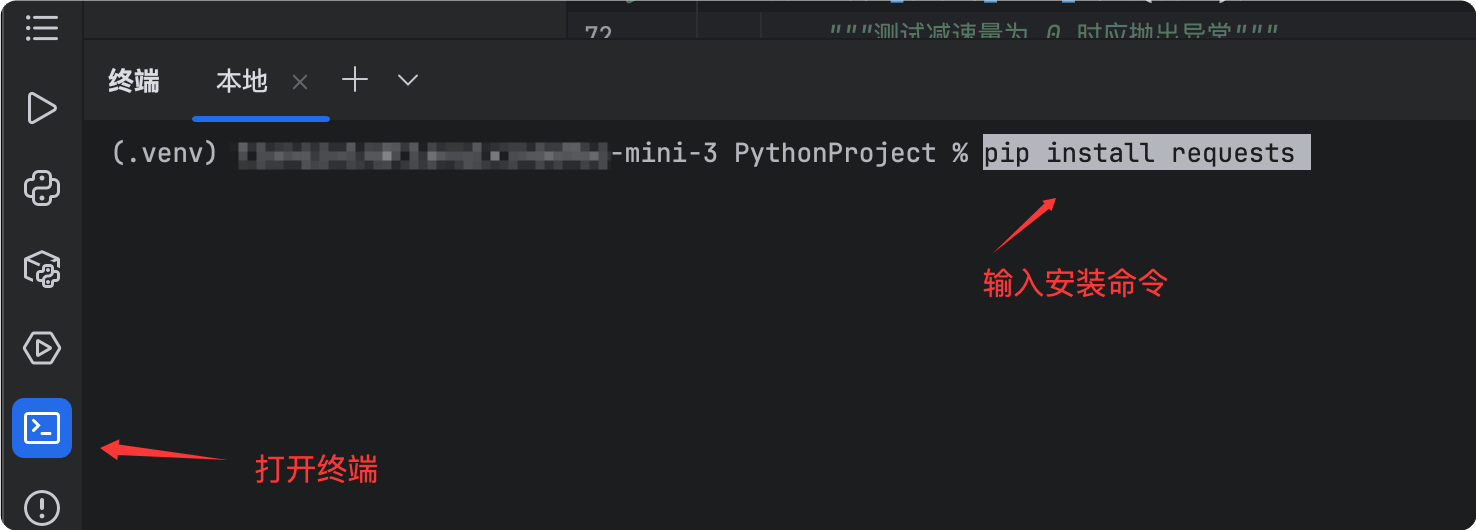
PyCharm's built-in terminal is exactly the same as an external terminal, supporting all pip commands and system commands, and seamlessly integrating with the virtual environment.
Managing Virtual Environments
Virtual environments are a core practice in Python development, ensuring that each project has an independent dependency space, free from interference.
Creating a New Virtual Environment
When creating a new project, PyCharm by default will prompt you to create a new virtual environment.
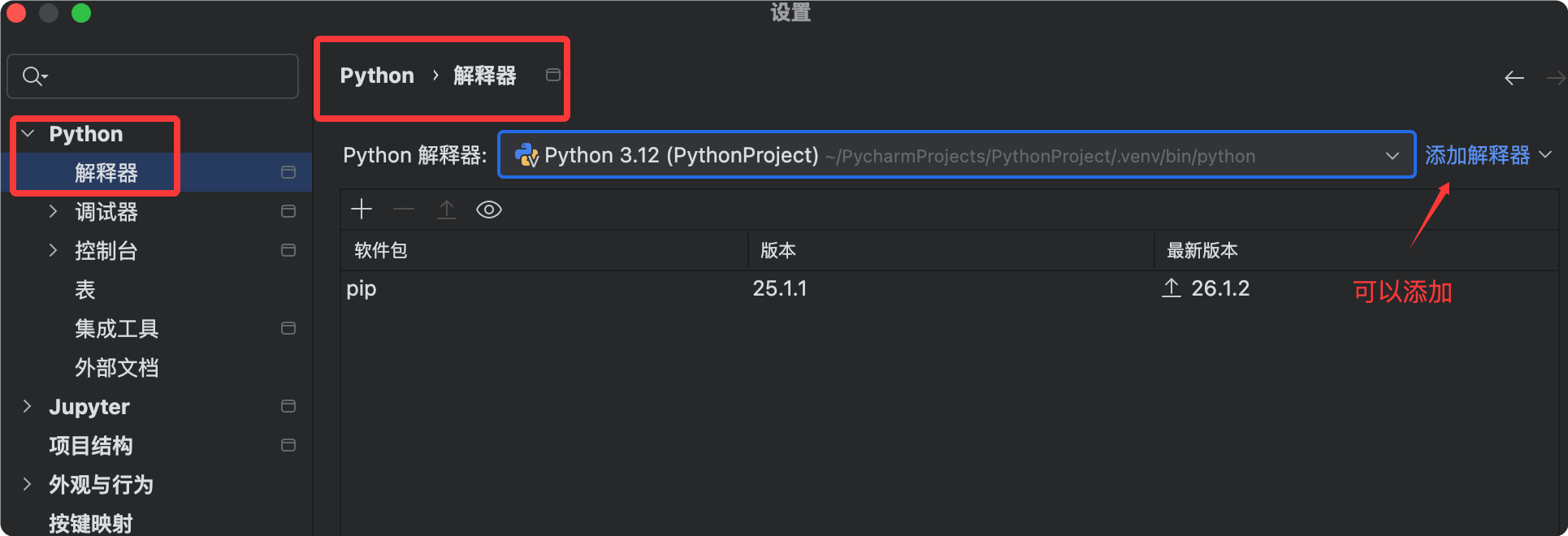
You can also create one manually in an existing project:
- OpenSettings。
- to view the existing virtual environments.
- SelectAdd Interpreter, specify the environment storage location and the base Python interpreter.
- ClickOKto complete the creation.
Switching to a Conda Environment
If you use Anaconda or Miniconda to manage Python environments, PyCharm also provides native support.
- In the Python Interpreter settings page, click the gear icon and selectAdd...。
- On the left, selectConda Environment。
- selectExisting environmentPyCharm will automatically detect the Conda environments installed on your system.
- Select the target environment from the drop-down list and clickOKto complete the switch.

After switching the virtual environment, PyCharm will automatically re-index the package list. Please wait patiently for the indexing to complete; otherwise, code completion and type checking may be inaccurate.
Automatic Detection of requirements.txt
requirements.txtIt is the most common dependency declaration file in Python projects, and PyCharm provides intelligent support for it.
Automatic Detection and Prompts
When you open a project containing arequirements.txtrequirements.txt file, if PyCharm detects that some packages in the file have not been installed, a prominent notification bar will appear at the top of the editor.
The notification content is similar to:"Package requirements 'requests', 'flask' are not satisfied"。
Click the notification bar'sInstall requirementslink, and PyCharm will automatically invoke pip to install all missing packages.
Automatically Generate requirements.txt
You can also have PyCharm generate the requirements.txt file for you.
Run the following command in the terminal:
# 将当前虚拟环境中所有已安装的包导出到 requirements.txt
pip freeze > requirements.txt
Afterwards, when other developers get the project, they just need to runpip install -r requirements.txtto install all dependencies with one click.
Other ExtensionsIt is recommended torequirements.txtinclude it in Git version control, so that team members and CI/CD pipelines can develop and build based on the same dependency environment.