PyCharm Code Editing
As a professional Python IDE, PyCharm provides powerful code editing features.
This chapter will detail the core features of code editing, including smart completion, shortcut operations, code refactoring, and other efficient development techniques.
Basic Editing Features
Code Completion
PyCharm provides multiple smart completion methods:
| Completion Type | Trigger Method | Description |
|---|---|---|
| Basic Completion | Ctrl + Space(Win/Linux)⌘ + Space(Mac) |
Displays suggestions for variables, functions, classes, etc. |
| Smart Type Completion | Ctrl + Shift + Space |
Recommends more precise types based on context |
| File Name Completion | Automatically triggered when entering a path | Quickly completes file paths |
| Dynamic Template Completion | Enter abbreviation (e.g.main + Tab) |
Quickly generate code snippets (e.g.if __name__ ==...) |
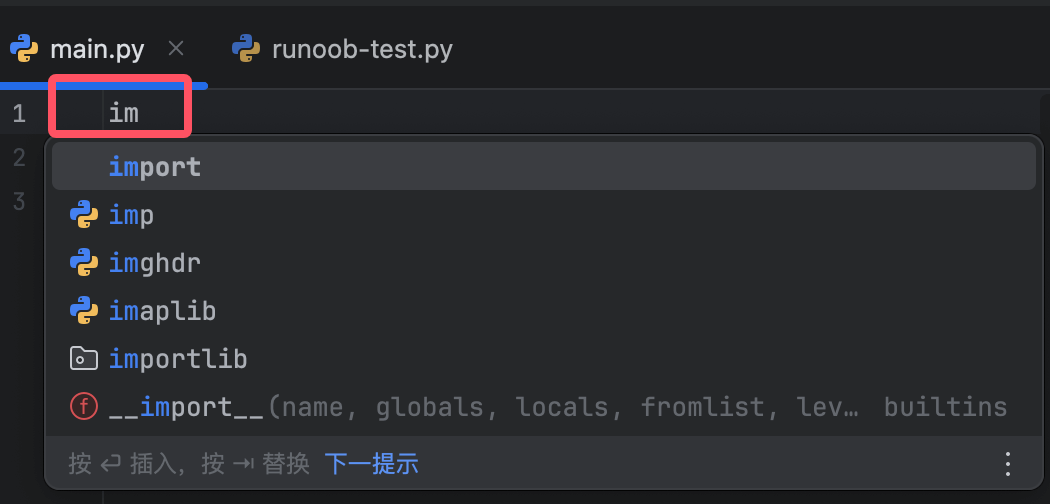
Enterim + Tab→ Auto-completes toimport:
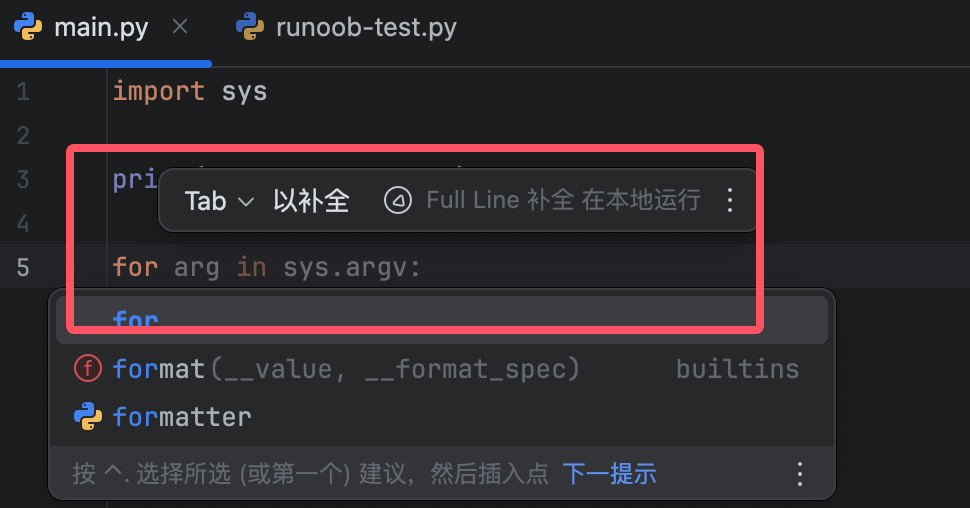
Enterfor + Tab→ Generate completeforloop structure:
Syntax Highlighting
PyCharm automatically colors code elements:
-
Keywords(
def,class): blue -
Strings: green
-
Comments: gray
-
Error syntax: red wavy underline
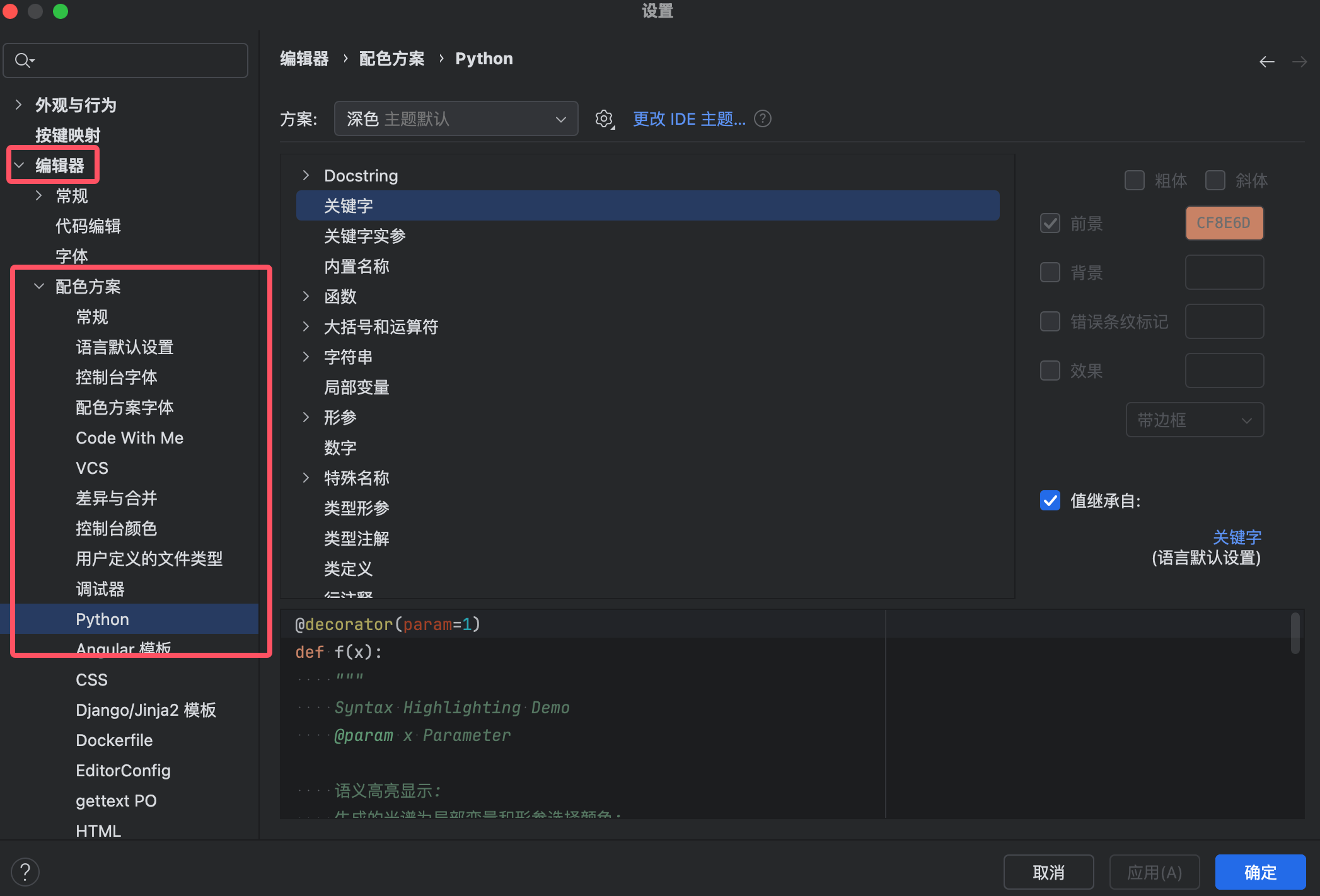
Custom Highlighting:
-
设置 → 编辑器 → 配色方案(Color Scheme) -
Adjust the colors of Python syntax elements
Code Folding
| Action | Shortcut (Win/Linux) | Shortcut (Mac) |
|---|---|---|
| Collapse current code block | Ctrl + - |
⌘ + - |
| Expand current code block | Ctrl + + |
⌘ + + |
| Collapse all code blocks | Ctrl + Shift + - |
⌘ + Shift + - |
| Expand all code blocks | Ctrl + Shift + + |
⌘ + Shift + + |
Move the mouse to the left of the code area in the editor to see a downward arrow; clicking it can also collapse:
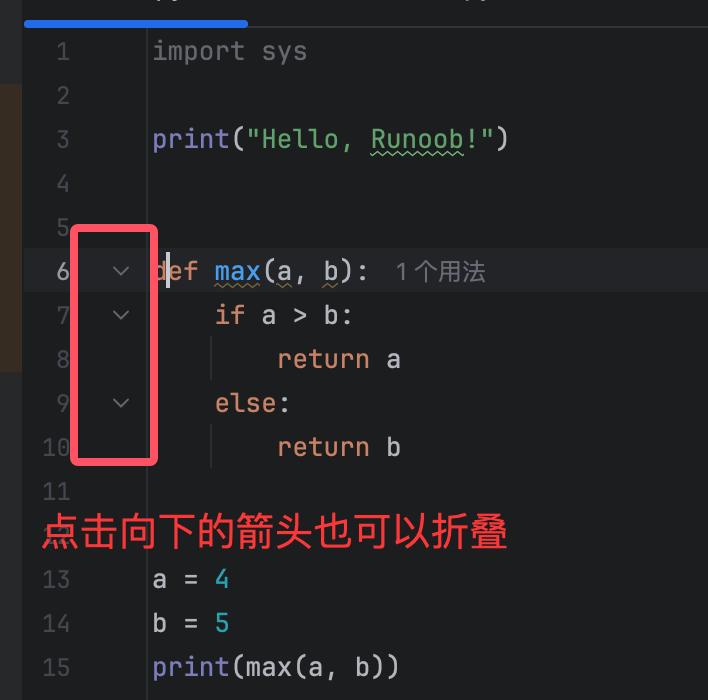
Code structures that support folding:
-
Functions/Methods
-
Class definitions
-
Multi-line comments
-
Import statement groups
Shortcuts and Efficient Operations
Common Shortcuts Quick Reference
| Function | Shortcut (Win/Linux) | Shortcut (Mac) |
|---|---|---|
| Duplicate current line | Ctrl + D |
⌘ + D |
| Delete current line | Ctrl + Y |
⌘ + Delete |
| Move line | Alt + Shift + ↑/↓ |
⌥ + ⇧ + ↑/↓ |
| Quick fix suggestions | Alt + Enter |
⌥ + Enter |
| Go to definition | Ctrl + B |
⌘ + B |
| View parameter hints | Ctrl + P |
⌘ + P |
Multi-line Editing and Batch Operations
Column Selection Mode
-
Hold
Alt(Win) or⌥(Mac) + mouse drag -
or use
Alt + Shift + Insertto toggle column mode
Application scenarios:
# 批量修改多个变量前缀
old_name = 1    →  new_name = 1
old_value = 2   →  new_value = 2
Multi-cursor editing
-
Hold
Alt+ mouse click (add multiple cursors) -
or
Ctrl + G(Win)/⌘ + G(Mac) select the same word
Code Formatting and Refactoring
Auto-format Code
-
Format current file:
-
Ctrl + Alt + L(Win/Linux) -
⌥ + ⌘ + L(Mac)
-
-
Format selected code:
-
Select code → Right-click →Reformat Code
-
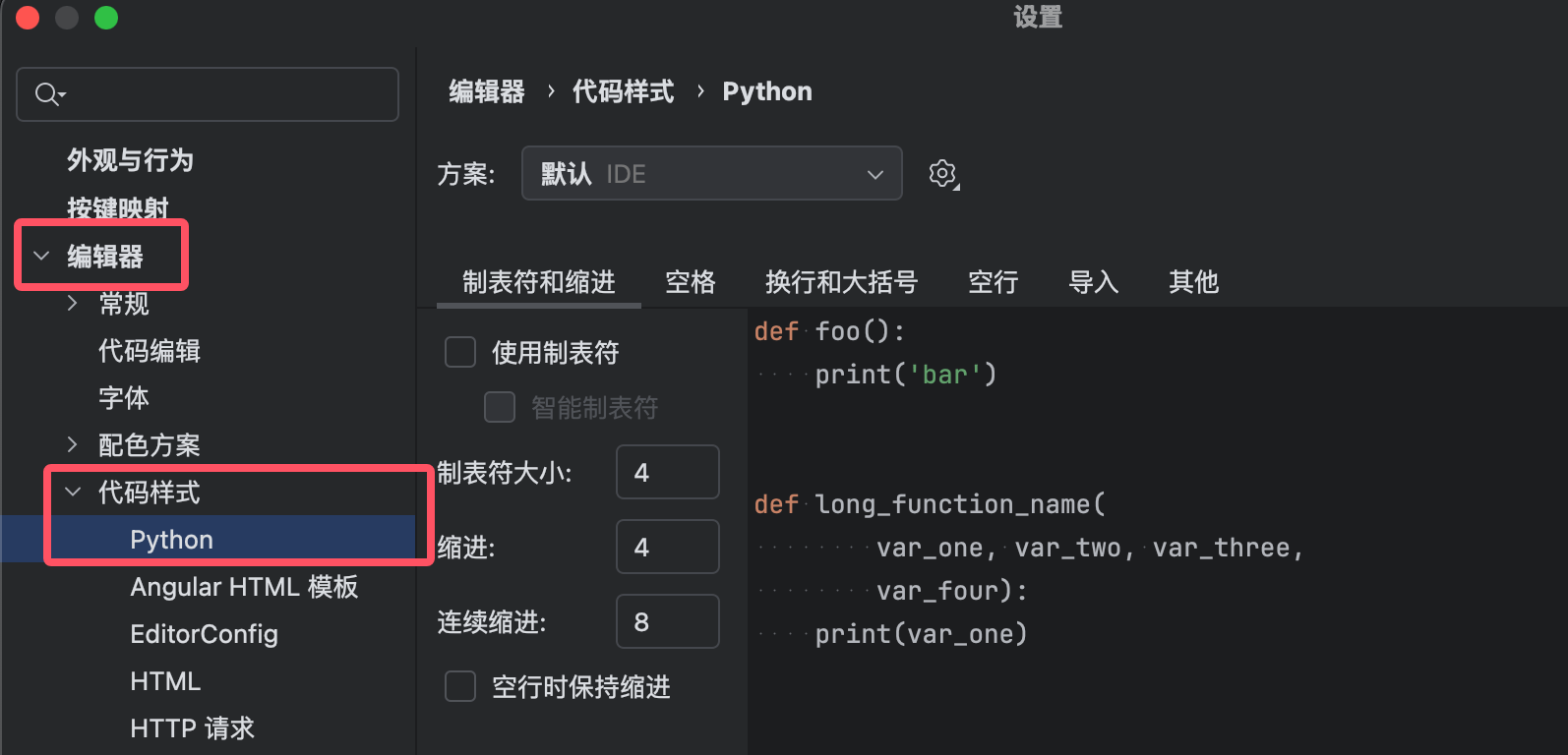
Configure formatting rules: 设置 → 编辑器 → 代码样式 → Python
Rename Variables/Functions (Safe Refactoring)
-
Select identifier (variable/function name)
-
Right-click → Refactor → Rename
-
or shortcut
Shift + F6 -
Enter new name → Press
Enter
Effect:
-
All places referencing this identifier are updated synchronously
-
Supports cross-file renaming
Extract Method
Extract the selected code snippet as a new method:
-
Select code block
-
Ctrl + Alt + M(Win)/⌘ + ⌥ + M(Mac) -
Enter method name → Confirm
Example
def process_data(data):
cleaned = []
for item in data:
if item.is_valid(): # ← Select this part of the code
cleaned.append(item)
return cleaned
# After extraction
def process_data(data):
cleaned = []
for item in data:
if is_valid_item(item):
cleaned.append(item)
return cleaned
def is_valid_item(item): # ← Automatically generated new method
return item.is_valid()
Inline
Inline the method/variable at the call site:
-
Place the cursor on the method name/variable
-
Ctrl + Alt + N(Win)/⌘ + ⌥ + N(Mac)
# 内联前
def calculate_discount(price):
    return price * 0.9

total = calculate_discount(100)  # ← 光标在此行

# 内联后
total = 100 * 0.9  # ← 方法调用被替换为实际代码
Advanced Editing Techniques
Live Templates
Quickly generate common code patterns:
-
Enter abbreviation (e.g.
iter) → PressTab -
Preset templates:
-
main→ Generateif __name__ == '__main__' -
try→ Generate complete try-except block
-
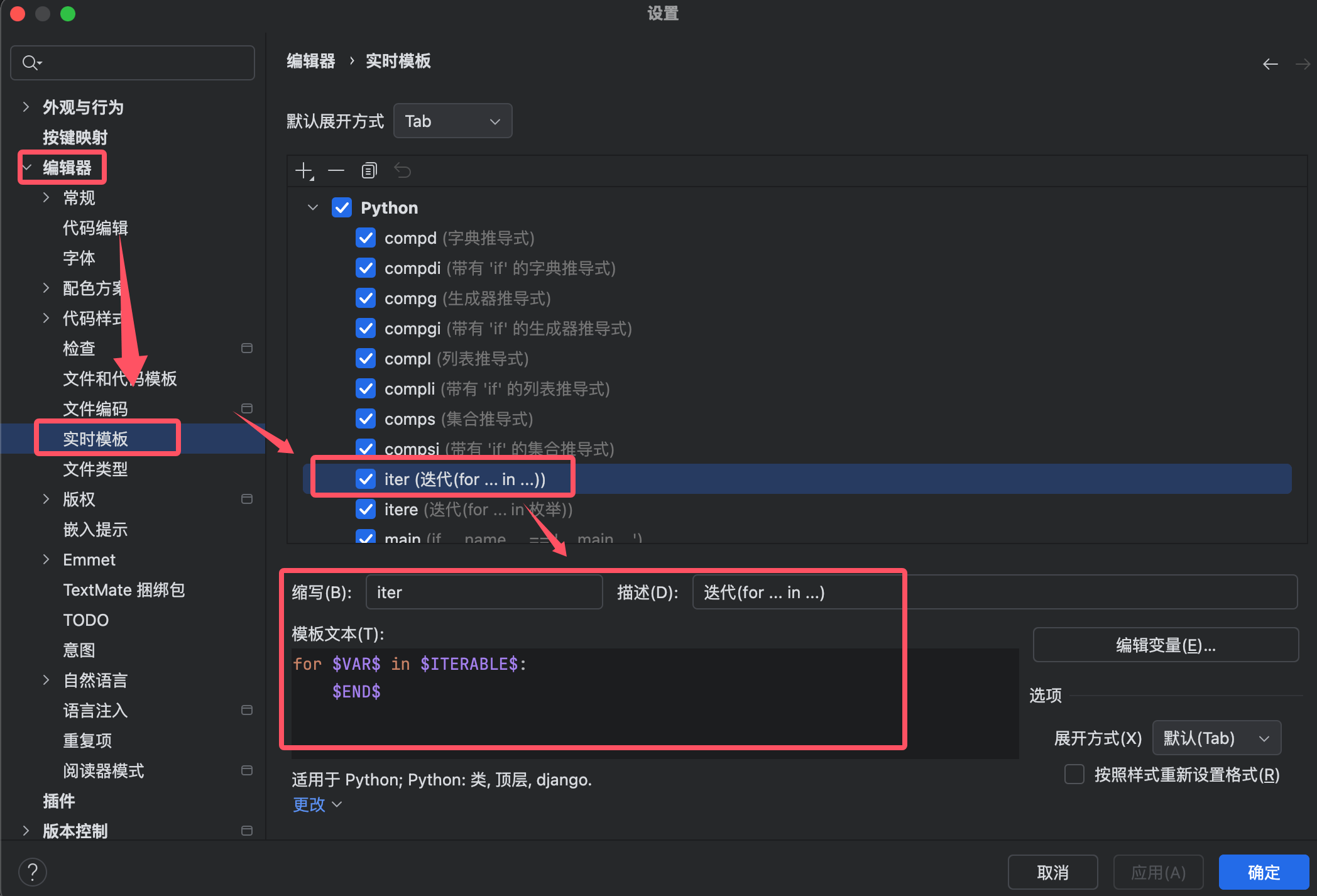
Custom templates:Settings → Editor → Live Templates
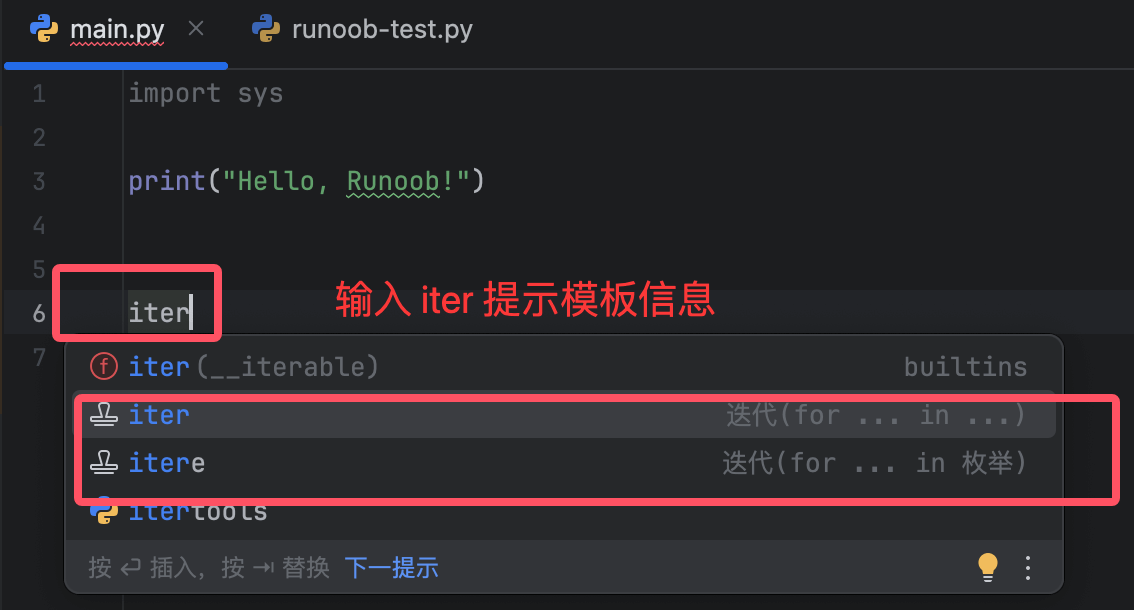
Entering iter in the code editor will display template information:
Code Intention Actions (Alt+Enter)
Quickly fix or optimize code based on context:
-
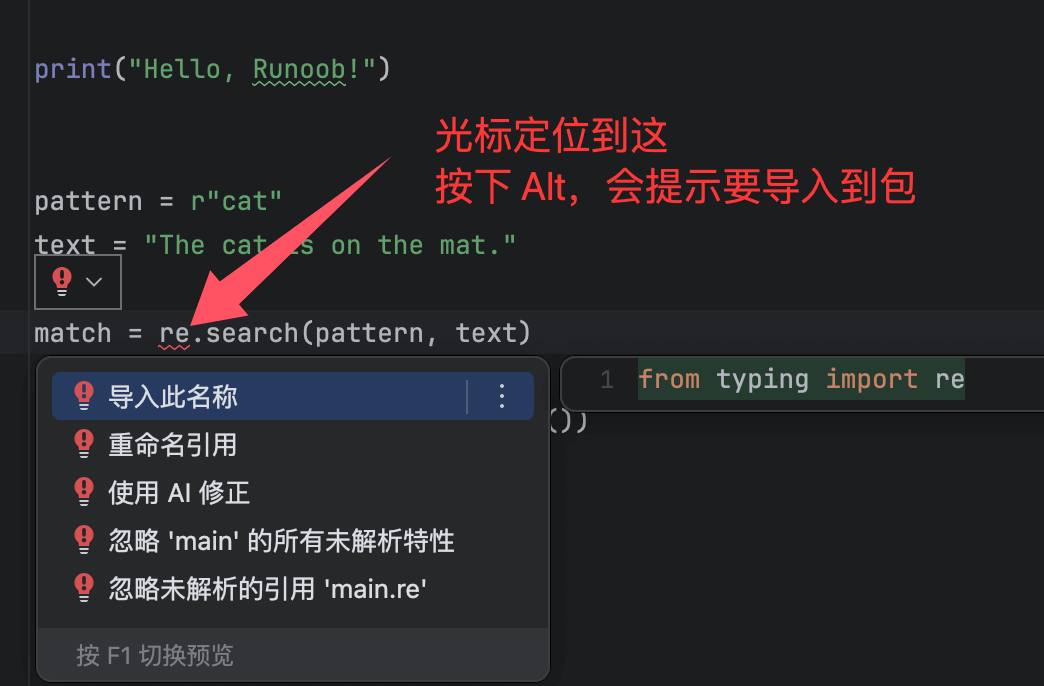
Automatically import missing packages
-
Convert string formats (f-string / format)
-
Optimize conditional expressions
Operation: Place the cursor at the warning/suggestion →Alt + Enter
Summary: Efficient Editing Workflow
-
Writing phase:
-
Use code completion (
Ctrl + Space) for quick input -
Use dynamic templates to generate repetitive structures
-
-
Optimization phase:
-
Format code (
Ctrl + Alt + L) -
use
Alt + EnterQuickly fix issues
-
-
Refactoring phase:
-
Extract method (
Ctrl + Alt + M) -
Safe rename (
Shift + F6)
-