PyCharm File and Folder Operations
PyCharm provides powerful file management features that allow developers to efficiently organize project structures.
This section will detail operations such as creating, moving, renaming, and searching files and folders.
1. Basic File and Folder Operations
1.1 Creating New Files/Folders
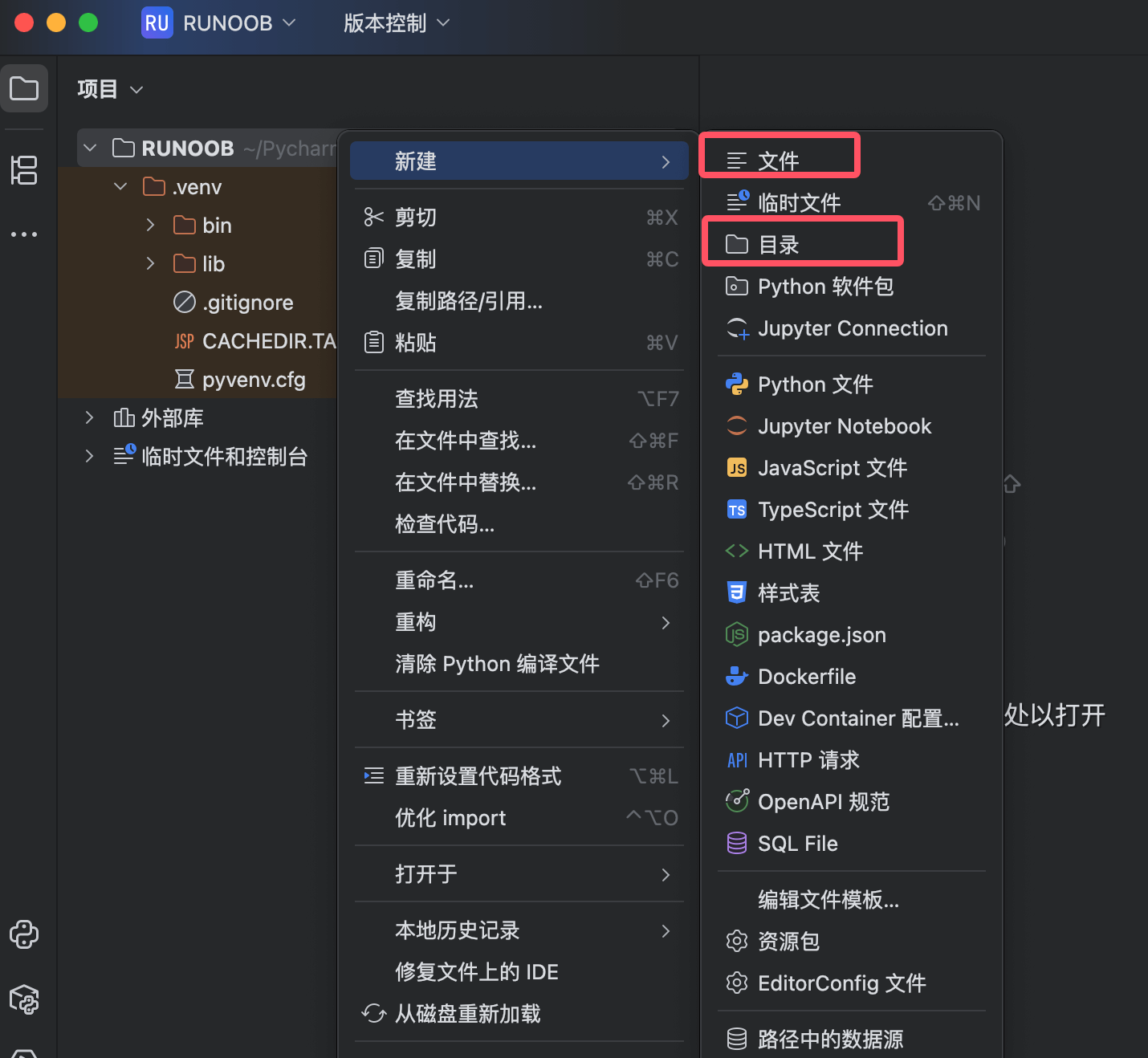
Method 1: Create via Right-Click Menu
-
InIn the Project tool window (Project View),right-click the target directory
-
Select:
-
New → Python File(creates a
.pyfile) -
New → Directory(creates a folder)
-
Other file types (HTML, JSON, etc.)
-
Method 2: Create via Shortcut
-
New file:
Alt + Insert(Windows/Linux) /⌘N(Mac) -
New directory: same operation as above, select 'Directory'
1.2 Renaming Files/Folders
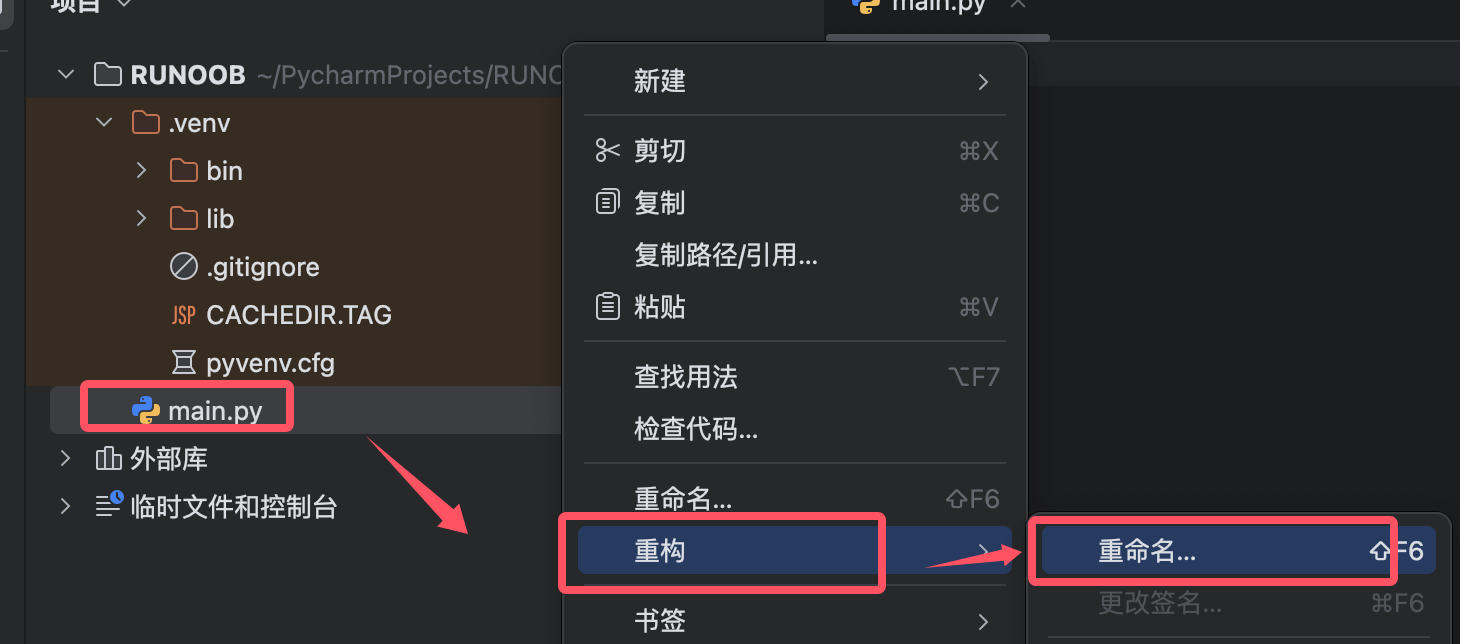
Safe Rename (Recommended)
-
Select the file → Right-click →Refactor → Rename
-
Or use the shortcut:
Shift + F6 -
Enter the new name → Press
EnterConfirm
Advantages:
-
Automatically updates all code that references the file
-
Avoids import errors caused by manual renaming
Direct Rename (Not Recommended)
-
Right-click →Rename(may break code references)
1.3 Moving Files/Folders
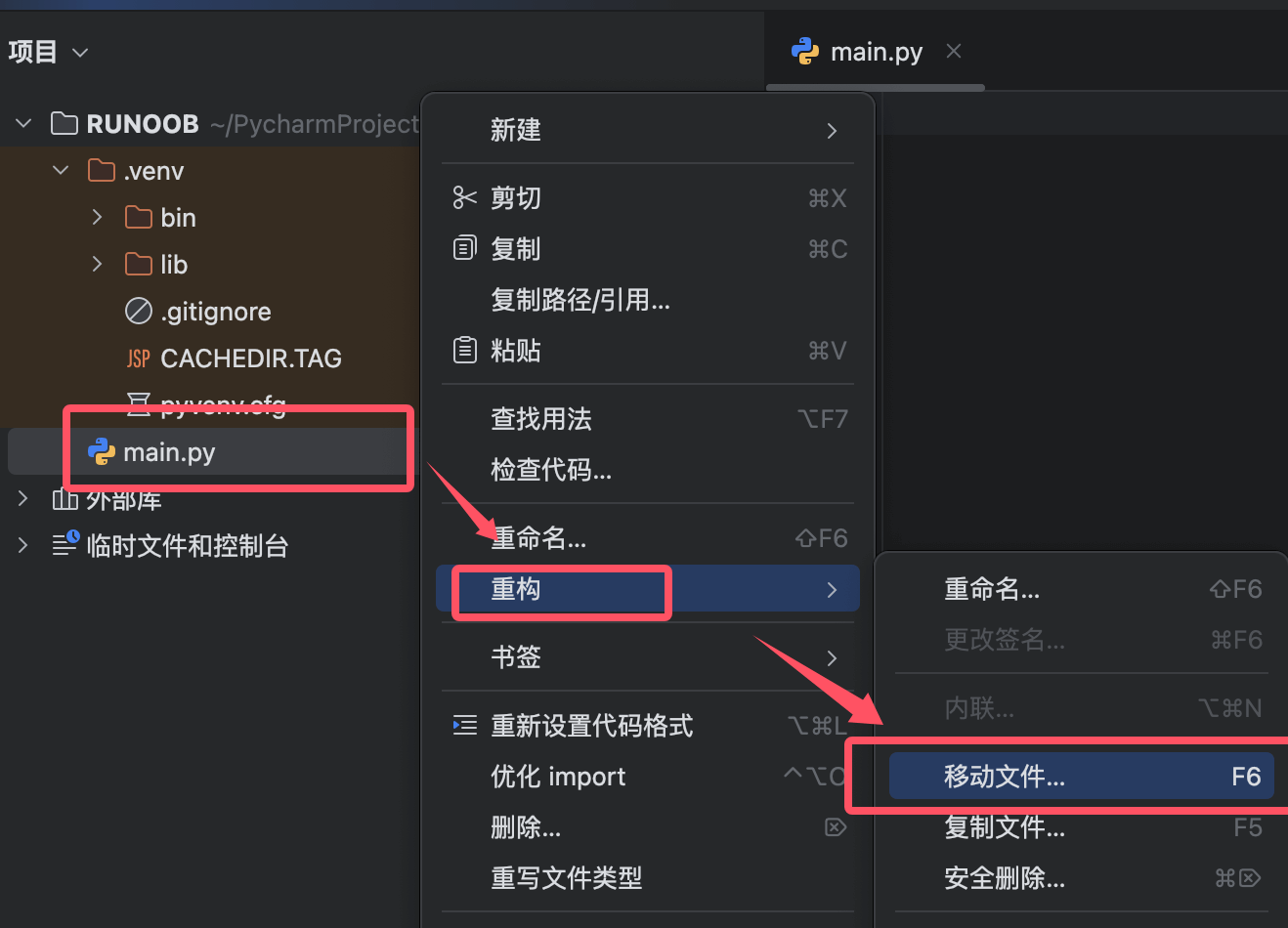
Safe Move (Recommended)
-
Select the file → Right-click →Refactor → Move
-
Or shortcut:
F6 -
Select the target directory → ClickRefactor
Effect:
-
Automatically fixes all import paths
-
For example: moving
utils/helper.pytocore/under, allfrom utils.helper import xxxwill be automatically updated tofrom core.helper import xxx
Drag-and-Drop Move (Not Recommended)
-
Directly dragging files may cause import path errors
1.4 Deleting Files/Folders
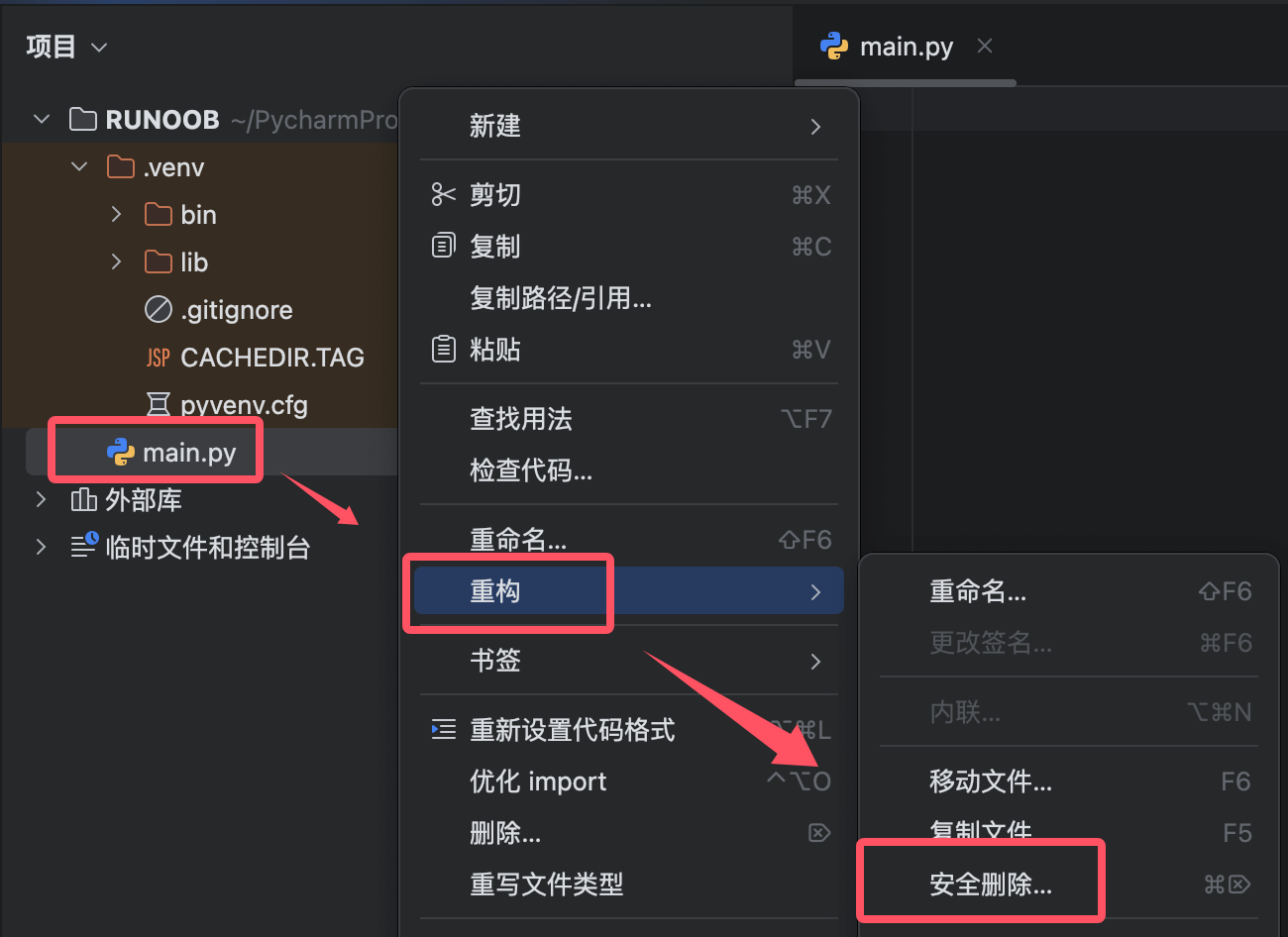
Safe Delete
-
Select the file → Right-click →Refactor → Safe Delete
-
Or shortcut:
Alt + Delete -
PyCharm will check whether any code references the file → Confirm deletion
Normal Delete
-
Right-click →Delete(does not check references)
2. File Content Operations
2.1 Quick Navigation
| Operation | Shortcut (Windows/Linux) | Shortcut (Mac) |
|---|---|---|
| Jump to File | Ctrl + Shift + N |
⌘ + Shift + O |
| Jump to Class | Ctrl + N |
⌘ + O |
| Jump to Symbol (Method/Variable) | Ctrl + Alt + Shift + N |
⌘ + Option + O |
| Recently Opened Files | Ctrl + E |
⌘ + E |
2.2 Code Search and Replace
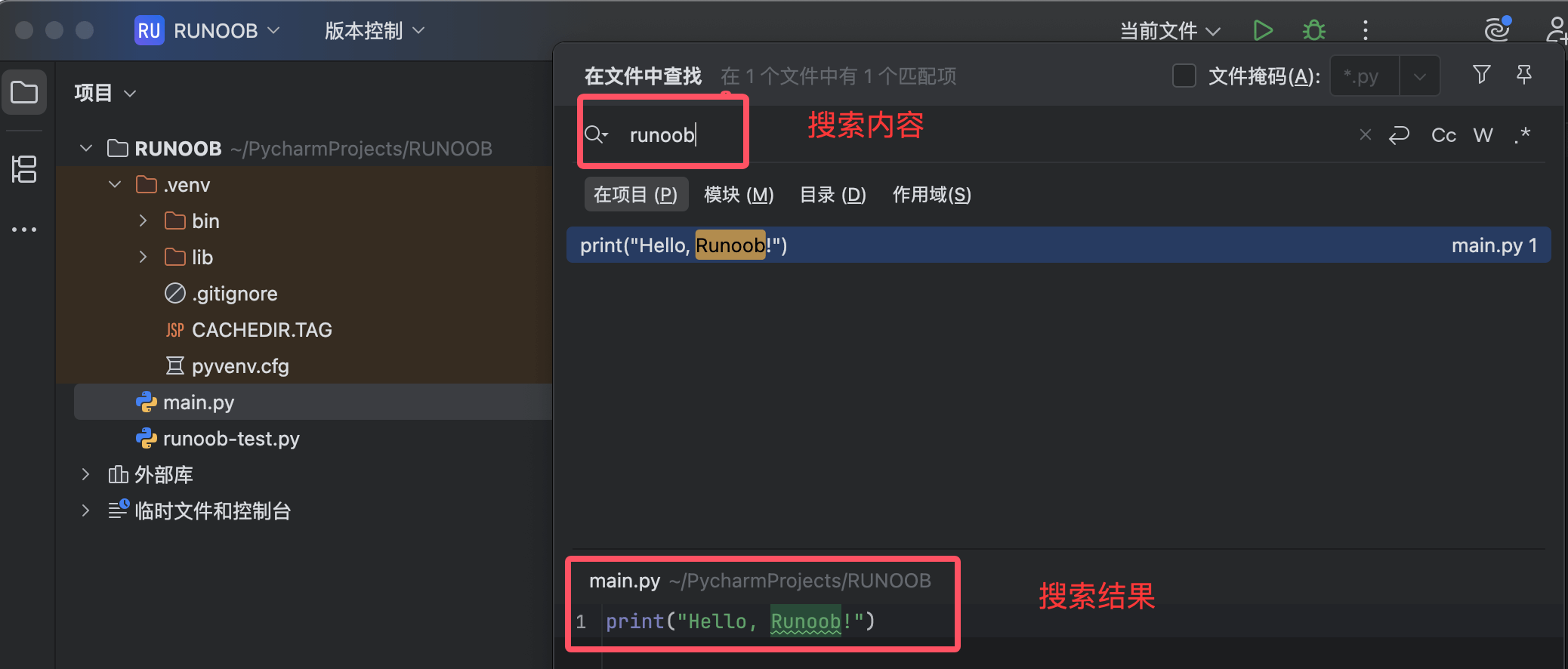
Search within Project
-
Global Search:
Ctrl + Shift + F(Mac:⌘ + Shift + F)-
Supports regular expressions, case matching, and file type filtering
-
-
Search in Current File:
Ctrl + F(Mac:⌘ + F)
Replace Operations
-
Global Replace:
Ctrl + Shift + R(Mac:⌘ + Shift + R) -
Replace in Current File:
Ctrl + R(Mac:⌘ + R)
2.3 File Comparison
-
Select two files → Right-click →Compare Files
-
or useversion control toolsto view file modification differences
3. Advanced File Management Techniques
3.1 File Templates
Customize the default content when creating new files:
-
Settings → Editor → File and Code Templates
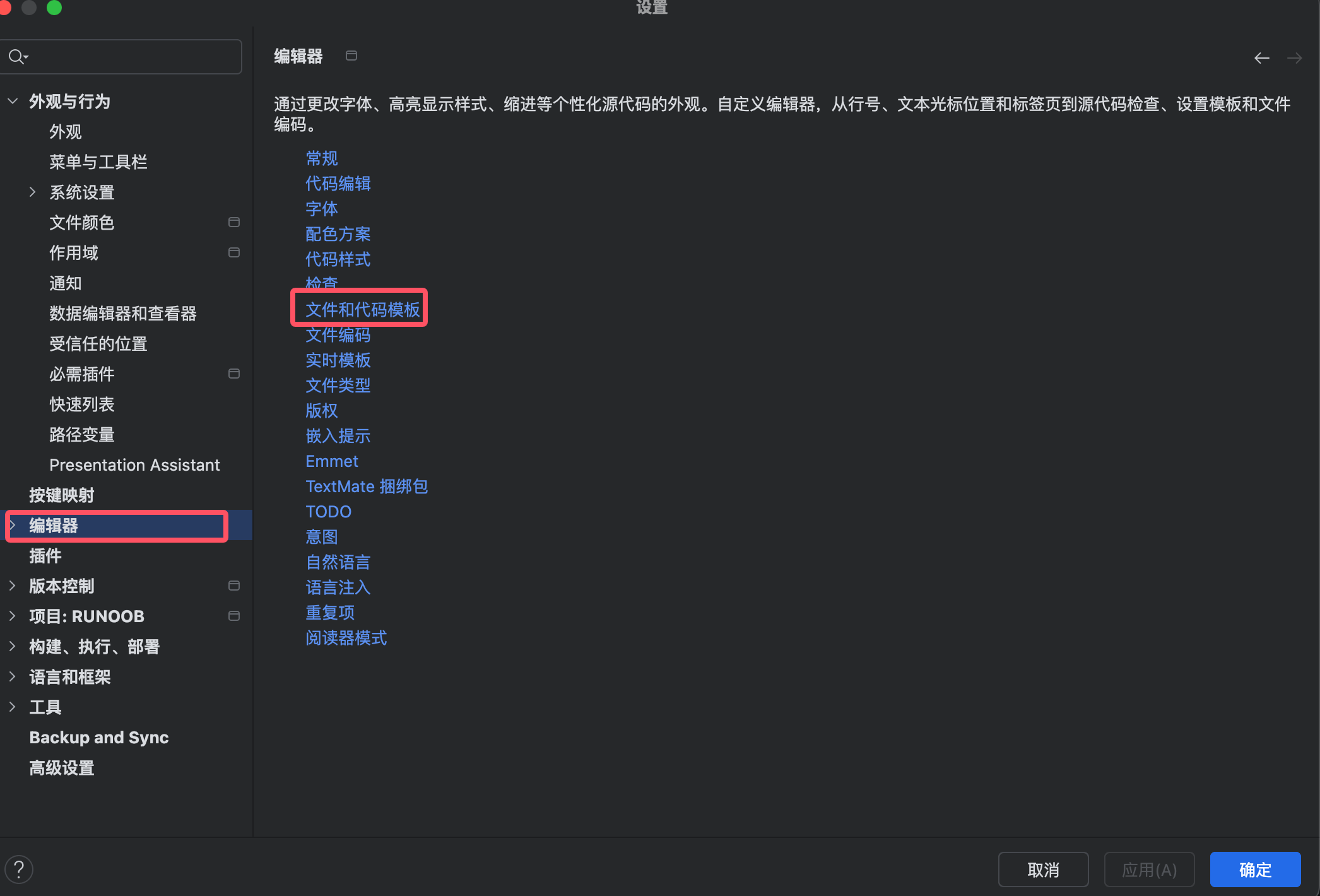
-
SelectPython Script, modify the template:
#!/usr/bin/env python
# -*- coding: utf-8 -*-

"""
@Author: ${USER}
@Date: ${DATE}
@Description:
"""

def main():
    pass

if __name__ == '__main__':
    main()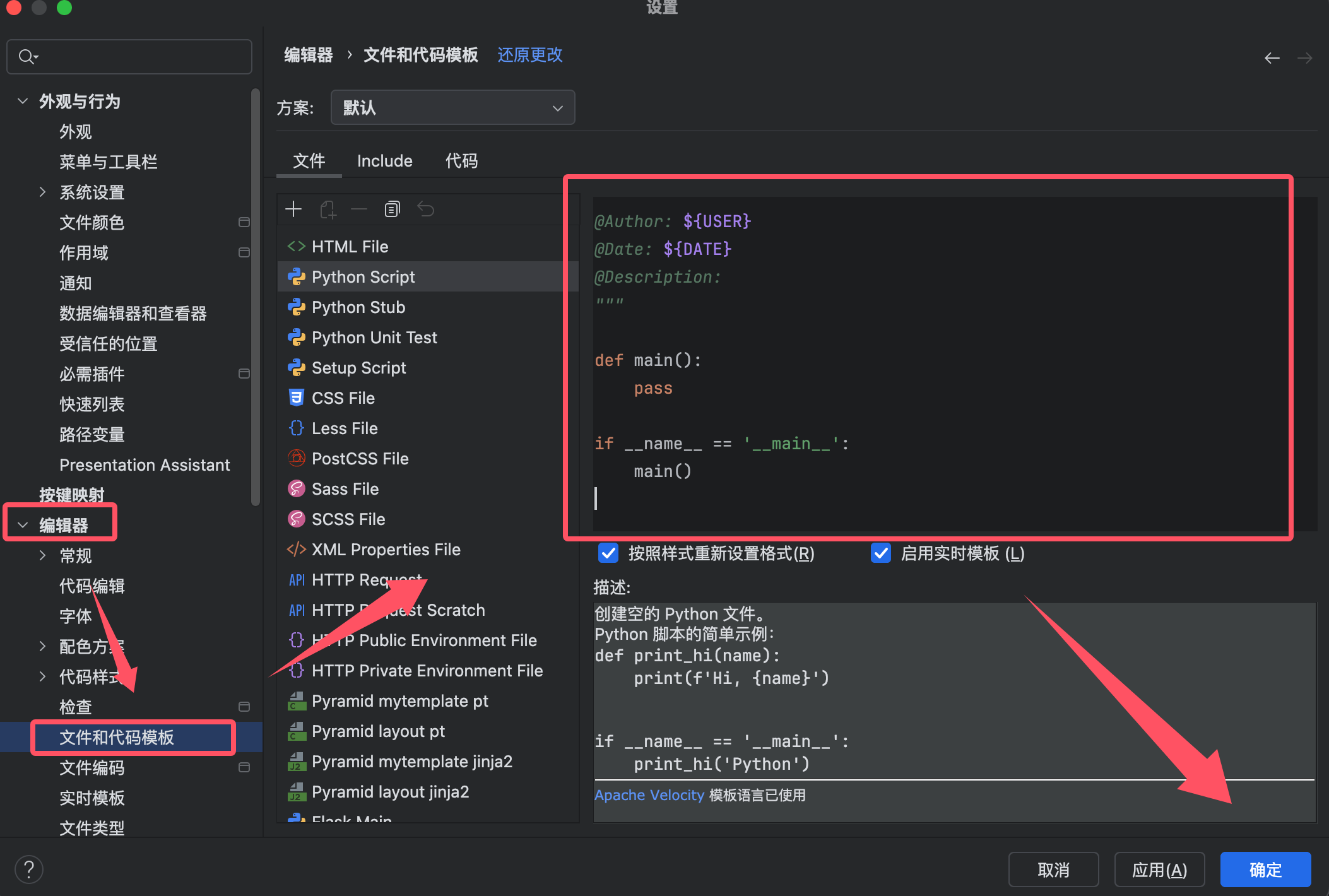
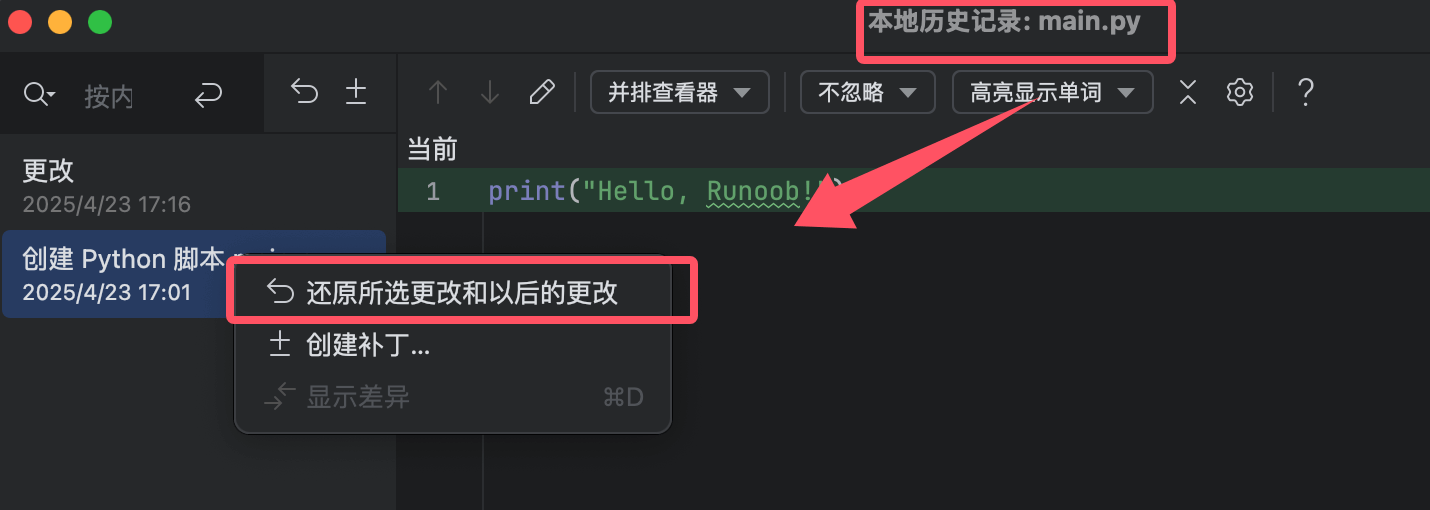
3.2 Local History
PyCharm automatically records file modification history (no Git required):
-
Right-click the file →Local History → Show History
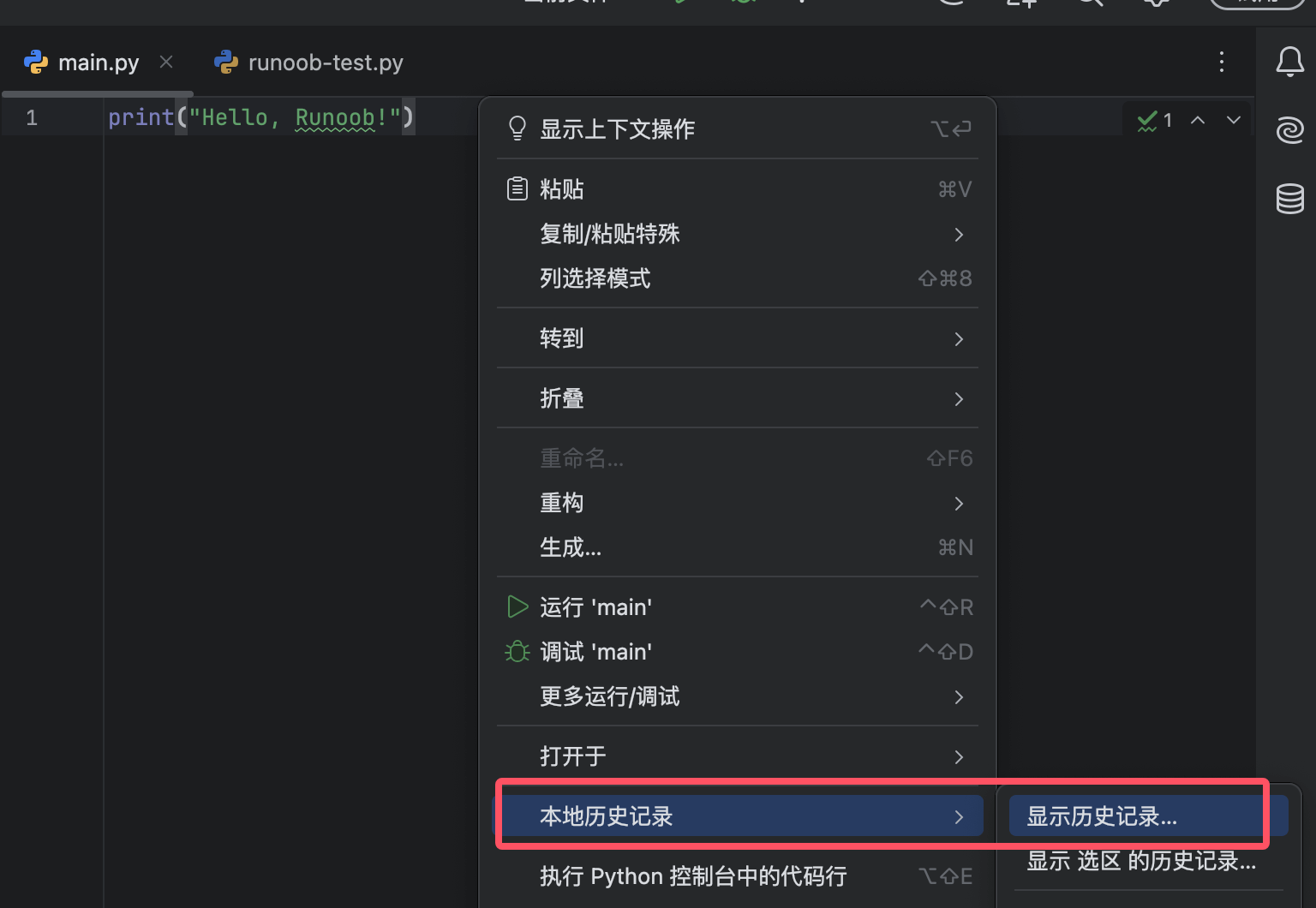
-
You can restore versions from any point in time
3.3 File Marking
-
Bookmarks:
-
Add bookmark:
F11(line-level)/Ctrl + F11(with mnemonic) -
View bookmarks:
Shift + F11
-
-
TODO Comments:
will beTODO tool windowcentrally displayed in
4. Frequently Asked Questions
Q1: How do I hide specific files/folders?
-
Right-click the file →Mark Directory as → Excluded
-
or edit
.idea/.gitignore
Q2: How do I batch rename files?
-
Select multiple files →
Shift + F6 -
Use pattern replacement (e.g.,
test_*.py → spec_*.py)
Q3: How do I restore accidentally deleted files?
-
Right-click the project root directory →Local History → Show History
-
Find the version before deletion → Restore
5. Quick Reference Table
| Operation | Shortcut (Win/Linux) | Shortcut (Mac) |
|---|---|---|
| New File | Alt + Insert |
⌘N |
| Rename | Shift + F6 |
⇧F6 |
| Move File | F6 |
F6 |
| Safe Delete | Alt + Delete |
⌘Delete |
| Global Search | Ctrl + Shift + F |
⌘ + Shift + F |
| Jump to File | Ctrl + Shift + N |
⌘ + Shift + O |