PyCharm Create and Manage Projects
In PyCharm, a project is the most basic unit of work, containing source code, configuration, dependencies, and environment settings.
This section details how to create and manage Python projects in PyCharm.
1. Creating a New Project
1.1 Creating from the Welcome Screen
PyCharm actually provides many shortcuts at startup:
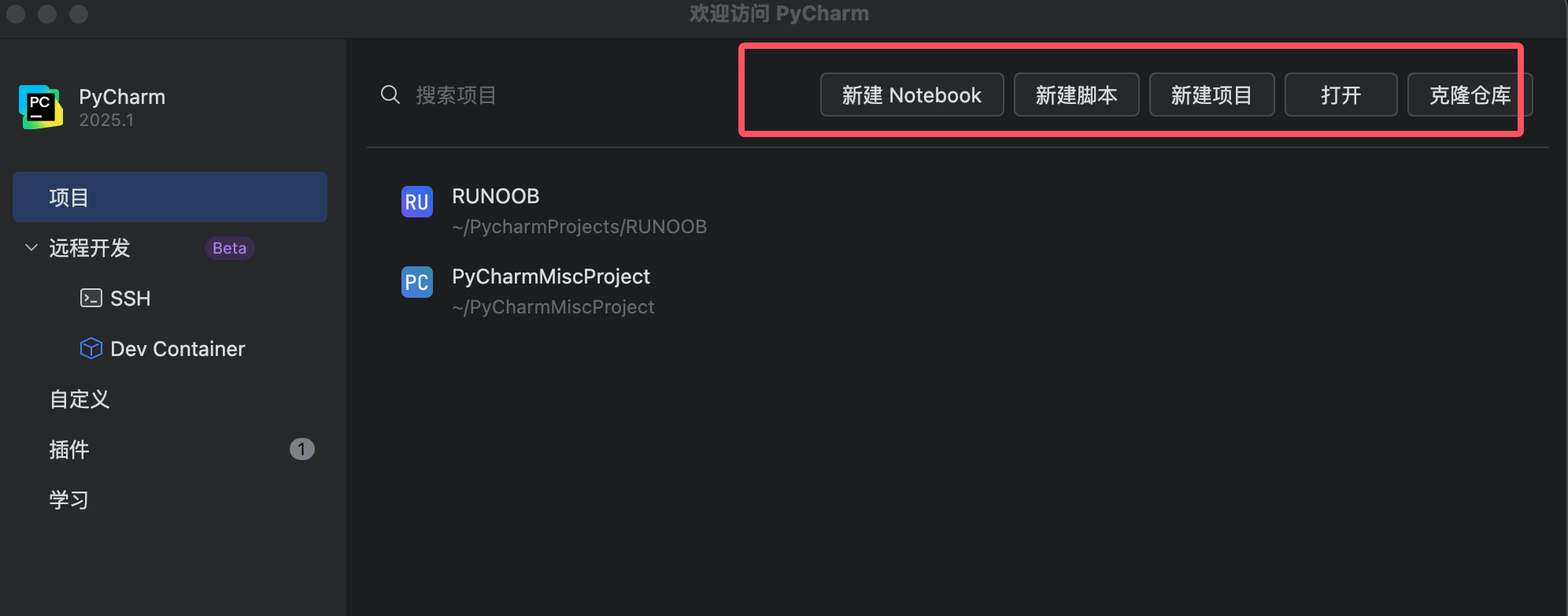
The screen on first launch is as follows:
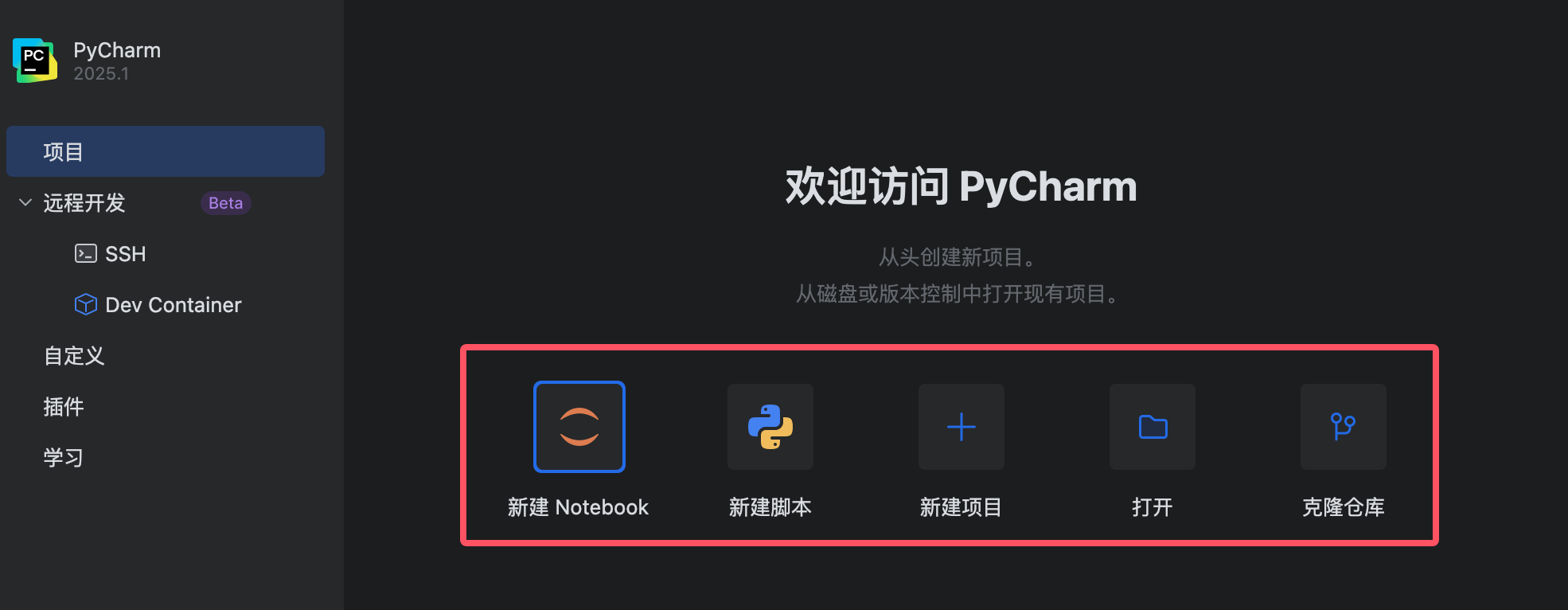
Click "New Project".
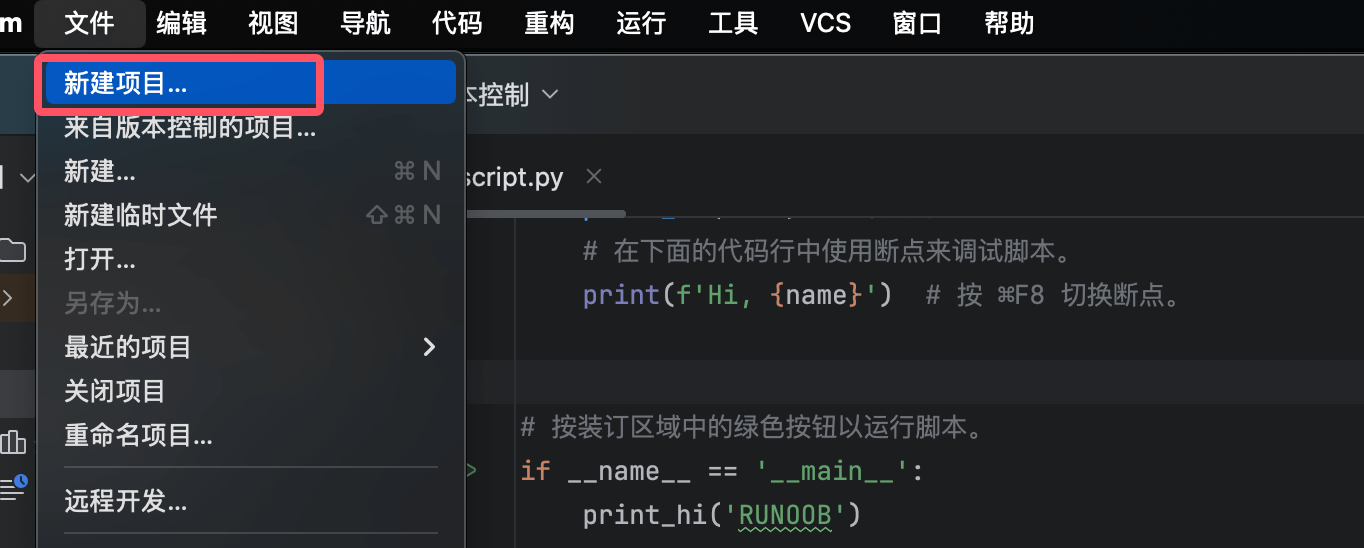
You can also click "New Project" under "File" in the menu bar.
Configure project settings:
Location:Select and set the project storage path and name.
Interpreter:Project venv (recommended).
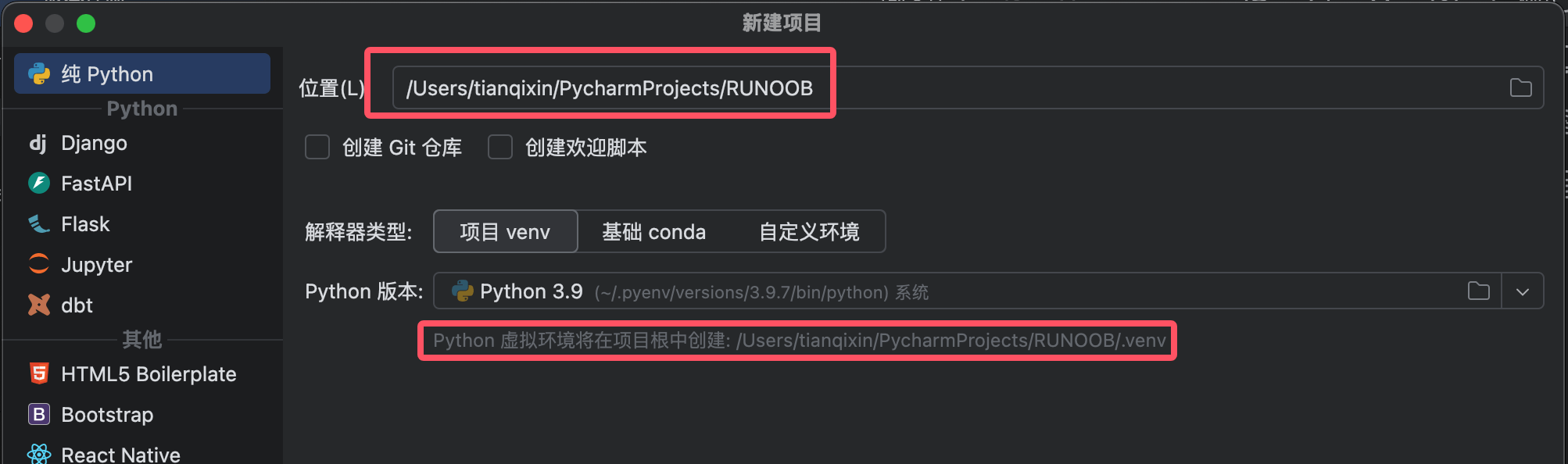
venv is a module in Python used to create and manage virtual environments. A virtual environment is an isolated space that allows you to install and manage Python packages without affecting other Python environments on your system.
venv is a standard library in Python 3.3 and above, so no additional tools need to be installed to use it.
- Project venv: The virtual environment is stored by default in the venv folder within the project directory.
- Base Conda (if Anaconda/Miniconda is installed)
- Custom environment
Project template:
- Select the project type, such as "Pure Python" or "Flask" (for web development).
- A main.py file is created by default, containing a simple Python code template (e.g., print("Hello, World!")).
1.2 Creating a Project from Existing Code
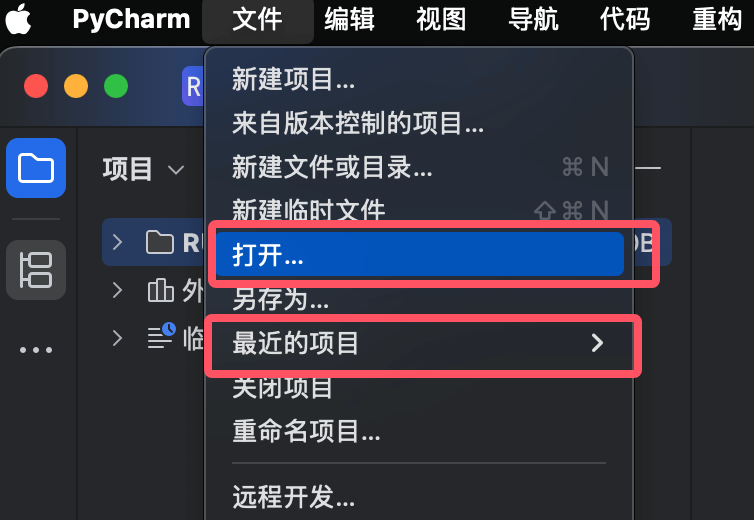
If you already have Python code, you can import it in the following ways:
Welcome screen → "Open", select the project directory, orFile → Open, select the project folder.
PyCharm will automatically detect the Python environment; if it is not found, you can manually configure the interpreter.
2. Project Management
2.1 Project Structure
PyCharm's default project structure is as follows:
my_project/
├── .idea/          # PyCharm 配置文件(如运行配置、版本控制设置)
├── venv/           # 虚拟环境(如果使用 Virtualenv)
├── main.py         # 示例代码(如果勾选了 "创建 main.py")
└── 其他文件/目录     # 用户创建的代码文件
⚠️ Note: .idea/ and venv/ usually do not need to be manually modified; PyCharm manages them automatically.
2.2 Configuring the Python Interpreter
If the project needs to change its Python environment (e.g., from Python 3.8 to 3.10):
File → Settings → Project → Python Interpreter (Windows/Linux: Ctrl+Alt+S, macOS: ⌘,).
Click ⚙️ → Add Interpreter, then select:
Virtualenv(recommended)
System Python(use global Python directly)
Conda environment(if using Anaconda)
Select the Python version and click "OK".
2.3 Run/Debug Configurations
PyCharm allows you to set different run modes for different scripts:
Top toolbar → Run Configurations → "Edit Configurations"。
Click+, selectPython, configure:
Script path: select the file to run
.pyfile.Python interpreter: make sure to select the correct environment.
Parameters: you can enter command-line arguments (such as
--port 8000)。
Click"Apply", then you can click▶️ Runor🐞 Debug。
3. Common Project Operations
3.1 Opening Multiple Projects
PyCharm defaults to single-project mode (only one project can be open at a time), but you can manage multiple projects in the following ways:
File → New → Project, create a new project (PyCharm will prompt whether to open in a new window).
orFile → Open, select another project directory.
3.2 Closing/Reopening Projects
Close the current project:
文件 → 关闭项目(File → Close Project), return to the welcome screen.Reopen a recent project: the welcome screen will display"Recent Projects", click it to reopen.
3.3 Project Dependency Management (requirements.txt / pyproject.toml)
PyCharm can automatically detectrequirements.txtorpyproject.tomland install dependencies:
Right-click requirements.txt → "Sync Python Requirements".
Or run in the terminal (Terminal):
pip install -r requirements.txt
If you want to export the current environment's dependencies:
pip freeze > requirements.txt
4. Frequently Asked Questions
Q1: PyCharm cannot recognize Python files?
Check the file extension: make sure it is a
.pyfile.Check the interpreter configuration:
文件 → 设置 → Python 解释器, make sure it is set correctly.
Q2: How to delete a project?
PyCharm does not delete project files automatically; you need to do it manually:
Close the project(
File → Close Project)。Delete the project folder in a file manager (such as Windows Explorer)。
Q3: How to back up/share a project?
Recommended approach: use Git (PyCharm has built-in Git support).
Manual approach: copy the project folder (but it is recommended to exclude
.idea/andvenv/)。