PyCharm Code Refactoring
Code refactoring is the process of optimizing the internal structure of code without changing its external behavior.
The purpose of refactoring is to improve code readability, maintainability, and extensibility, rather than adding new features or fixing bugs.
PyCharm provides Python developers with a powerful and safe set of automated refactoring tools, making refactoring efficient and less error-prone.
Quick Overview of Common Refactoring Operations
The following is a comparison table of the most commonly used refactoring operations and their shortcut keys in PyCharm.
| Refactoring Operation | Shortcut | Description |
|---|---|---|
| Rename | Shift + F6 | Rename symbols such as variables, functions, classes, and files, automatically updating all references |
| Extract Variable | Ctrl + Alt + V | Extract the selected expression into a variable |
| Extract Method | Ctrl + Alt + M | Extract the selected code block into a separate method or function |
| Extract Constant | Ctrl + Alt + C | Extract the selected literal into a constant |
| Inline | Ctrl + Alt + N | Inline expand variables, methods, or constants to eliminate unnecessary intermediate layers |
| Change Signature | Ctrl + F6 | Modify the signature of a function or method, including parameter names, types, default values, and order |
The above shortcuts are based on the default key mappings for Windows/Linux. macOS users should replace Ctrl with Command and Alt with Option.
Hands-on: Renaming Variables
Renaming is the most frequent refactoring operation. Below is a complete Rename workflow demonstrated with a specific example.
Suppose we have a piece of code that calculates the velocity of an object, where the variable namespeedis not precise enough and needs to be changed tovelocity。
Original Code Before Refactoring
Example
def calculate_motion(distance, time):
speed = distance / time # 'speed' leans more toward rate, while 'velocity' emphasizes vector velocity
return speed
result = calculate_motion(100, 10)
print(result)
Steps
- Place the cursor on the variable namespeed.
- Press the shortcut keyShift + F6, PyCharm will highlight all references to the variable.
- Directly type the new namevelocity, PyCharm will preview all locations to be modified in real time.
- PressEnterConfirm, and all references are updated synchronously.
Alternatively, you can double-click to select the variable, then right-click, choose Refactor in the pop-up menu, and then Rename:

Rename in the pop-up window:

Refactored Code
Example
def calculate_motion(distance, time):
velocity = distance / time # The variable name has been renamed from 'speed' to 'velocity'
return velocity
result = calculate_motion(100, 10)
print(result)
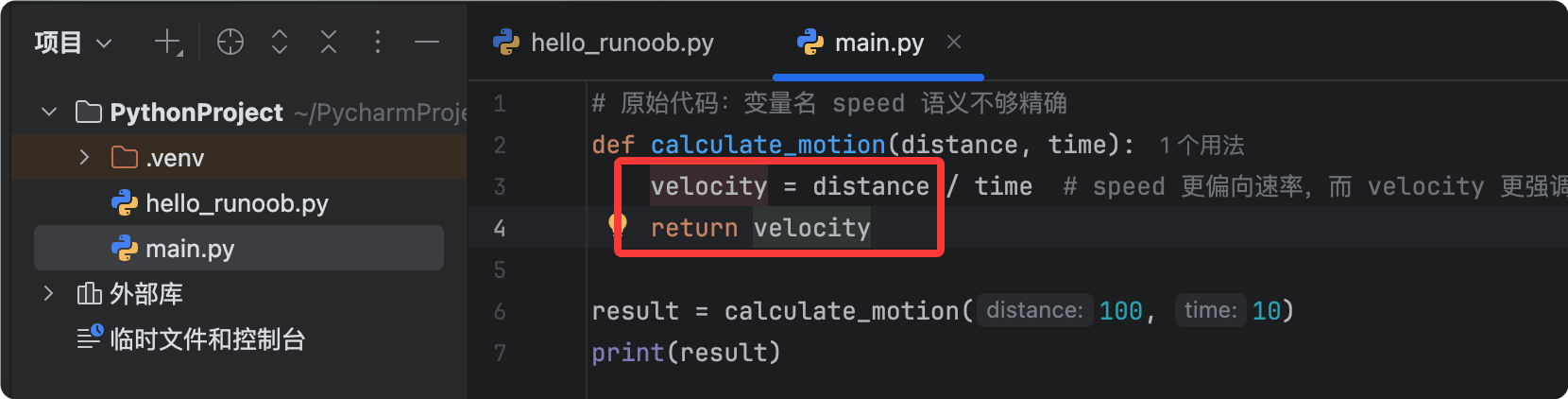
PyCharm's Rename refactoring searches for references across the entire project, including references in comments and strings, ensuring nothing is missed.
One-click to Bring Up the Refactoring Menu
If you can't remember the shortcuts for various refactoring operations, you can use the universal shortcutCtrl + Alt + Shift + T(For macOS:Command + Option + Shift + T) to bring up the refactoring menu.
This menu lists all refactoring operations available at the current cursor position; you just need to select from the menu.
This approach is suitable for infrequently used refactoring operations, or as a transitional solution for beginners.
Preview Feature Before Refactoring
Before executing a refactoring, PyCharm provides aPreviewpreview feature that allows you to fully understand the impact scope of the refactoring before confirming.
When you press the refactoring shortcut, PyCharm will pop up a dialog box that contains aPreviewbutton.
Click the Preview button, and PyCharm will open a comparison window at the bottom, with the original code on the left and the modified code on the right.
You can review each change one by one, decide whether to keep or skip it, and after confirming everything is correct, clickDo Refactorto execute the refactoring.
It is strongly recommended to use the Preview feature when refactoring large projects or core modules, to avoid bugs caused by unintended changes.
Refactoring Considerations
Although PyCharm's refactoring tools are very reliable, you still need to pay attention to the following points when refactoring.
- Before refactoring, make sure the code has been committed to a version control system so that you can roll back if something unexpected happens.
- After refactoring, run the existing unit tests immediately to ensure that the behavior has not changed.
- Perform only one type of refactoring at a time, to avoid confusion caused by modifying too many things at once.
- If the refactoring involves a public API, make sure all callers are included in the refactoring scope.
Master these refactoring techniques and your code will always stay clean, clear, and easy to maintain.
Other Extensions