MySQL Installation
MySQL download addresses for all platforms are:MySQL Downloads. Pick the one you needMySQL Community Serverversion and corresponding platform.
Note:During installation, we need to enable administrator privileges to install, otherwise installation may fail due to insufficient permissions.
Install MySQL on Linux/UNIX
On the Linux platform, it is recommended to use RPM packages to install MySQL. MySQL AB provides the following RPM package download addresses:
- MySQL- MySQL server. You need this option unless you only want to connect to a MySQL server running on another machine.
- MySQL-client- MySQL client programs, used to connect to and operate the MySQL server.
- MySQL-devel- Libraries and include files. If you want to compile other MySQL clients, such as Perl modules, you need to install this RPM package.
- MySQL-shared- This package contains shared libraries (libmysqlclient.so*) that need to be dynamically loaded by certain languages and applications to use MySQL.
- MySQL-bench- Benchmark and performance testing tools for the MySQL database server.
Before installation, we can check whether the system already has MySQL installed:
rpm -qa | grep mysql
If your system has it installed, you can choose to uninstall it:
rpm -e mysql  // 普通删除模式
rpm -e --nodeps mysql  // 强力删除模式,如果使用上面命令删除时,提示有依赖的其它文件,则用该命令可以对其进行强力删除
Install MySQL:
Next, we use the yum command to install MySQL on CentOS 7. Note that in CentOS 7, the MySQL database has been removed from the default package list, so before installation we need to go to the official website to download the Yum resource package. The download address is:https://dev.mysql.com/downloads/repo/yum/
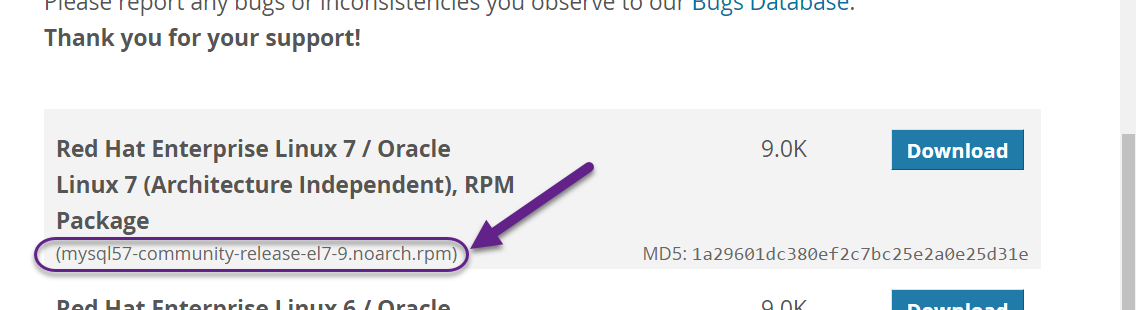
wget http://repo.mysql.com/mysql-community-release-el7-5.noarch.rpm
rpm -ivh mysql-community-release-el7-5.noarch.rpm
yum update
yum install mysql-server
Permission settings:
chown -R mysql:mysql /var/lib/mysql/
Initialize MySQL:
mysqld --initialize
Start MySQL:
systemctl start mysqld
Check MySQL running status:
systemctl status mysqld
Note:If we are starting the MySQL service for the first time, the MySQL server will first perform initial configuration.
In addition, you can also use MariaDB instead. MariaDB is a branch of MySQL, mainly maintained by the open-source community and licensed under GPL. One reason for developing this branch is that after Oracle acquired MySQL, there was a potential risk of closing MySQL's source code, so the community adopted a fork to avoid this risk.
MariaDB aims to be fully compatible with MySQL, including APIs and command line, making it an easy replacement for MySQL.
yum install mariadb-server mariadbThe relevant commands for the MariaDB database are:
systemctl start mariadb  #启动MariaDB
systemctl stop mariadb  #停止MariaDB
systemctl restart mariadb  #重启MariaDB
systemctl enable mariadb  #设置开机启动
Verify MySQL Installation
After successfully installing MySQL, some base tables will be initialized. After the server starts, you can perform simple tests to verify whether MySQL is working properly.
Use the mysqladmin tool to get server status:
Use the mysqladmin command to check the server version. On Linux, the binary is located in /usr/bin; on Windows, it's in C:\mysql\bin.
[root@host]# mysqladmin --version
On Linux, this command will output the following result, which is based on your system information:
mysqladmin Ver 8.23 Distrib 5.0.9-0, for redhat-linux-gnu on i386
If the above command produces no output after execution, it means your MySQL was not installed successfully.
Use MySQL Client to execute simple SQL commands
You can use the mysql command in MySQL Client to connect to the MySQL server. By default, the MySQL server login password is empty, so this example does not require entering a password.
The command is as follows:
[root@host]# mysql
After executing the above command, the mysql> prompt will be displayed, indicating that you have successfully connected to the MySQL server. You can execute SQL commands at the mysql> prompt:
mysql> SHOW DATABASES;
+----------+
| Database |
+----------+
| mysql    |
| test     |
+----------+
2 rows in set (0.13 sec)
Things to do after MySQL installation
After MySQL is installed successfully, the default root user password is empty. You can use the following command to create a password for the root user:
[root@host]# mysqladmin -u root password "new_password";
Now you can connect to the MySQL server with the following command:
[root@host]# mysql -u root -p
Enter password:*******
Note:When entering the password, it will not be displayed; just enter it correctly.
Install MySQL on Windows
Installing MySQL on Windows is relatively simple. The latest version can be found atMySQL DownloadsYou can check it in the download page (More detailed installation:Install MySQL on Windows)。
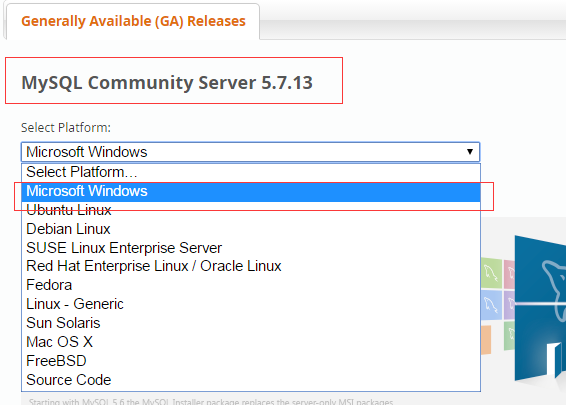
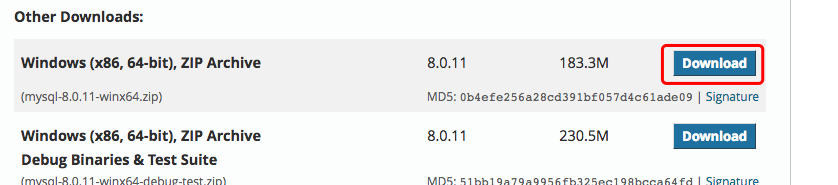
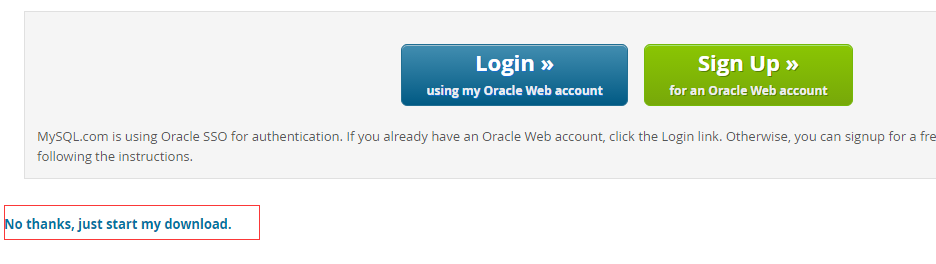
After downloading, we unzip the zip package to a corresponding directory. Here I place the extracted folder inC:\web\mysql-8.0.11underneath.
Next we need to configure the MySQL configuration file.
Open the folder just extractedC:\web\mysql-8.0.11, create amy.iniconfiguration file in this folder. Edit themy.iniand configure the following basic information:
[client]
# 设置mysql客户端默认字符集
default-character-set=utf8

[mysqld]
# 设置3306端口
port=3306
# 设置mysql的安装目录
basedir=C:\\web\\mysql-8.0.11
# 设置 mysql数据库的数据的存放目录,MySQL 8+ 不需要以下配置,系统自己生成即可,否则有可能报错
# datadir=C:\\web\\sqldata
# 允许最大连接数
max_connections=20
# 服务端使用的字符集默认为8比特编码的latin1字符集
character-set-server=utf8
# 创建新表时将使用的默认存储引擎
default-storage-engine=INNODB
Next, let's start the MySQL database:
Open the cmd command line tool as administrator, and switch directories:
cd C:\web\mysql-8.0.11\bin
Initialize the database:
mysqld --initialize --console
After execution completes, the initial default password for the root user will be output, for example:
...
2018-04-20T02:35:05.464644Z 5 [Note] [MY-010454] [Server] A temporary password is generated for root@localhost: APWCY5ws&hjQ
...
APWCY5ws&hjQis the initial password. You will need it for subsequent logins. You can also change the password after logging in.
Enter the following installation command:
mysqld install
To start, just enter the following command:
net start mysql
Note: In 5.7, you need to initialize the data directory:
cd C:\web\mysql-8.0.11\bin
mysqld --initialize-insecure
After initialization, run net start mysql to start MySQL.
Login to MySQL
When the MySQL service is running, we can log in to the MySQL database using MySQL's built-in client tool. First open the command prompt and enter the command in the following format:
mysql -h 主机名 -u 用户名 -p
Parameter description:
- -h: Specifies the MySQL host name the client wants to log in to. When logging in to the local machine (localhost or 127.0.0.1), this parameter can be omitted;
- -u: The username to log in with;
- -p: Tells the server that a password will be used to log in. If the username's password is empty, this option can be ignored.
If we want to log in to the local MySQL database, we only need to enter the following command:
mysql -u root -p
Press Enter to confirm. If installed correctly and MySQL is running, you will get the following response:
Enter password:
If a password exists, enter it to log in; if not, press Enter directly to log in. After successful login, you will see the message Welcome to the MySQL monitor...
Then the command prompt will always use amysql>with a blinking cursor waiting for command input. Enterexitorquitto log out.
Other extensions