Maven Eclipse
Eclipse provides a very good pluginm2eclipse , this plugin can integrate Maven and Eclipse together.
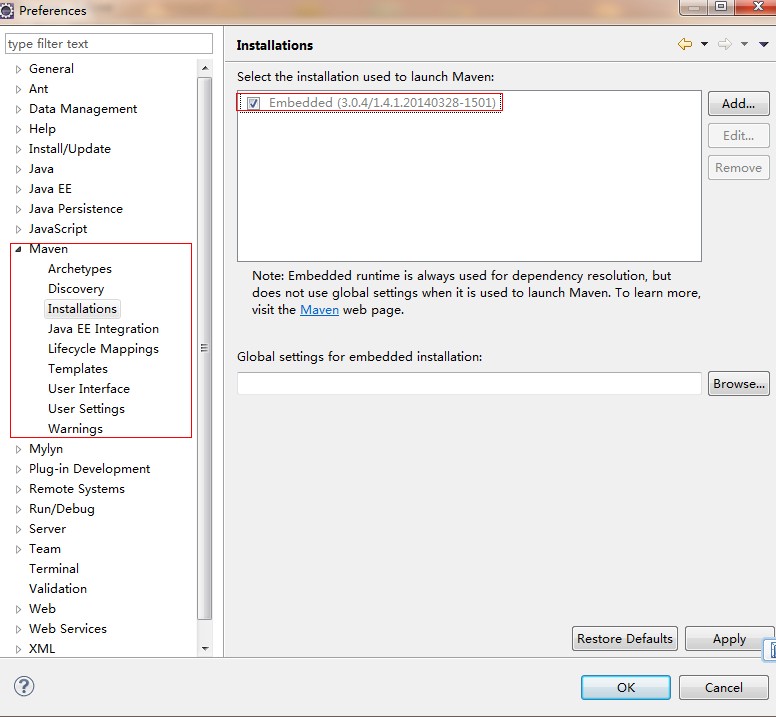
In the latest Eclipse, Maven is built in. Open Windows->Preferences, and the following screen will appear:
The following lists some features of m2eclipse:
- Can run Maven target files in the Eclipse environment.
- Can use its built-in console to directly view Maven command output in Eclipse.
- Can update Maven dependencies under the IDE.
- Can use Eclipse to carry out the build of Maven projects.
- Eclipse automatically manages dependencies based on Maven's pom.xml.
- It resolves dependencies between Maven and the Eclipse workspace without needing to install to the local Maven repository (dependent projects need to be in the same workspace).
- It can automatically download required dependencies and source code from remote Maven repositories.
- It provides wizards for creating new Maven projects, pom.xml, and enabling Maven support on existing projects.
- It provides quick search for dependencies in remote Maven repositories.
Import a Maven project in Eclipse
- Open Eclipse
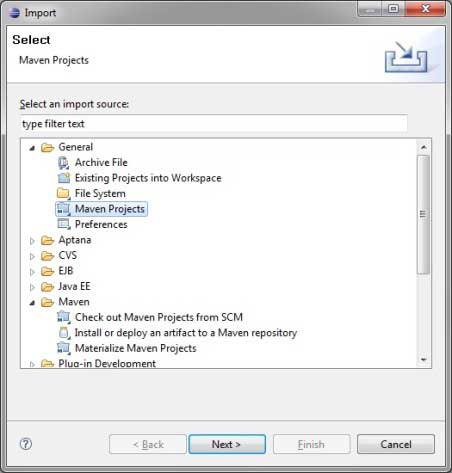
- SelectFile > Import > option
Select the Maven Projects option. Click the Next button.
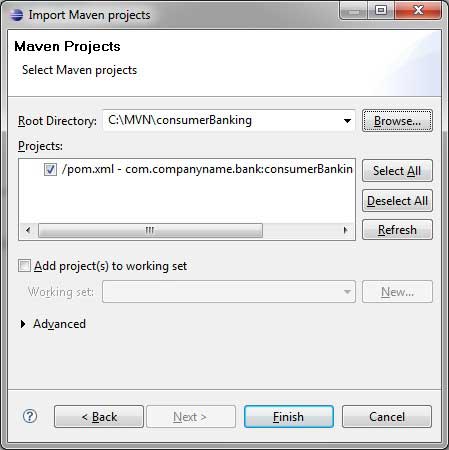
- Select the project path, i.e., the storage path when creating a project with Maven. Suppose we created a project: consumerBanking. ThroughMaven Build Java ProjectSee how to use Maven to create a project.
Click the Finish button.
Now, you can see the Maven project in Eclipse.
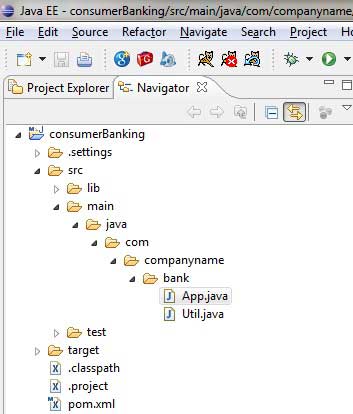
Take a look at the properties of the consumerBanking project. You can find that Eclipse has added all Maven dependencies to its build path.
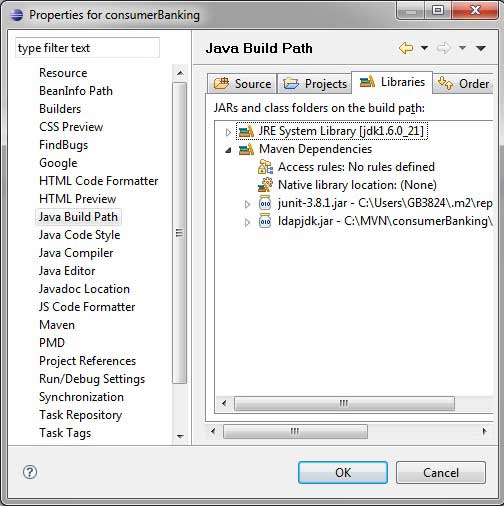
Alright, let's use Eclipse's build functionality to build this Maven project.
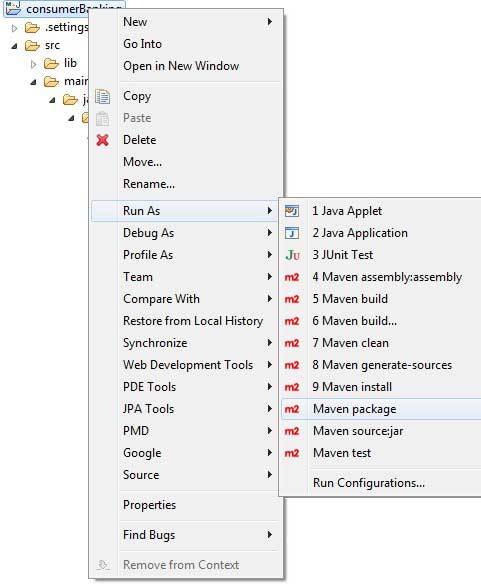
- Right-click to open the context menu of the consumerBanking project
- Select the Run option
- Then select the maven package option
Maven starts building the project, and you can see the output log in the Eclipse console.
[INFO] Scanning for projects...
[INFO] -------------------------------------------------------------------
[INFO] Building consumerBanking
[INFO]
[INFO] Id: com.companyname.bank:consumerBanking:jar:1.0-SNAPSHOT
[INFO] task-segment: [package]
[INFO] -------------------------------------------------------------------
[INFO] [resources:resources]
[INFO] Using default encoding to copy filtered resources.
[INFO] [compiler:compile]
[INFO] Nothing to compile - all classes are up to date
[INFO] [resources:testResources]
[INFO] Using default encoding to copy filtered resources.
[INFO] [compiler:testCompile]
[INFO] Nothing to compile - all classes are up to date
[INFO] [surefire:test]
[INFO] Surefire report directory:
C:\MVN\consumerBanking\target\surefire-reports

-------------------------------------------------------
 T E S T S
-------------------------------------------------------
Running com.companyname.bank.AppTest
Tests run: 1, Failures: 0, Errors: 0, Skipped: 0, Time elapsed: 0.047 sec

Results :

Tests run: 1, Failures: 0, Errors: 0, Skipped: 0

[INFO] [jar:jar]
[INFO] -------------------------------------------------------------------
[INFO] BUILD SUCCESSFUL
[INFO] -------------------------------------------------------------------
[INFO] Total time: 1 second
[INFO] Finished at: Thu Jul 12 18:18:24 IST 2012
[INFO] Final Memory: 2M/15M
[INFO] -------------------------------------------------------------------
Now, right-clickApp.java, selectRun Asoption. SelectAs Java App
You will see the following result:
Hello World!Other Extensions