Maven Project Template
Maven uses archetypes to create custom project structures, forming Maven project templates.
In the previous chapters we learned that Maven uses the following command to quickly create a Java project:
mvn archetype:generate
What is an archetype?
An archetype is a prototype, a Maven plugin, or more precisely a project template. Its task is to create a project structure based on a template. We will use the quickstart archetype plugin to create a simple Java application.
Using Project Templates
Let's open the command console, navigate to the C:\> MVN directory, and execute the following mvn command:
C:\MVN> mvn archetype:generate
Maven will start processing and ask you to select the desired archetype:
[INFO] Scanning for projects...
[INFO] Searching repository for plugin with prefix: 'archetype'.
[INFO] -------------------------------------------------------------------
[INFO] Building Maven Default Project
[INFO]task-segment: [archetype:generate] (aggregator-style)
[INFO] -------------------------------------------------------------------
[INFO] Preparing archetype:generate
...
600: remote -> org.trailsframework:trails-archetype (-)
601: remote -> org.trailsframework:trails-secure-archetype (-)
602: remote -> org.tynamo:tynamo-archetype (-)
603: remote -> org.wicketstuff.scala:wicket-scala-archetype (-)
604: remote -> org.wicketstuff.scala:wicketstuff-scala-archetype
Basic setup for a project that combines Scala and Wicket,
depending on the Wicket-Scala project.
Includes an example Specs test.)
605: remote -> org.wikbook:wikbook.archetype (-)
606: remote -> org.xaloon.archetype:xaloon-archetype-wicket-jpa-glassfish (-)
607: remote -> org.xaloon.archetype:xaloon-archetype-wicket-jpa-spring (-)
608: remote -> org.xwiki.commons:xwiki-commons-component-archetype
(Make it easy to create a maven project for creating XWiki Components.)
609: remote -> org.xwiki.rendering:xwiki-rendering-archetype-macro
(Make it easy to create a maven project for creating XWiki Rendering Macros.)
610: remote -> org.zkoss:zk-archetype-component (The ZK Component archetype)
611: remote -> org.zkoss:zk-archetype-webapp (The ZK wepapp archetype)
612: remote -> ru.circumflex:circumflex-archetype (-)
613: remote -> se.vgregion.javg.maven.archetypes:javg-minimal-archetype (-)
614: remote -> sk.seges.sesam:sesam-annotation-archetype (-)
Choose a number or apply filter
(format: [groupId:]artifactId, case sensitive contains): 203:
PressEnterChoose the default option (203:maven-archetype-quickstart).
Maven will ask for the version of the archetype
Choose org.apache.maven.archetypes:maven-archetype-quickstart version:
1: 1.0-alpha-1
2: 1.0-alpha-2
3: 1.0-alpha-3
4: 1.0-alpha-4
5: 1.0
6: 1.1
Choose a number: 6:
PressEnterChoose the default option (6:maven-archetype-quickstart:1.1)
Maven will ask for project details. Enter the project details as requested. If you want to use default values, simply press Enter. You can also enter your own values.
Define value for property 'groupId': : com.companyname.insurance
Define value for property 'artifactId': : health
Define value for property 'version': 1.0-SNAPSHOT
Define value for property 'package': com.companyname.insurance
Maven will ask you to confirm the project details, pressEnteror press Y
Confirm properties configuration:
groupId: com.companyname.insurance
artifactId: health
version: 1.0-SNAPSHOT
package: com.companyname.insurance
Y:
Now Maven will start creating the project structure, as shown below:
[INFO] -----------------------------------------------------------------------
[INFO] Using following parameters for creating project
from Old (1.x) Archetype: maven-archetype-quickstart:1.1
[INFO] -----------------------------------------------------------------------
[INFO] Parameter: groupId, Value: com.companyname.insurance
[INFO] Parameter: packageName, Value: com.companyname.insurance
[INFO] Parameter: package, Value: com.companyname.insurance
[INFO] Parameter: artifactId, Value: health
[INFO] Parameter: basedir, Value: C:\MVN
[INFO] Parameter: version, Value: 1.0-SNAPSHOT
[INFO] project created from Old (1.x) Archetype in dir: C:\MVN\health
[INFO] -----------------------------------------------------------------------
[INFO] BUILD SUCCESSFUL
[INFO] -----------------------------------------------------------------------
[INFO] Total time: 4 minutes 12 seconds
[INFO] Finished at: Fri Jul 13 11:10:12 IST 2012
[INFO] Final Memory: 20M/90M
[INFO] -----------------------------------------------------------------------
The created project
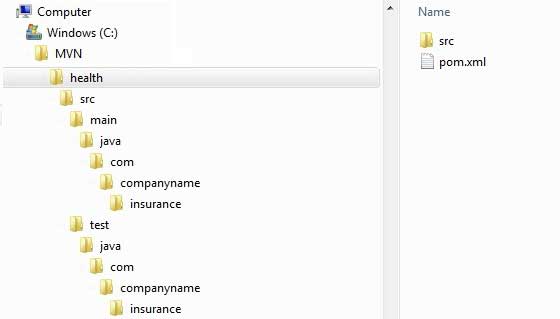
Now go to the C:\ > MVN directory. You will see a Java application project named health, matching the artifactId set when the project was created. Maven will create a project with a standard directory layout, as shown below:
Creating pom.xml
Maven automatically generates a pom.xml file for the project, as shown below:
App.java
Maven will automatically generate a test Java file, App.java.
Path:C:\MVN\consumerBanking\src\main\java\com\companyname\bank
AppTest.java
Maven will automatically generate a Java file, AppTest.java.
The path is:C:\MVN\consumerBanking\src\test\java\com\companyname\bank
That's it. Now you can see the power of Maven. You can use simple Maven commands to create any type of project and start your development.
Other Extensions