Maven Build Profiles
Build profiles are a set of configuration values that can be used to set or override Maven build defaults.
With build profiles, you can customize the build process for different environments, such as Production and Development.
Profiles are specified in the pom.xml file using the activeProfiles or profiles elements, and can be triggered in various ways. Profiles modify the POM at build time and are used to set parameters for different target environments (e.g., database server addresses in Development, Testing, and Production environments).
Types of Build Profiles
There are broadly three types of build profiles:
| Type | Where it is defined |
|---|---|
| Per Project | Defined in the project's POM file pom.xml |
| Per User | Defined in Maven's settings xml file (%USER_HOME%/.m2/settings.xml) |
| Global | Defined in Maven's global settings xml file (%M2_HOME%/conf/settings.xml) |
Profile Activation
Maven build profiles can be activated in multiple ways.
- Explicit activation using command console input.
- Via Maven settings.
- Based on environment variables (user or system variables).
- Operating system settings (e.g., Windows family).
- Existence or absence of a file.
Profile Activation Examples
Assume the project structure is as follows:
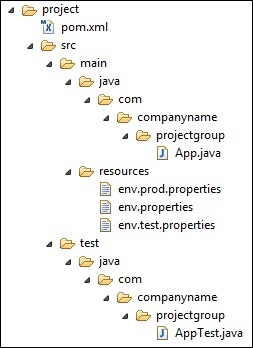
Among them, there are three test files in the src/main/resources folder:
| File name | Description |
|---|---|
| env.properties | The configuration used by default when no profile is specified. |
| env.test.properties | The test configuration used when the test profile is active. |
| env.prod.properties | The production configuration used when the production profile is active. |
Note:These three configuration files do not represent the functionality of build profiles; they are just for the purpose of this test. For example, when I specify the build profile as prod, the project uses the env.prod.properties file.
Note:The example below still uses the AntRun plugin, because this plugin can bind to Maven lifecycle phases and, through Ant tags, output information, copy files, etc., without writing any code. That's all. The rest is unrelated to build profiles.
1. Profile Activation
A profile allows us to define a set of configuration information and then specify its activation conditions. In this way, we can define multiple profiles, each corresponding to different activation conditions and configuration information, thereby achieving the effect of using different configuration information in different environments.
In the following example, we add the maven-antrun-plugin:run goal to the test phase. This allows us to output text information in different profiles. We will use pom.xml to define different profiles and use Maven commands in the command console to activate profiles.
The pom.xml file is as follows:
Note:The build profileuses the<profiles>node.
Explanation:Three<profiles>were created above, where<id>distinguishes different<profiles>AntRun tasks are executed; the AntRun task can be understood as follows: AntRun listens for the test Maven lifecycle phase. When Maven executes test, it triggers the AntRun task, which outputs text and copies files to the specified location. As for which AntRun task to execute, at this pointthe build profileplays the role of specifying what to transfer, for example, by entering a specified<id>。
Execute the command:
mvn test -Ptest
Tip: The first test is the Maven lifecycle phase, and the second test is thebuild profilespecified <id> parameter, which is passed via-Pof course, it can be prod or normal, which you define yourself.<id>。
The result of the execution is as follows:

It can be seen that the AntRun task was successfully triggered. Moreover, it corresponds to thebuild profilewhose <id> is test.
Now test the other two commands, and the results are as follows:
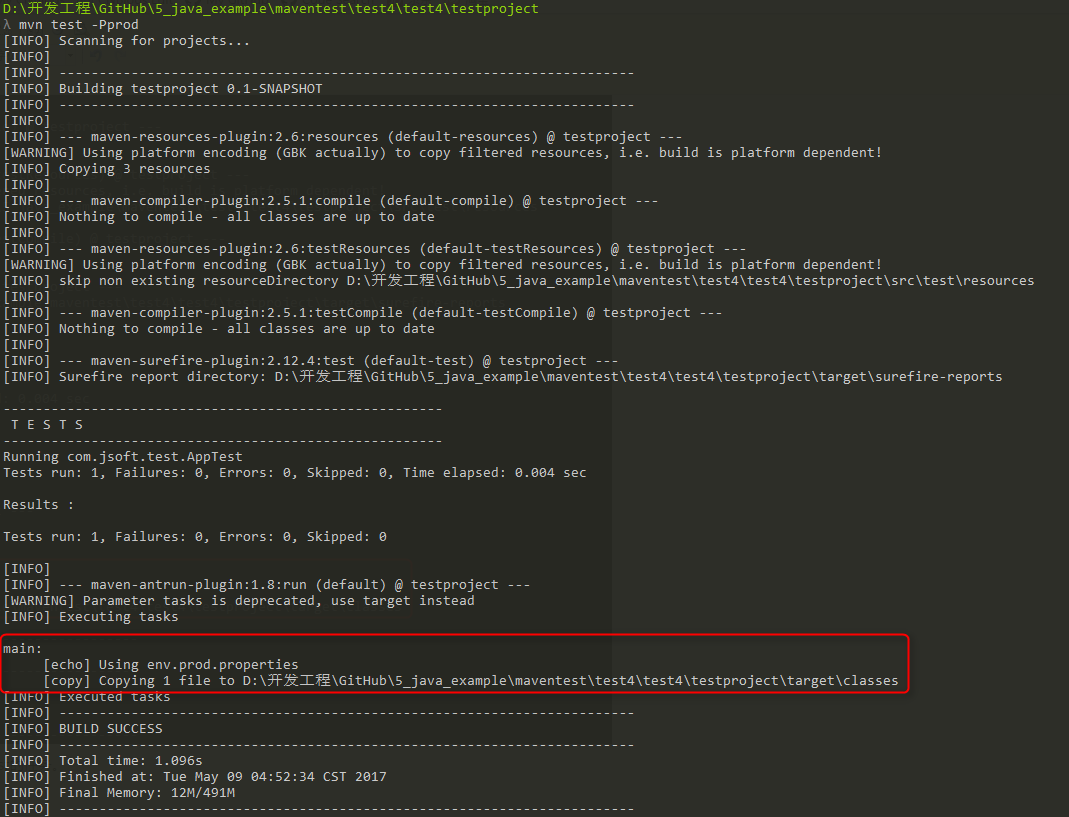
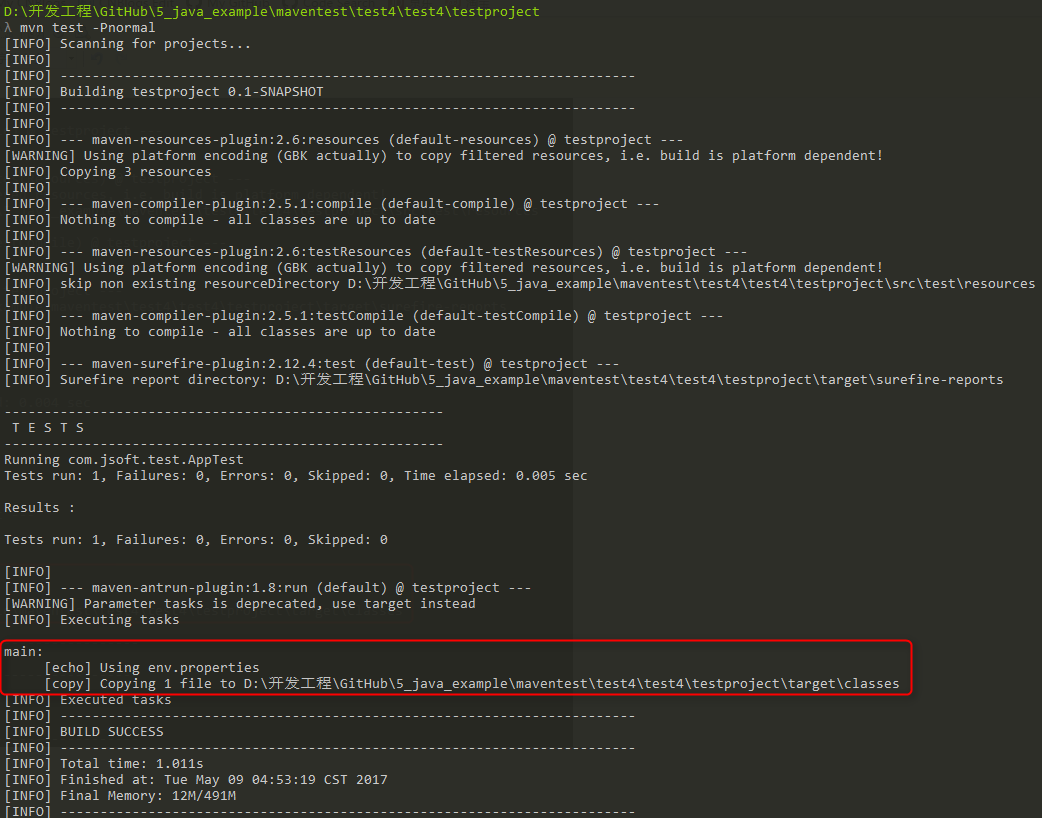
2. Activating Profiles via Maven Settings
Open the%USER_HOME%/.m2directorysettings.xmlfile, where%USER_HOME%represents the user home directory. If the settings.xml file does not exist, directly copy%M2_HOME%/conf/settings.xmlto the .m2 directory, where%M2_HOME%represents Maven's installation directory.
Configure the settings.xml file by adding<activeProfiles>属性:
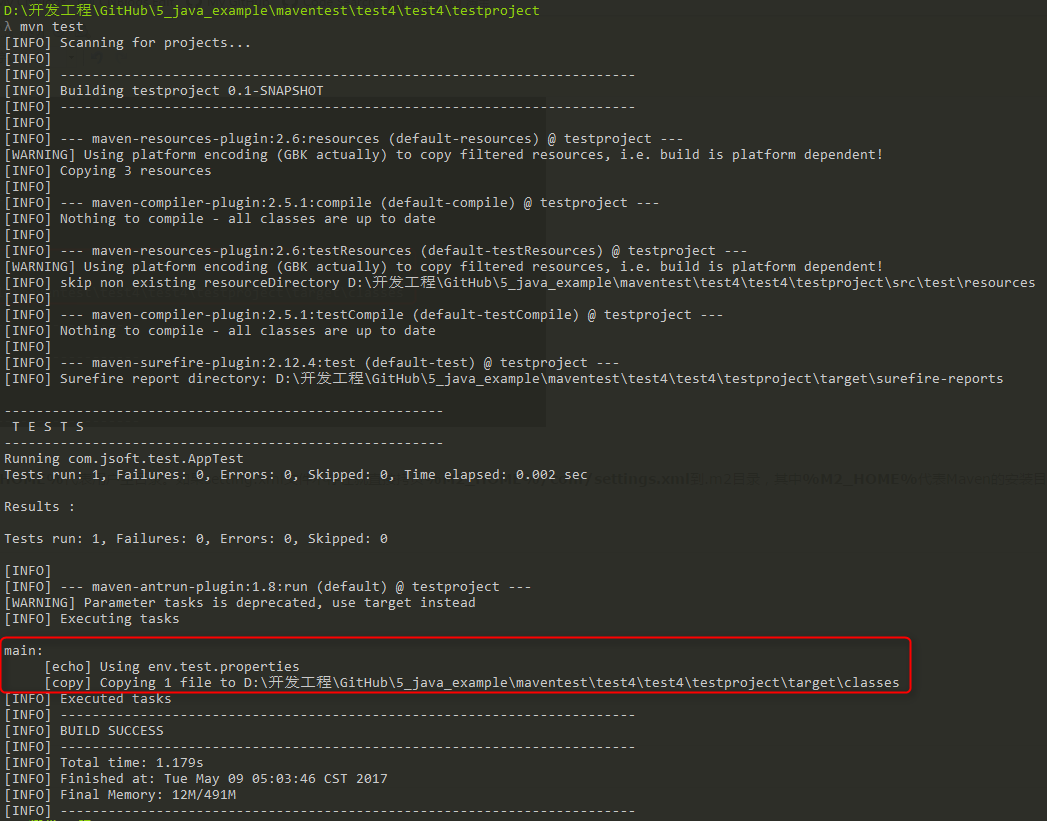
Execute the command:
mvn test
Tip 1:At this point, there is no need to use -Ptest to input the parameter. The <activeprofile> in the settings.xml file above has already specified the test parameter instead.
Tip 2:You can also configure it in the%M2_HOME%/conf/settings.xmlfile, and the effect is the same.
Execution result:
3. Activating Profiles via Environment Variables
First, remove all the settings.xml values from the previous test.
Then, in the pom.xml, inside the <profile> node with <id> test, add the <activation> node:
Execute the command:
mvn test -Denv=test
Tip 1:The above uses -D to pass environment variables, where env corresponds to the <name> value just set, and test corresponds to <value>.
Tip 2:I tested system environment variables on Windows 10, but they did not take effect, so they can only be passed via-Dpassing.
Execution result:

4. Activating Profiles via Operating System
The activation element contains the following operating system information. When the system is Windows XP, the test Profile will be triggered.
Now open the command console, navigate to the directory containing pom.xml, and execute the following mvn command. Do not use the -P option to specify the profile name. Maven will display the result of the activated test Profile.
mvn test
5. Activating Profiles via File Existence or Absence
Now use the activation element to include the following file information. When target/generated-sources/axistools/wsdl2java/com/companyname/group is missing, the test Profile will be triggered.
Now open the command console, navigate to the directory containing pom.xml, and execute the following mvn command. Do not use the -P option to specify the profile name. Maven will display the result of the activated test Profile.
mvn test
Other ExtensionsReference: https://www.cnblogs.com/EasonJim/p/6828743.html