iOS Tab Bar Usage
It is generally used to switch between subtasks, views, or models within the same view.
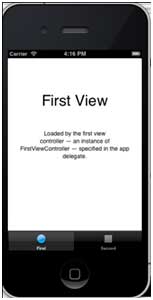
An example of the tab bar is shown below:

Important Properties
- backgroundImage
- items
- selectedItem
Example Code and Steps
1. Create a new project, selectTabbed ApplicationAlternative View Application, click Next, enter the project name and selectcreate.
2. Here, two view controllers and a tab bar are created by default and added to our application.
3. AppDelegate.m didFinishLaunchingWithOptionsThe method is as follows:
- (BOOL)application:(UIApplication *)application didFinishLaunchingWithOptions:(NSDictionary *)launchOptions
{
    self.window = [[UIWindow alloc] initWithFrame:[[UIScreen mainScreen]
    bounds]];
    // Override point for customization after application launch.
    UIViewController *viewController1 = [[FirstViewController alloc]
    initWithNibName:@"FirstViewController" bundle:nil];
    UIViewController *viewController2 = [[SecondViewController alloc]
    initWithNibName:@"SecondViewController" bundle:nil];
    self.tabBarController = [[UITabBarController alloc] init];
    self.tabBarController.viewControllers = @[viewController1,
    viewController2];
    self.window.rootViewController = self.tabBarController;
    [self.window makeKeyAndVisible];
    return YES;
}
4. The two view controllers are used to assign as the view controllers of the tab bar controller.
5. Run the application, and you will get the following result: