Linux Forgot Password Solution
Many friends often forget the root password of the Linux system. What should you do if you forget the root password? Reinstall the system? Of course not! Just enter single-user mode and change the root password.
The steps are as follows:
Restart Linux system
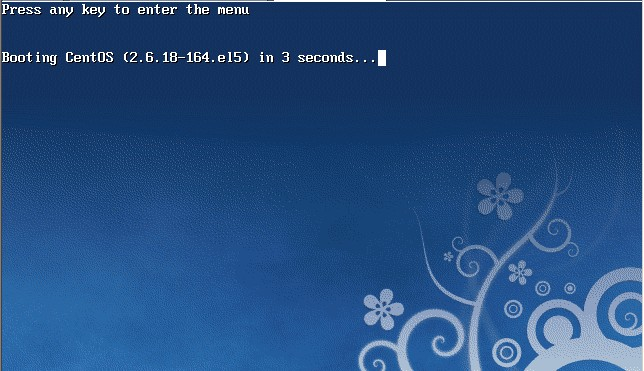
Within 3 seconds, press Enter. The following screen appears.
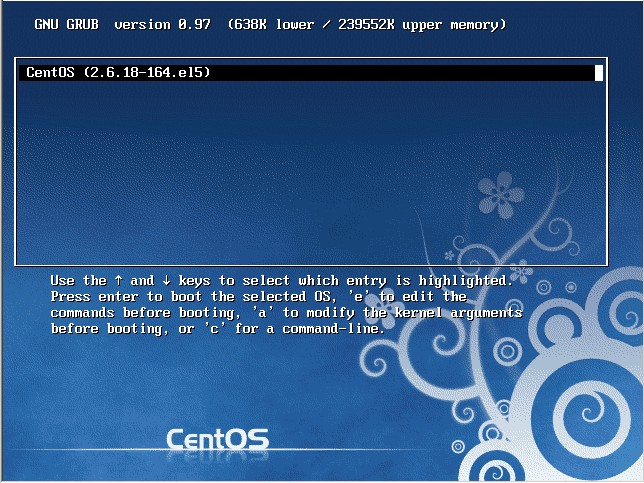
Then press e
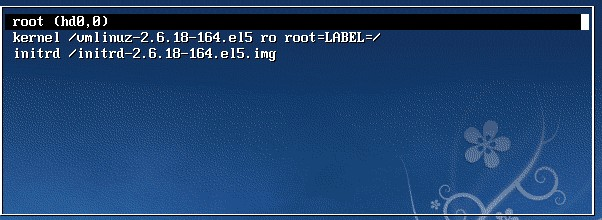
At the end of the second line, type "single" with a space. Specifically, press the down arrow to move to the second line, then press "e" to enter edit mode.

Add "single" at the end and press Enter.

Finally press "b" to boot. After booting, you will enter single-user mode.
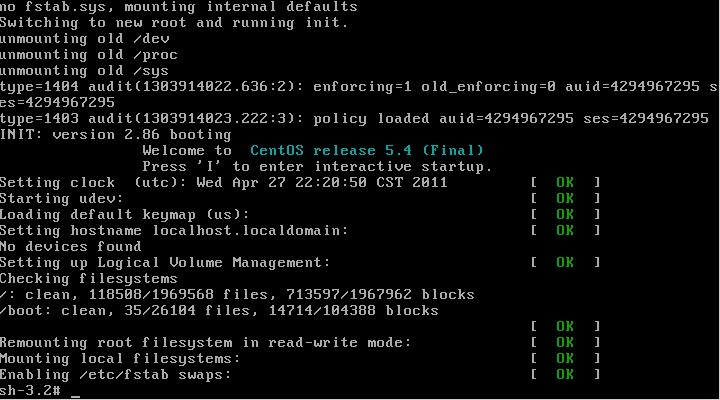
Now you have entered single-user mode and can change the root password. The command to change the password is passwd

【Use the rescue mode of the system installation CD】
Rescue mode is "rescue". This mode is mainly used when the system cannot be entered, such as when GRUB is damaged or a configuration file is modified incorrectly. How to use rescue mode?
Boot from the CD and press F5 to enter rescue mode.
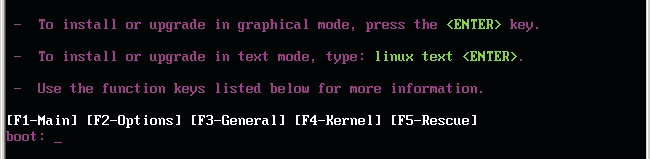
Type "linux rescue" and press Enter.

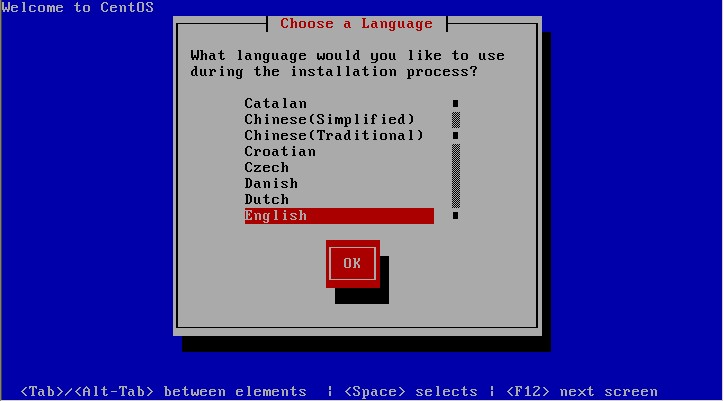
Choose a language. The author suggests you choose English.
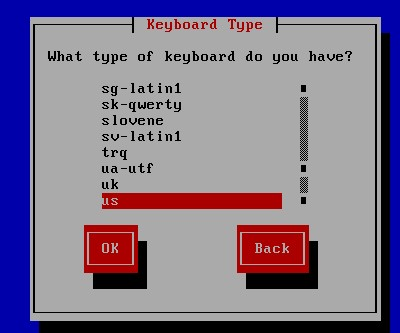
Select US keyboard.
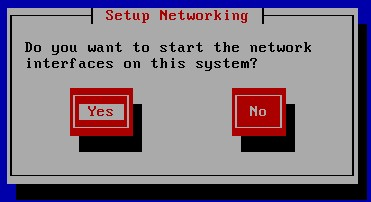
It asks whether to start the network. Sometimes you may need network debugging. We choose "No".
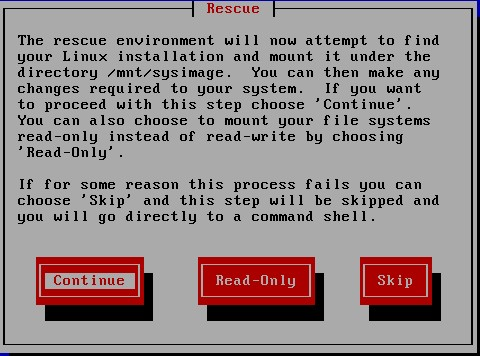
It tells us that the system will be mounted in /mnt/sysimage.
There are three options:
- "Continue" means to continue to the next step after mounting.
- "Read-Only" mounts as read-only, which is safer. Sometimes when the file system is damaged, read-only mode prevents further damage.
- "Skip" means not to mount and enter a command window mode.
Here we choose "Continue".
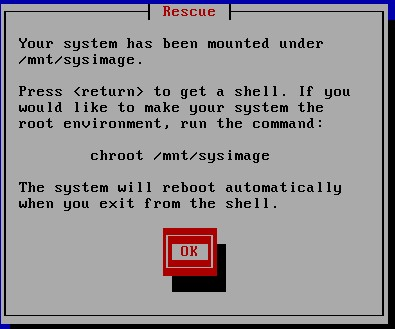
At this point, the system has been mounted in /mnt/sysimage. Next, press Enter, type "chroot /mnt/sysimage" to enter the administrator environment.

Tip:Actually, you can also change the root password in rescue mode. This rescue mode is very similar to the Windows PE system.
After running "chroot /mnt/sysimage/", then "ls" shows the directory structure is the same as the original system's directory structure.
That's right! The current environment is exactly the same as the original system. You can type "exit" or press Ctrl + D to exit this environment. Then run "ls" to see.
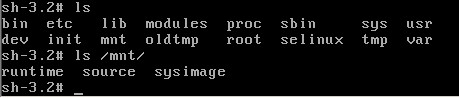
This directory is actually the directory structure under rescue mode, while all our system files are in the /mnt/sysimage directory.
Other Extensions