Claude Code Operating Instructions
Claude Code's input box is not a pure chat box, but a:
A converged terminal of AI + editor + command dispatcher
There are mainly three types of prefix triggers:
| Symbol | Type | Core function |
|---|---|---|
/ |
Command (command) | Execute built-in operations |
@ |
Context (context) | Reference files/code/directories |
! |
Bash mode | Directly execute terminal commands, stdout/stderr automatically injected into context |
# |
Memory (memory injection) | Persist content into the CLAUDE.md project memory, taking effect long-term across sessions, for example:#config.yaml |
& |
Async (asynchronous task) | Execute tasks asynchronously in the background/cloud, without blocking the current session. You can close the terminal and view progress at claude.ai/code |
\+Enter |
Multiline (multiline input) | Line breaks are not sent; write multiline content, and write long requirement descriptions all at once |
| No prefix | Natural language | Ordinary task instructions |
/-- Operational Commands (Most Important)
/is used to trigger built-in commands in Claude Code/The core symbol of the tool, similar to the command prefix of a terminal command line, is used to tell Claude to perform specific operations rather than simply generate text.
Core uses:Invoke built-in functions (such as code generation, file operations, environment execution, plugin calls, etc.).
/Immediately followed by the command keyword, with parameters after a space (e.g., file name, execution command, fix target, etc.), and is what Claude Code uses to distinguishnatural language conversationandcode operation instructionsthe key.
Entering/will pop up a command list:
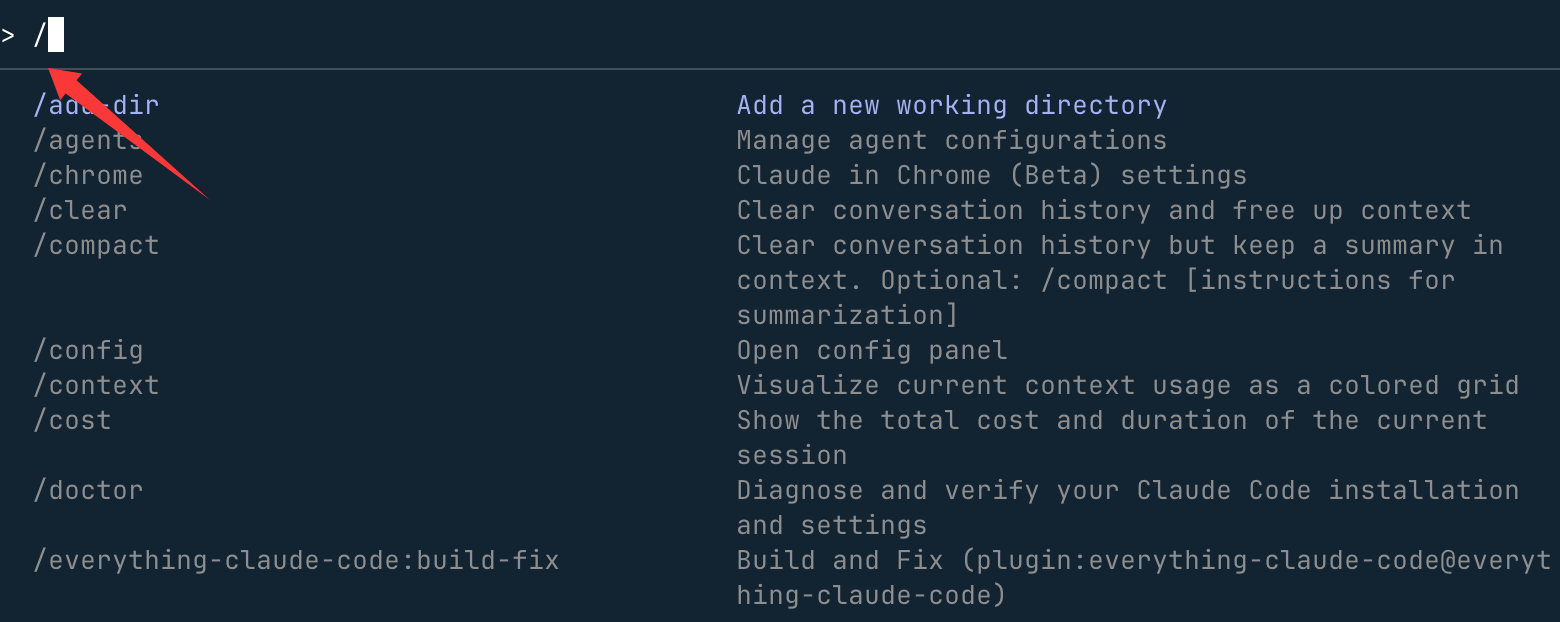
Common high-frequency commands:
| Command | Function |
|---|---|
/help |
View all capabilities |
/clear |
Clear conversation |
/plan |
Enter planning mode |
/model |
Switch model |
/context |
View context usage |
/export |
Export conversation |
/status |
Environment status |
/tasks |
Manage background tasks |
/theme |
Theme switching |
/memory |
Edit CLAUDE.md |
For example:
//plan 实现一个用户登录模块
@-- Context Injection
@Followed by a file name, it will actively suggest:
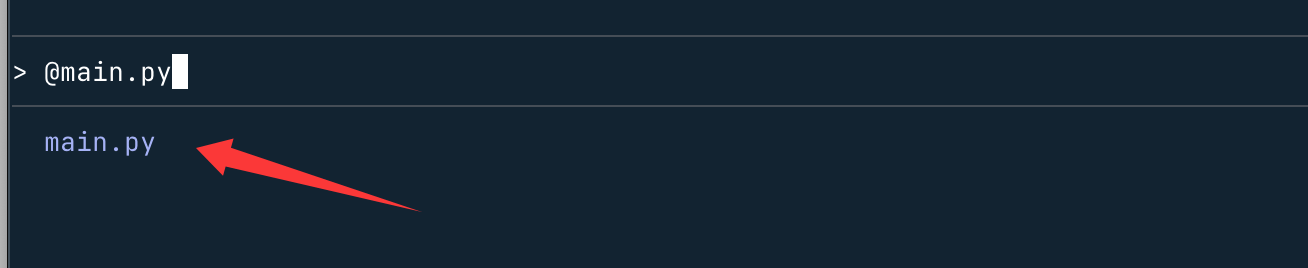
Reference a single file:
@main.py 帮我检查 bug
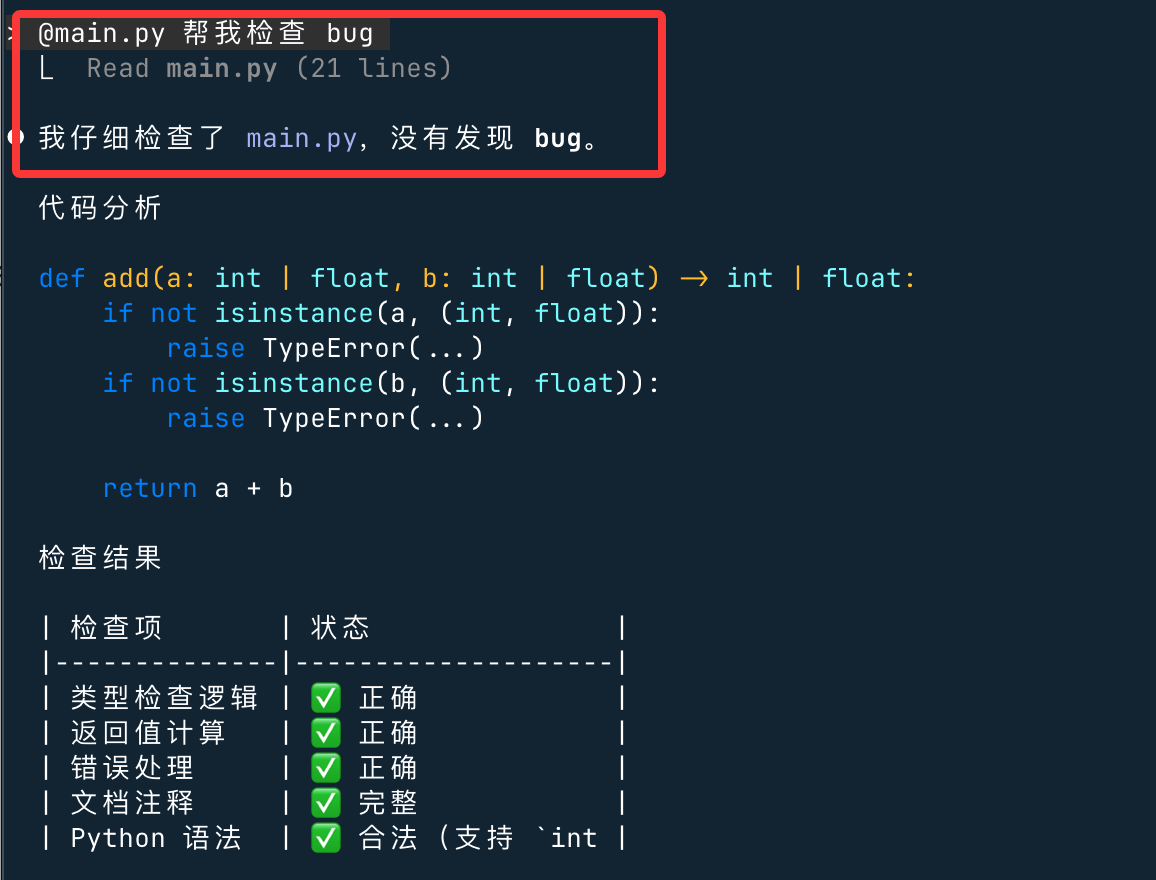
Reference multiple files:
@main.py @main2.py 这两个是否有重复逻辑?Referencing an entire directory@ + directory path:
@src/ 分析项目结构并给出优化建议
Reference an error log:
@npm-debug.log 找出失败原因
Claude will actually load the file content into the reasoning context.
!-- Bash Command
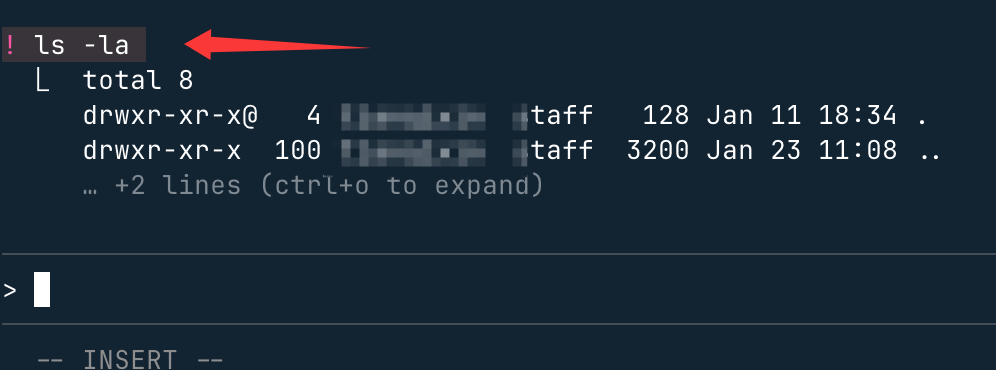
By adding before the input!Directly run bash commands, without needing to go through Claude, the format is:! + Bash 命令
Typing ! will prompt you to enter Bash command mode:

! ls -la
Vim Editor Mode
Use/vimcommand to enable Vim-style editing, or through/configpermanent configuration.
Mode Switching
| Command | Action | From mode |
|---|---|---|
Esc |
Enter NORMAL mode | INSERT |
i |
Insert before cursor | NORMAL |
I |
Insert at beginning of line | NORMAL |
a |
Insert after cursor | NORMAL |
A |
Insert at end of line | NORMAL |
o |
Open line below | NORMAL |
O |
Open line above | NORMAL |
Navigation (NORMAL mode)
| Command | Action |
|---|---|
h/j/k/l |
Move left/down/up/right |
w |
Next word |
e |
End of word |
b |
Previous word |
0 |
Beginning of line |
$ |
End of line |
^ |
First non-blank character |
gg |
Start of input |
G |
End of input |
f{char} |
Jump to next occurrence of character |
F{char} |
Jump to previous occurrence of character |
t{char} |
Jump to before next occurrence of character |
T{char} |
Jump to after previous occurrence of character |
; |
Repeat the last f/F/t/T action |
, |
Reverse repeat the last f/F/t/T action |
Editing (NORMAL mode)
| Command | Action |
|---|---|
x |
Delete character |
dd |
Delete line |
D |
Delete to end of line |
dw/de/db |
Delete word/to end/backward |
cc |
Change line |
C |
Change to end of line |
cw/ce/cb |
Change word/to end/backward |
yy/Y |
Copy (yank) line |
yw/ye/yb |
Copy word/to end/backward |
p |
Paste after cursor |
P |
Paste before cursor |
>> |
Indent line |
<< |
Unindent line |
J |
Join lines |
. |
Repeat last change |
Text Objects (NORMAL mode)
Text objects andd、candyoperators such as ... work together:
| Command | Action |
|---|---|
iw/aw |
Inner/around word |
iW/aW |
Inner/around WORD (space-separated) |
i"/a" |
Inner/around double quotes |
i'/a' |
Inner/around single quotes |
i(/a( |
Inner/around parentheses |
i[/a[ |
Inner/around square brackets |
i{/a{ |
Inner/around curly braces |
Command History
Claude Code maintains command history for the current session:
- History is stored per working directory
- Use
/clearcommand to clear - Use up/down arrows to navigate (see keyboard shortcuts above)
- Note: history expansion (
!) is disabled by default
Use Ctrl+R for reverse search
pressCtrl+RInteractively search your command history:
- Start search: Press
Ctrl+RActivate reverse history search - Type query: Enter text to search among previous commands - search terms will be highlighted in matching results
- Navigate matches: Press again
Ctrl+RCycle through older matches - Accept match:
- press
TaborEscAccept current match and continue editing - press
EnterAccept and immediately execute the command
- press
- Cancel search:
- press
Ctrl+CCancel and restore original input - Press
Backspaceon an empty search to cancel
- press
The search displays matching commands with search terms highlighted, making it easy to find and reuse previous input.
Background bash commands
Claude Code supports running bash commands in the background, allowing you to continue working while long-running processes execute.
How background execution works
When Claude Code runs a command in the background, it runs the command asynchronously and immediately returns a background task ID. Claude Code can respond to new prompts while the command continues executing in the background.
To run a command in the background, you can:
- Prompt Claude Code to run a command in the background
- Press Ctrl+B to move a regular Bash tool invocation to the background. (Tmux users must press Ctrl+B twice because of tmux's prefix key.)
Main features:
- Output is buffered, and Claude can retrieve it using the TaskOutput tool
- Background tasks have unique IDs for tracking and output retrieval
- Background tasks are automatically cleaned up when Claude Code exits
To disable all background task features, set theCLAUDE_CODE_DISABLE_BACKGROUND_TASKSenvironment variable to1。
Common background commands:
- Build tools (webpack, vite, make)
- Package managers (npm, yarn, pnpm)
- Test runners (jest, pytest)
- Development servers
- Long-running processes (docker, terraform)
Usage!Bash mode with prefix
By prefixing input with!Run bash commands directly without going through Claude:
! npm test
! git status
! ls -la
Bash mode:
- Adds the command and its output to the conversation context
- Shows real-time progress and output
- Supports the same
Ctrl+BRun long-running commands in the background - No need for Claude to interpret or approve commands
- Supports history-based autocomplete: type part of a command and pressTabfrom previous
!command completion
This is useful for quick shell operations while maintaining conversation context.
Key Descriptions
General Controls
| Shortcut | Description | Context |
|---|---|---|
Ctrl+C |
Cancel current input or generation | Standard interrupt |
Ctrl+D |
Exit Claude Code session | EOF signal |
Ctrl+G |
Open in default text editor | Edit your prompt or custom response in the default text editor |
Ctrl+L |
Clear the terminal screen | Preserve conversation history |
Ctrl+O |
Toggle verbose output | Show detailed tool usage and execution |
Ctrl+R |
Reverse search command history | Interactively search previous commands |
Ctrl+VorCmd+V(iTerm2) orAlt+V(Windows) |
Paste image from clipboard | Paste an image or the path to an image file |
Ctrl+B |
Run tasks in the background | Run bash commands and agents in the background. Tmux users press twice |
Left/Right arrows |
Cycle between dialog tabs | Navigate between tabs in permission dialogs and menus |
Up/Down arrows |
Navigate command history | Recall previous input |
Esc + Esc |
Undo code/conversation | Restore code and/or conversation to a previous state |
Shift+TaborAlt+M(some configurations) |
Toggle permission mode | Switch between auto-accept mode, Plan Mode, and normal mode |
Option+P(macOS) orAlt+P(Windows/Linux) |
Switch model | Switch model without clearing the prompt |
Option+T(macOS) orAlt+T(Windows/Linux) |
Toggle extended thinking | Enable or disable extended thinking mode. First run/terminal-setupto enable this shortcut |
Text Editing
| Shortcut | Description | Context |
|---|---|---|
Ctrl+K |
Delete to end of line | Store deleted text for pasting |
Ctrl+U |
Delete entire line | Store deleted text for pasting |
Ctrl+Y |
Paste deleted text | Paste usingCtrl+KorCtrl+Uthe deleted text |
Alt+Y(afterCtrl+Y) |
Cycle paste history | After pasting, cycle through previously deleted text. On macOS, requiresSet Option as Meta |
Alt+B |
Move cursor backward one word | Word navigation. On macOS, requiresSet Option as Meta |
Alt+F |
Move cursor forward one word | Word navigation. On macOS, requiresSet Option as Meta |
Themes and Display
| Shortcut | Description | Context |
|---|---|---|
Ctrl+T |
Toggle syntax highlighting for code blocks | Only in/themeWorks within the selector menu. Controls whether code in Claude's responses uses syntax coloring. |
Syntax highlighting is only available in the native build of Claude Code.
Multiline Input
| Method | Shortcuts | Context |
|---|---|---|
| Quick escape | \ + Enter |
Works in all terminals |
| macOS default | Option+Enter |
Default settings on macOS |
| Shift+Enter | Shift+Enter |
Works out of the box in iTerm2, WezTerm, Ghostty, and Kitty |
| Control sequences | Ctrl+J |
Newline characters for multiline |
| Paste mode | Direct paste | For code blocks, logs |
Shift+Enter works without configuration in iTerm2, WezTerm, Ghostty, and Kitty. For other terminals (VS Code, Alacritty, Zed, Warp), run/terminal-setupto install bindings.