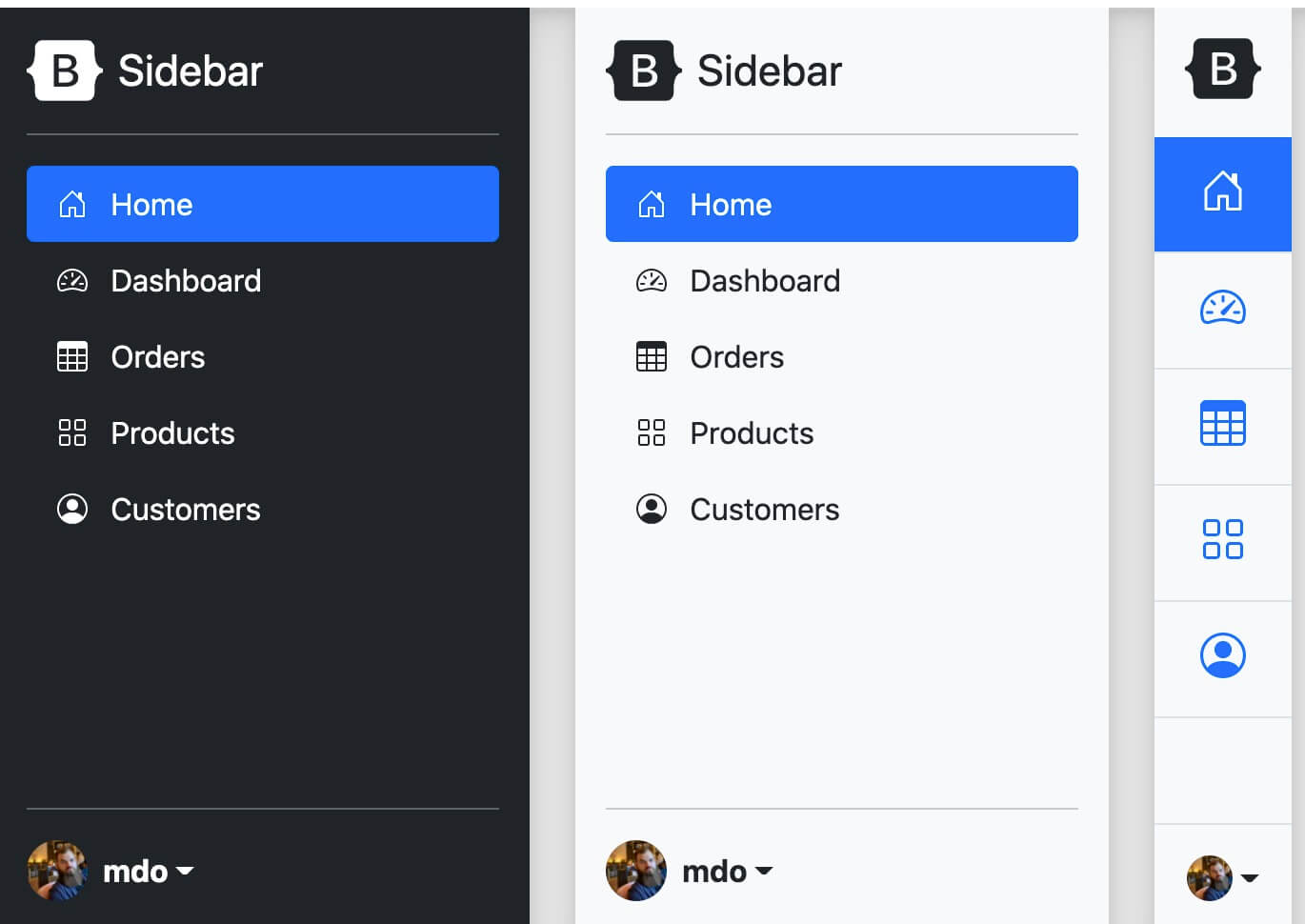
Bootstrap5 Sidebar Navigation (Offcanvas)
Bootstrap5 sidebar is similar to a modal box and is commonly used on mobile devices.
Create Sliding Navigation
We can use JavaScript to set whether to add after the.offcanvasclass, add the.showclass, thereby controlling the display and hiding of the sidebar:
.offcanvasHide content (Default).offcanvas.showShow content
You can use the a link'shrefattribute, or use the button element'sdata-bs-targetattribute to set the sidebar. Both cases require usingdata-bs-toggle="offcanvas"。
The example of creating sliding navigation is as follows:
Example
<a class="btn btn-primary" data-bs-toggle="offcanvas" href="#offcanvasExample" role="button" aria-controls="offcanvasExample">Use the link's href attribute</a>
<button class="btn btn-primary" type="button" data-bs-toggle="offcanvas" data-bs-target="#offcanvasExample" aria-controls="offcanvasExample">Use data-bs-target in the button</button>
<div class="offcanvas offcanvas-start" tabindex="-1" id="offcanvasExample" aria-labelledby="offcanvasExampleLabel">
<div class="offcanvas-header">
<h5 class="offcanvas-title" id="offcanvasExampleLabel">Sidebar</h5>
<button type="button" class="btn-close text-reset" data-bs-dismiss="offcanvas" aria-label="Close"></button>
</div>
<div class="offcanvas-body">
<div>
Some text as placeholder. In real life you can have the elements you have chosen. Like, text, images, lists, etc.
</div>
<div class="dropdown mt-3">
<button class="btn btn-secondary dropdown-toggle" type="button" id="dropdownMenuButton" data-bs-toggle="dropdown">
Dropdown button
</button>
<ul class="dropdown-menu" aria-labelledby="dropdownMenuButton">
<li><a class="dropdown-item" href="#">Action</a></li>
<li><a class="dropdown-item" href="#">Another action</a></li>
<li><a class="dropdown-item" href="#">Something else here</a></li>
</ul>
</div>
</div>
</div>
Sidebar Direction
The direction of the sidebar can be controlled by the following four classes:
.offcanvas-startDisplay on the left, as in the example above..offcanvas-endDisplay on the right.offcanvas-topDisplay at the top.offcanvas-bottomDisplay at the bottom
Example
<button class="btn btn-primary" type="button" data-bs-toggle="offcanvas" data-bs-target="#offcanvasTop" aria-controls="offcanvasTop">Top navigation bar</button>
<div class="offcanvas offcanvas-top" tabindex="-1" id="offcanvasTop" aria-labelledby="offcanvasTopLabel">
<div class="offcanvas-header">
<h5 id="offcanvasTopLabel">Displayed in the top navigation bar</h5>
<button type="button" class="btn-close text-reset" data-bs-dismiss="offcanvas" aria-label="Close"></button>
</div>
<div class="offcanvas-body">
...
</div>
</div>
Example
<button class="btn btn-primary" type="button" data-bs-toggle="offcanvas" data-bs-target="#offcanvasRight" aria-controls="offcanvasRight">Right sidebar</button>
<div class="offcanvas offcanvas-end" tabindex="-1" id="offcanvasRight" aria-labelledby="offcanvasRightLabel">
<div class="offcanvas-header">
<h5 id="offcanvasRightLabel">Displayed in the right sidebar</h5>
<button type="button" class="btn-close text-reset" data-bs-dismiss="offcanvas" aria-label="Close"></button>
</div>
<div class="offcanvas-body">
...
</div>
</div>
Example
<button class="btn btn-primary" type="button" data-bs-toggle="offcanvas" data-bs-target="#offcanvasBottom" aria-controls="offcanvasBottom">Bottom navigation bar</button>
<div class="offcanvas offcanvas-bottom" tabindex="-1" id="offcanvasBottom" aria-labelledby="offcanvasBottomLabel">
<div class="offcanvas-header">
<h5 class="offcanvas-title" id="offcanvasBottomLabel">Displayed in the bottom navigation bar</h5>
<button type="button" class="btn-close text-reset" data-bs-dismiss="offcanvas" aria-label="Close"></button>
</div>
<div class="offcanvas-body small">
...
</div>
</div>
Set the Background and Whether the Background is Scrollable
When the sidebar pops up, we can set<body>whether the element can scroll, and also set whether to display a backdrop canvas. Usedata-bs-scrollattribute to set<body>whether the element is scrollable,data-bs-backdropto toggle whether the backdrop canvas is displayed.
Example
<button class="btn btn-primary" type="button" data-bs-toggle="offcanvas" data-bs-target="#offcanvasScrolling" aria-controls="offcanvasScrolling">body element can scroll</button>
<button class="btn btn-primary" type="button" data-bs-toggle="offcanvas" data-bs-target="#offcanvasWithBackdrop" aria-controls="offcanvasWithBackdrop">Show backdrop canvas (Default)</button>
<button class="btn btn-primary" type="button" data-bs-toggle="offcanvas" data-bs-target="#offcanvasWithBothOptions" aria-controls="offcanvasWithBothOptions">Allow scrolling and show backdrop canvas</button>
<div class="offcanvas offcanvas-start" data-bs-scroll="true" data-bs-backdrop="false" tabindex="-1" id="offcanvasScrolling" aria-labelledby="offcanvasScrollingLabel">
<div class="offcanvas-header">
<h5 class="offcanvas-title" id="offcanvasScrollingLabel">Body content can scroll</h5>
<button type="button" class="btn-close text-reset" data-bs-dismiss="offcanvas" aria-label="Close"></button>
</div>
<div class="offcanvas-body">
<p>Scroll the page to see the effect.</p>
</div>
</div>
<div class="offcanvas offcanvas-start" tabindex="-1" id="offcanvasWithBackdrop" aria-labelledby="offcanvasWithBackdropLabel">
<div class="offcanvas-header">
<h5 class="offcanvas-title" id="offcanvasWithBackdropLabel">Use backdrop canvas</h5>
<button type="button" class="btn-close text-reset" data-bs-dismiss="offcanvas" aria-label="Close"></button>
</div>
<div class="offcanvas-body">
<p>Body content cannot scroll</p>
</div>
</div>
<div class="offcanvas offcanvas-start" data-bs-scroll="true" tabindex="-1" id="offcanvasWithBothOptions" aria-labelledby="offcanvasWithBothOptionsLabel">
<div class="offcanvas-header">
<h5 class="offcanvas-title" id="offcanvasWithBothOptionsLabel">Use backdrop canvas, body content can scroll</h5>
<button type="button" class="btn-close text-reset" data-bs-dismiss="offcanvas" aria-label="Close"></button>
</div>
<div class="offcanvas-body">
<p>Scroll the page to see the effect.</p>
</div>
</div>
Sidebar Examples
Other Extensions