Pandas CSV Files
CSV (Comma-Separated Values, sometimes also called character-separated values because the separator character does not have to be a comma) stores tabular data (numbers and text) in plain text files.
CSV is a common, relatively simple file format widely used by users, businesses, and science.
Pandas can handle CSV files very easily. Common methods include:
| Method Name | Description | Common Parameters |
|---|---|---|
pd.read_csv() | Read data from a CSV file and load it as a DataFrame | filepath_or_buffer(path or file object),sep(separator),header(header),names(custom column names),dtype(data types),index_col(index column) |
DataFrame.to_csv() | Write a DataFrame to a CSV file | path_or_buffer(target path or file object),sep(separator),index(whether to write the index),columns(specified columns),header(whether to write column names),mode(write mode) |
This article usesnba.csvas an example. You candownload nba.csvoropen nba.csvto view.
pd.read_csv() - Read CSV Files
read_csv() is the main method for reading data from a CSV file, loading the data into a DataFrame.
import pandas as pd

# 读取 CSV 文件,并自定义列名和分隔符
df = pd.read_csv('data.csv', sep=';', header=0, names=['A', 'B', 'C'], dtype={'A': int, 'B': float})
print(df)
Common read_csv parameters:
| Parameter | Description | Default Value |
|---|---|---|
filepath_or_buffer | The path to the CSV file or a file object (supports URL, file path, file object, etc.) | Required parameter |
sep | Defines the field separator. The default is a comma (,), which can be changed to other characters, such as a tab (\t) | ',' |
header | Specify the row number to use as the column header. The default is 0 (meaning the first row), or set toNoneno header | 0 |
names | Custom column names. Pass in a list of column names. | None |
index_col | The column number or column name of the column used as the row index. | None |
usecols | Read specified columns. Can be column names or column indices. | None |
dtype | Force columns to be converted to specified data types. | None |
skiprows | Skip a specified number of rows at the beginning of the file, or pass in a list of row numbers. | None |
nrows | Read the first N rows of data. | None |
na_values | Specify which values should be treated as missing values (NaN). | None |
skipfooter | Skip a specified number of rows at the end of the file. | 0 |
encoding | The encoding format of the file (such asutf-8,latin1etc.) | None |
Read the nba.csv file data:
Example
df = pd.read_csv('nba.csv')
print(df.to_string())
to_string()Used to return DataFrame type data. If this function is not used, the output result is the first 5 rows and the last 5 rows of the data, with the middle part replaced by...instead.
Example
df = pd.read_csv('nba.csv')
print(df)
              Name            Team  Number Position   Age Height  Weight            College     Salary
0    Avery Bradley  Boston Celtics     0.0       PG  25.0    6-2   180.0              Texas  7730337.0
1      Jae Crowder  Boston Celtics    99.0       SF  25.0    6-6   235.0          Marquette  6796117.0
2     John Holland  Boston Celtics    30.0       SG  27.0    6-5   205.0  Boston University        NaN
3      R.J. Hunter  Boston Celtics    28.0       SG  22.0    6-5   185.0      Georgia State  1148640.0
4    Jonas Jerebko  Boston Celtics     8.0       PF  29.0   6-10   231.0                NaN  5000000.0
..             ...             ...     ...      ...   ...    ...     ...                ...        ...
453   Shelvin Mack       Utah Jazz     8.0       PG  26.0    6-3   203.0             Butler  2433333.0
454      Raul Neto       Utah Jazz    25.0       PG  24.0    6-1   179.0                NaN   900000.0
455   Tibor Pleiss       Utah Jazz    21.0        C  26.0    7-3   256.0                NaN  2900000.0
456    Jeff Withey       Utah Jazz    24.0        C  26.0    7-0   231.0             Kansas   947276.0
457            NaN             NaN     NaN      NaN   NaN    NaN     NaN                NaN        NaN
df.to_csv() - Write DataFrame to CSV File
to_csv() is a method for writing a DataFrame to a CSV file. It supports settings such as custom delimiters, column names, and whether to include the index.
import pandas as pd

# 假设 df 是一个已有的 DataFrame
df.to_csv('output.csv', index=False, header=True, columns=['A', 'B'])
Common to_csv parameters:
| Parameter | Description | Default Value |
|---|---|---|
path_or_buffer | The path to the CSV file or a file object (supports file paths, file objects) | Required parameter |
sep | Defines the field separator. The default is a comma (,), which can be changed to other characters, such as a tab (\t) | ',' |
index | Whether to write the row index. Default isTruemeaning the index is written. | True |
columns | Specify the columns to write. Can be a list of column names. | None |
header | Whether to write column names. Default isTruemeaning column names are written. Set toFalsemeaning column names are not written. | True |
mode | The mode for writing the file. Default isw(write mode), can be set toa(append mode) | 'w' |
encoding | The encoding format of the file, such asutf-8,latin1wait | None |
line_terminator | Defines the line terminator. Default is\n | None |
quoting | Sets how to quote the data in the file (0-3; see the documentation for specific quoting methods.) | None |
quotechar | Sets the character used for quoting. The default is double quotes." | '"' |
date_format | Custom date format. If a column contains date data, you can use this parameter to specify the date format. | None |
doublequote | If set toTrue, then when writing, text containing quotes will be enclosed in double quotes. | True |
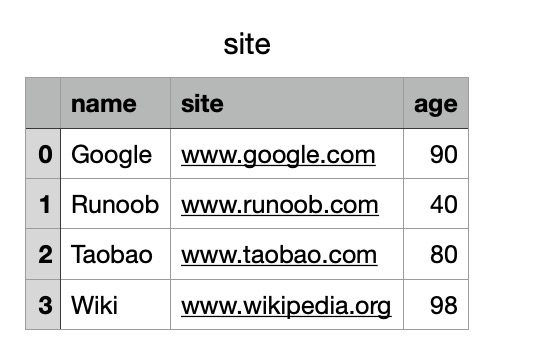
We can also use theto_csv()method to store the DataFrame as a CSV file:
Example
# Three fields: name, site, age
nme = ["Google", "Example", "Taobao", "Wiki"]
st = ["www.google.com", "www.example.com", "www.taobao.com", "www.wikipedia.org"]
ag = [90, 40, 80, 98]
# Dictionary
dict = {'name': nme, 'site': st, 'age': ag}
df = pd.DataFrame(dict)
# Save dataframe
df.to_csv('site.csv')
After successful execution, we open the site.csv file and the result is shown as follows:
Data Processing
head()
head( n )Method used to read the first n rows. If parameter n is not provided, it returns 5 rows by default.
Example - Read the first 5 rows
df = pd.read_csv('nba.csv')
print(df.head())
The output result is:
            Name            Team  Number Position   Age Height  Weight            College     Salary
0  Avery Bradley  Boston Celtics     0.0       PG  25.0    6-2   180.0              Texas  7730337.0
1    Jae Crowder  Boston Celtics    99.0       SF  25.0    6-6   235.0          Marquette  6796117.0
2   John Holland  Boston Celtics    30.0       SG  27.0    6-5   205.0  Boston University        NaN
3    R.J. Hunter  Boston Celtics    28.0       SG  22.0    6-5   185.0      Georgia State  1148640.0
4  Jonas Jerebko  Boston Celtics     8.0       PF  29.0   6-10   231.0                NaN  5000000.0
Example - Read the first 10 rows
df = pd.read_csv('nba.csv')
print(df.head(10))
The output result is:
            Name            Team  Number Position   Age Height  Weight            College      Salary
0  Avery Bradley  Boston Celtics     0.0       PG  25.0    6-2   180.0              Texas   7730337.0
1    Jae Crowder  Boston Celtics    99.0       SF  25.0    6-6   235.0          Marquette   6796117.0
2   John Holland  Boston Celtics    30.0       SG  27.0    6-5   205.0  Boston University         NaN
3    R.J. Hunter  Boston Celtics    28.0       SG  22.0    6-5   185.0      Georgia State   1148640.0
4  Jonas Jerebko  Boston Celtics     8.0       PF  29.0   6-10   231.0                NaN   5000000.0
5   Amir Johnson  Boston Celtics    90.0       PF  29.0    6-9   240.0                NaN  12000000.0
6  Jordan Mickey  Boston Celtics    55.0       PF  21.0    6-8   235.0                LSU   1170960.0
7   Kelly Olynyk  Boston Celtics    41.0        C  25.0    7-0   238.0            Gonzaga   2165160.0
8   Terry Rozier  Boston Celtics    12.0       PG  22.0    6-2   190.0         Louisville   1824360.0
9   Marcus Smart  Boston Celtics    36.0       PG  22.0    6-4   220.0     Oklahoma State   3431040.0
tail()
tail( n )Method used to read the last n rows. If parameter n is not provided, it returns 5 rows by default. For empty rows, the values of each field returnNaN。
Example - Read the last 5 rows
df = pd.read_csv('nba.csv')
print(df.tail())
The output result is:
             Name       Team  Number Position   Age Height  Weight College     Salary
453  Shelvin Mack  Utah Jazz     8.0       PG  26.0    6-3   203.0  Butler  2433333.0
454     Raul Neto  Utah Jazz    25.0       PG  24.0    6-1   179.0     NaN   900000.0
455  Tibor Pleiss  Utah Jazz    21.0        C  26.0    7-3   256.0     NaN  2900000.0
456   Jeff Withey  Utah Jazz    24.0        C  26.0    7-0   231.0  Kansas   947276.0
457           NaN        NaN     NaN      NaN   NaN    NaN     NaN     NaN        NaN
Example - Read the last 10 rows
df = pd.read_csv('nba.csv')
print(df.tail(10))
The output result is:
               Name       Team  Number Position   Age Height  Weight   College      Salary
448  Gordon Hayward  Utah Jazz    20.0       SF  26.0    6-8   226.0    Butler  15409570.0
449     Rodney Hood  Utah Jazz     5.0       SG  23.0    6-8   206.0      Duke   1348440.0
450      Joe Ingles  Utah Jazz     2.0       SF  28.0    6-8   226.0       NaN   2050000.0
451   Chris Johnson  Utah Jazz    23.0       SF  26.0    6-6   206.0    Dayton    981348.0
452      Trey Lyles  Utah Jazz    41.0       PF  20.0   6-10   234.0  Kentucky   2239800.0
453    Shelvin Mack  Utah Jazz     8.0       PG  26.0    6-3   203.0    Butler   2433333.0
454       Raul Neto  Utah Jazz    25.0       PG  24.0    6-1   179.0       NaN    900000.0
455    Tibor Pleiss  Utah Jazz    21.0        C  26.0    7-3   256.0       NaN   2900000.0
456     Jeff Withey  Utah Jazz    24.0        C  26.0    7-0   231.0    Kansas    947276.0
457             NaN        NaN     NaN      NaN   NaN    NaN     NaN       NaN         NaN
info()
The info() method returns some basic information about the table:
Example
df = pd.read_csv('nba.csv')
print(df.info())
The output result is:
<class 'pandas.core.frame.DataFrame'>
RangeIndex: 458 entries, 0 to 457          # 行数,458 行,第一行编号为 0
Data columns (total 9 columns):            # 列数,9列
 #   Column    Non-Null Count  Dtype       # 各列的数据类型
---  ------    --------------  -----
 0   Name      457 non-null    object
 1   Team      457 non-null    object
 2   Number    457 non-null    float64
 3   Position  457 non-null    object
 4   Age       457 non-null    float64
 5   Height    457 non-null    object
 6   Weight    457 non-null    float64
 7   College   373 non-null    object         # non-null,意思为非空的数据
 8   Salary    446 non-null    float64
dtypes: float64(4), object(5)                 # 类型
non-null means non-empty data. We can see from the information above that there are 458 rows in total, and the College field has the most null values.
Other Extensions